

When printing multi-sheet Excel workbooks, having continuous page numbers across all worksheets helps maintain professional formatting and makes it easier to reference printed pages. By default, Excel numbers pages independently per worksheet, so additional setup is needed to ensure sequential numbering across multiple sheets.
In this article, we’ll explore three effective methods to insert sequential page numbers across worksheets, including manual options through Excel’s Page Layout and Header/Footer features, and an automated approach using VBA. Let’s get started.
Steps to insert sequential page numbers across worksheets in Excel:
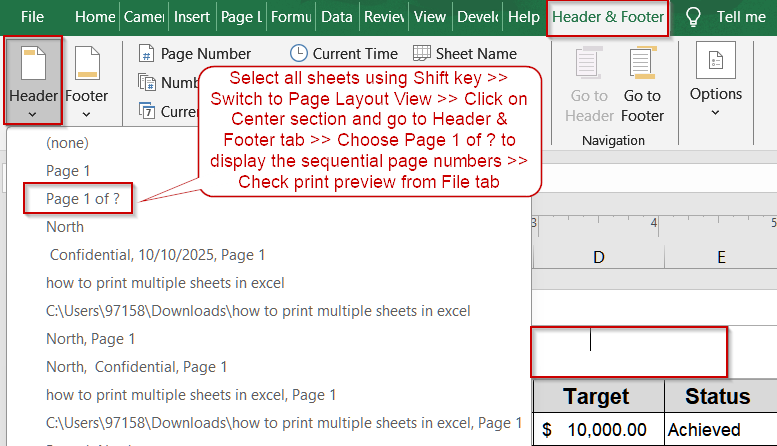
➤ Hold down the Shift key and select all the worksheets you want to include (for example, East, North and South). This ensures your changes apply to every sheet at once.
➤ Go to the Insert tab on the Ribbon.
➤ In the Text group, click Header & Footer to switch your worksheet view.
➤ Click inside the center section of the header (or choose another section if preferred). This is where your page number will appear.
➤ From the Header & Footer tab, click on Header dropdown and choose Page 1 of ?.
➤ Then, go to File >> Print to preview your workbook. You’ll notice the pages are now numbered sequentially across all selected sheets, for instance, Page 1 of 3, Page 2 of 3, and so on.
Using the Page Layout Tab to Apply Sequential Page Numbers Across Worksheets
When printing multi-sheet Excel workbooks, default page numbers restart on each worksheet, which can be confusing for references. Using the Page Layout tab, you can set continuous page numbers across multiple worksheets, ensuring professional, easy-to-follow printouts.
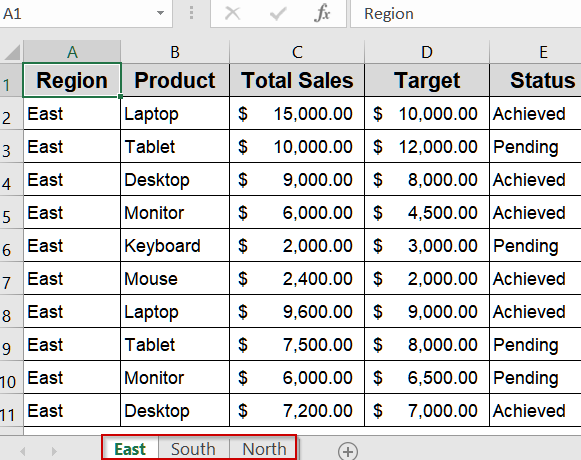
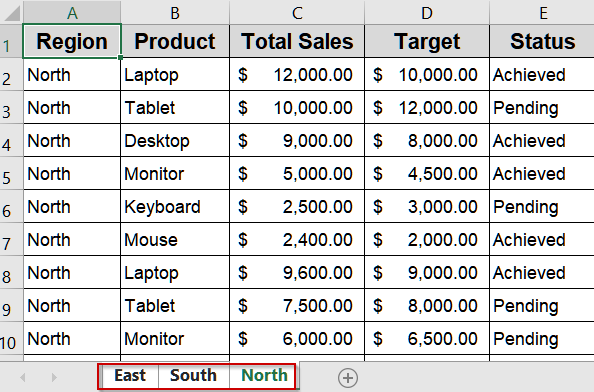
We’ll use the following workbook containing three sheets which presents sales data for specific regions like East, North and South:
Steps:
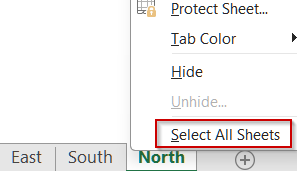
➤ Right-click one sheet tab at the bottom and choose Select All Sheets.
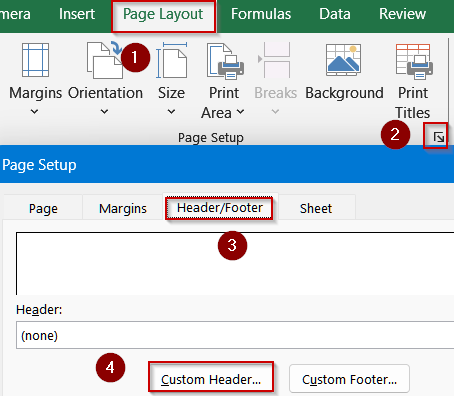
➤ Go to the Page Layout tab.
➤ Click the small arrow in the corner of the Page Setup group to open the Page Setup dialog box.
➤ Navigate to the Header/Footer tab.
➤ Click Custom Footer and select the section (Left, Center, or Right) where you want the page numbers.
➤ Type Page and click Insert Page Number, type a space, type of, type another space, then click Insert Number of Pages. You should see Page &[Page] of &[Pages].
➤ Click OK on the footer window, then OK on the Page Setup dialog box.
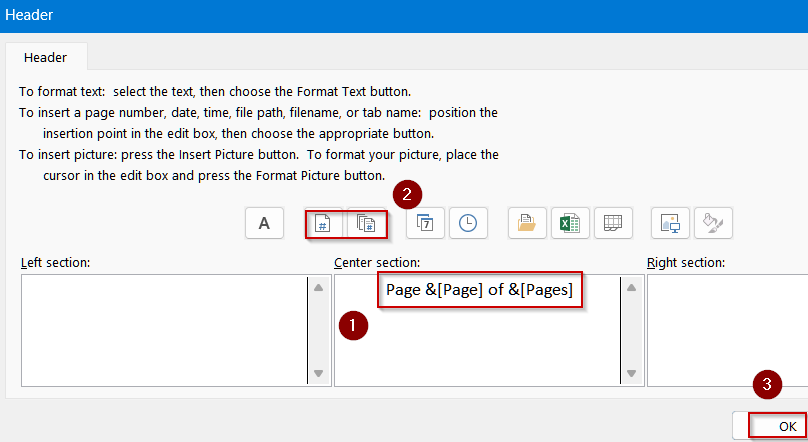
➤ Go to File >> Print to verify that page numbers continue sequentially across all selected worksheets.
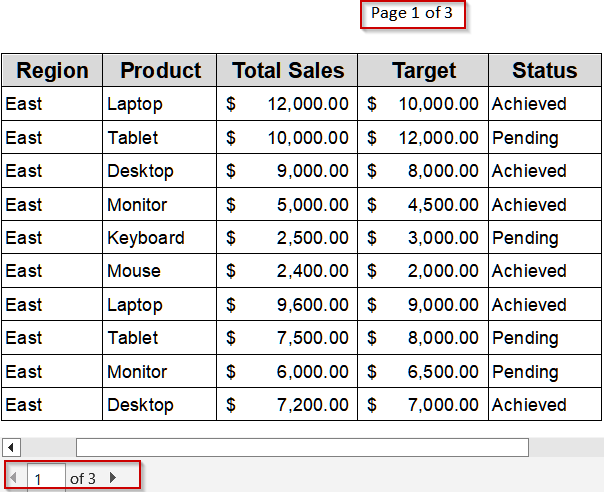
This ensures that your workbook prints with continuous page numbers, improving readability and consistency across all sheets.
Using Header/Footer Options to Insert Sequential Page Numbers Across Worksheets
If you want your Excel workbook to display page numbers that continue smoothly from one sheet to another, the Header & Footer tool is the most straightforward approach. This method lets you place page numbers exactly where you want them such as top, bottom, left, right, or center while keeping the numbering consistent across all selected worksheets.
Steps:
➤ Hold down the Shift key and select all the worksheets you want to include (for example, East, North and South). This ensures your changes apply to every sheet at once.
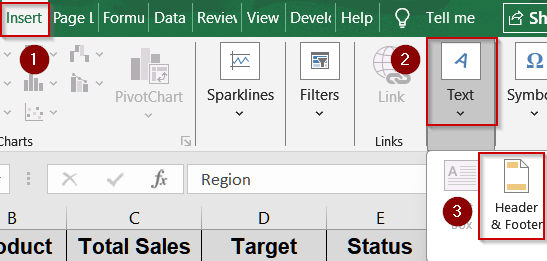
➤ Go to the Insert tab on the Ribbon.
➤ In the Text group, click Header & Footer to switch your worksheet view.
➤ Click inside the center section of the header (or choose another section if preferred). This is where your page number will appear.
➤ From the Header & Footer tab, click on Header dropdown and choose Page 1 of ?.
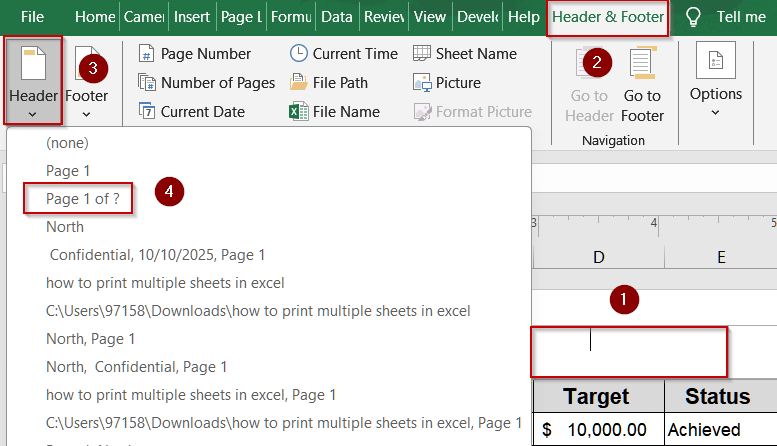
➤ Then, go to File >> Print to preview your workbook. You’ll notice the pages are now numbered sequentially across all selected sheets, for instance, Page 1 of 3, Page 2 of 3, and so on.
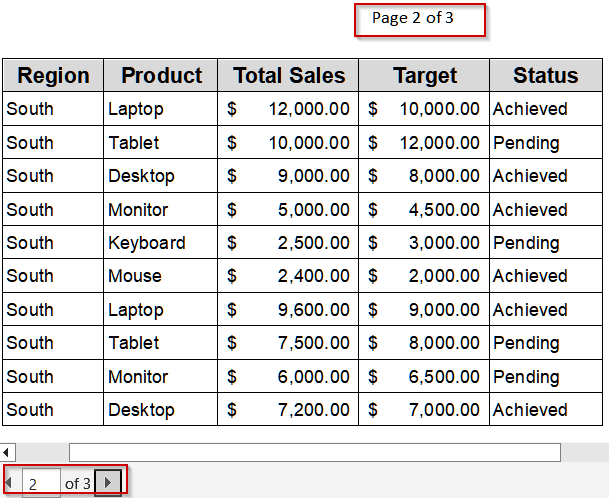
This method helps keep long reports or multi-sheet workbooks professional and easy to follow, especially when printing multiple sections together.
Automating Sequential Page Numbers Using VBA
Manually inserting page numbers for large workbooks with many sheets can be tedious. Using VBA, you can automatically apply continuous page numbers across all worksheets, saving time and eliminating errors. Our goal is to display the page number on top sequentially for each sheet.
Steps:
➤ Press Alt + F11 to open the VBA Editor.
➤ Go to Insert >> Module to create a new module where your macro will reside.
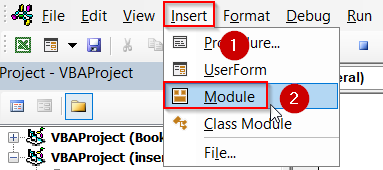
➤ Paste the following VBA code:
Sub Insert_Page_Text_and_Number_Top()
    Dim ws As Worksheet
    Dim sheetNames As Variant
    ' Define your sheet names
    sheetNames = Array("North", "South", "East")
    ' Loop through each sheet
    For Each ws In ThisWorkbook.Sheets(sheetNames)
        With ws.PageSetup
            .CenterHeader = "Page &P"  ' Displays as: Page 1, Page 2, etc.
        End With
    Next ws
End Sub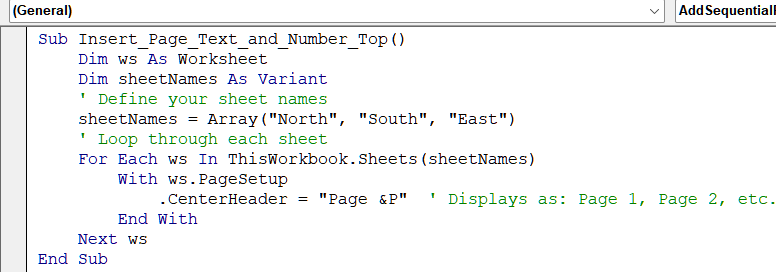
➤ Press F5 key to run the macro.
➤ Go to File >> Print to verify that page numbers are sequential across all worksheets.
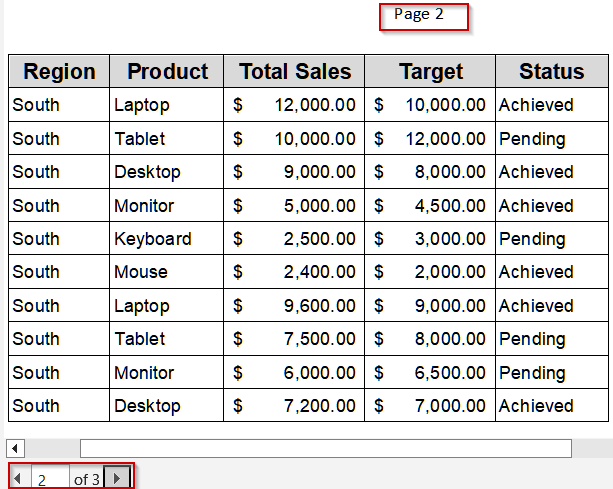
This method automates sequential numbering, ensuring consistency and saving significant time when working with large, multi-sheet Excel workbooks.
Downloadable Resources
Get our practice workbook or necessary files that we have worked with to prepare this article.
Sequential Page Numbers Across Sheets.xlsx
Frequently Asked Questions
How do I insert page numbers across multiple worksheets?
Select all sheets you want numbered, go to Page Layout >> Page Setup >> Header/Footer, create a custom footer, and insert the &[Page] and &[Pages] placeholders to apply sequential numbering across worksheets.
Can I start page numbering from a specific number?
Yes. In the Page Setup dialog box, under Format Page Numbers, you can set a custom starting number. This allows numbering to begin from any page, such as page 0 or a later sheet.
How do I verify sequential page numbers before printing?
Go to File >> Print to preview your workbook. All selected worksheets will display sequential page numbers in the footer. Adjust page setup or footer if any numbers are not continuous.
Is it possible to automate page numbering for many sheets?
Yes. You can use a VBA macro to automatically insert sequential page numbers across multiple worksheets. This method is efficient for large workbooks and ensures consistent numbering without manual adjustments.
What is the difference between header and footer page numbering?
Header page numbers appear at the top of the sheet, while footer numbers appear at the bottom. Both can include placeholders like &[Page] and &[Pages] for dynamic sequential numbering across worksheets.
Wrapping Up
In this tutorial, we explored three methods to insert sequential page numbers across multiple Excel worksheets. Whether using the Page Layout tab, Header/Footer options, or VBA automation, you can ensure professional, continuous numbering for all printed sheets. Feel free to download the practice file and share your feedback.


