In finance, the discount factor helps calculate the present value of future cash flows. For example, if you are receiving a disbursement per year against an investment, you would want to know what that payment would be worth in today’s price because the value of money will decrease in a year. In order to make informed financial decisions, calculating the present value is a must, and you need a discount factor to do that. In this article, we will learn how to calculate the discount factor in Excel.
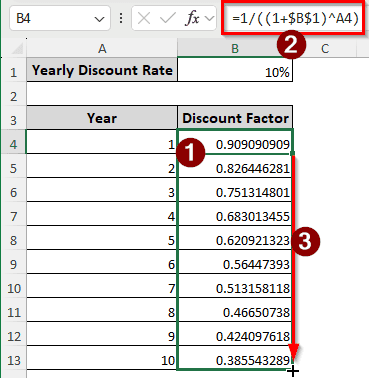
➤ Use the following formula to calculate the yearly discount factor:
=1/((1+$B$1)^A4)
➤ Replace $B$1 with the discount rate, and A4 with the current year count.
➤ Drag the formula down using the autofill handle to calculate the discount factor for multiple years in a table.
Calculating the discount factor is the prerequisite for calculating the present value of a series of cash flows. In this tutorial, we will explore three methods for calculating the discount factor, allowing you to select the one that best suits your requirements.
What is the Discount Factor?
Imagine you made an investment of $1000 in a project that will provide $100 per year for 12 years. You might think that you are receiving $1200 against $1000, so that’s pretty profitable. On the surface, that is true, but it might not be true in a broader perspective. According to the time value of money theory, the worth of a certain amount of money gets reduced as time goes by. This occurs due to various reasons, including inflation and opportunity cost.
To battle this, we need to calculate the present value of the future cash flows, like the $100 you will receive per year against the $1000 investment. The discount factor is a factor we multiply the future cash flow by to calculate the present value. We need a discount rate to start the calculation, then the rate is compounded on a yearly basis to calculate the factor that the future cash flow should be multiplied by. The formula for calculating the discount factor is as follows:
Discount Factor = 1 / (1 x (1 + Discount Rate) ^ Period Number)
Calculating the Yearly Discount Factor in Excel
We have the yearly discount rate and a table with 10 years to calculate the discount factor for each year. Even though Excel does not have a dedicated function for calculating the yearly discount factor, the formula is relatively easy, and we can calculate the discount factor in one go.
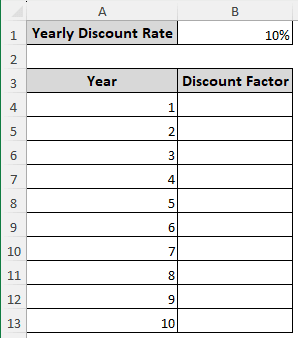
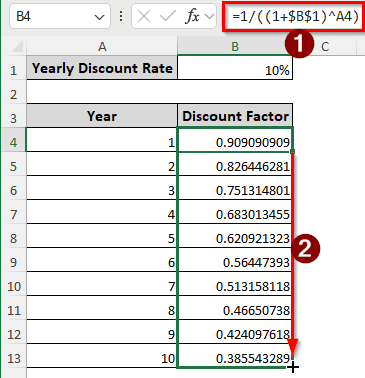
➤ Use the following formula in the B4 cell, then autofill till the B13 cell to calculate the yearly discount factor for all 10 years:
=1/((1+$B$1)^A4)
Measuring Periodic Discount Factor
Sometimes, instead of calculating the discount factor for a year, we have to calculate the discount factor for multiple periods in a year. For example, if the cash flow is discounted on a semiannual, quarterly, or monthly basis, we will need to calculate the periodic discount factor.
On first glance, this might look simple. Why not just divide the yearly value by 12 to calculate the monthly factor? The issue with the discount factor is that it’s never constant. Instead, when we calculate the periodic discount factor, we need to compound it per period. Hence, for a monthly discount factor, the compounding is done per month. We need to use a completely different formula for that.
Here, we have the yearly discount rate and the number of periods per year. It uses 4 periods; therefore, we have to calculate the quarterly discount factor. Follow the steps below to do it:
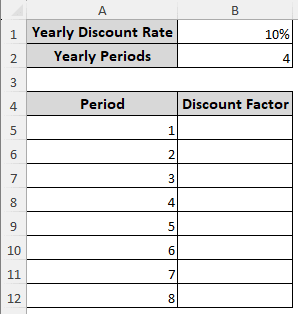
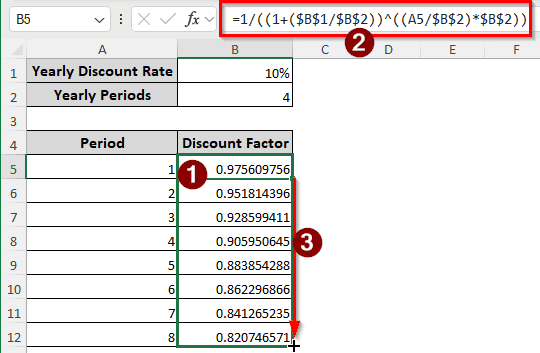
➤ Use the following formula in the B5 cell, and autofill till B12:
=1/((1+($B$1/$B$2))^((A5/$B$2)*$B$2))
Using Excel VBA to Calculate the Discount Factor
Instead of using these manual formulas, we can create our own function in Excel using VBA to calculate the discount factor. We won’t need to care about missing a mathematical symbol this way, and using a dedicated function is less error-prone. Follow the instructions below:
➤ Press Alt + F11 to open Visual Basic.
➤ On the top menu bar, select Insert > Module.
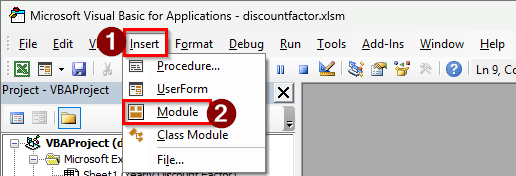
➤ A code editor will open. Insert the following code in the editor:
Function DF(AnnualRate As Double, CurrentPeriod As Double, Optional PeriodsPerYear As Double = 1) As Double
Dim PeriodRate As Double
Dim t As Double
PeriodRate = AnnualRate / PeriodsPerYear
t = CurrentPeriod / PeriodsPerYear
DF = 1 / (1 + PeriodRate) ^ (t * PeriodsPerYear)
End Function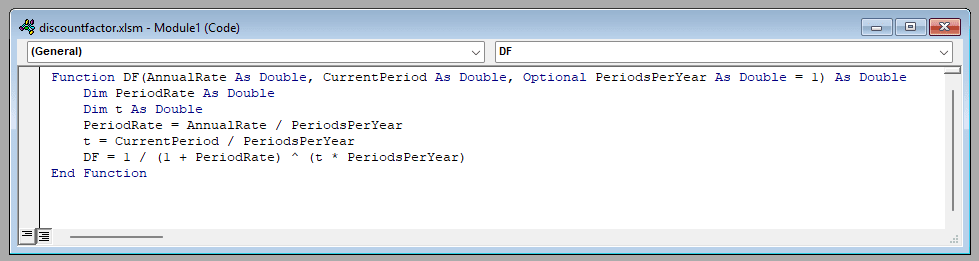
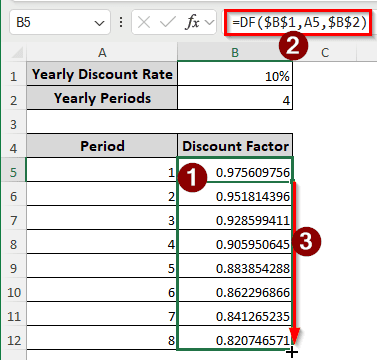
➤ Go back to the worksheet, insert the following function into the desired cell, and autofill:
=DF($B$1,A5,$B$2)
Frequently Asked Questions
How to calculate a discount in Excel?
To calculate the price of a product after discounting it, you can use the following formula in Excel:
=A1*(1-B1)
Here, A1 is the price of the product before the discount, and B1 is the discount rate.
How to use the discount factor in Excel?
Create a table to calculate the present values according to the future cash flows of the respective years. Then, multiply the future cash flow by the discount factor of that year to calculate the present value of that particular cash flow.
How to calculate the discount formula with an example?
If you have the discounted value and the original value of something, you can calculate the discount amount using the following formula in Excel:
=((A1-B1)/A1)*100
Here, A1 is the price before the discount, and B1 is the price after the discount.
Can ChatGPT build a DCF?
Yes, ChatGPT can definitely build a DCF. If you are comfortable with sharing your private financial information with ChatGPT and don’t want to learn how to manually calculate the DCF, you can ask ChatGPT to build a DCF. In most cases, ChatGPT will build a decent enough DCF for your tasks.
When to use DCF vs NPV?
These two are not directly comparable. DCF is what you calculate in order to calculate the NPV. In NPV calculation, you calculate the discounted cash flow of each year you receive the benefits of an investment.. Then you add the DCFs and subtract the initial investment to calculate the NPV. If you only need the actual value of the investment, use DCF. To know whether the investment is worth it, calculate NPV using the DCF.
Wrapping Up
If you have read the article while paying close attention, you have learned everything about discount factors by now. You can now calculate discount factors in Excel at ease using the methods we mentioned in this article. Download the Excel file provided with the tutorial to see the formulas in action. We will see you in another article.