Calculating the future value of an annuity helps you measure the value of a series of payments over time. For example, if you open a DPS account at a bank, you will be required to pay a specific amount in installments over a few years. You would want to know how much you will receive after the deposit matures. By doing the future value of annuity calculation in Excel, you will learn about the amount of money you are entitled to receive from your DPS. In this article, we will learn the future value of an annuity formula in Excel.
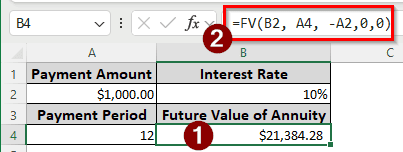
➤ Use the following formula to calculate the future value of an annuity in Excel:
=FV(B2, A4, -A2,0,0)
➤ Replace B2 with the interest rate, A4 with the payment period, and A2 with the payment amount.
➤ Replace the final 0 to 1 for an annuity due.
➤ Divide B2 by 12 and multiply A4 by 12 to calculate with monthly compounding.
In this article, we will learn to calculate all types of future value of annuity calculations in Excel, including dedicated functions and manual methods. Download the Excel file provided with this article and follow along.
What is the Future Value of an Annuity?
The future value of an annuity calculates the value of a series of payments using an interest rate to calculate the value it will be worth in the future when compounded. Imagine you are investing a specific amount per year in a project. After a specific number of years, you will get a return on your investment. The future value of an annuity is the return plus your investment.
There are three types of future value of an annuity. One is when the payments are made at the end of the period, also known as the regular annuity. When you do the payment at the beginning of the month, it is called an annuity due. The uncommon type of the future value of an annuity is the growing annuity, where it is assumed that the payment grows at another growth rate constantly, other than the interest rate.
Calculating Future Value of an Annuity Using the FV Function
We need the payment amount, interest rate, and payment periods to calculate the future value of an annuity. Here are all the uses of the FV function for annuity calculation.
Assessing the Regular Annuity
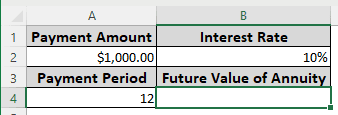
The FV function is a dedicated financial function provided by Excel to calculate the future value of an annuity. We are going to use this function to calculate the future value of an annuity.
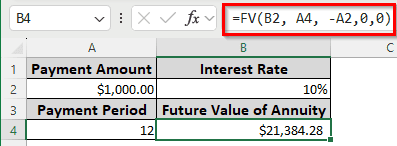
➤ In the B4 cell, write the following formula to calculate the future value of an annuity:
=FV(B2, A4, -A2,0,0)
Using the Monthly Compounding Variation
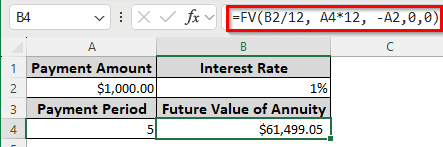
The previous method was for yearly interest, but what if you deposit the money per month? In that case, you will want to use the following methods. The table has been slightly changed to reflect a real-world scenario.
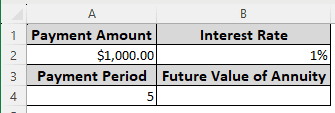
➤ Enter the following formula in the B4 cell:
=FV(B2/12, A4*12, -A2,0,0)
Computing Future Value of an Annuity Due
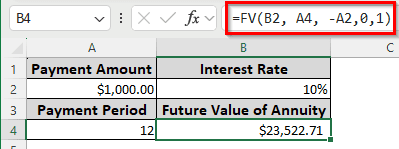
This method is similar to the first one, with a slight change in the formula. Follow the instructions below:
➤ Insert the following formula in the B4 cell:
=FV(B2, A4, -A2,0,1)
Note:
To calculate the annuity due with monthly compounding, divide the interest rate by 12 and multiply the payment period by 12, like the previous method.
Finding the Future Value of an Annuity Using Mathematical Expressions
Instead of using the dedicated function provided by Excel, you can use the good old mathematical formulas to calculate the future value. We will be using the datasets we have used for the FV function.
Deriving the Regular Annuity
Follow the instructions below to calculate the future value of an annuity using only mathematical expressions.
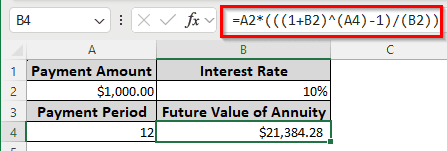
➤ Use the following formula in the B4 cell for the calculation:
=A2*(((1+B2)^(A4)-1)/(B2))
Estimating the Annuity with Monthly Compounding
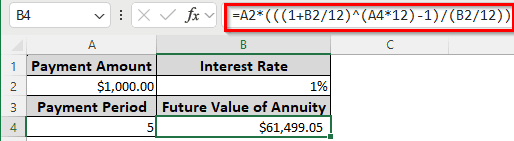
➤The mathematical formula needs some changes to adapt to the monthly calculation. Here is how to do it:
=A2*(((1+B2/12)^(A4*12)-1)/(B2/12))
Note:
To calculate with a biannual or quarterly compounding, use 6/4 instead of 12 to multiply/divide. This applies to the FV function as well.
Measuring the Annuity Due
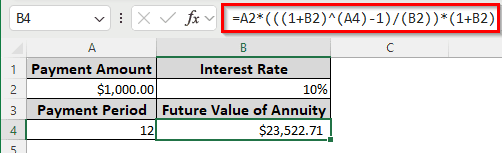
To calculate the annuity due, we have to add a small section to the formula. Look at the following demonstration:
➤ Here is the formula to calculate annuity due manually:
=A2*(((1+B2)^(A4)-1)/(B2))*(1+B2)
Projecting the Future Value of a Growing Annuity
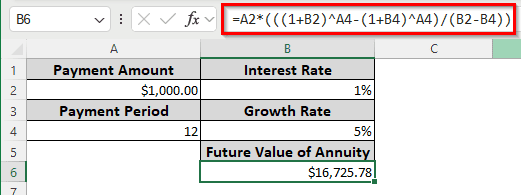
There is no Excel function for the future value of a growing annuity. To calculate this, we have no other option but to use a manual formula. To calculate this, we added another column to the source table with the growth rate. Let’s calculate the growing annuity with this data:
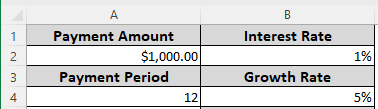
➤ Insert the following formula to calculate to project the future value of a growing annuity:
=A2*(((1+B2)^A4-(1+B4)^A4)/(B2-B4))
Frequently Asked Questions
How to use PV and FV in Excel?
Both of the functions have similar syntax in Excel. The syntax is as follows:
=PV(rate, nper, pmt, [fv], [type])
In case you want to calculate FV, the PV and [fv] in this function will switch places. Here, rate is the interest rate, nper is the payment period, pmt is the payment amount, and [type] indicates whether it’s annuity due or not. For type, 0 is for a regular annuity, and 1 is for an annuity due. If you mention pmt, [fv] is not required, and vice versa.
How to forecast future values in Excel?
Excel has a dedicated FORECAST function for that. The formula can be written like the following:
=FORECAST(DATE(2024, 1, 1), B$2:B$13, A$2:A$13)
Here, the first parameter is the date you are forecasting for, the second parameter is the previous data, and the third parameter is the previous dates.
When to use PMT vs PV?
PMT is the small payments you make or receive against a loan or investment. PV is the present value of the whole payment or investment.
How do you calculate PV with uneven cash flows?
Calculate the present values first, then sum them up using the SUM function. The formula can be as follows:
=SUM(A1:A10)
Here, the only parameter contains the range of the present values.
Why is my FV negative in Excel?
You must include the PMT/PV as a negative value as the input, else the FV will show up in negative. That is because Excel considers the payment amount as a negative value by default, as those are supposed to be outflows of cash. If you don’t insert them as negative, Excel will make the result negative.
Wrapping Up
In this article, we have learned all the methods to calculate the future value of an annuity in Excel. We hope that the formulas will be sufficient for you to apply to your financial sheet. In case you are having trouble with them, leave a comment below to make us aware of your situation. Make sure to come back for more Excel tutorials.