

You may often work with excel sheets with unnecessary zeros. But it definitely feels very distracting, isn’t it? Zeros everywhere can make your report look messy. Sometimes, there might be some hiding zeros that affect the formula and result.
So, leaving cells blank instead of forcing zeros or text is like giving your data room to breathe. And trust me, when you present a report that looks clean and intentional, your audience will give it more value. Therefore, your calculations won’t have any errors.
Well, now let’s explore all the clever ways you can leave cells blank in Excel when there’s no data.
➤ Go to cell D2.
➤ Remove the previous formula and enter the following formula:
=IF(B2=0,””,B2*C2)
➤ Press Enter and drag the AutoFill Handle down to cell D11.

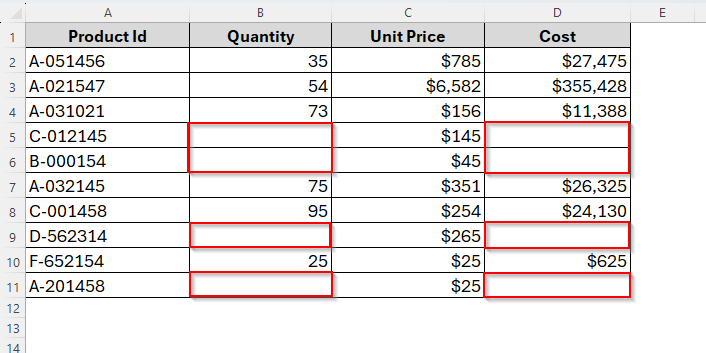
It will leave the cells blank when there’s no data in the corresponding cells from column B. Now let’s dig deeper into the further discussion.
Leaving a Cell Blank If No Data Using IF Formula
The IF formula would be the most straightforward way. It gives you total control over the formula. The IF function first checks if a cell has data before showing it. So, it’s a reliable way to create blank cells when there’s no data.
However, here we’ve a dataset including Product Id, Quantity, Unit Price and Cost. To find out the total cost, we have multiplied Column B with Column C. But there are some cells including 0 in column B and when we multiply, the results in column D are also 0.
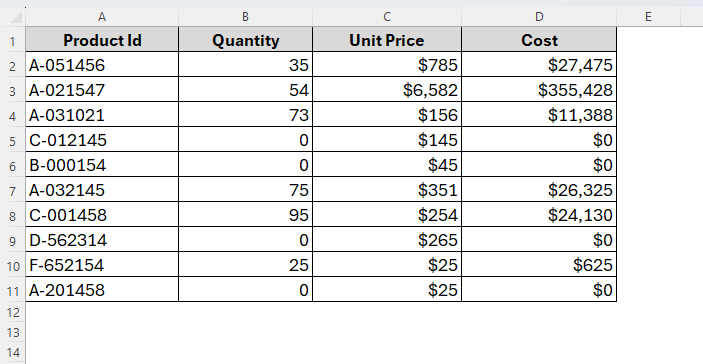
Hence we don’t want to show 0, but leave it just blank. To do so, all we need to do is just apply the IF formula. Below are the steps to follow.
Steps:
➤ Click on the cell D2. Delete the previous formula =B2*C2.
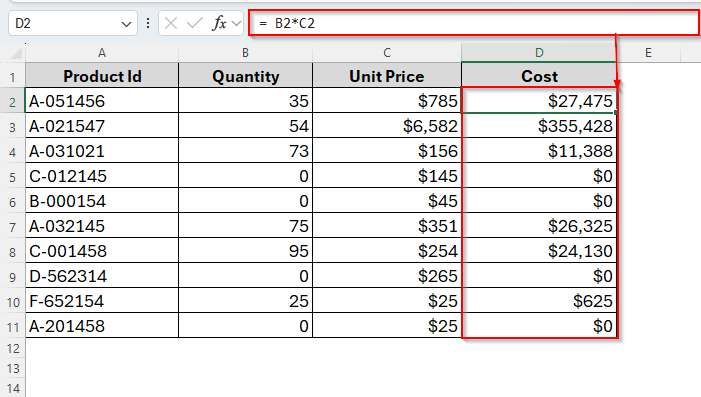
➤ Now in the same cell, instead of =B2*C2, use
=IF(B2=0,"",B2*C2)
➤ Tap Enter and apply the same formula throughout the column by dragging down the AutoFill Handle.
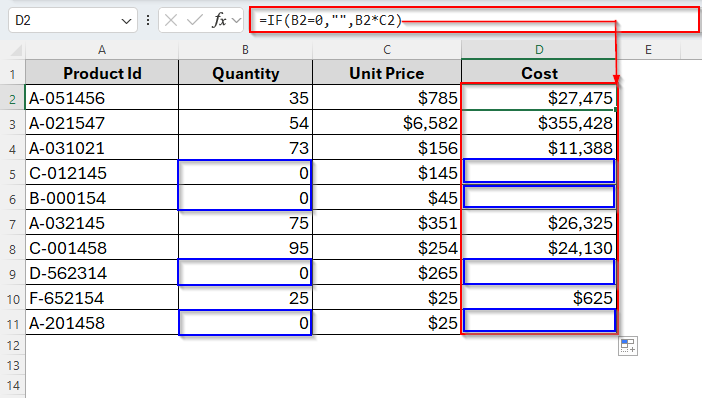
For Products showing Quantity = 0 in column B, now the formula leaves the Cost cell blank instead of showing $0.
Combining IF with ISBLANK to Leave a Cell Blank in Excel with No Data
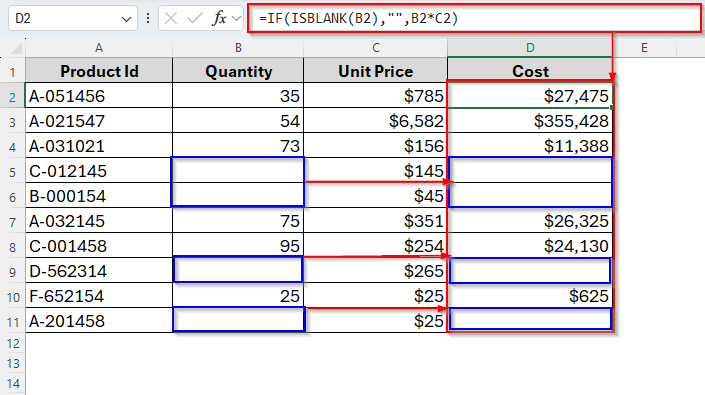
Another useful method to leave cells blank in excel is to combine the IF with the ISBLANK formula. It will create blank cells if the corresponding cells are 0 or simply blank as a few cells from column B are blanks.
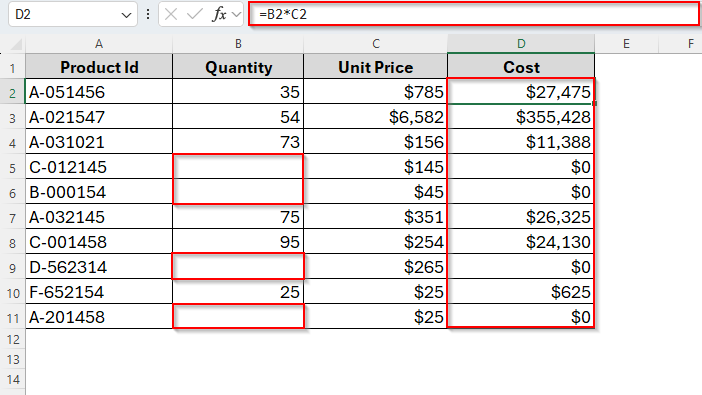
Let’s see how it goes.
Steps:
➤ Choose the cell D2 and remove the existing formula.
➤ Now insert the following formula:
=IF(ISBLANK(B2),"",B2*C2)
➤ Hit the Enter key and see, the corresponding cells in column D are also blank now.
Use IF with ISNUMBER to Make a Cell Blank If There’s No Data
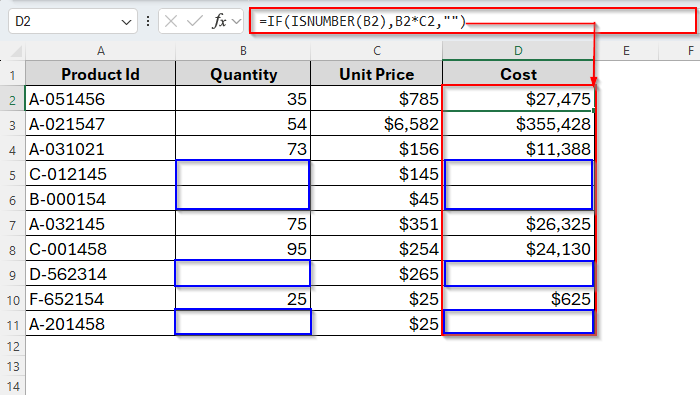
Let’s say your data source might have text, errors, or blanks. You can check if the value is numeric before calculating.
For example, if Quantity is a valid number, then it’ll do the multiplication. And if not, leave it blank. Here’s how it works.
Steps:
➤ Like the previous methods, remove any existing formula in column D.
➤ Then type the formula as below in cell D2.
=IF(ISNUMBER(B2),B2*C2,"")
➤ Press Enter. Now the corresponding cells in Column D are also blank as cells from Column B.
Hide Zeros with Excel Settings to Leave the Cell Blank
If you already have zeros everywhere but don’t want to re-write formulas, Excel has a built-in option. You can just simply hide the zeros and leave cells blank.
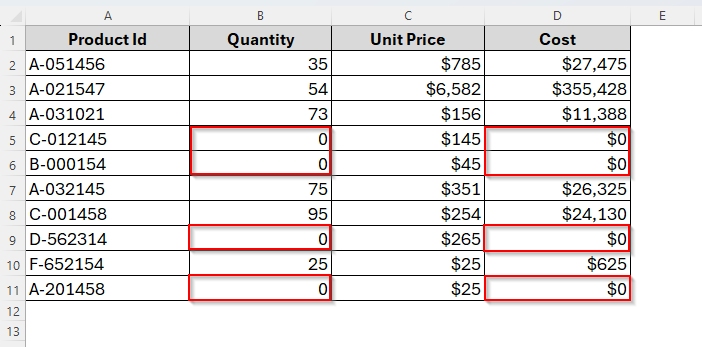
To do so, following are the steps to get through.
Steps:
➤ Go to File and choose Options from the bottom right corner of the page.
➤ Now go to Advanced → Display options for this worksheet and uncheck Show a zero in cells that have zero value.
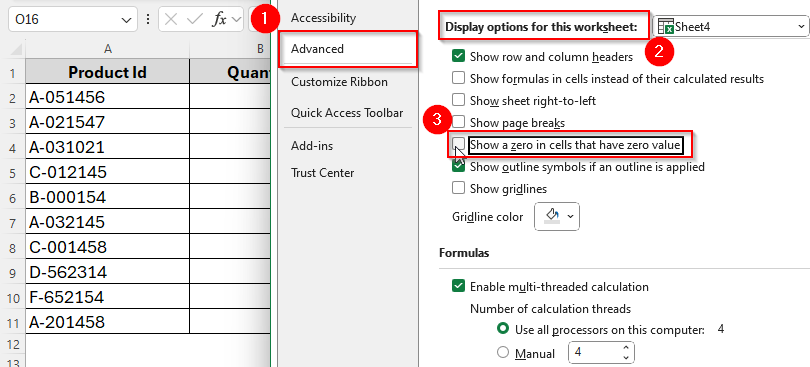
➤ Click Ok and return to your sheet. Now, as you can see in the following image, all cells having zeros are now blank.
Use Custom Number Formatting for Blank Cells If No Data
This is another effective way to create blank cells without applying any formula. Format Cells is a built-in function in excel that allows you to format your data in each cell as required. With this, we can also customize the cells from zero to blanks. Here are the steps to follow.
Steps:
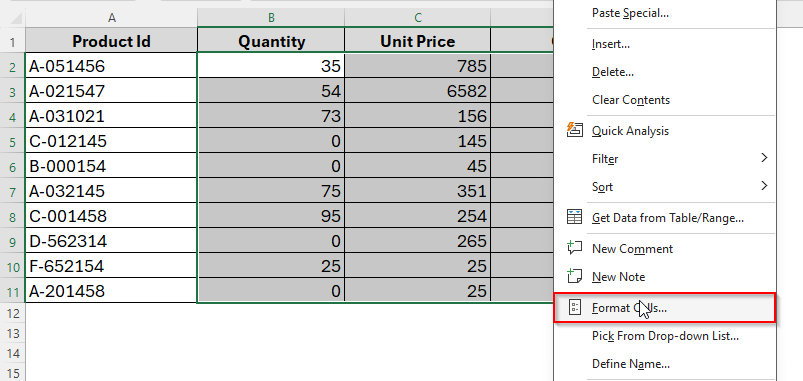
➤ To begin with, select data from B1 to D11. Then right click on the selection and choose Format Cells from the menu.
➤ Navigate to Custom and click General. Inside the typing box, remove General and retype the format:
0;-0;;@
Here’s a breakdown of this format:
- Positive numbers → shown normally.
- Negative numbers → shown with minus sign.
- Zeros → hidden.
- Text → shown as-is.
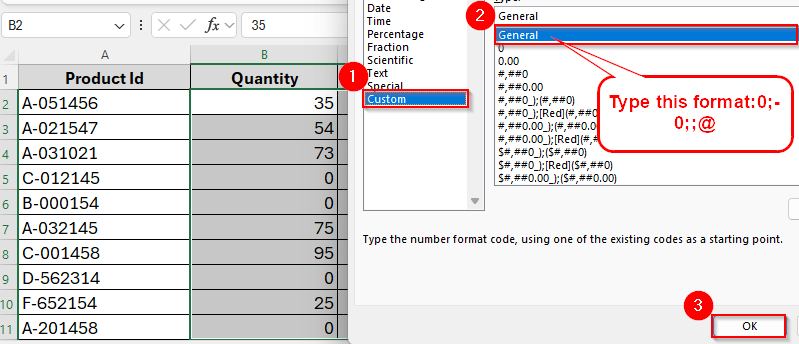
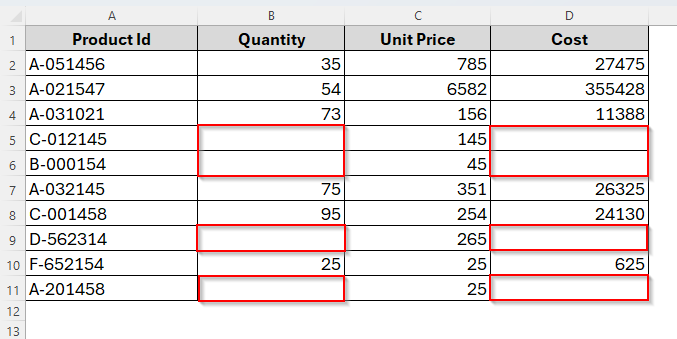
➤ Click OK and see there’s no zero in the dataset left.
Note:
Your calculations still include zeros, but the sheet looks clean.
Enabling VBA Macro to Leave Cells Blank in Excel
For bigger datasets, VBA can save you time. This is powerful when you’re dealing with hundreds of rows. And if you’re already fond of using macros in Excel, this method would be the best choice for you. Here we’ve also created the macro you can apply for any of your datasets.
Steps:
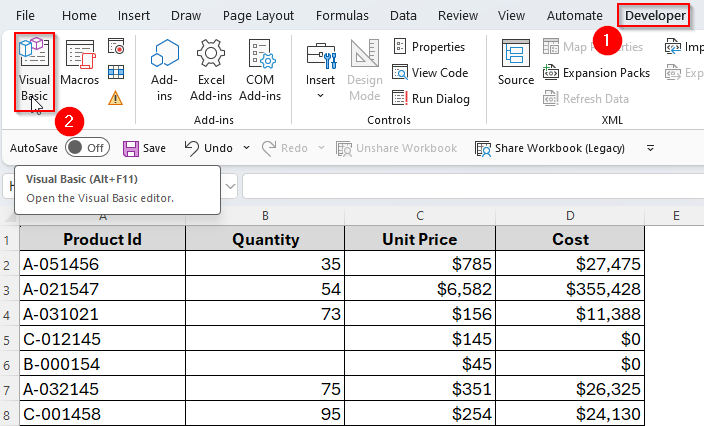
➤ Select your dataset and go to Developer → Visual Basic to open the Visual Basic Editor.
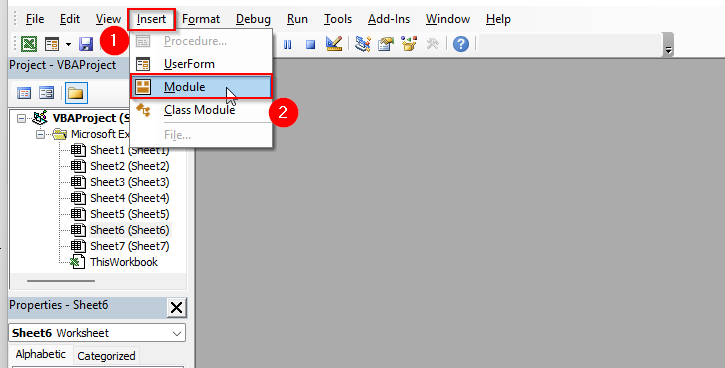
➤ Now click on Insert and choose Module.
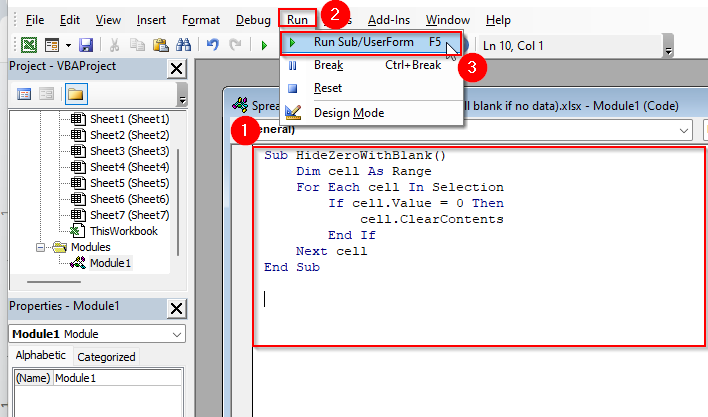
➤ Copy and paste the following macro in the module.
Sub HideZeroWithBlank()
Dim cell As Range
For Each cell In Selection
If cell.Value = 0 Then
cell.ClearContents
End If
Next cell
End Sub
➤ Now run the macro through Run → Run Sub/UserForm. Or just tap F5 from your keyboard.
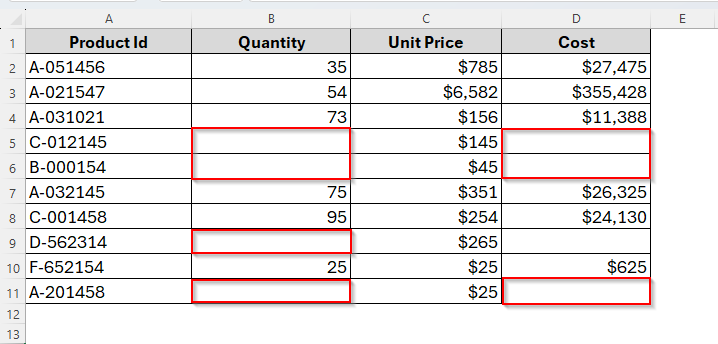
➤ Return to your worksheet and here you go. Cells are blanks when there is no data.
Frequently Asked Questions (FAQs)
If I hide zeros, will Excel still calculate with them?
Yes. Hiding is just visual. So, formulas still treat them as zeros.
Can I bring the zeros back?
Definitely, you can. Just reverse the setting/formatting or remove the formula condition depending on the method you applied.
Concluding Words
Zeros don’t always need to take up space in your spreadsheet. By leaving cells blank where no data exists, you make your Excel sheets look clean, professional, and easy to read.
So next time you see a row of zeros in your cost report, try one of these tricks, your audience will thank you.
















Thanks so much for explaining all of that.
Is there a way to program all my excel worksheets so that when I formulate a column, but there isn’t data in the referenced cells that the formulated cells are blank rather than showing an error message?
Hello Janelle,
Yes. Wrap your formula with IF or IFERROR so it returns a blank when there’s no data. For example:
=IF(A2=””, “”, your_formula)
or, if the formula may return errors:
=IFERROR(your_formula, “”)
This way, the formula cells stay blank until the referenced cells contain data.