External links in Excel are connections that pull data from other workbooks. They are useful for sharing information across files, but they can cause errors if the source file is moved, renamed, or deleted. In many cases, Excel will show a warning about broken links or fail to update the data correctly.
To keep your workbook clean and avoid such issues, it’s a good idea to remove these links once you no longer need them.
In this guide, we will learn step by step how to remove broken links in Excel.
Here’s a simple way to break links when the source file is missing:
➤ Open your current dataset in Excel where some columns are linked to another Excel file such as SalesData.xlsx.
➤ Go to the Data tab on the Ribbon.
➤ Click Workbook Links in the Queries & Connections group. A new dialog box will appear showing all the external workbooks linked to your file.
➤ Click Break Link.
➤ Confirm the action in the prompt that appears. Click Break Link again.
➤ Excel will instantly remove the connection and convert all linked formulas into static values.
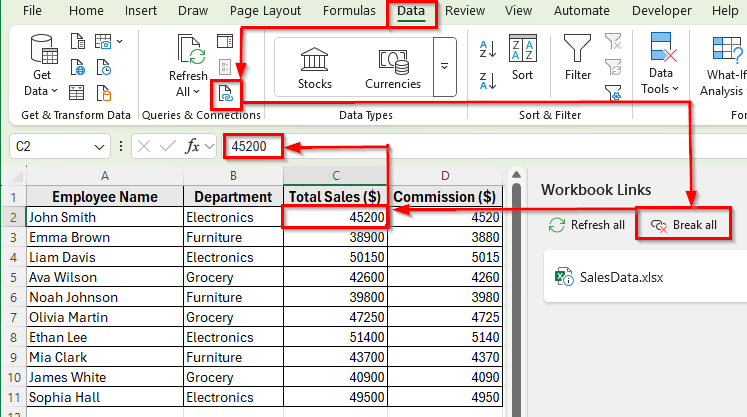
Break Links Using the Workbook Links Option in Excel
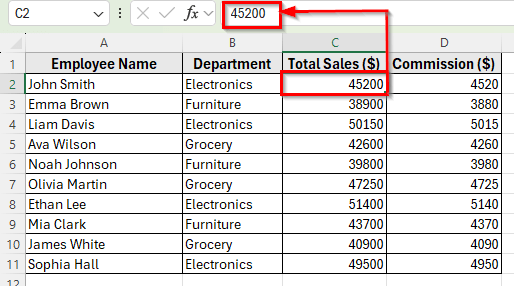
In this following dataset, we have a sales performance dataset. Column A lists the Employee Names, Column B shows their Department, Column C contains Total Sales, and Column D contains Commission. The workbook was originally linked to another file named SalesData.xlsx, which is now missing. As a result, each cell contains an external reference that no longer resolves.
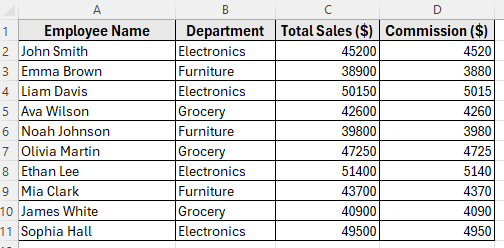
We’ll use this dataset to demonstrate different methods to break these links when the source workbook is not available.
The Workbook Links tool in Excel 365 is the simplest way to remove connections to missing workbooks. It shows all the external sources linked to your file and allows you to break those connections.
Here’s how to do it:
➤ Open your current dataset in Excel where some columns are linked to another Excel file and column C and column D show the formula like this
='[SalesData.xlsx]Sheet1'!C2
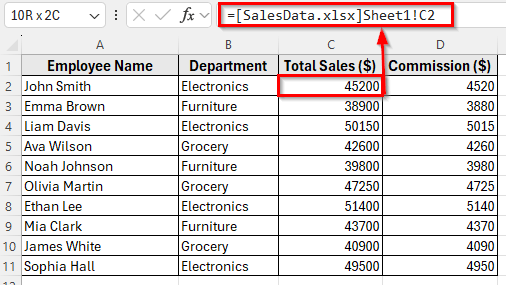
➤ Go to the Data tab on the Ribbon.
➤ Click Workbook Links in the Queries & Connections group. A new dialog box will appear showing all the external workbooks linked to your file.
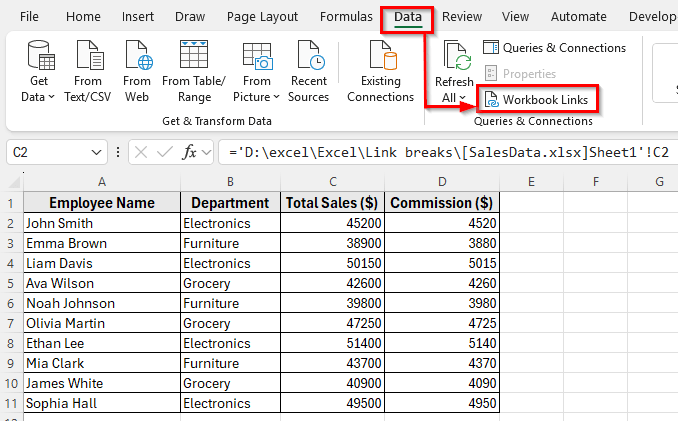
➤ Click Break Link.
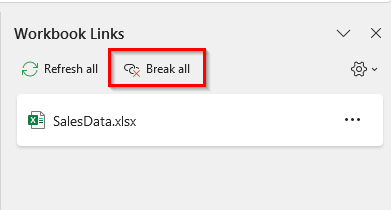
➤ Confirm the action in the prompt that appears. Click Break Link again.

➤ Excel will instantly remove the connection and convert all linked formulas into static values. For example, a formula like ='[SalesData.xlsx]Sheet1′!C2 will become a fixed value like 45200.
Replace External Links with Values Using Copy and Paste
Another simple way to remove broken links is by converting the formulas into static values. You can do this using the Copy and Paste as Values feature. It replaces the external reference formulas with the last known results, which breaks the connection to the missing file.
Here’s how to do it:
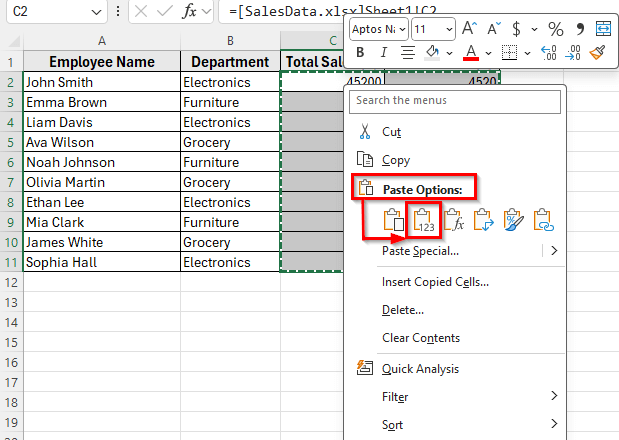
➤ Select the range that contains the linked formulas. In our dataset, that would be the Total Sales and Commission columns.
➤ Press Ctrl + C to copy the selected range.
➤ Right-click on the same selection and choose Paste Values under the Paste Options section.
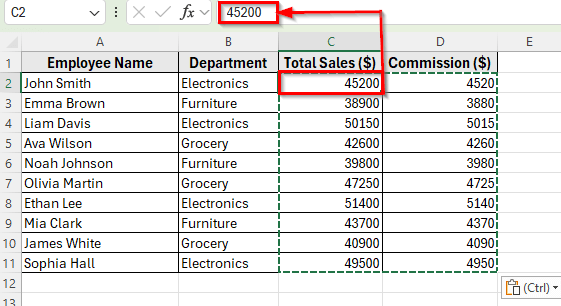
➤ After this, all formulas like ='[SalesData.xlsx]Sheet1′!C2 will be replaced by their static results, such as 45200.
➤ This breaks the link instantly, and Excel will stop trying to update data from the missing source.
Use Find and Replace to Remove External References
Find and Replace feature can also help you remove all external references directly from the formulas. This method is useful when the links are visible in the cells and you want to clean them up without manually editing each one.
Here’s how to do it:
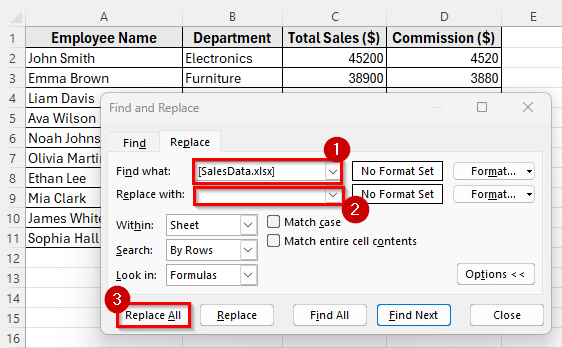
➤ Press Ctrl + H on your keyboard to open the Find and Replace dialog box.
➤ In the Find what field, type the name of the missing source file.
For example: [SalesData.xlsx]
➤ Leave the Replace with the field blank.
➤ Click Replace All.
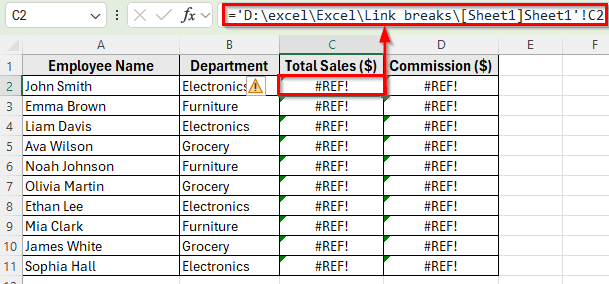
➤ Excel will instantly remove the external file path from all formulas. For example, a formula like =‘[SalesData.xlsx]Sheet1’!C2 will become =’D:\excel\Excel\Link breaks\[SalesData.xlsx]Sheet1′!C3 and the cell display #REF.
➤ This breaks the external link, but the formula will now try to pull data from a sheet inside the current workbook. If that sheet doesn’t exist, you can either delete the formula or replace it with a static value.
Break Links with VBA (When Workbook Links Is Greyed Out)
If the Workbook Links button is disabled and none of the previous methods work, you can use a simple VBA macro to remove all external links automatically. This method is powerful because it can detect and break links hidden deep inside your workbook that normal tools cannot access.
Here’s how to do it:
➤ Press Alt + F11 on your keyboard to open the VBA Editor.
➤ Go to Insert >> Module to create a new module.
➤ Paste the following code into the module window:
Sub BreakAllLinks()
    Dim Links As Variant
    Links = ThisWorkbook.LinkSources(xlLinkTypeExcelLinks)
    If Not IsEmpty(Links) Then
        For i = LBound(Links) To UBound(Links)
            ThisWorkbook.BreakLink Name:=Links(i), Type:=xlLinkTypeExcelLinks
        Next i
    End If
End Sub 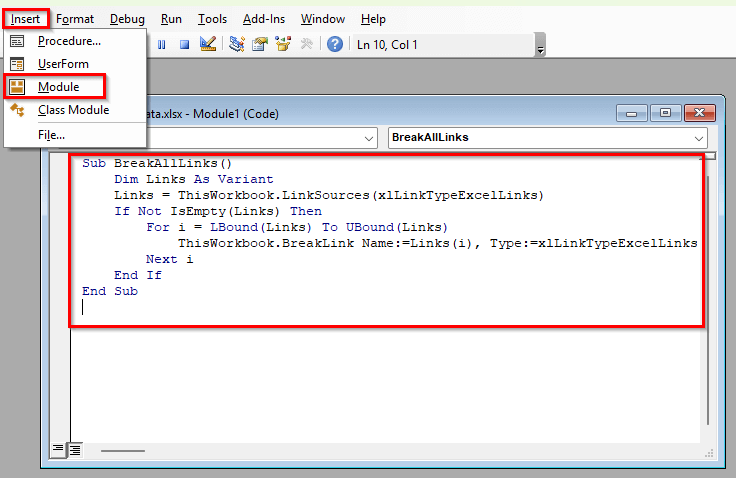
➤ Close the VBA editor and go to the Developer tab, click Macros.
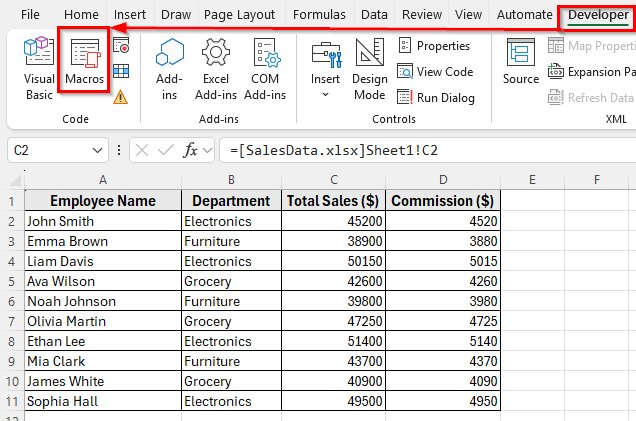
➤ Select BreakAllLinks from the list and click Run.
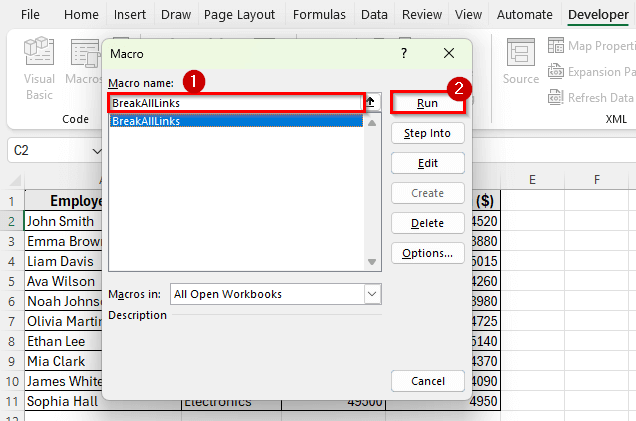
➤ Excel will now automatically scan the workbook for any external links and break them. Once the process is complete, all formulas referring to the missing source will be converted into their existing values.
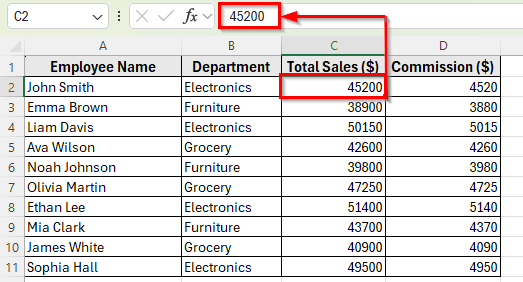
How to Break Links to Other Files in Excel Charts
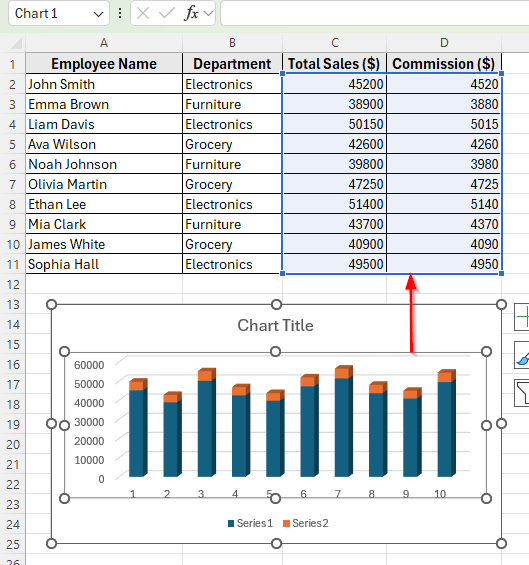
Sometimes external links are hidden inside charts, and that’s why they remain even after removing links from cells or formulas. Excel charts can still reference data in another workbook. To fully remove these, you need to check and update the chart data sources manually.
Follow these steps:
➤ Right-click on the chart that you suspect is linked to another workbook.
➤ Click on Select Data from the context menu.
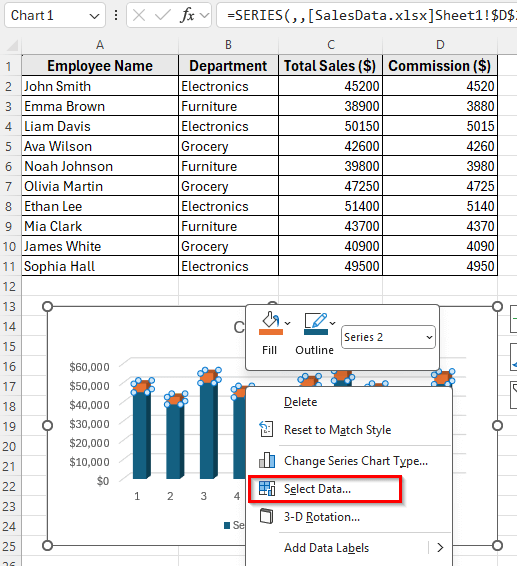
➤ A Select Data Source dialog box will open.
➤ Look at the data range shown in the Chart data range box. If it includes an external file path something like ='[SalesData.xlsx]Sheet1′!$C$2:$D$11), the chart is pulling data from another workbook.
➤ Replace that range with a local range in your current workbook such as =Sheet1!$C$2:$=D$11)
➤ Press OK to save the changes.
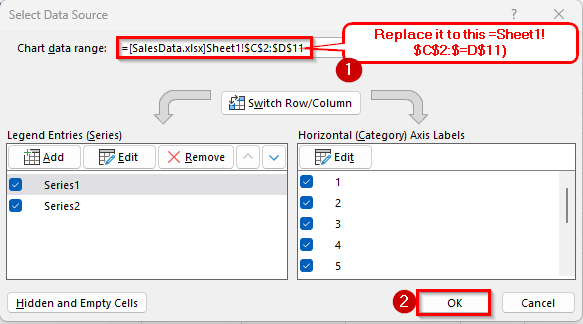
➤ Excel will no longer reference the external workbook. The dataset powering your charts will now point to the local worksheet only.
Downloadable Resources
Get our practice workbook or necessary files that we have worked with to prepare this article.
Break Links When Source Not Found.zip
Frequently Asked Questions
Why is the Workbook Link button greyed out in Excel 365?
This usually happens when links are embedded in objects, charts, defined names, or other non-formula elements. In such cases, you must remove them manually using Find & Replace, or VBA.
Will breaking links delete my data?
No. Breaking links replaces formulas with their last known values, so the data remains intact. However, it will no longer update automatically if the source file changes.
How do I find all external links in a workbook?
Use Find (Ctrl + F) and search for [ (square bracket) to locate all formulas referring to external workbooks. Also, check Name Manager and chart sources for hidden links.
Wrapping Up
When the source workbook is missing, breaking links ensures your Excel file remains functional and independent. Start with the Workbook Links option if available, or try Copy and Paste as Values and Find & Replace for visible formulas. For hidden references, use a VBA macro.
Finally, don’t forget to check charts and pivot tables for lingering links. Using these methods, you can fully remove broken references and make your workbook self-contained.