Dates are often easier to analyze when summarized by quarter and year, especially for financial reports, sales tracking, and performance dashboards. Instead of working with individual months, grouping data by quarters (Q1–Q4) provides a clearer view of trends and performance. Excel doesn’t have a direct “quarter” function, but with a few formulas, you can easily transform any date into a quarter-year format.
In this article, we’ll cover three practical methods to convert dates into a quarter-year format in Excel. You’ll learn how to use functions like ROUNDUP, INT, and extended text formatting for full quarter labels. Let’s get started.
Steps to convert date to quarter and year in Excel:
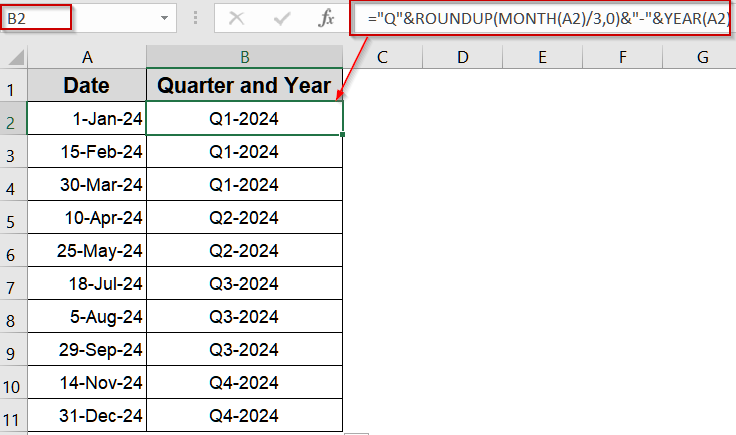
➤ In cell B2, enter the following formula:
=”Q”&ROUNDUP(MONTH(A2)/3,0)&”-“&YEAR(A2)
➤ Press Enter, and drag the fill handle down to B11.
➤ Each date now shows its quarter and year, e.g., Q1-2024 for 01-Jan-2024.

Convert Dates with ROUNDUP for Quick Quarter Labels
The ROUNDUP function is a simple and reliable way to calculate quarters directly from a date. By dividing the month by 3 and rounding up, you can instantly assign the date to its quarter. This method is perfect for quick summaries or dashboards where a concise “Q#-YYYY” format is enough.
We’ll use the following dataset:

Steps:
➤ In cell B2, enter the following formula:
=”Q”&ROUNDUP(MONTH(A2)/3,0)&”-“&YEAR(A2)
➤ Press Enter, and drag the fill handle down to B11.
➤ Each date now shows its quarter and year, e.g., Q1-2024 for 01-Jan-2024.
Use INT Function for Accurate Quarter Calculations
If you prefer more control over quarter grouping, INT function is another effective method. Adding +2 to the month before division ensures correct alignment with quarters. This approach is commonly used in financial modeling or advanced reports where consistency is critical.
Steps:
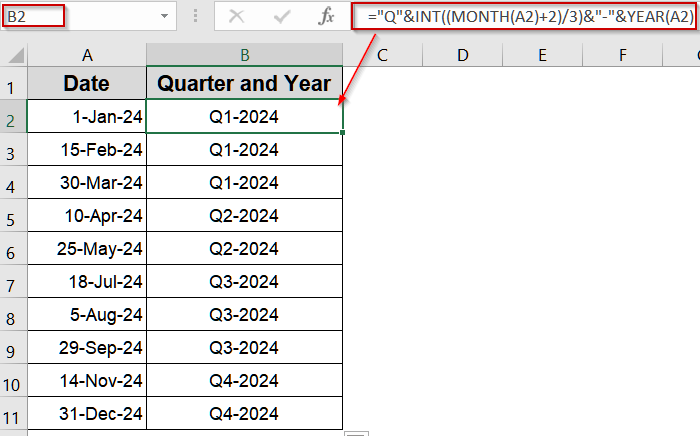
➤ Click on B2 and type:
="Q"&INT((MONTH(A2)+2)/3)&"-"&YEAR(A2)
➤ Hit Enter and drag the formula down to C11.
➤ Your dates will now display quarters like Q2-2024 or Q4-2024.
Display Full Quarter Labels for Professional Reports
For presentations or client-facing documents, a full label like Quarter 3-2024 may look more polished. This method uses INT function again but includes descriptive text to make your quarter labels clear and professional. It’s especially useful for dashboards or exported reports.
Steps:
➤ In cell B2, enter:
="Quarter "&INT((MONTH(A2)+2)/3)&"-"&YEAR(A2)
➤ Press Enter and copy the formula down to D11.
➤ The output will display as Quarter 1-2024, Quarter 2-2024, and so on.

Frequently Asked Questions
Why would I need to convert dates to quarters and years in Excel?
Converting dates to quarters and years helps with financial analysis, sales reporting, and trend visualization. It allows grouping data by fiscal periods, making summaries, pivot tables, or charts more meaningful for quarterly comparisons or performance tracking.
Can I use different cell references instead of A2 in the formulas?
Yes. Replace A2 with any cell reference containing your date. The formula works dynamically, so as long as the referenced cell contains a valid date, Excel will calculate the correct quarter and year without extra adjustments.
How can I change the output format, for example, to “2025 Q3” instead of “Q3-2025”?
You can rearrange the formula’s concatenation. For example, use =YEAR(A2)&” Q”&INT((MONTH(A2)+2)/3). This places the year first, followed by the quarter, making the format “2025 Q3” or similar.
Does this method work with fiscal years that don’t start in January?
Not directly. These formulas assume January starts Q1. For a fiscal year starting in another month, you’ll need to adjust the month offset or use additional logic to shift quarters based on your fiscal calendar.
Are there built-in Excel features to convert dates to quarters without formulas?
Excel doesn’t have a direct built-in feature for quarters, but you can use PivotTables with Grouping. Group your date field by Quarters and Years to generate quarter-based summaries without manually writing or applying formulas.
Wrapping Up
In this tutorial, we learned three effective methods to convert dates into quarter and year formats in Excel. Whether you need quick quarter labels, precise calculations, or polished text for reports, these approaches make it easy to summarize dates for analysis and presentation. Feel free to download the practice file and share your feedback.