Excel automatically converts dates into serial numbers when used in formulas. While this is useful for calculations, it can be frustrating when you want to preserve the date format in text strings, combined values, or reports. Understanding how to prevent this behavior ensures your data remains readable and correctly formatted.
In this article, we’ll explore multiple ways to stop Excel from converting dates to numbers when using formulas, text concatenation, or other operations. Each method is practical, beginner-friendly, and works across common Excel versions. Let’s get started.
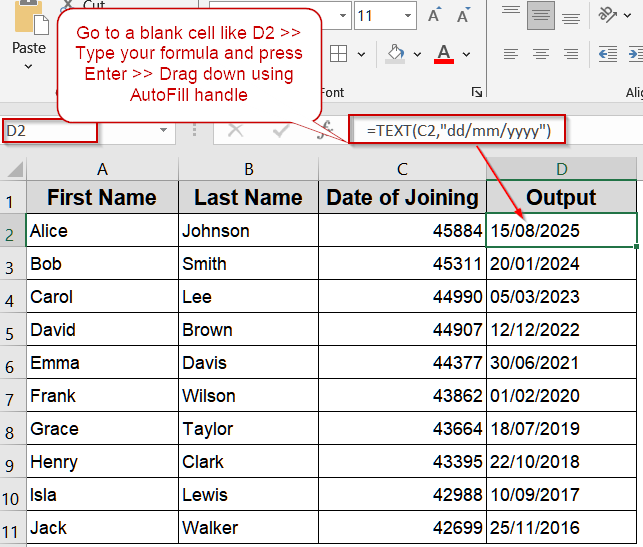
Steps to stop excel from converting date to number in formula:
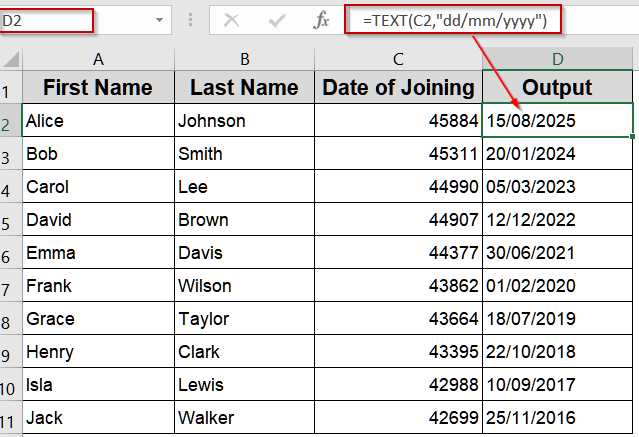
➤ In a new column, type: =TEXT(C2,”dd/mm/yyyy”)
➤ Press Enter and drag the formula down to apply it to all rows.
➤ The result will show dates as 15/08/2025 rather than a serial number like 45884.
Preserve Dates in Formulas Using the TEXT Function
When combining text and dates in Excel, the program often converts dates into serial numbers, which can make your results unreadable. The TEXT function lets you control the display format, ensuring dates stay human-readable while still usable in formulas. This method is ideal for creating labels, reports, or concatenated values that include dates.
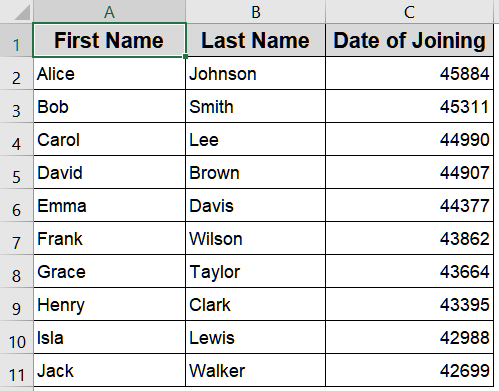
We’ll use the following dataset:
Steps:
➤ In a new column, type:
=TEXT(C2,"dd/mm/yyyy")
➤ Press Enter.
➤ Drag the formula down to apply it to all rows.
➤ The result will show dates as 15/08/2025 rather than a serial number like 45884.
Use Custom Date Formatting to Maintain Readable Dates
Sometimes, Excel converts dates into serial numbers when used in formulas, making them hard to read. Applying a custom date format ensures that the date remains visually consistent, readable, and avoids numeric conversion, even when referenced in formulas or concatenations.
Steps:
➤ Select the date column you want to format.

➤ Press Ctrl + 1 (or right-click and choose Format Cells).
➤ Under the Number tab, select Custom and type: dd-mmm-yyyy
➤ Click OK.
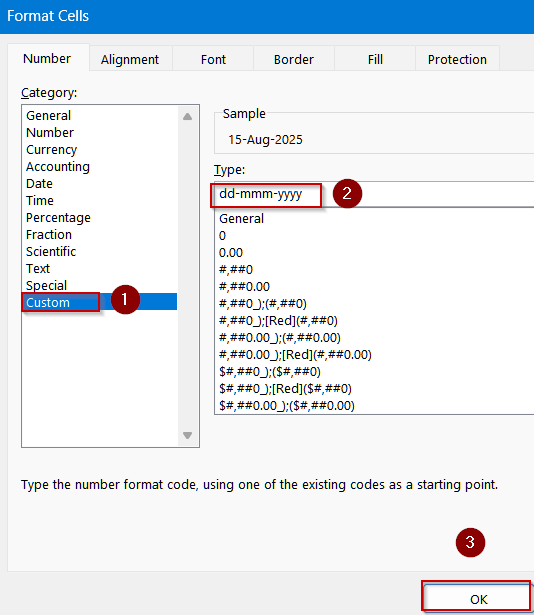
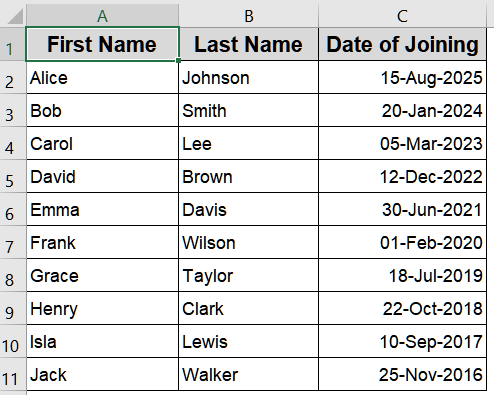
➤ The dates will now display in the chosen format and remain readable when used in formulas or combined with text.
Convert Dates to Text with TEXT and UPPER Functions for Consistent Display
When combining dates with other text or numeric values, Excel may convert them into serial numbers. By converting dates to text and optionally applying the UPPER function, you can maintain a uniform, readable format and even stylize the date text for consistency in reports or labels.
Steps:
➤ In a new column, enter the formula:
=UPPER(TEXT(C2,"dd-mmm-yyyy"))
➤ Press Enter.
➤ Drag the formula down to apply it to all rows.
➤ Dates will now appear in uppercase letters, e.g., 15-AUG-2025, instead of numeric serial numbers.

Force Dates as Text Using an Apostrophe
For quick, one-off entries, Excel can still convert dates into numbers even in concatenations. By placing an apostrophe (‘) before your date, you tell Excel to treat the value strictly as text. This preserves the exact format you enter, making it ideal for manual data entry or small datasets.
Steps:
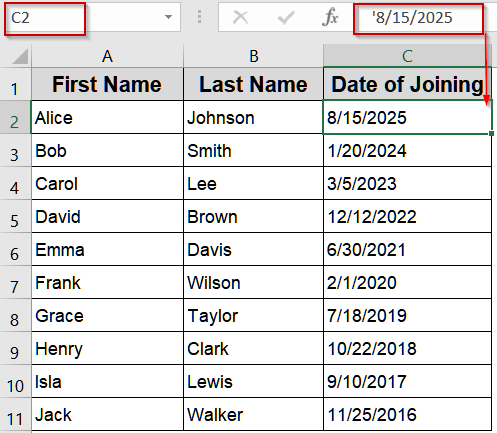
➤ Click the cell where you want to enter the date.
➤ Type an apostrophe (‘) before the date, for example: ‘8/15/2025
➤ Press Enter.
➤ Excel now treats the date as text, preserving the format and preventing conversion to a serial number.
Pre-Format the Column as Text to Preserve Dates
When working with multiple date entries that will be combined with other text or numbers, Excel often converts dates into serial numbers. Pre-formatting the entire column as Text ensures all dates you type remain exactly as entered, preventing unwanted numeric conversion in formulas or concatenation. This method is perfect for bulk data entry or structured datasets.
Steps:
➤ Select the column where your dates will be entered such as column B.
➤ Right-click and choose Format Cells >> Text.
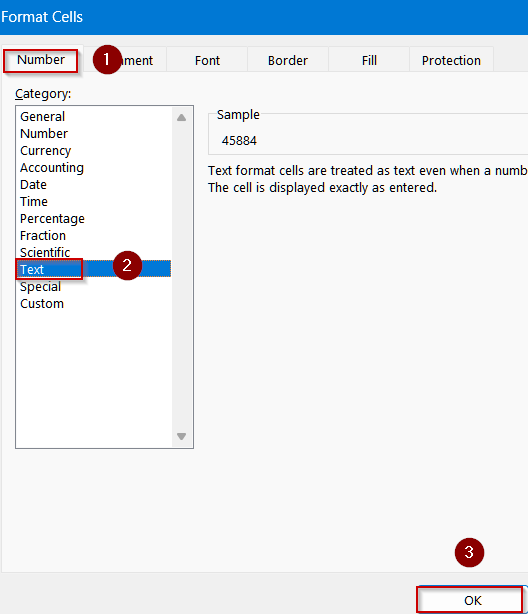
➤ Enter your dates; they will remain in the typed format.
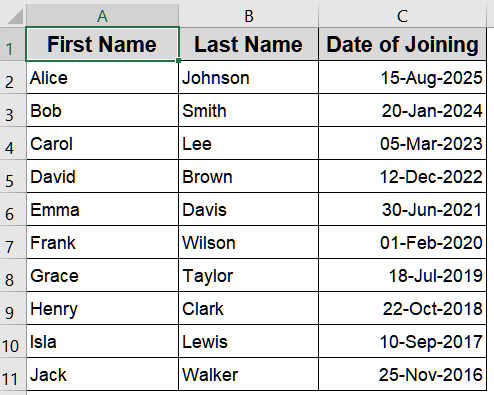
Keep Dates Intact Using TEXT with VLOOKUP Function
When pulling dates from a table using VLOOKUP function or similar functions, Excel often returns them as serial numbers. Wrapping the lookup function with TEXT function ensures the result remains in a readable date format. This approach is especially useful when creating dashboards, reports, or concatenated strings with dates, keeping your data visually consistent while maintaining lookup functionality.
Steps:
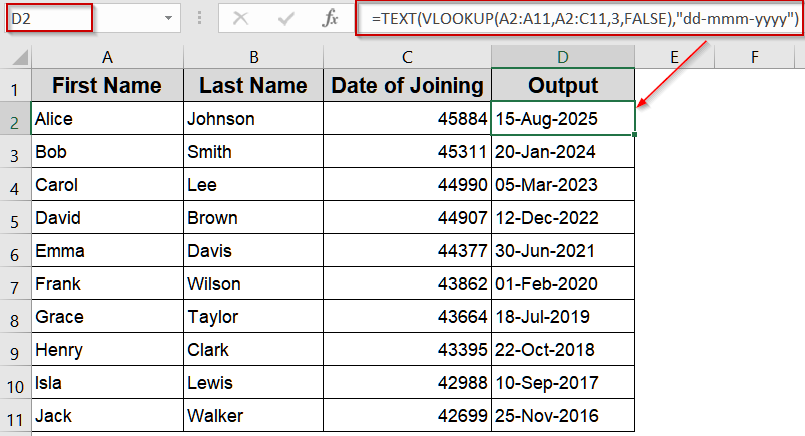
➤ Type this formula in D2 cell:
=TEXT(VLOOKUP(A2:A11,A2:C11,3,FALSE),"dd-mmm-yyyy")
➤ Press Enter and drag down using AutoFill.
➤ This prevents Excel from displaying serial numbers while retaining lookup functionality.
Frequently Asked Questions
Why does Excel convert dates to numbers in formulas?
Excel stores dates as serial numbers internally. When you use dates in formulas without formatting, it automatically displays the numeric serial value instead of the human-readable date, which can be confusing in concatenations.
How can I keep a date in dd/mm/yy format in formulas?
Use the TEXT function with a format code like “dd/mm/yy” to convert the date to text. This ensures that when combined with other text or numbers, Excel does not display the underlying serial number.
Can I prevent automatic date conversion without formulas?
Yes, you can format cells as Text before entering dates or prepend an apostrophe (‘) to the date. Both methods force Excel to treat the value as text, preventing automatic conversion to a serial number.
Will using custom formatting stop Excel from converting dates in concatenation?
Custom formatting ensures dates appear correctly in cells, but when concatenated in a formula, you still need the TEXT function. Without it, Excel may convert the date to its serial number internally.
What is the best method for large datasets to preserve date format?
For large datasets, creating a helper column using TEXT(C2,”dd/mm/yy”) is most efficient. It standardizes all dates as text, allowing safe concatenation, VLOOKUPs, and reporting without Excel converting them to numbers.
Wrapping Up
In this tutorial, we explored multiple ways to stop Excel from converting dates to numbers in formulas. From using the TEXT function to applying custom formats, apostrophes, or pre-formatting columns as text, these methods help maintain readable, consistent date displays in concatenations, lookups, and other operations. Feel free to download the practice file and share your feedback.