Excel checkboxes are widely used to track tasks, manage dashboards, or collect user input in interactive spreadsheets. While they provide functionality, they can be difficult to interpret at a glance if all checkboxes look the same. Adding color to checkboxes or their linked cells helps highlight their status, making your spreadsheet more visually intuitive and easier to manage.
In this article, we will explore several methods to change checkbox colors in Excel, including direct font color changes, conditional formatting for checked and unchecked states, and VBA automation. Let’s get started.
Steps to change checkbox color in Excel:
➤ Select the cells containing the checkboxes. For example, C2:C11.
➤ Go to the Home tab in the Excel Ribbon.
➤ In the Font group, click the Fill Color dropdown.
➤ Select the color you want to apply to all checkboxes.
➤ Optionally, use alternate colors for checked and unchecked boxes by selecting them using the Ctrl key.

Change Checkbox Fill Color Directly
This method is the simplest way to make your checkboxes more visually noticeable. While it does not differentiate between checked or unchecked states, it’s perfect for highlighting all checkboxes in a uniform color. Apply this technique when you want to improve readability or simply emphasize checkboxes in reports and task lists without adding conditional rules or automation.
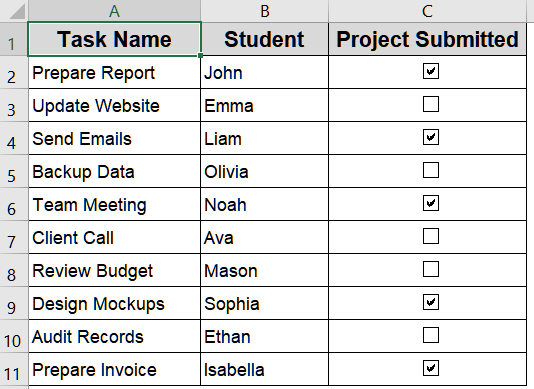
We’ll use the following dataset:
Steps:
➤ Select the cells containing the checkboxes. For example, C2:C11.
➤ Go to the Home tab in the Excel Ribbon.
➤ In the Font group, click the Fill Color dropdown.
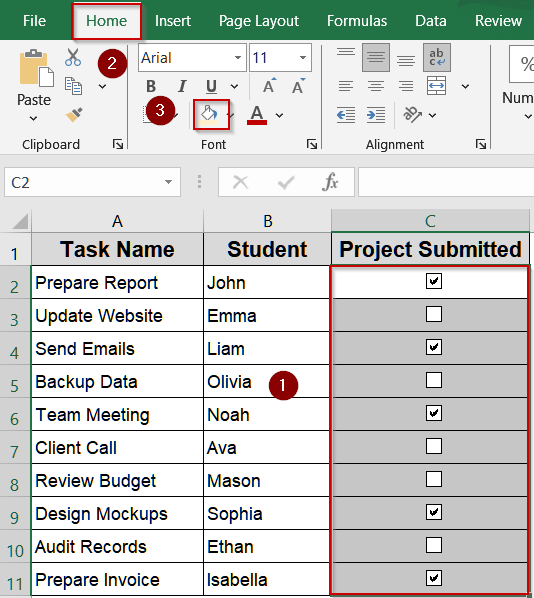
➤ Select the color you want to apply to all checkboxes.

➤ Optionally, use alternate colors for checked and unchecked boxes by selecting them using the Ctrl key.
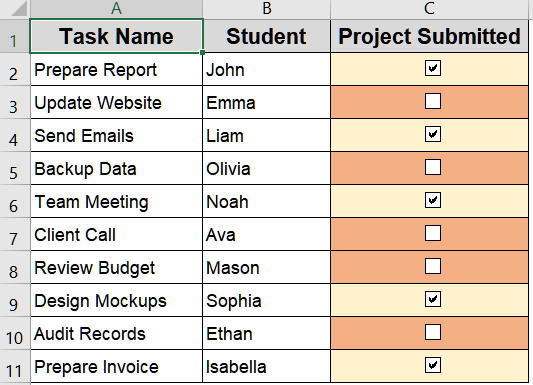
All checkboxes now have the chosen fill color.
Make Use of Conditional Formatting for Checked Checkboxes
This method allows your spreadsheet to visually reflect progress. By applying conditional formatting to the linked cell of the checkbox, you can make the cell color or font change automatically when a checkbox is checked. This is ideal for dashboards, to-do lists, or project trackers where completed tasks need to stand out immediately. Unlike the previous method, this one dynamically reacts to user interaction, making your spreadsheet more interactive and professional.
We’ll use the dataset below:
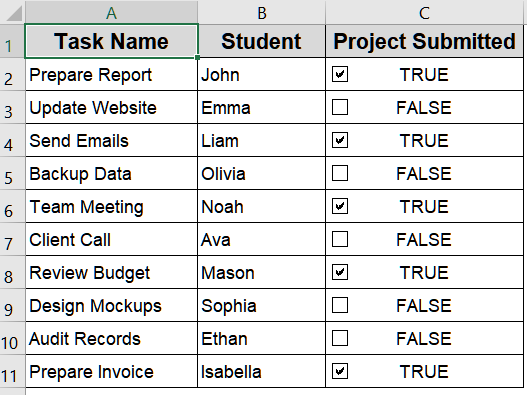
Steps:
➤ Select the range containing linked cells for checkboxes, e.g., C2:C11.
➤ Go to the Home tab >> Conditional Formatting >> New Rule.

➤ Choose Use a formula to determine which cells to format.
➤ Enter the formula:
=$C2=TRUE
➤ Click Format, then select a green font color (or any color for checked state).
➤ Click OK to apply the rule.
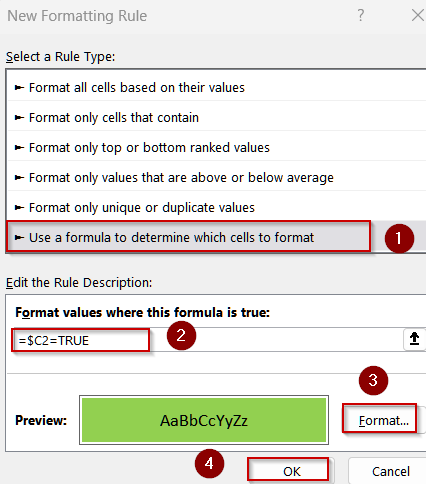
All checked checkboxes turn the chosen color in their linked cells.

Apply Conditional Formatting for Unchecked Checkboxes
To create a fully interactive and visually intuitive dashboard, it’s often useful to format unchecked checkboxes differently from checked ones. This method highlights tasks that are pending or incomplete by changing their linked cell color. By combining this with the formatting for checked boxes, you can instantly distinguish between completed and pending items.
Steps:
➤ Select the range containing linked cells for checkboxes, e.g., C2:C11.
➤ Go to Home >> Conditional Formatting >> New Rule.

➤ Select Use a formula to determine which cells to format.
➤ Enter the formula:
=$C2=FALSE
➤ Click Format, then select a red font color (or any color for unchecked state).
➤ Click OK and apply the rule.
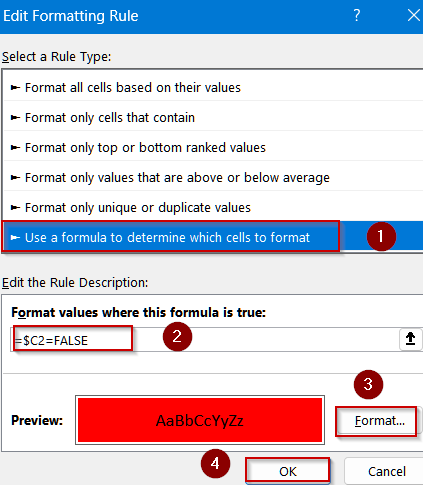
Now the unchecked boxes appear red making it easier to track task status.
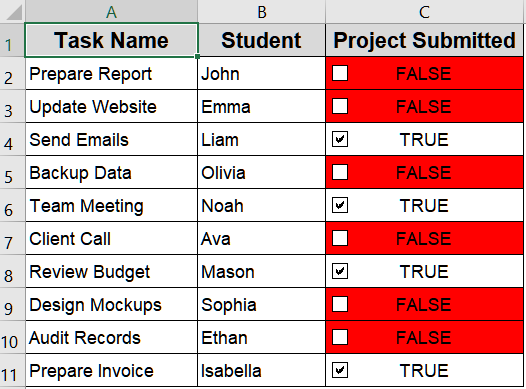
Using VBA to Automate Checkbox Colors
For large datasets or frequently updated spreadsheets, manually applying conditional formatting can be tedious. VBA automates the color changes based on checkbox state, making the process simple and easy. Once set up, any change in a checkbox’s value instantly updates the color of the checkbox which provides a clean solution.
Steps:
➤ Press Alt + F11 to open the VBA editor.
➤ Go to Insert >> Module and paste this code:
Sub ColorCheckboxes()
    Dim chk As CheckBox
    Dim linkedCell As Range
    For Each chk In ActiveSheet.CheckBoxes
        ' Ensure checkbox is linked to a cell
        If chk.LinkedCell <> "" Then
            Set linkedCell = Range(chk.LinkedCell)
            ' Apply fill color based on checkbox value
            If chk.Value = xlOn Then
                linkedCell.Interior.Color = RGB(198, 239, 206) ' Light Green
            Else
                linkedCell.Interior.Color = RGB(255, 199, 206) ' Light Red
            End If
        End If
    Next chk
End Sub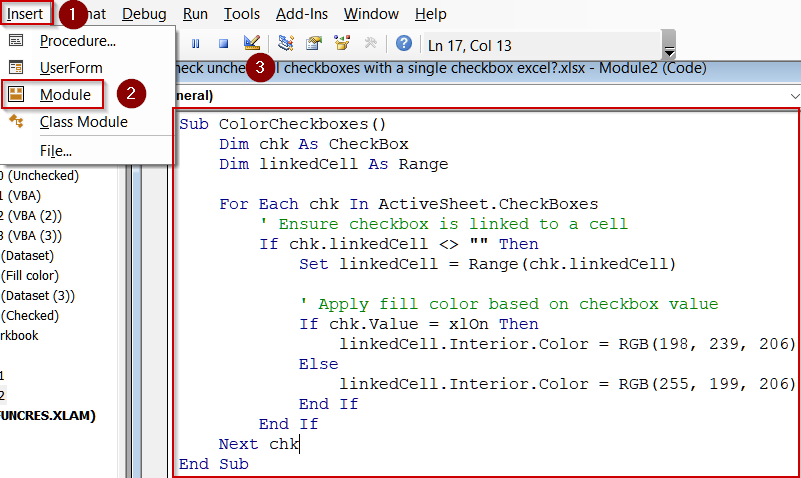
➤ Press F5 key to run the macro.

Now, checkbox colors automatically update based on whether they are checked or unchecked.
Frequently Asked Questions
Can I change the background color of a checkbox in Excel?
No, Excel checkboxes cannot have a background color directly. However, you can change the font color or apply conditional formatting to the linked cell, creating the visual effect of color change based on checked or unchecked status.
Do these methods work in all Excel versions?
Conditional formatting works in Excel 2013 and newer, while VBA macros require desktop Excel. Excel Online or Excel for mobile may not support VBA, so color automation using macros is limited to the full desktop application.
How do I link a checkbox to a cell?
Right-click the checkbox, choose Format Control, go to the Control tab, and set a Cell link to the desired cell. This allows the checkbox to return TRUE or FALSE, which is used for formatting or formulas.
Will conditional formatting change the checkbox itself?
No, conditional formatting only affects the linked cell’s font or background. The checkbox shape remains unchanged, but changing the linked cell’s formatting creates a clear visual indication of whether the checkbox is checked or unchecked.
Can I use multiple colors for different tasks or statuses?
Yes, you can create multiple conditional formatting rules for different cells or ranges. Assign specific colors to each rule based on task priority, status, or category, making your Excel dashboard visually organized and easy to interpret.
Wrapping Up
In this tutorial, we explored multiple ways to change checkbox colors in Excel, including direct fill color changes, conditional formatting for both checked and unchecked states, and VBA automation. By applying these methods, you can create visually clear and interactive task lists, dashboards, or reports, making it easier to track completion status at a glance. Feel free to download the practice file and share your feedback.