Base64 encoding is commonly used to store or transfer data such as text, images, or files in a compact format. Excel does not have a built-in function to decode Base64, so you need to use a VBA macro or an UDF function. Decoding Base64 ensures you can view or manipulate the original content directly in Excel, which is especially helpful for developers, data analysts, or anyone working with exported system data.
In this article, we’ll cover two reliable methods to decode Base64 strings in Excel, including VBA macro and UDF function, along with a sample dataset to practice. Let’s get started.
Steps to decode Base64 in Excel:
➤ Press Alt + F11 to open the VBA editor.
➤ Go to Insert >> Module to create a new module.
➤ Copy and paste the following code:
Function DecodeBase64(b64 As String) As String
    Dim xmlObj As Object, byteData() As Byte, streamObj As Object
    ' Create XMLDOM to handle Base64 decoding
    Set xmlObj = CreateObject("MSXML2.DOMDocument.6.0")
    With xmlObj.createElement("Base64Data")
        .DataType = "bin.base64"
        .Text = b64
        byteData = .NodeTypedValue
    End With
    ' Create ADODB.Stream to convert bytes into UTF-8 text
    Set streamObj = CreateObject("ADODB.Stream")
    With streamObj
        .Open
        .Type = 1          ' Binary
        .Write byteData
        .Position = 0
        .Type = 2          ' Text
        .Charset = "utf-8" ' Match dataset encoding
        DecodeBase64 = .ReadText
        .Close
    End With
End Function
➤ Close the VBA editor and return to Excel.
➤ In a worksheet, type this formula where A2 contains the Base64 string: =DecodeBase64(A2)
➤ Press Enter; the decoded text will appear in the cell.

Decode an Entire Column of Base64 Strings Using a VBA Macro
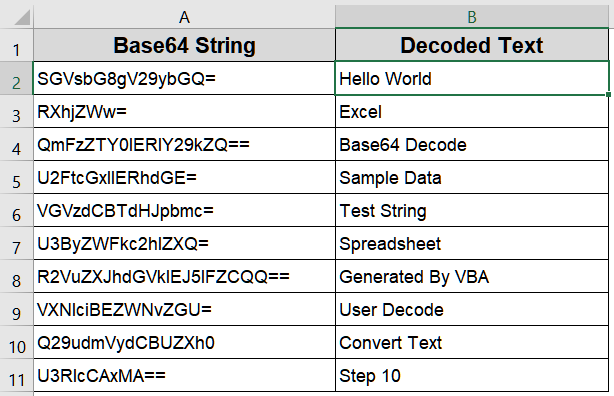
Decoding multiple Base64 strings one by one can be time-consuming and prone to errors. This method automates the process by using a VBA macro that reads all Base64-encoded values from Column A and places the decoded text directly into Column B. It’s ideal for handling large datasets quickly and efficiently.
We’ll use the following dataset:

Steps:
➤ Press Alt + F11 to open the VBA editor.
➤ Go to Insert >> Module to create a new module.
➤ Copy and paste the following code:
Sub DecodeBase64Column()
    Dim ws As Worksheet
    Dim lastRow As Long, i As Long
    Dim xmlObj As Object, byteData() As Byte, streamObj As Object
    Set ws = ActiveSheet
    lastRow = ws.Cells(ws.Rows.Count, "A").End(xlUp).Row
    For i = 1 To lastRow
        If ws.Cells(i, "A").Value <> "" Then
            ' Decode Base64 string
            Set xmlObj = CreateObject("MSXML2.DOMDocument.6.0")
            With xmlObj.createElement("Base64Data")
                .DataType = "bin.base64"
                .Text = ws.Cells(i, "A").Value
                byteData = .NodeTypedValue
            End With
            Set streamObj = CreateObject("ADODB.Stream")
            With streamObj
                .Open
                .Type = 1          ' Binary
                .Write byteData
                .Position = 0
                .Type = 2          ' Text
                .Charset = "utf-8" ' Adjust if another encoding was used
                ws.Cells(i, "B").Value = .ReadText
                .Close
            End With
        End If
    Next i
End Sub
➤ Close the VBA editor and return to Excel.
➤ Place your Base64-encoded strings in Column A, starting from row 1.
➤ Press F5 key to run the macro.
➤ The decoded text will automatically appear in Column B, aligned with the original strings.
Create a User-Defined Function (UDF) for Base64 Decoding
If you frequently work with Base64 strings in Excel, creating a UDF allows you to decode strings directly in any worksheet cell without repeatedly running macros. This method is ideal for regular use and makes the function reusable across multiple workbooks.
Steps:
➤ Press Alt + F11 to open the VBA editor.
➤ Go to Insert >> Module to create a new module.
➤ Copy and paste the following code:
Function DecodeBase64(b64 As String) As String
    Dim xmlObj As Object, byteData() As Byte, streamObj As Object
    ' Create XMLDOM to handle Base64 decoding
    Set xmlObj = CreateObject("MSXML2.DOMDocument.6.0")
    With xmlObj.createElement("Base64Data")
        .DataType = "bin.base64"
        .Text = b64
        byteData = .NodeTypedValue
    End With
    ' Create ADODB.Stream to convert bytes into UTF-8 text
    Set streamObj = CreateObject("ADODB.Stream")
    With streamObj
        .Open
        .Type = 1          ' Binary
        .Write byteData
        .Position = 0
        .Type = 2          ' Text
        .Charset = "utf-8" ' Match dataset encoding
        DecodeBase64 = .ReadText
        .Close
    End With
End Function
➤ Close the VBA editor and return to Excel.
➤ In a worksheet, type this formula where A2 contains the Base64 string:
=DecodeBase64(A2)
➤ Press Enter; the decoded text will appear in the cell.

Frequently Asked Questions
Can Excel decode Base64 without VBA?
Excel does not have a built-in Base64 decoding function. You must use a VBA macro, a user-defined function (UDF), or an external tool to convert Base64 strings into readable text within Excel.
Is using a VBA macro safe for sensitive Base64 data?
Yes, VBA macros run locally within your workbook. They do not send data over the internet, making them safe for sensitive or private Base64 strings compared to online converters that require uploading your data.
Can online Base64 converters handle large datasets?
Most free online Base64 converters work well for small to medium-sized files. For very large datasets, Excel’s VBA macros or UDFs are more reliable, faster, and avoid potential browser or server limitations during conversion.
Can Base64 encode files other than text?
Yes, Base64 can encode any binary data, including images, PDFs, or documents. Excel’s decoding via VBA or UDF works for text-based Base64, but binary files may require saving as a separate file after decoding.
How can I verify if Base64 decoding worked correctly?
Check the decoded output in Excel. If the resulting text matches the intended content with all characters displayed correctly, the decoding succeeded. Errors or unreadable content indicate an incorrect string, partial input, or wrong encoding used.
Wrapping Up
In this tutorial, we explored multiple ways to decode Base64 in Excel. Using a VBA macro or a user-defined function (UDF) lets you decode strings directly within our workbook. These methods ensure all Base64 encoded data whether text, notes, or system exports can be accurately transformed into readable, Excel-compatible content for analysis, reporting, or further processing. Feel free to download the practice file and share your feedback.