Copying tables from Excel to PowerPoint while preserving formatting can be tricky if you want the layout, colors, and styles to remain intact. Excel tables often contain borders, conditional formatting, and formulas, which may not transfer correctly with a simple copy-paste. By using Paste Options or Paste Special, you can maintain exact formatting, embed tables, or even link Excel data so updates automatically reflect in PowerPoint.
In this article, we’ll walk you through two effective methods for transferring Excel tables to PowerPoint while keeping the formatting consistent and professional. Let’s get started.
Steps to copy table from Excel to powerpoint with formatting:
➤ Open your Excel file and select the table range (e.g., A1:E11) >> Press Ctrl + C to copy.
➤ Open your PowerPoint presentation and go to the slide where you want the table to appear.
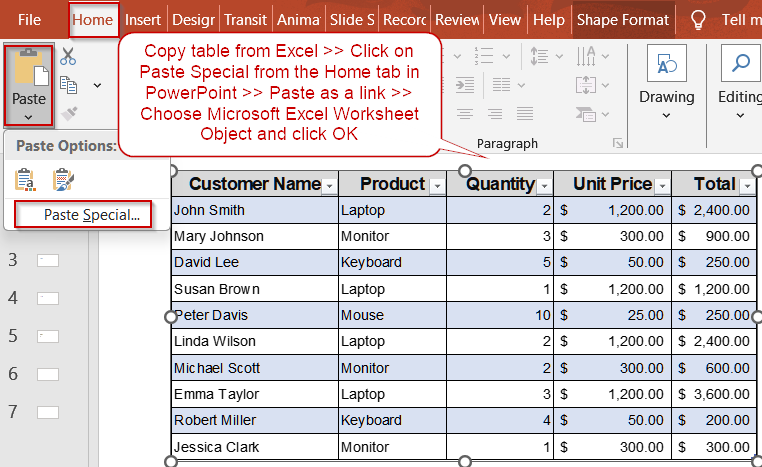
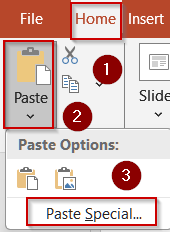
➤ On the Home tab, click the small dropdown under Paste >> select Paste Special.
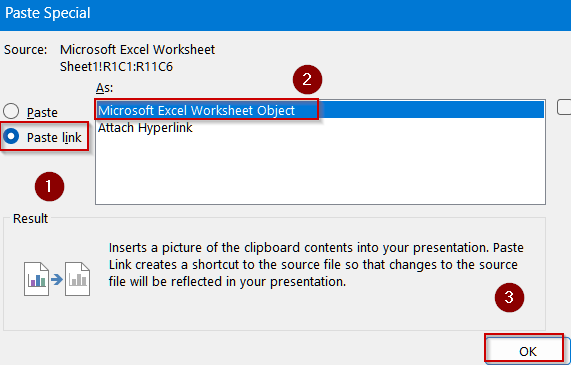
➤ In the Paste Special dialog, choose Microsoft Excel Worksheet Object.
➤ Check the Paste link box to maintain a live connection between Excel and PowerPoint. Click OK.
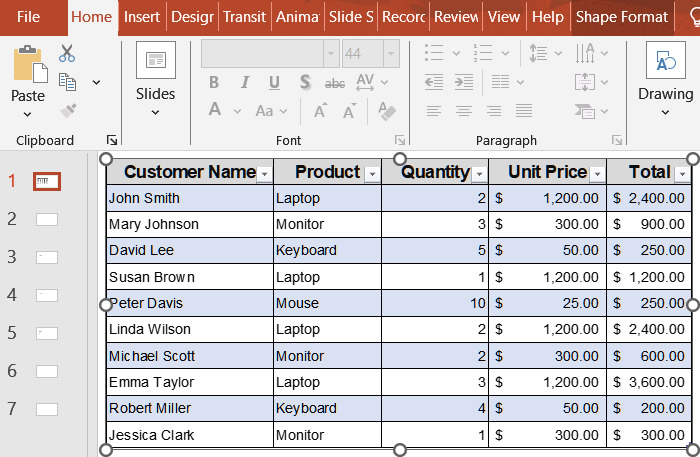
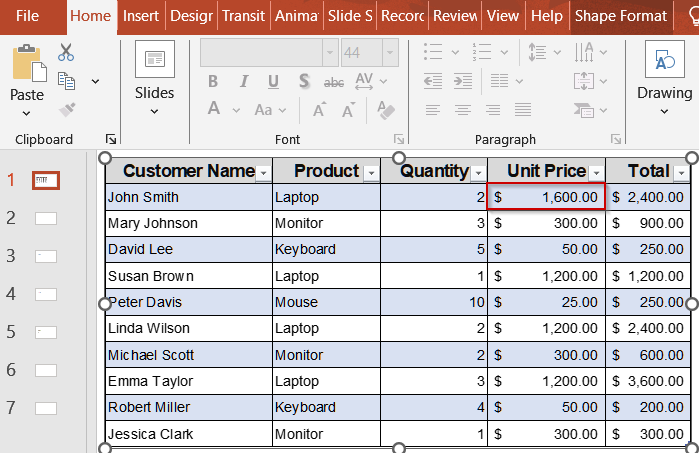
➤ Resize or reposition the table as needed. Any updates made in the original Excel file will automatically reflect on the PowerPoint slide.
Embed Excel Table with Live Connection in PowerPoint
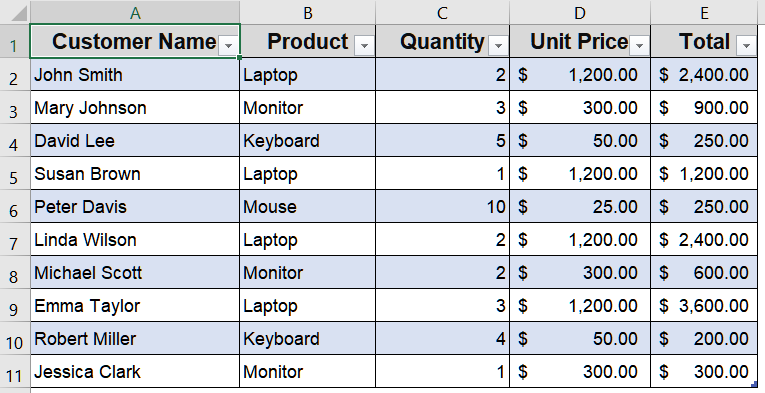
Embedding an Excel table with a link is ideal when you want the PowerPoint slide to update automatically whenever the original Excel file changes. This is perfect for dashboards, reports, or presentations that need to reflect the latest data without manually copying updates. We’ll use the dataset below formatted as a table for demonstration:
Steps:
➤ Open your Excel file and select the table range (e.g., A1:E11) >> Press Ctrl + C to copy.
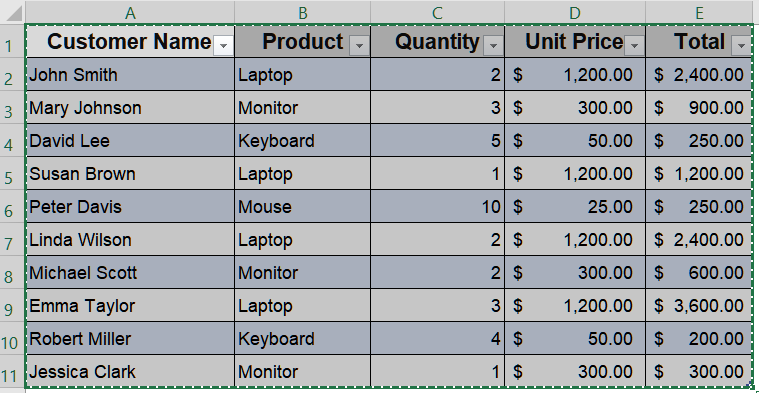
➤ Open your PowerPoint presentation and go to the slide where you want the table to appear.
➤ On the Home tab, click the small dropdown under Paste >> select Paste Special.
➤ In the Paste Special dialog, choose Microsoft Excel Worksheet Object.
➤ Check the Paste link box to maintain a live connection between Excel and PowerPoint. Click OK.
➤ Resize or reposition the table as needed.
Any updates made in the original Excel file will automatically reflect on the PowerPoint slide.
Paste Table as Static Image with Formatting in PowerPoint
If you want the table to remain exactly as it looks at a specific moment, without linking to Excel, pasting it as a static image or embedded object is the best choice. This ensures the formatting stays consistent regardless of changes in the original Excel file.
Steps:
➤ Copy your Excel table (A1:E11) using Ctrl + C .
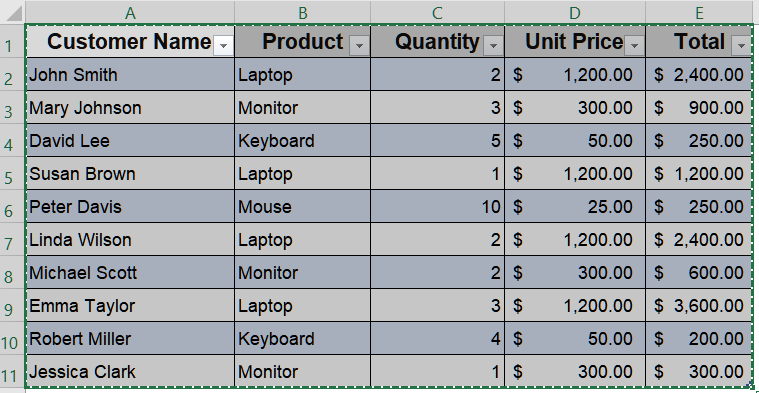
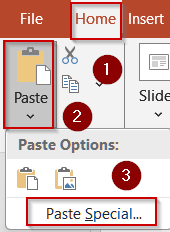
➤ In PowerPoint, select the target slide, right-click on the slide, and choose Paste Special.
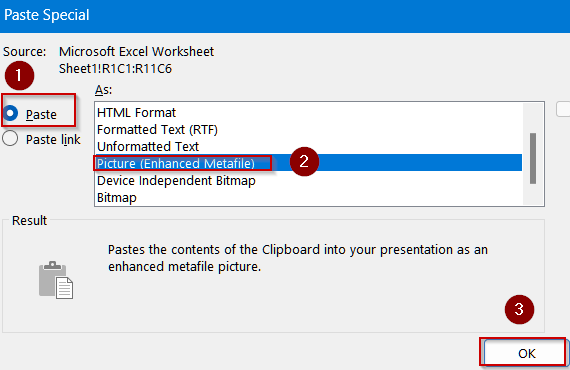
➤ In the dialog box, select Picture (Enhanced Metafile) under Paste to paste the table as a high-quality image. This preserves the formatting, borders, colors, and proportional scaling. Then, click OK.
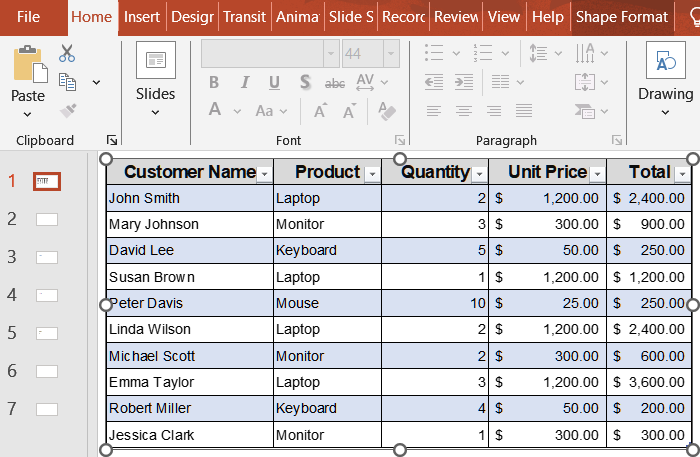
➤ Adjust the position and size of the table as needed. The table will now remain static, ensuring your slide always looks consistent during presentations.
Downloadable Resources
Get our practice workbook or necessary files that we have worked with to prepare this article.
Sample Excel Table with Formatting.xlsx
Frequently Asked Questions
Can I maintain Excel formulas when copying to PowerPoint?
Yes. By embedding the table as a linked Excel Worksheet Object, formulas remain in the original workbook. Any changes in Excel automatically update the PowerPoint slide while keeping calculations intact without manual adjustments.
Which Paste Special option preserves table formatting best?
The Enhanced Metafile option preserves all table formatting, including borders, colors, and proportional scaling. It creates a high-quality static image of the Excel table, ensuring consistent visual appearance on PowerPoint slides without linking or editing dependencies.
Does linking an Excel table increase PowerPoint file size?
No. When you link a table instead of embedding it, PowerPoint references the original Excel file rather than storing the data. This keeps the presentation file size smaller while maintaining dynamic updates whenever the Excel file changes.
Can I edit a table in PowerPoint after pasting it?
Yes, if the table is embedded as a linked Excel Worksheet Object. Double-clicking the table opens it in Excel within PowerPoint, allowing edits. Static images, however, cannot be edited and require updating the source Excel file.
Is it possible to update only part of a linked Excel table?
No. Linking updates the entire object in PowerPoint. Any changes in the source Excel range reflect fully in the linked table. Partial updates are not supported, and you must adjust the Excel range for selective updates.
Wrapping Up
In this tutorial, we explored how to copy tables from Excel to PowerPoint with formatting using two distinct approaches by embedding with a live link and pasting as a static image. By following these methods, you can ensure your slides look professional, maintain formatting integrity, and stay up-to-date when required. Use the sample dataset to practice and see how linking versus static embedding affects your presentation workflow.