In Excel, there are many cases where you only need a portion of the text in a cell, for example, extracting product codes, employee IDs, or abbreviations. Instead of manually typing or trimming data, Excel offers multiple ways to get the first three characters efficiently.
In this article, we’ll cover six practical methods to extract the first three characters from a cell, including formulas, built-in features, and even VBA automation. Let’s get started.
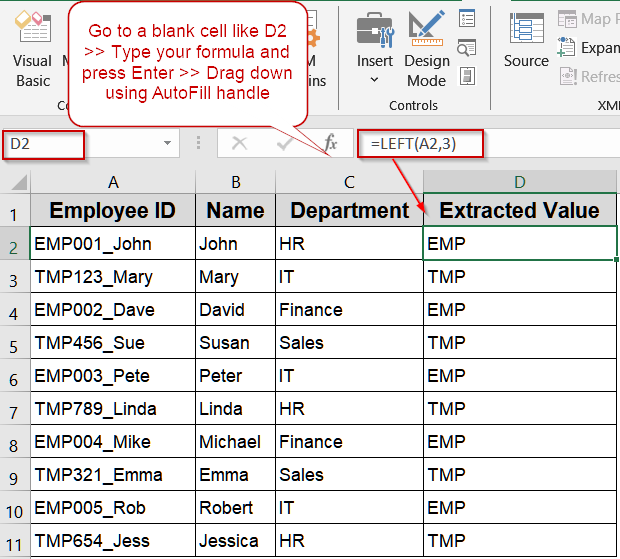
Steps to get first 3 characters from a cell in Excel:
➤ Go to a blank cell like D2.
➤ Type the following formula:
=LEFT(A2,3)
➤ Press Enter for output.
➤ Drag the formula down to fill all rows.
Extract the First Three Characters Using LEFT Function
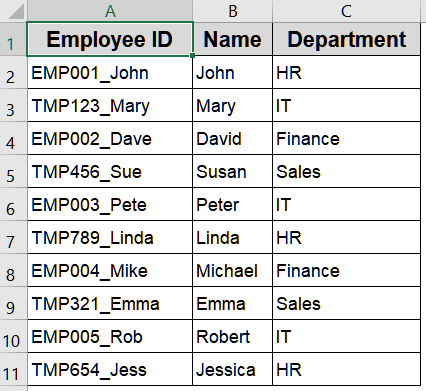
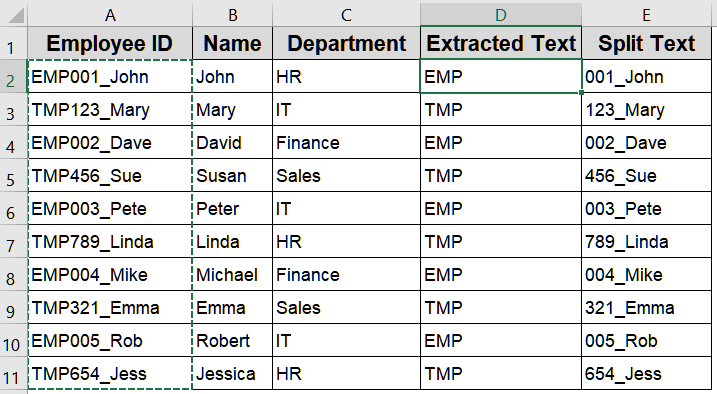
When you want a fast, simple solution for extracting the first few letters of any text string, the LEFT function is the go-to choice. It is ideal when dealing with standardized codes where the first three characters have a specific meaning. We’ll use the following dataset to extract the first three characters from Employee ID:
Steps:
➤ Go to a blank cell like D2.
➤ Type the following formula:
=LEFT(A2,3)
➤ Press Enter for output.
➤ Drag the formula down to fill all rows.
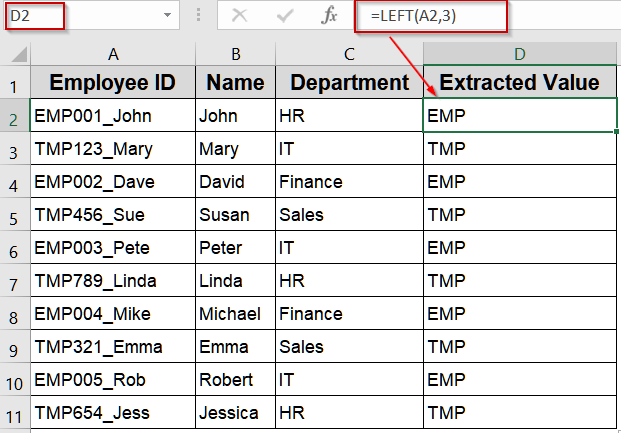
This retrieves values like “EMP” or “TMP” for all Employee IDs.
Combine LEFT with FIND Function to Handle Delimiters
If your text includes separators such as underscores, dashes, or spaces, using LEFT with FIND allows you to dynamically extract characters up to a delimiter. This is useful for IDs like “EMP_001_John” where the delimiter separates meaningful segments. We’ll use the following modified dataset to extract the first 3 characters:
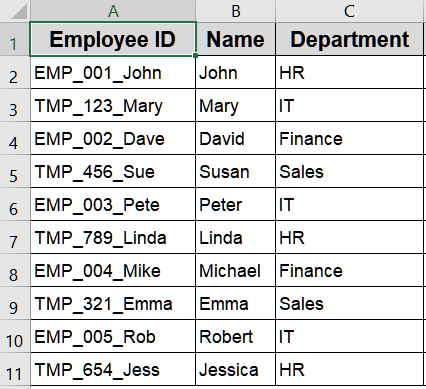
Steps:
➤ Go to a blank cell like D2.
➤ Type the following formula:
=LEFT(A2,FIND("_",A2)-1)
➤ Press Enter for output.
➤ Drag the formula down to fill all rows.
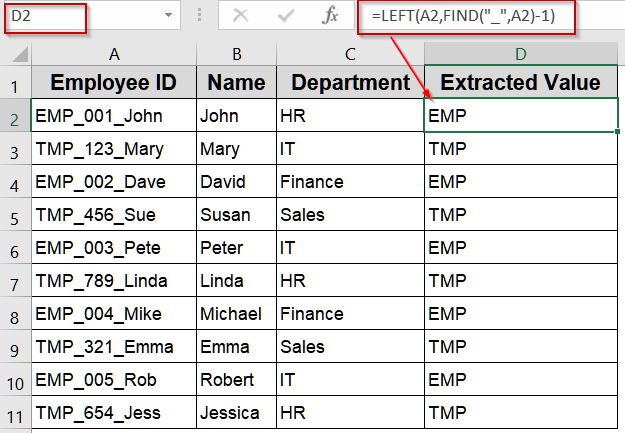
This returns everything before the underscore, like “EMP” or “TMP,” letting you extract the first three characters if needed.
Use MID Function for Flexible Extraction
When the characters you need may not always start at the first position, the MID function provides flexibility. It allows you to specify any starting point and the number of characters to extract, making it ideal for more complex ID patterns.
Steps:
➤ Go to a blank cell like D2.
➤ Type the following formula:
=MID(A2,1,3)
➤ Press Enter for output.
➤ Drag the formula down to fill all rows.
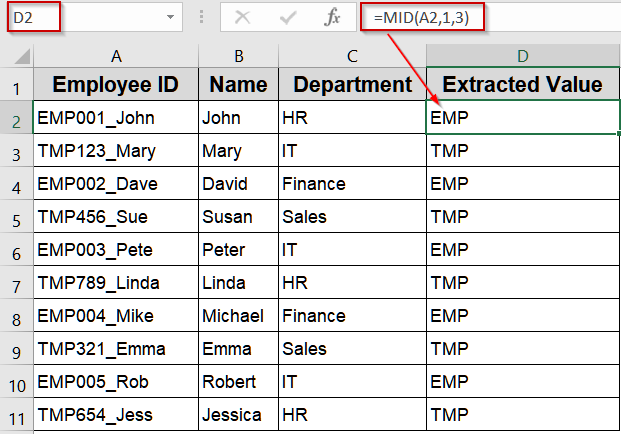
This pulls the first three characters from Employee IDs while allowing easy adjustment for other positions if needed.
Extract Characters Instantly Using Flash Fill
When you prefer a formula-free approach, Flash Fill is an excellent option. Excel detects patterns as you type and fills the rest of the column automatically, making it ideal for users unfamiliar with formulas.
Steps:
➤ In column D, manually type the first three characters of the first Employee ID (e.g., “EMP”).
➤ Begin typing the next row; Excel will detect the pattern. Continue for a few more rows if it does not.
➤ Press Ctrl + E to autofill the results or click on the icon and select Accept suggestions.
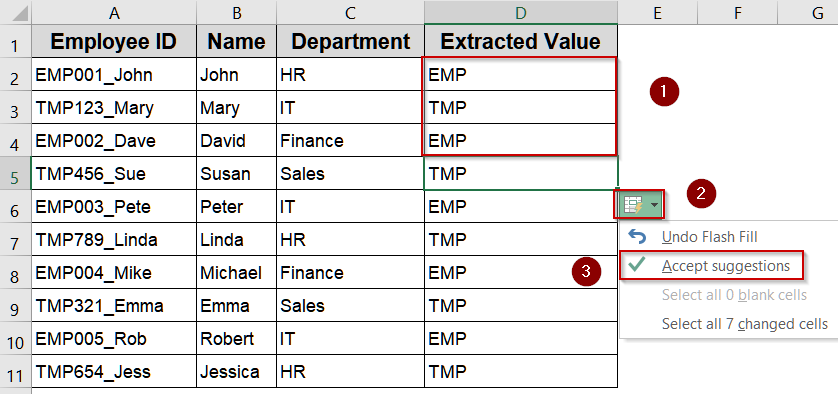
Excel fills the first three characters for all remaining rows based on the detected pattern.
Use Text to Columns for Fixed-Width Extraction
If you want a permanent separation of the first three characters into a new column, Text to Columns is the best option. Using fixed-width extraction, you can split any ID or text field quickly without formulas.
Steps:
➤ Select the Employee ID column (A2:A11).
➤ Go to Data tab >> Text to Columns.
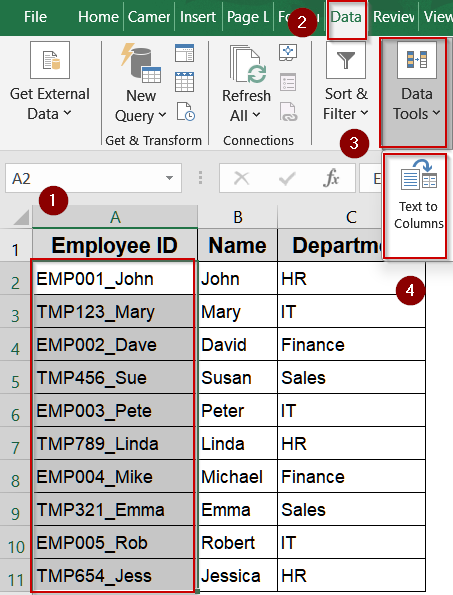
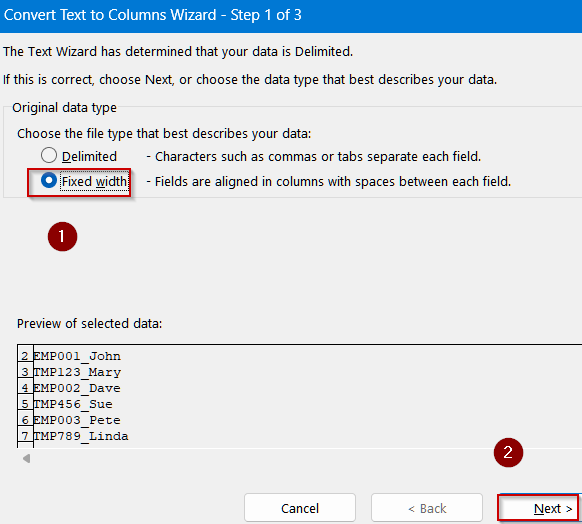
➤ Choose Fixed Width >> Next.
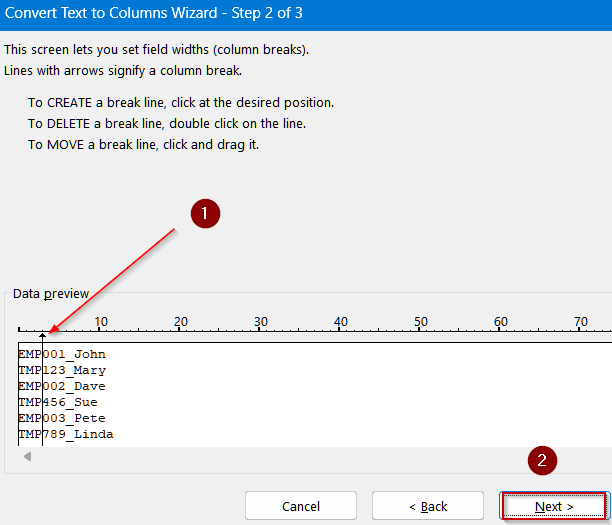
➤ Click after the third character to set the break >> Click on Next.
➤ Set your destination cell and hit Finish.
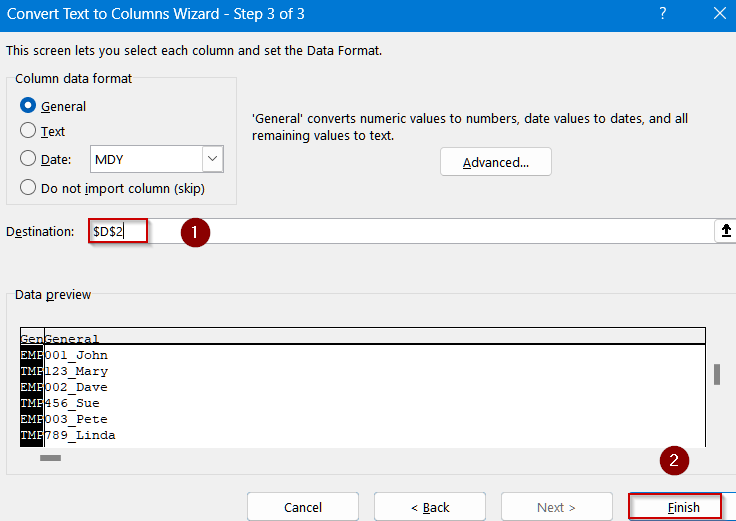
The first three characters now appear in a new column, separate from the rest of the text. Optionally, delete the extra column if you don’t need it.
Automate Extraction with VBA Code
For large datasets or repeated extraction tasks, VBA can automatically pull the first three characters from each cell in a destination column you set up. This reduces manual work and ensures consistent results across thousands of rows.
Steps:
➤ Press Alt + F11 to open the VBA editor.
➤ Insert >> Module, then paste:
Sub ExtractFirstThreeToD()
    Dim lastRow As Long
    Dim i As Long
    ' Find the last used row in column A
    lastRow = Cells(Rows.Count, "A").End(xlUp).Row
    ' Loop through each cell in column A starting from row 2
    For i = 2 To lastRow
        ' Extract first 3 characters and put in column D
        Cells(i, "D").Value = Left(Cells(i, "A").Value, 3)
    Next i
End Sub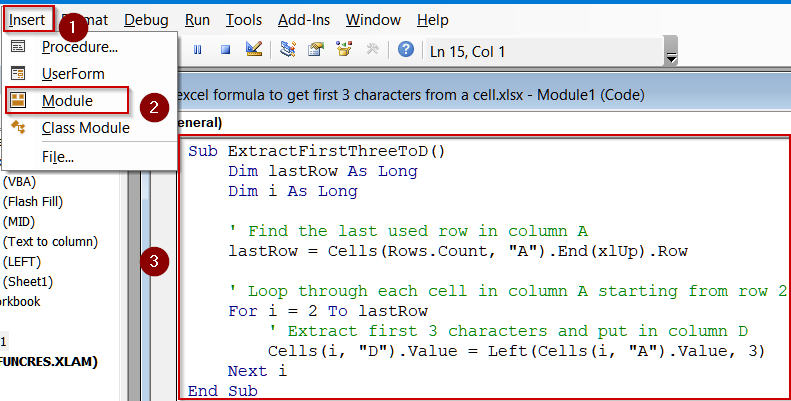
➤ Close the editor.
➤ Run the macro by pressing the F5 key.
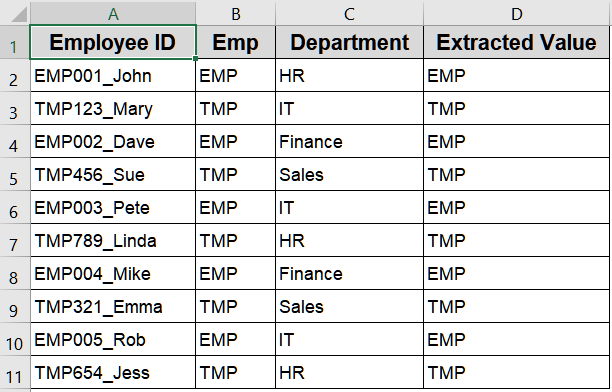
The first three characters will appear in the adjacent column automatically.
Downloadable Resources
Get our practice workbook or necessary files that we have worked with to prepare this article.
Get First 3 Characters from Cell.xlsx
Frequently Asked Questions
Can I extract the first 3 characters without using formulas?
Yes, Excel provides non-formula approaches like Flash Fill and Text to Columns. Flash Fill detects patterns automatically, while Text to Columns splits text by fixed width or delimiters, making it simple for quick extraction.
Will formulas like LEFT or MID update automatically if the source cell changes?
Yes. When the original cell content changes, any dependent formula using LEFT, MID, or combined functions updates instantly. This ensures your extracted characters remain accurate and dynamic without needing manual recalculation.
How do I extract characters from different positions in a cell?
Use the MID function, which allows specifying the starting position and number of characters to extract. This is ideal for variable formats or when the characters you need aren’t at the beginning of the cell.
Is VBA a better choice for large datasets?
Yes, VBA is ideal for automating character extraction in large datasets. A simple macro can loop through hundreds or thousands of rows, extracting the first three characters quickly, saving significant time over manual methods.
Which method is easiest for beginners without formulas?
For beginners, Flash Fill or Text to Columns is the easiest. They require no formulas, are intuitive, and can extract patterns or fixed-width characters instantly, making them perfect for users unfamiliar with Excel functions.
Wrapping Up
In this tutorial, we explored six methods to extract the first three characters from a cell in Excel. From formulas like LEFT, MID, and combined approaches to VBA automation and Flash Fill, you now have multiple ways to handle IDs, codes, or abbreviations efficiently. Feel free to download the practice file and share your feedback.