While formatting data in excel, sometimes numbers can be recognized as some other format. As a result, there could be zeroes in front of a number that aren’t supposed to be there. In this article, we will learn how to remove zeros in front of a number in excel.
Note that this article covers removing unwanted leading zeros. If you actually need to add leading zeros, for example- displaying 1 as 001 for product codes or IDs, then our tutorial on how to write 001 in Excel and keep leading zeros covers that opposite scenario.
➤ Use another cell in order to extract the data without zeros.
➤ Write this formula in that cell:
=VALUE(B2)
➤ Replace B2 with the source cell name

That was one method, but there are other methods as well. In this article, we will discuss all the methods you can use to remove zeros in front of numbers in excel. Therefore, keep reading this article so that you can use the methods you want to use for your dataset.
Quick Video Tutorial: Remove Zeros in Front of a Number in Excel
Using the VALUE Function
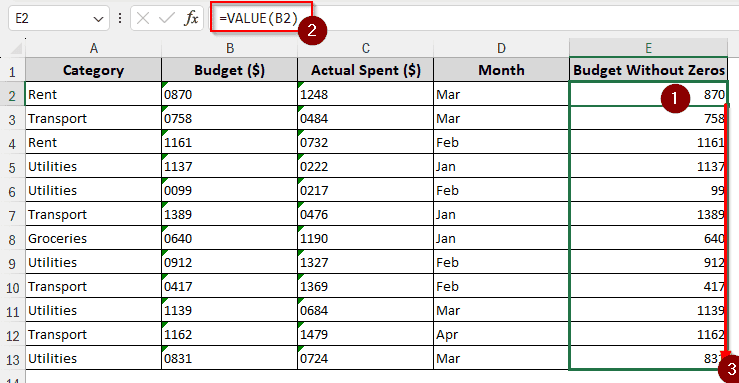
In this dataset, we have some budget information with spending data. However, the data was imported from some other application, which did not format the columns properly. As a result, we have data with leading zeros that aren’t supposed to be there. We must clean this data up to start working with it.
➤ Take a helper cell to get the data without leading zeros.
➤ Use this formula:
=VALUE(B2)
➤ Autofill other cells using your mouse.
If you need to go the other direction or converting a number into text while preserving or adding leading zeros, then our article on how to convert numbers to text with leading zeros in Excel covers that workflow in detail.
Formatting Cells Using the TEXT Formula
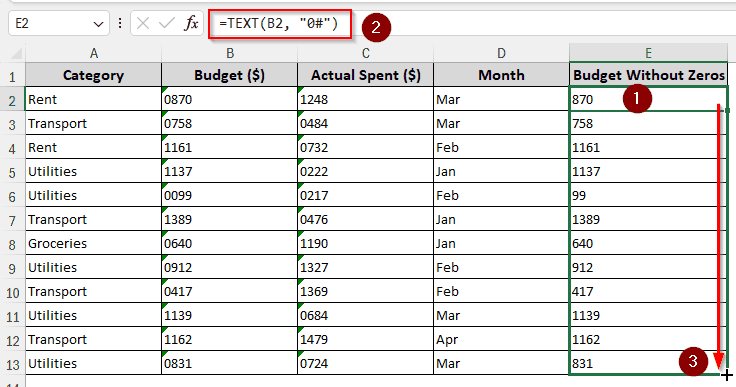
In this method, we will use a formula that uses the TEXT function to format the data in a way that removes the zeros and outputs other numbers as they are.
➤ Take another column with the same rows so that we can autofill later.
➤ Format using this formula:
=TEXT(B2, “0#”)
➤ Autofill other cells to complete the job.
Note that if you are working with a dataset where leading zeros are supposed to be there but keep disappearing after entry or import, then our troubleshooting guide on how to fix leading zeros not showing in Excel will help you resolve that.
Using a Combination of RIGHT-LEN-FIND-LEFT-SUBSTITUTE Functions
This formula will actually remove the zeros by substituting them with blanks instead of copying the cells and hoping that excel gets it right. Follow the steps below:
➤ You know what to do by now, so get another cell to write the formula:
=RIGHT(B2, LEN(B2) – FIND(LEFT(SUBSTITUTE(B2, “0”, “”), 1), B2) + 1)
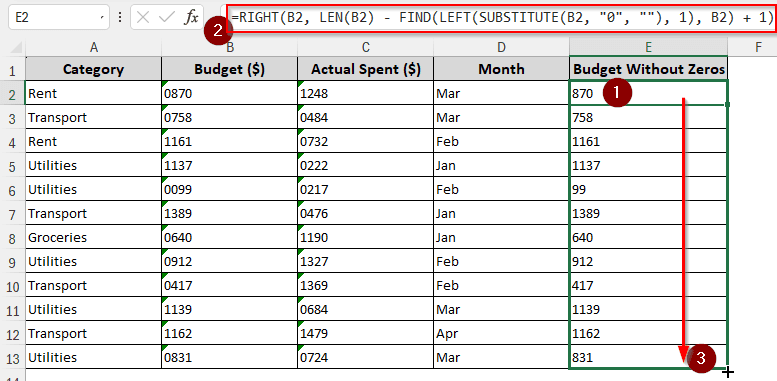
➤ Now, if we autofill, we can see that all of the cells have their zeros removed.
Removing a Specific Number of Zeros Using IF-LEFT-RIGHT-LEN
The methods we have used so far remove all leading zeros in front of a number. But what if you want to remove just one or two zeros? In that case, you need to use the method described below:
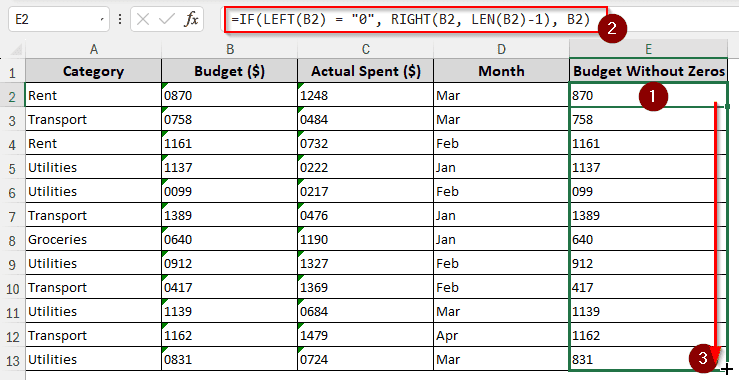
➤ In your helper cell, write this formula:
=IF(LEFT(B2) = “0”, RIGHT(B2, LEN(B2)-1), B2)
➤ After filling the other cells up, we can notice that only the first zero was removed from every cell. For example, the B6 cell had two zeroes, and we got an output with a single zero only.
Pasting Data for Autoformatting
This time, we won’t be using any formulas. Instead, we will just copy/paste the data and leave it to excel for autoformatting.
➤ Select the cells you want to remove the zeros from, and copy from the Clipboard section.
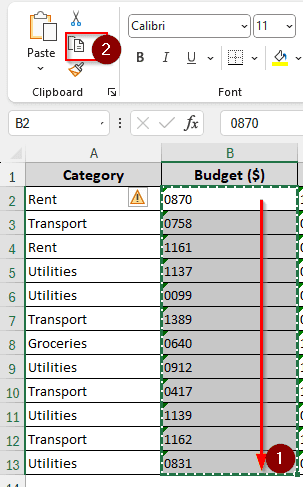
➤ Select the cells where you want to paste the data. Then press Ctrl+Alt+V.
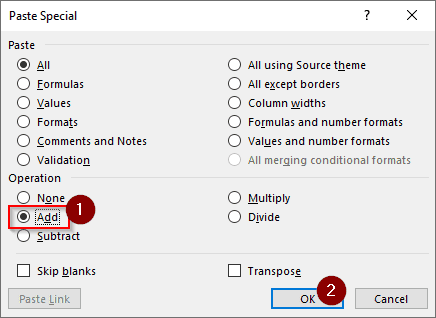
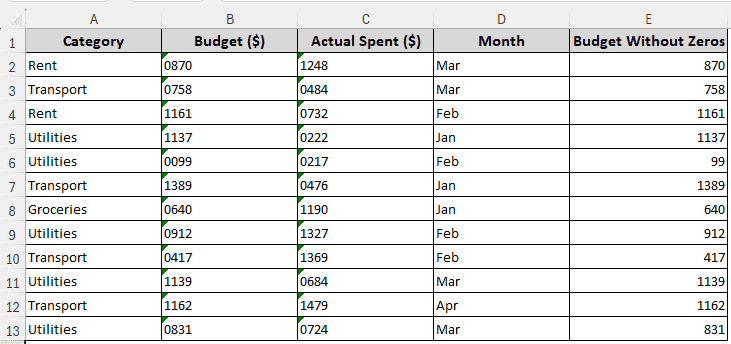
➤ From the new dialog box, check the Add combobox from the Operation Then press OK to see the result.
➤ If the source cells still show the copy outline, you might want to select the source cells and press Enter.
Downloadable Resources
Get our practice workbook or necessary files that we have worked with to prepare this article.
Remove Zeros in Front of a Number.xlsx
Frequently Asked Questions
How do I stop Excel from taking zeros in front of numbers?
Before writing the values, put an apostrophe (`) at the beginning. Now excel won’t take the zeros in front of your numbers.
How to keep 0 in front of number in sheet?
You have to change the format of the cells from number to Text. Then, sheets will remove zeros because otherwise, zeros in front of regular numbers don’t matter.
How do I make zeros go away in Excel?
From the File menu, go to Options > Advanced. From the “Display options for this worksheet” option, select your worksheet, and uncheck “Show a zero in cells that have zero value”.
How to paste into Excel without losing leading zeros?
Before pasting the values, format the columns where you want to paste the data into Text. Then, after pasting the data, the leading zeros will not be removed. If instead of leading zeros you need to preserve or add zeros at the end of numbers, such as displaying 12.5 as 12.50, then our article on how to add trailing zeros in Excel explains all the methods for that.
How do you ignore zeros in Excel average?
Use this AVERAGEIF function:
=AVERAGEIF(A1:A10,”<>0″)
Replace A1:A10 with your data range.
Wrapping Up
In this article, we have learned five ways to remove zeros in front of a number in excel. If you want to see the workbook yourself, download and open it from your device. Feel free to drop a suggestion or two below, and we will see you in another article.