
When working with large datasets, it is often necessary to identify the last column that contains data for accurate analysis and management. By using Excel’s built-in tools and functions, we can easily do this.
Follow the steps below to find the last column with data in your Excel Dataset.
➤ In your dataset, head to the cell where you want to display the result and paste the following formula:
=SUBSTITUTE(ADDRESS(1,MAX(IF(data_range<>””,COLUMN(data_range))),4),”1″,””)
➤ Replace data_range with the range of the entire dataset you want the formula to search through.
➤ Then press Enter, and the formula will return the last column containing data.
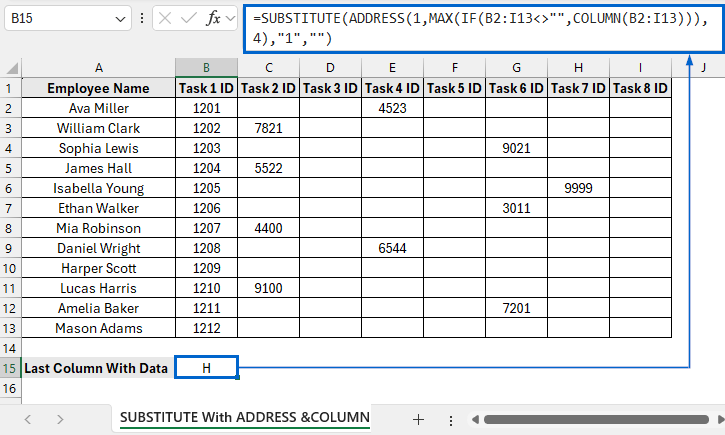
In this article, we will learn four effective methods on how to find last column with data in Excel.
Find the Last Column With Data Using Address Reference
In the sample dataset, we have a worksheet called “Employee Task ID” containing information about Employee names and Task IDs for tasks 1 through 8.
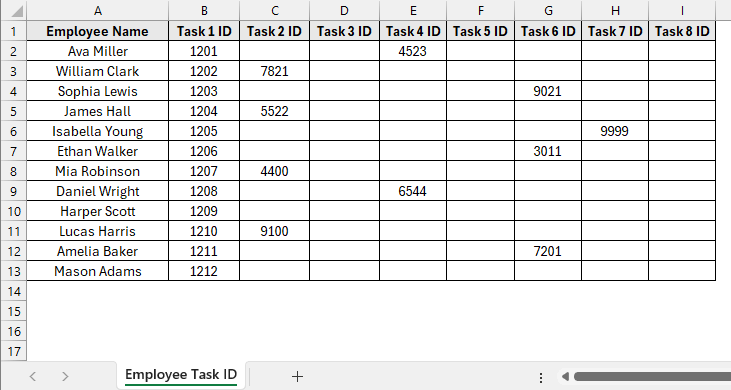
Using the SUBSTITUTE with ADDRESS and COLUMN functions, we will identify the last column that contains data and display the result in cell B15. The updated dataset will be stored in a separate “SUBSTITUTE With ADDRESS & COLUMN” worksheet.
The SUBSTITUTE and ADDRESS functions in Excel let users manipulate and return cell references as text, while the COLUMN function provides the numerical index of a column in the worksheet. By combining all three functions, we can efficiently locate and identify the column numbers that meet specific criteria within a dataset.
Steps:
➤ Head to the SUBSTITUTE With ADDRESS &COLUMN worksheet, select cell B15 and put the following formula:
=SUBSTITUTE(ADDRESS(1,MAX(IF(B2:I13<>"",COLUMN(B2:I13))),4),"1","")
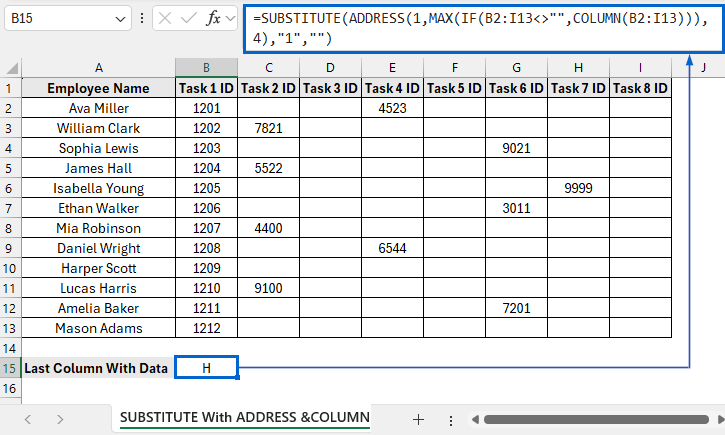
➧ IF(B2:I13<>"",COLUMN(B2:I13)) part checks each cell in the range B2:I13. If a cell is not empty, it returns its column number; otherwise, it returns FALSE.
➧ MAX(IF(...)) part finds the largest column number in the range.
➧ ADDRESS(1, … , 4) takes that column number and converts it into a cell reference in row 1. The 4 ensures the reference is in a simple relative format.
➧ SUBSTITUTE(...,"1","") part removes the "1" (the row number) from the cell reference, leaving only the column letter.
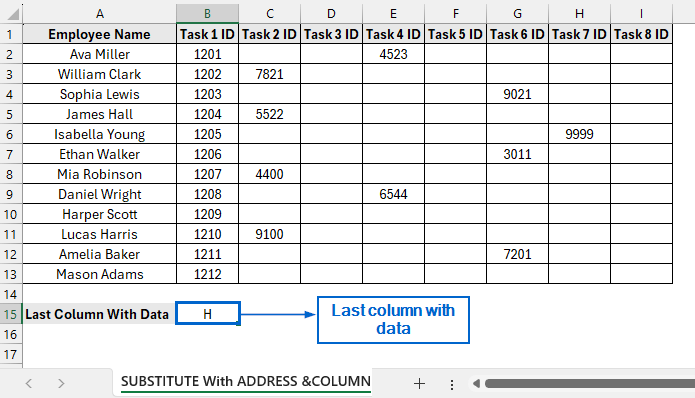
➤ The last column containing data should now be visible in cell B15.
Return the Last Column With Data Through Character Code
The CHAR function in Excel returns the character corresponding to a numeric code, while the COLUMN function returns the column number of a specified reference. By combining these functions, we can identify the last column in a dataset that contains data.
Using the same dataset, we will now identify the last column containing data using the CHAR and COLUMN functions and display the result in cell B15. We will display the modified dataset in a separate worksheet called “CHAR With COLUMN”.
Steps:
➤ Head to the CHAR With COLUMN worksheet, select cell B15 and put the following formula:
=CHAR(64+MAX(IF(B2:I13<>"",COLUMN(B2:I13))))
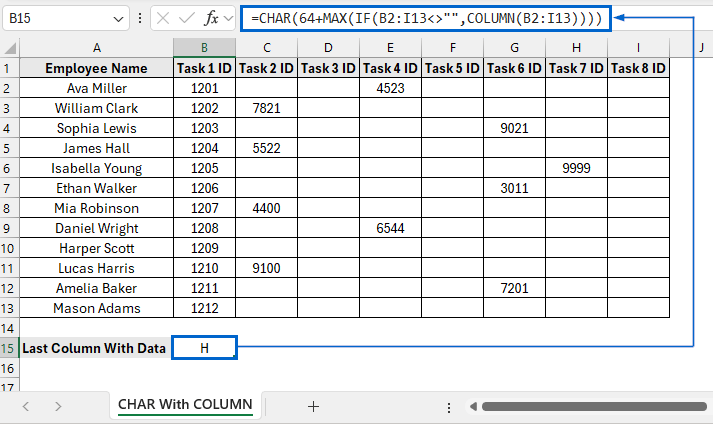
➧ IF(B2:I13<>"",COLUMN(B2:I13) part checks every cell and returns column numbers for cells that are non-empty, ignoring the empty ones.
➧ MAX(IF(...)) finds the largest column number among non-empty cells.
➧ CHAR(64+...) converts that column number into its corresponding column letter.
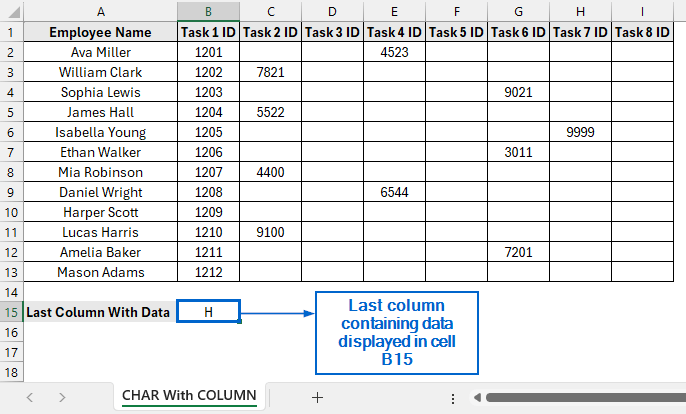
➤ Cell B15 should now display the last column that contains data.
Get the Last Column With Data by Removing Row Numbers
The LEFT and ADDRESS functions in Excel let users extract specific parts of a cell reference as text, while the COLUMN and LEN functions return the column number of a reference and the length of a text string, respectively.
Working with the same dataset, we will now combine all four functions to find out the last column in the dataset that contains data. We will display the updated dataset in a separate “LEFT With ADDRESS, COLUMN & LEN” worksheet.
Steps:
➤ Head to the LEFT With ADDRESS, COLUMN & LEN worksheet, select cell B15 and put the following formula:
=LEFT(ADDRESS(1,MAX(IF(B2:I13<>"",COLUMN(B2:I13))),4),LEN(ADDRESS(1,MAX(IF(B2:I13<>"",COLUMN(B2:I13))),4))-1)
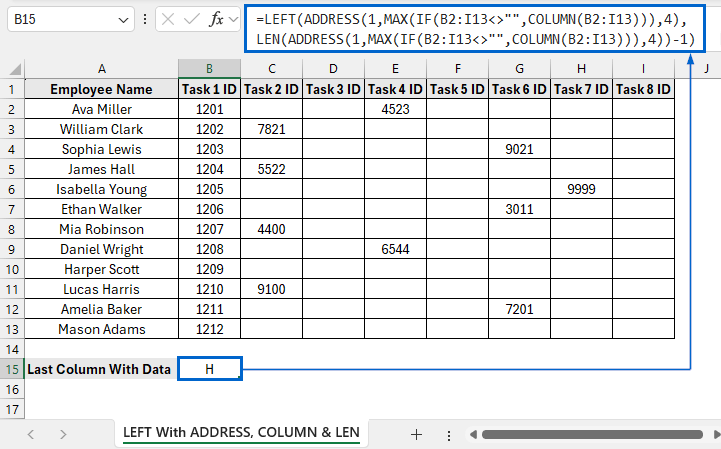
➧ IF(B2:I13<>"",COLUMN(B2:I13)) checks all cells in B2:I13. If a cell is not empty, it returns its column number, ignoring empty ones.
➧ MAX(IF(...)) finds the highest column number from the non-empty cells corresponding to the last column containing data.
➧ ADDRESS(1, ...) converts the column number to a cell reference in row 1.
➧ LEFT(..., LEN(...)-1) part emoves the row number, leaving just the column letter.
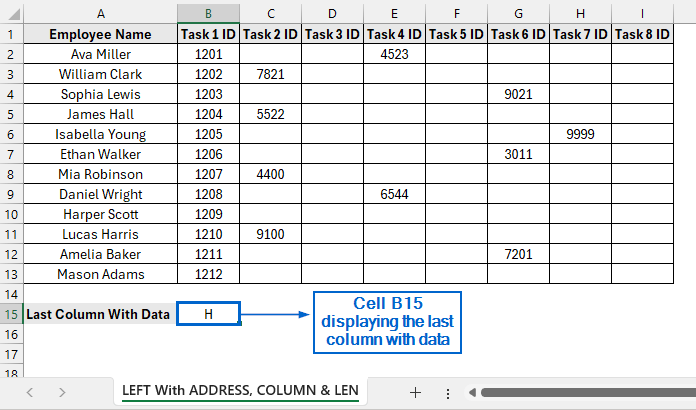
➤The last column containing data is identified and displayed in cell B15.
Identify Last Column with Data Automatically with VBA
Excel’s VBA Editor is a powerful tool that lets users write custom macros, automate repetitive tasks, and enhance efficiency while saving time.
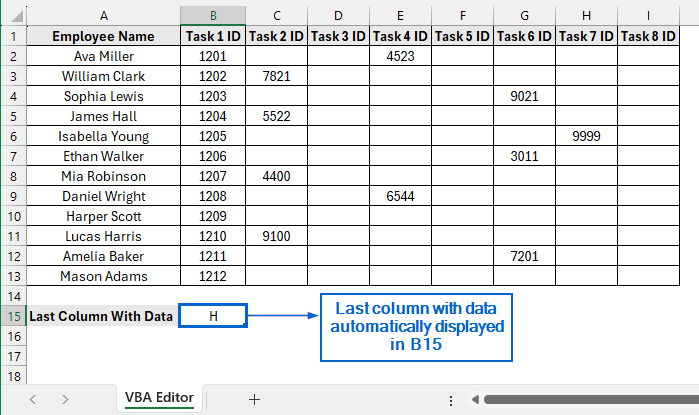
Using the same dataset again, we will now use VBA Editor to automatically determine the last column in the dataset with data. We will store the modified dataset in a separate worksheet called “VBA Editor”.
Steps:
➤ Head to the VBA Editor worksheet, press Alt + F11 to launch VBA Editor window.

➤ Next, from the main menu, navigate to Insert >> Module and paste the following macro:
Sub LastUsedColumnLetter()
Dim ws As Worksheet
    Dim rng As Range
    Dim f As Range
    Dim lastCol As Long
    Dim colLetter As String
    Set ws = ActiveSheet
    Set rng = ws.Range("B2:I13")
    On Error Resume Next
    Set f = rng.Find(What:="*", LookIn:=xlFormulas, _
                     SearchOrder:=xlByColumns, SearchDirection:=xlPrevious)
    On Error GoTo 0
    If f Is Nothing Then
        ws.Range("B15").Value = "No data"
        Exit Sub
    End If
    lastCol = f.Column
    colLetter = Replace(ws.Cells(1, lastCol).Address(False, False), "1", "")
    ws.Range("B15").Value = colLetter
End Sub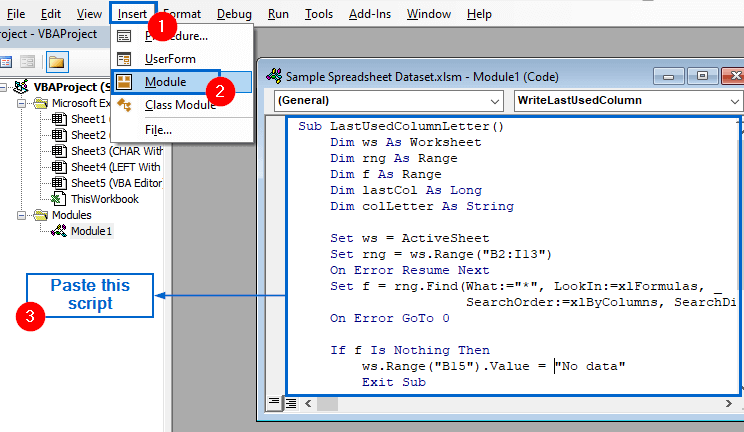
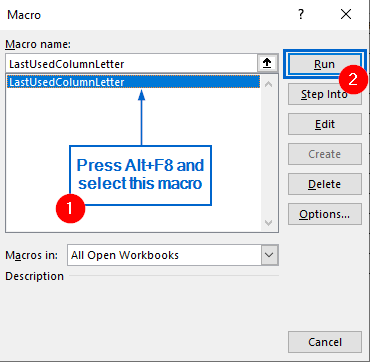
➤ Close the VBA Editor, press Alt + F8 to open the Macros dialogue box, choose the LastUsedColumnLetter macro, and click Run to execute it.
➤ The last column in the dataset containing data should now automatically be displayed in cell B15.
Frequently Asked Questions
Which Method is Best for Large Datasets?
For large datasets, the VBA Editor method would be the most efficient. Unlike other methods, VBA runs once and instantly identifies the last column with data automatically, saving time and reducing manual effort.
Can I Return the Column Number Instead of the Letter?
Yes, you can. To return the column number of the last column containing data, use the following formula:
=MAX(IF(B2:I13<>"",COLUMN(B2:I13)))
This formula works by checking the range B2:I13 for non-empty cells and returning their column numbers using the COLUMN function. The MAX function then extracts the largest column number from this list, which represents the last column in the range containing data.
Concluding Words
Knowing how to find the last column with data in Excel is crucial for efficiently managing dynamic datasets and streamlining workflows.
In this article, we have discussed four effective methods of finding last column with data in an Excel dataset, including combining SUBSTITUTE with ADDRESS & COLUMN functions, CHAR with COLUMN functions, LEFT with ADDRESS, COLUMN & LEN functions and VBA Editor. Feel free to try all methods and choose one that best aligns with your needs.