Adding a logo to your Excel header is a professional way to brand your spreadsheets, especially when preparing reports, invoices, or company documents. By placing your logo in the header, it automatically appears on every printed page, saving you the trouble of inserting it manually on each sheet. Excel allows you to insert images directly into any of the three header sections (left, center, or right), giving you flexibility in layout and design.
In this article, you’ll learn step-by-step how to insert a logo in an Excel header, choose its position, and ensure it displays correctly across all pages. Let’s get started.
Steps to insert logo in Excel header:
➤ Go to the Insert tab and open Header & Footer to access header editing mode.
➤ Choose your desired header section (Left, Center, or Right) where the logo will appear.
➤ Click on Picture from the Header & Footer tab to upload your company logo.
➤ Select your logo file from your computer and click Insert to add it.
➤ Click outside the header to view your logo properly in the Page Layout view.

Steps to Insert Logo in Excel Header
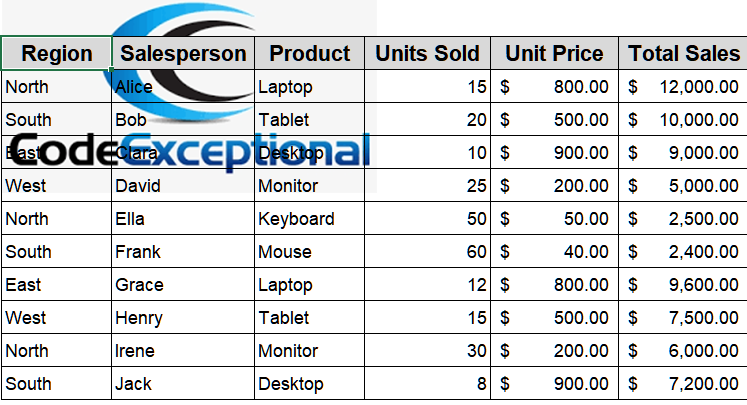
Adding your company logo to an Excel header helps create a professional and branded look for printed reports or client documents. Follow these clear steps to insert your logo directly into the header section of your worksheet. We’ll use the following dataset:
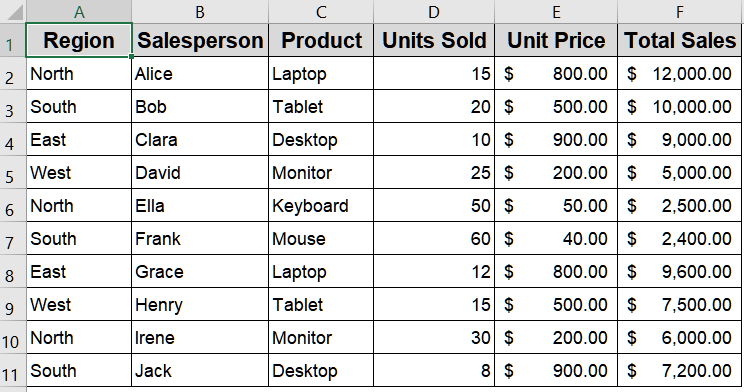
Step 1: Open Header & Footer View
Before inserting your logo, you need to access the Header & Footer view, which allows you to customize header content. This view also switches Excel into Page Layout mode, letting you see exactly where the header elements will appear when printed.
Steps:
➤ Go to the Insert tab on the Excel ribbon.
➤ In the Text group, click Header & Footer.

➤ Excel will switch to Page Layout View, and you’ll notice new header sections appear at the top of your sheet.
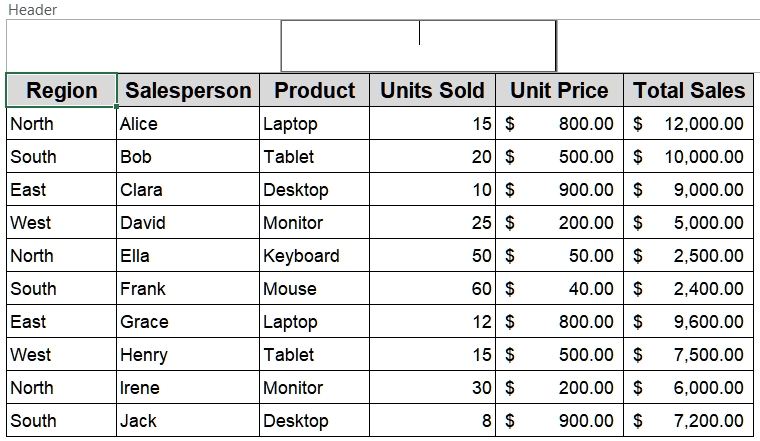
Step 2: Select a Header Section
Every Excel header is divided into three sections which are Left, Center, and Right. You can place your logo in any of these, depending on your layout preference. For example, a centered logo works best for reports, while a right-aligned logo fits corporate templates.
Steps:
➤ Click on one of the header sections such as Left Header, Center Header, or Right Header.
➤ Ensure your cursor is active inside the selected header box before inserting your image.
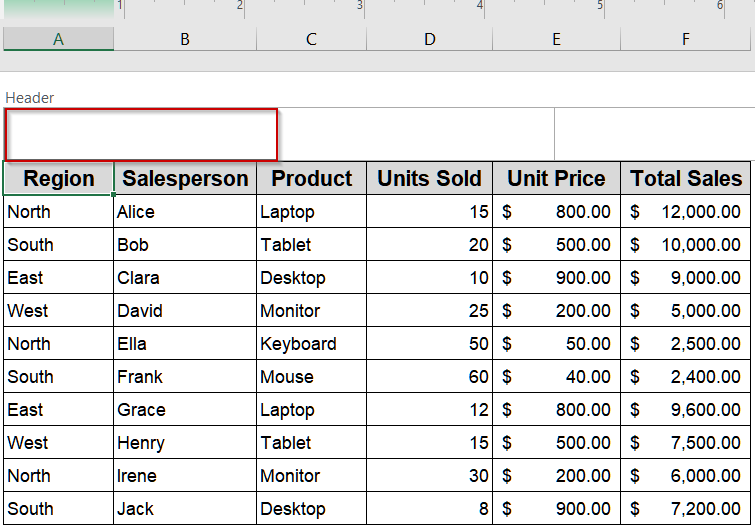
Step 3: Insert the Logo Picture
Now, it’s time to insert your company logo file. Excel allows you to upload from your device, OneDrive, or online sources. Once inserted, it will display as a placeholder tag initially.
Steps:
➤ Go to the Header & Footer tab that appears after selecting a header box.
➤ Click on the Picture button.
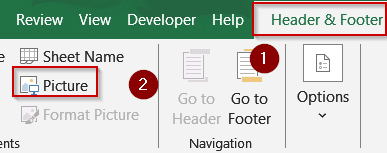
➤ The Insert Pictures dialog box will appear.
➤ Browse and select your logo image file (e.g., PNG, JPEG).

➤ Click Insert to confirm your selection.

You’ll now see the placeholder text &[Picture] in your selected header section.

Step 4: View and Confirm Your Logo
Once the image is added, you need to preview the actual logo to ensure it appears correctly in size and position. The image won’t display while editing, but will appear once you exit the header view.
Steps:
➤ Click anywhere outside the header box to close the editing mode.
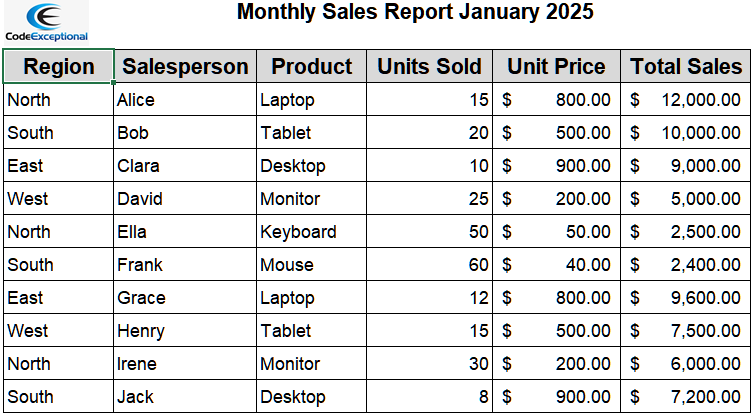
➤ Your logo will now appear visibly in the chosen section (Left, Center, or Right).
➤ Scroll through your worksheet or open Print Preview to confirm that it appears on every page.

Step 5: Adjust Logo Size (Optional)
If your logo appears too large or too small, you can adjust it for better alignment. You can do this by reopening the header section and editing the image settings.
Steps:
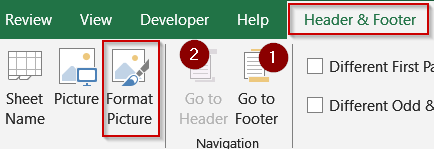
➤ Double-click the header section containing &[Picture].
➤ Click Format Picture in the Header & Footer tab.
➤ In the Size tab, adjust height and width manually.
➤ Click OK to apply changes.

This ensures your logo fits neatly within the header space and maintains a professional appearance.
Frequently Asked Questions
Why does my logo display as &[Picture] instead of showing the image?
When you first insert an image into the header, Excel displays the placeholder &[Picture] to represent it. The actual image becomes visible once you exit the editing mode or switch to Page Layout View or Print Preview.
Which image file formats work best when inserting a logo in Excel?
Excel supports popular image types such as .jpg, .png, .bmp, and .gif. However, PNG is the most recommended option since it maintains high resolution, supports transparent backgrounds, and produces sharp visuals.
Can I adjust the size of my inserted logo?
Yes, double-click the header again, select the Format Picture option, and adjust the width and height under the Size tab to perfectly fit your logo within the header area in your Excel file.
Will the inserted logo appear on every page when printed?
Yes, once inserted into the header, your logo automatically appears on all printed pages, maintaining consistent branding across multiple sheets or lengthy reports without needing to reinsert it manually.
Wrapping Up
In this tutorial, you learned how to insert a logo in an Excel header to give your spreadsheets a professional and branded appearance. By following these detailed steps, you can easily embed your company’s identity across all pages, ensuring your documents look consistent, credible, and ready for presentation or printing. Feel free to download the practice file and share your feedback.