Linking a Word document to Excel lets you bring Word content into your workbook so you can open, display, or import the document’s contents without repeatedly hunting for the file. This is useful for reports, attachments, notes, or any case when a Word file is a source of reference material for your spreadsheet.
In this article, you’ll learn how to link a Word document to Excel using different methods.
Here’s how to link a Word document to Excel:
➤ Open your Excel workbook.
➤ Select the cell where you want to create the link, for example D2.
➤ Go to the Insert tab and click Link or press Ctrl + K .
➤ In the Insert Hyperlink dialog box, click Existing File or Web Page on the left panel.
➤ Browse and locate your Word document, for example Sales_Report.docx.
➤ Select the file and click OK. You’ll now see a clickable hyperlink in cell D2. The cell text will usually display the file name.
➤ To test the link click the cell that contains the hyperlink.
➤ Excel will immediately open the linked Word document.
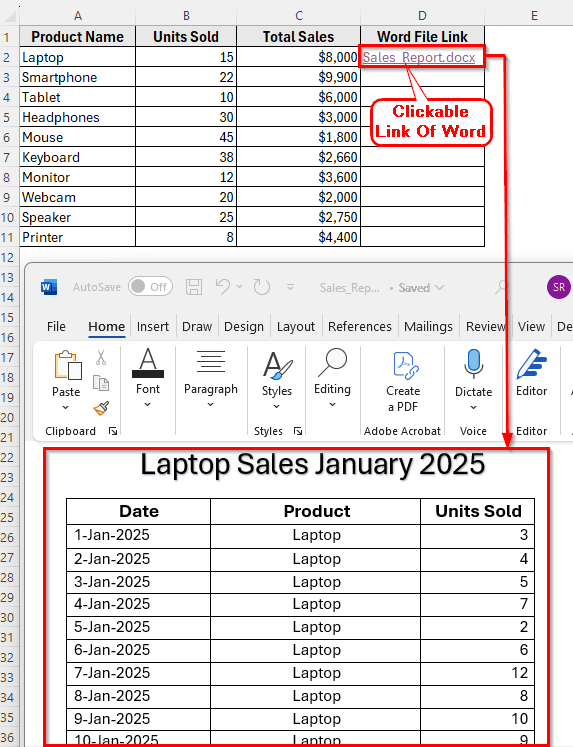
Create a Hyperlink to a Word Document in Excel
In the following Excel dataset, we have a small sales report that we’ll link to our Word document. Column A lists the Product Names, Column B shows the Units Sold, Column C contains the Total Sales, and Column D will hold the Word File Link which is currently empty.
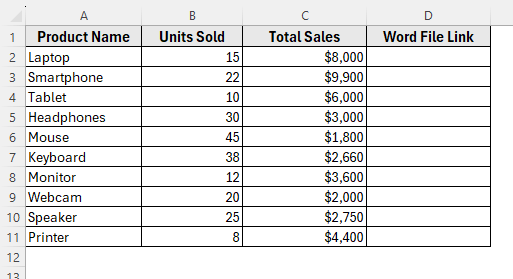
We’ll use this dataset to demonstrate how the information can be linked Word to Excel.
If you prefer a simple, lightweight link, create a clickable hyperlink in a cell that opens the Word file with one click. This is fast, portable, and ideal for lists of documents.
Here’s how to do it step by step:
➤ Open your Excel workbook.
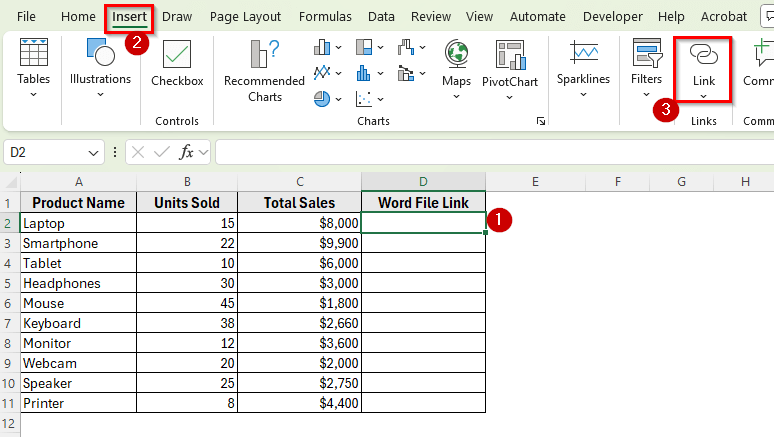
➤ Select the cell where you want to create the link, for example D2.
➤ Go to the Insert tab and click Link or press Ctrl + K .
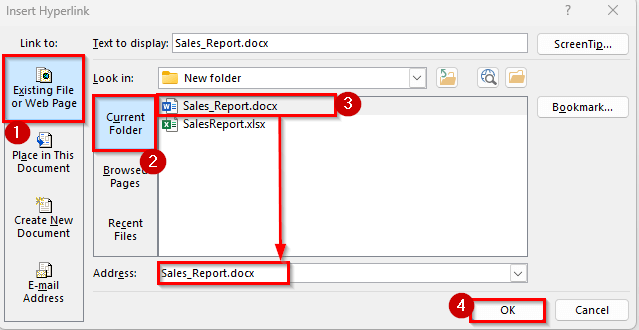
➤ In the Insert Hyperlink dialog box, click Existing File or Web Page on the left panel.
➤ Click Current Folder and locate your Word document, for example Sales_Report.docx.
➤ Select the file and click OK.
➤ You’ll now see a clickable hyperlink in cell D2. The cell text will usually display the file name.
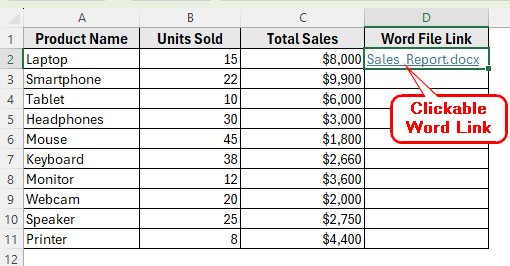
➤ To test the link click the cell that contains the hyperlink.
➤ Excel will immediately open the linked Word document.
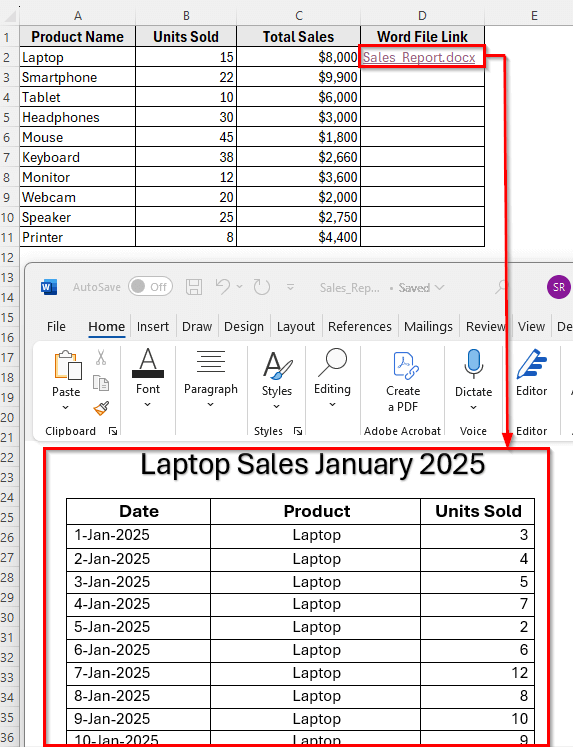
Insert the Word File as a Linked Object
The easiest way to link a Word document to Excel is by inserting it as a linked object. This method creates a live connection between the Excel workbook and the Word file.
Here’s how to do it step by step:
➤ Open your Excel workbook and select the cell where you want to insert the Word document.
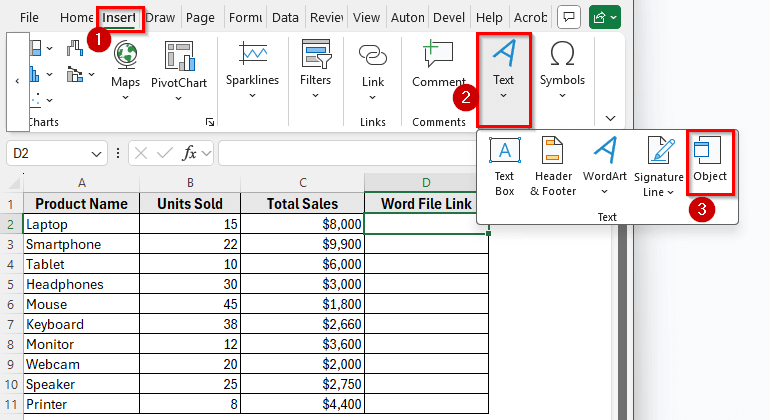
➤ Go to the Insert tab on the ribbon and click Object in the Text group.
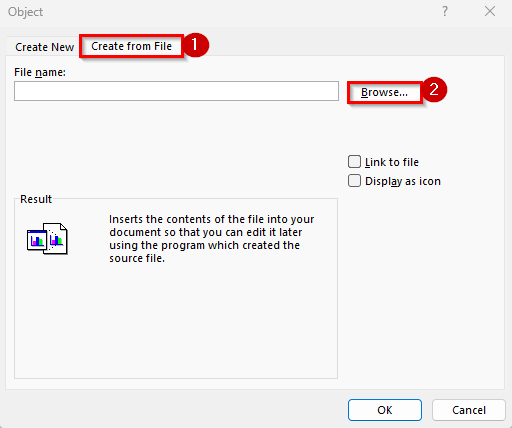
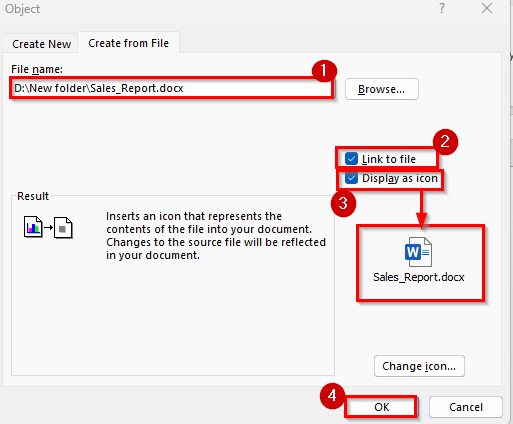
➤ In the Object dialog box, click the Create from File tab.
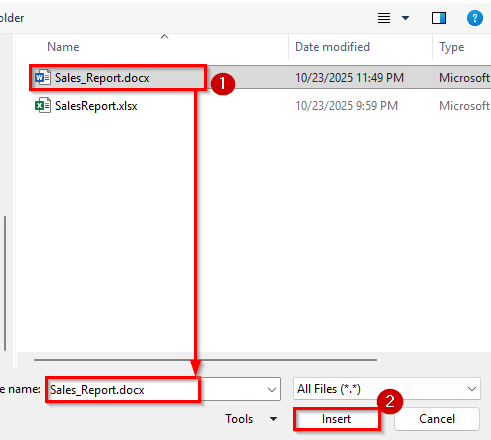
➤ Click Browse.
➤ Locate your Word file, and select it. Click Insert.
➤ Check the box labeled Link to file and Display as icon, then click OK.
➤ Your Word document will now appear inside the Excel worksheet as an icon or a small preview of the first page.
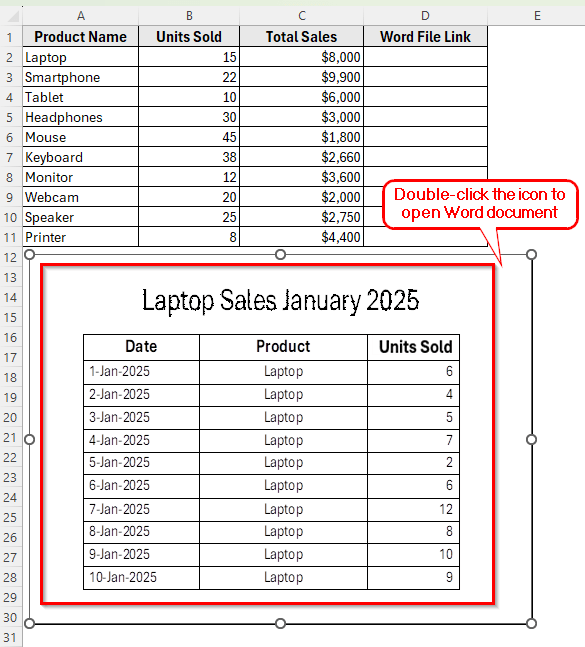
➤ To open the linked document, double-click the icon or preview.
➤ The Word file will open directly in Microsoft Word.
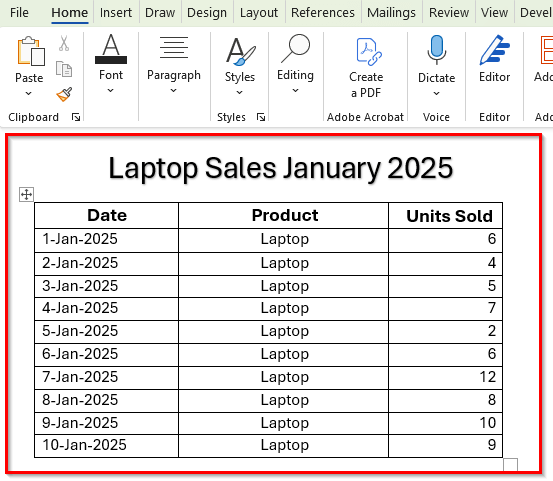
➤ You can make changes to the Word document, save it, and when you return to Excel, the linked object will automatically reflect the latest version.
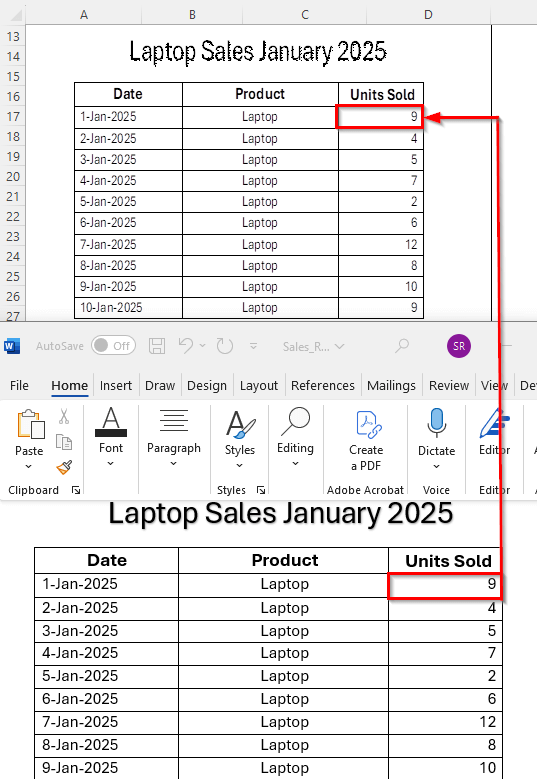
➤ For example, change the first Laptop’s Units Sold to 9 and save the Word file. Then return to your Excel workbook, and you’ll see the updated value appear automatically.
Using Paste Special to Link Specific Word Content into Excel
If you only need certain text or a table from a Word document to appear in Excel and want it to stay connected, you can use the Paste Special feature with a link. This method allows Excel to display the content from Word and update it whenever the original Word file changes.
Here’s how to do it step by step:
➤ Open the Word document and select the text, paragraph, or table you want to link.
➤ Press Ctrl + C to copy the selection.
➤ Switch to your Excel workbook and select the cell where you want the content to appear.
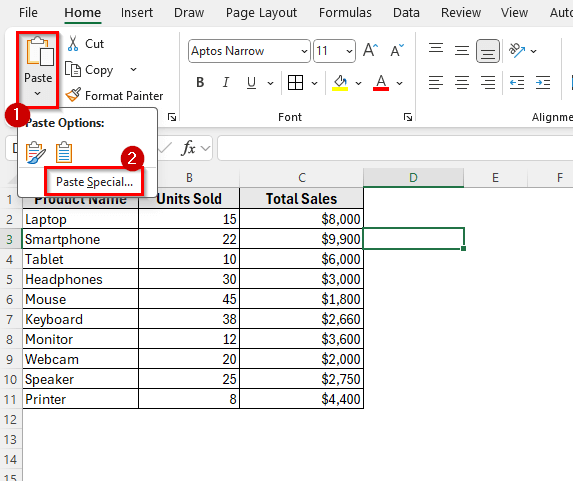
➤ Go to the Home tab, click the dropdown under Paste, and choose Paste Special.
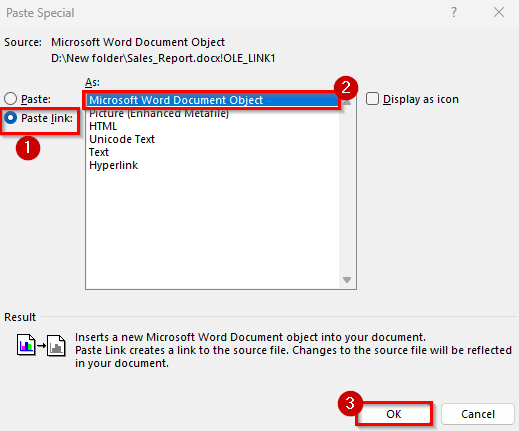
➤ In the Paste Special dialog box, select Paste Link.
➤ Choose the format Microsoft Word Document Object to keep formatting and structure as in Word.
➤ Click OK to insert the linked content.
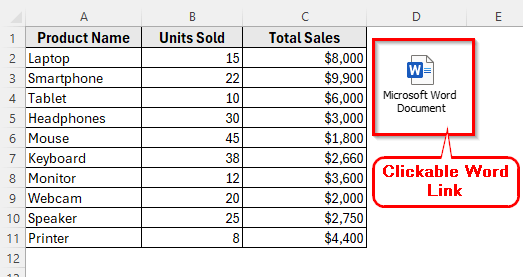
➤ The Word content now appears in Excel. Whenever you double-click the icon it will open the Word document.
Downloadable Resources
Get our practice workbook or necessary files that we have worked with to prepare this article.
Linking Between Excel and Word.xlsx
Frequently Asked Questions
How to connect an Excel spreadsheet to a Word document?
You can connect an Excel spreadsheet to Word using the Paste Special option. Copy the data in Excel, then in Word go to Home >> Paste >> Paste Special, choose Paste Link, and select Microsoft Excel Worksheet Object. This creates a live connection so your Word file always reflects updates made in Excel.
How to get data from Word to Excel automatically?
You can use Paste Special with Paste Link to pull specific text or tables from Word into Excel. Once linked, you can refresh the content anytime to reflect the latest changes in the Word document.
How to link Word to Excel for automatic updates?
To keep Word content synced with Excel, use a linked object. Click Insert >> Object >> Create from File >> Link to file. This method maintains a live connection to the Word file, so when the source Word document is updated, you can refresh the link in Excel to display the latest content.
Wrapping Up
Linking a Word document to Excel is useful when you need to keep your reports, summaries, or letters updated with the latest data. It helps you maintain consistency and accuracy across both files without re-entering the same information.
This is especially helpful for documents that rely on changing figures such as sales reports, budgets, or product inventories. By keeping the link active, you can reduce mistakes and ensure your Word file always reflects the most current information stored in Excel.