Named ranges in Excel help make formulas easier to read and manage, especially when dealing with large datasets. But as your workbook grows, you might need to remove outdated or unused named ranges to keep things organized and avoid formula errors.
In this article, you’ll learn how to delete a named range in Excel using different methods, including the Name Manager and VBA.
Here’s how to delete a named range in Excel:
➤ Open your Excel file containing the named ranges.
➤ Go to the Formulas tab on the ribbon.
➤ Click Name Manager in the Defined Names group.
➤ A new window will appear listing all the named ranges in your workbook.
➤ Select the name you want to delete, for example RegionList.
➤ Click Delete.
➤ A confirmation box will appear.
➤ Click OK to confirm deletion.
➤ Repeat this step for any other names you wish to remove, like SalesData.
➤ Finally, click Close to exit the Name Manager.
➤ Now, those named ranges are permanently deleted. If you try to use them in a formula, Excel will show a #NAME? error because they no longer exist.
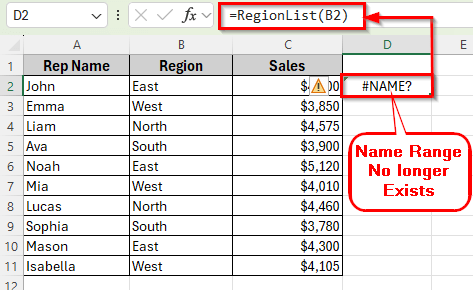
Using Name Manager to Delete Named Range in Excel
In the following dataset, we have a list of sales representatives and their monthly sales amounts. Column A lists Rep Name, Column B contains Regions, and Column C shows Sales report. We have to create named ranges for certain columns to make calculations easier.
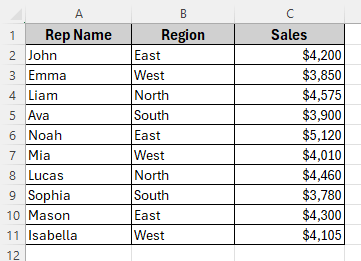
In this example, the range B2:B11 is named RegionList and the range C2:C11 is named SalesData.
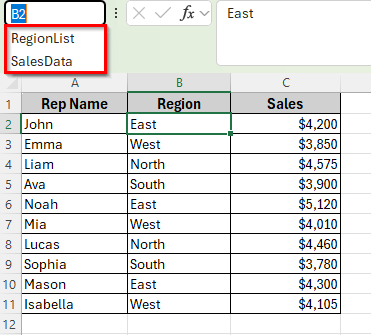
We’ll now delete one or both of these named ranges using different methods.
The Name Manager is the easiest way to view, edit, or delete named ranges in Excel. It lists all names created in your workbook along with their references.
Here’s how to do it step by step:
➤ Open your Excel file containing the named ranges.
➤ Go to the Formulas tab on the ribbon.
➤ Click Name Manager in the Defined Names group.
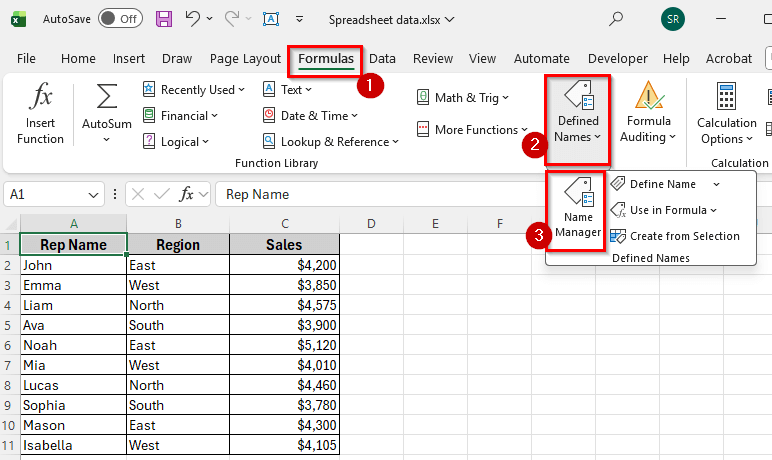
➤ A new window will appear listing all the named ranges in your workbook.
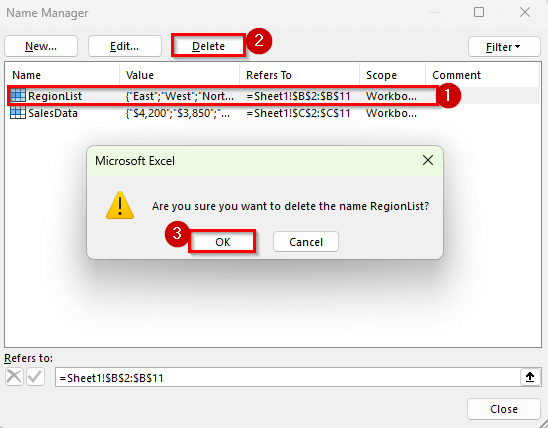
➤ Select the name you want to delete, for example RegionList.
➤ Click Delete.
➤ A confirmation box will appear.
➤ Click OK to confirm deletion.
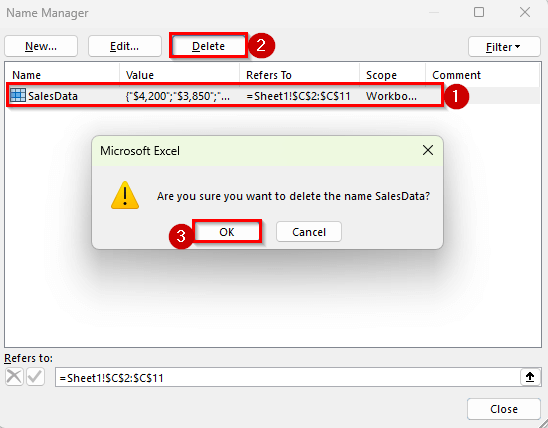
➤ Repeat this step for any other names you wish to remove, like SalesData.
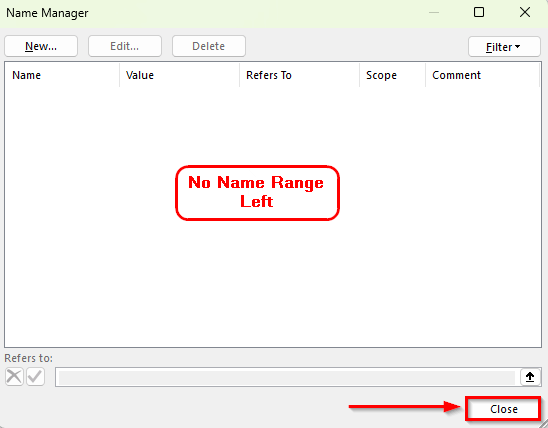
➤ Finally, click Close to exit the Name Manager.
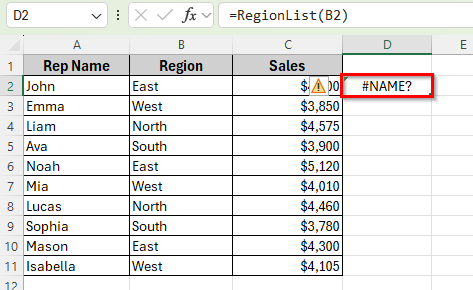
➤ Now, those named ranges are permanently deleted. If you try to use them in a formula, Excel will show a #NAME? error because they no longer exist.
Applying VBA to Delete Named Range in Excel
If your workbook has many named ranges and you want to delete them all at once, you can use a short VBA script. This is especially helpful when cleaning up large workbooks with dozens of old names.
Here’s how to do it:
➤ Press Alt + F11 to open the VBA editor.
➤ Click Insert >> Module.
➤ In the new module window, paste the following code:
Sub DeleteAllNamedRanges()
    Dim nm As Name
    For Each nm In ThisWorkbook.Names
        nm.Delete
    Next nm
    MsgBox "All named ranges have been deleted successfully!", vbInformation
End Sub 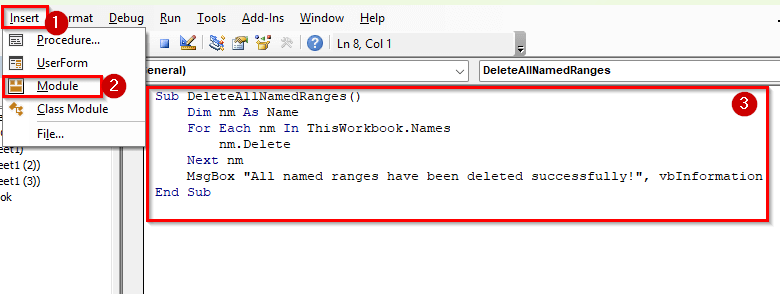
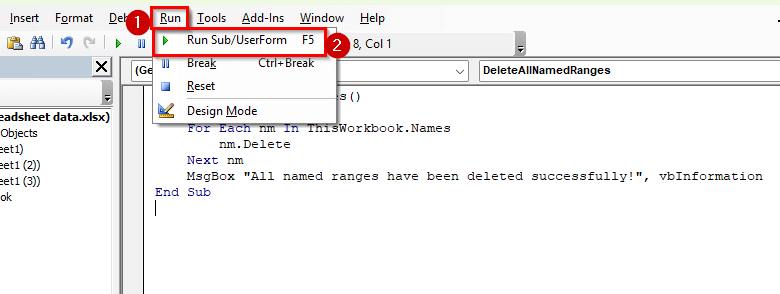
➤ Press Run >> Run Sub/UserForm F5 to run the code.
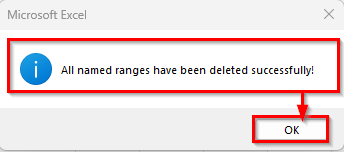
➤ A confirmation message will appear stating that all named ranges have been deleted. Click Ok.
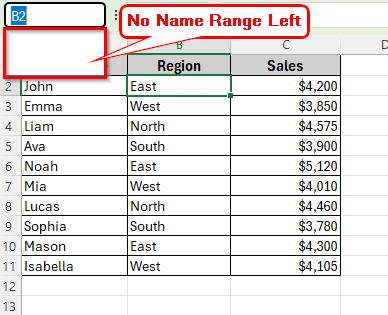
➤ Now, if you open the Name Manager again, it will be empty.
Note:
This VBA script deletes all names in the current workbook, including hidden or print-related names. Be sure to back up your file before running it.
Downloadable Resources
Get our practice workbook or necessary files that we have worked with to prepare this article.
Frequently Asked Questions
How do I delete multiple named ranges at once?
Open the Name Manager from the Formulas tab. Hold down the Ctrl key and select all the names you want to delete. Then click Delete and confirm. This lets you remove several named ranges together instead of one by one.
Can I undo a deleted named range?
You can undo it right away by pressing Ctrl + Z , as long as you haven’t saved or closed the workbook yet. Once the file is saved, the deleted named range cannot be restored automatically.
Why is the Delete button grayed out in Name Manager?
This usually happens when the named range is linked to a protected sheet or a table. Unprotect the sheet or convert the table back to a normal range, and then try deleting it again.
Will deleting a named range break formulas?
Yes. Any formula that refers to a deleted named range will show a #NAME? error. To fix this, replace the name in the formula with the actual cell reference or create the named range again.
Wrapping Up
Deleting unused named ranges in Excel helps keep your workbook organized and efficient. It prevents confusion in formulas, reduces clutter, and ensures your file references only the data that matters. You can manage and remove named ranges easily through the Name Manager, or use VBA if you need to clean up several names at once.
Regularly reviewing and deleting old named ranges is a good habit to maintain accuracy and performance in large Excel files.