

When printing large spreadsheets in Excel, it’s common to repeat specific rows at the top or columns at the left on every page using Print Titles. However, if you select non-contiguous rows or columns, Excel will show the error message “Print titles must be contiguous and complete rows or columns”. This message indicates that your selection must be a continuous block of rows (e.g., 1:4) or columns (e.g., A:D) rather than separate individual rows or columns.
In this article, we’ll show you how to resolve this issue step by step, explain why it occurs, and provide practical methods to fix it. By following these methods, you can ensure your print titles work correctly, making large printed spreadsheets easier to read and interpret.
Steps to fix print titles must be contiguous and complete rows or columns in Excel:
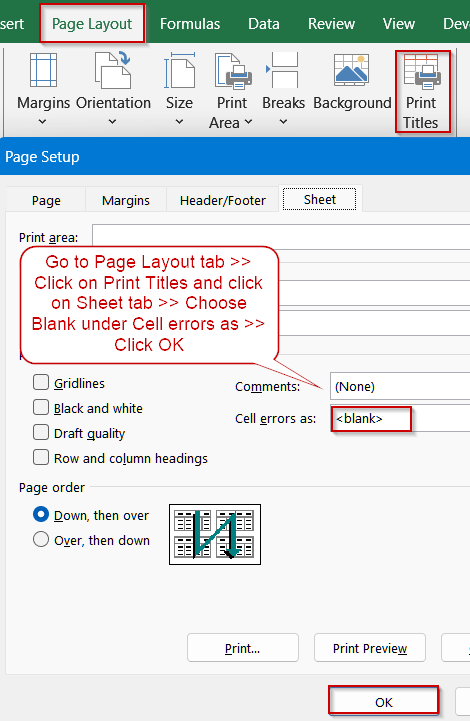
➤ Go to the Page Layout tab.
➤ Click Print Titles in the Page Setup group or click the small diagonal arrow in the bottom-right corner of the group.
➤ In the Page Setup dialog box, select the Sheet tab.
➤ Under Print, find the Cell errors as drop-down menu.
➤ Choose <blank> from the list to hide error values when printing.
➤ Click OK, then save your workbook and restart Excel if needed.
Adjust the “Cell Errors As” Setting to Bypass Conflicts
When printing complex Excel worksheets, hidden or invalid formulas can sometimes generate cell errors (like #N/A or #DIV/0!). In certain cases, Excel may mistakenly treat these error values as part of your print titles, resulting in the print titles error. This issue is more common when your workbook contains linked formulas, external references, or partially deleted ranges. By changing the Cell Errors As setting to display errors as blanks, you prevent these stray error values from interfering with your print layout.
Steps:
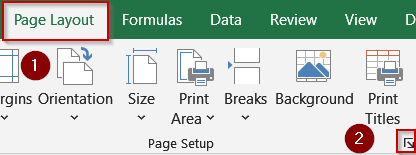
➤ Go to the Page Layout tab.
➤ Click Print Titles in the Page Setup group or click the small diagonal arrow in the bottom-right corner of the group.
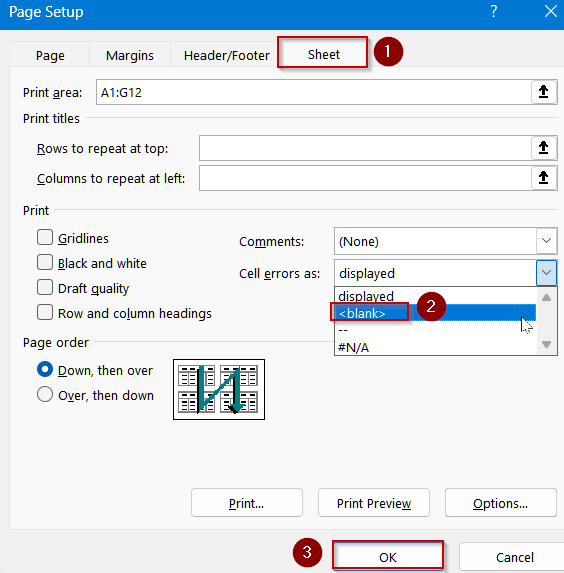
➤ In the Page Setup dialog box, select the Sheet tab.
➤ Under Print, find the Cell errors as drop-down menu.
➤ Choose <blank> from the list to hide error values when printing.
➤ Click OK, then save your workbook and restart Excel if needed.
➤ Try printing again and this should prevent error conflicts with your print titles.
Clear Existing Print Titles Before Reapplying
Over time, workbooks may retain outdated or incorrect print title references that no longer match your current worksheet layout. These leftover references can trigger the “Print titles must be contiguous and complete rows or columns” error even when your new selections are correct. Clearing all previously set print titles ensures Excel has a clean slate to work with, allowing you to define a proper, continuous range without conflicts.
Steps:
➤ Go to the Page Layout tab.
➤ Click Print Titles in the Page Setup group or the arrow in the bottom-right corner of the group.
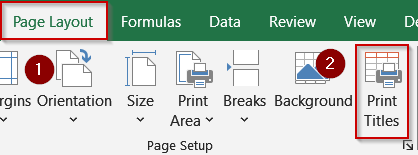
➤ In the Page Setup dialog box, go to the Sheet tab.
➤ In the Rows to repeat at top and Columns to repeat at left fields, delete any existing references.
➤ Click OK to apply the change.
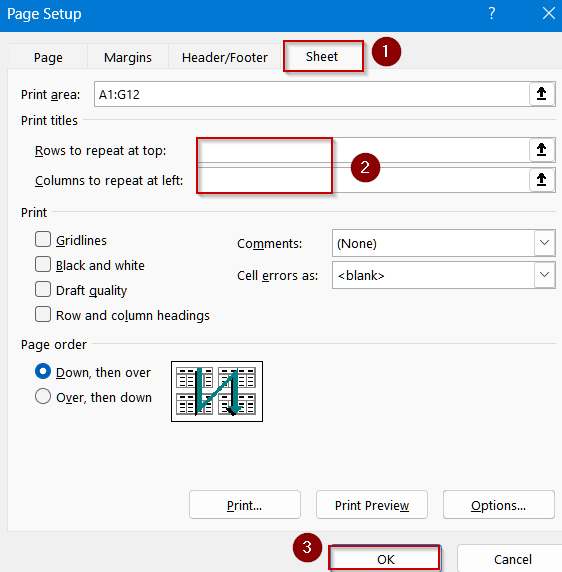
➤ Preview and print your spreadsheet and this removes conflicting titles so you can reapply continuous rows or columns later.
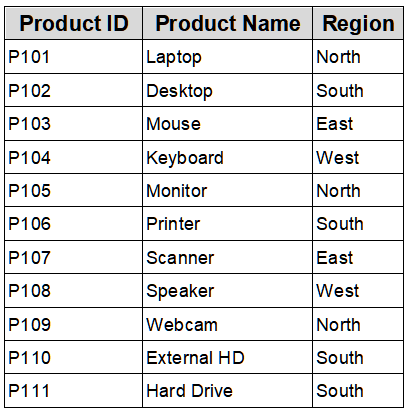
Clear the Print Area to Eliminate Conflicts
Sometimes, an old or misaligned print area can interfere with the titles you’re trying to set, leading to the “Print titles must be contiguous and complete rows or columns” error. This issue is common if the worksheet has been modified significantly such as rows or columns being added, deleted, or moved since the print area was first defined. By clearing the print area entirely, you give Excel a fresh layout to evaluate. This step ensures that your new, continuous rows or columns for print titles won’t be blocked or misread by outdated settings.
Steps:
➤ Go to the Page Layout tab.
➤ Click Print Titles in the Page Setup group or the diagonal arrow in the bottom-right of the group.
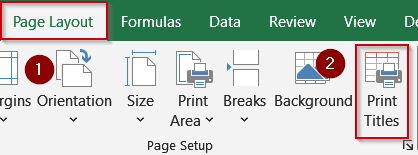
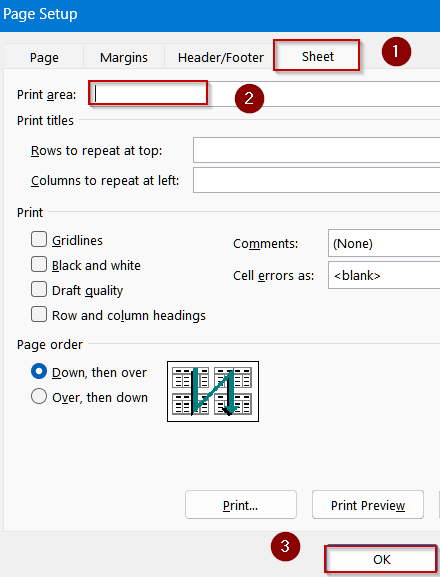
➤ In the Page Setup dialog box, select the Sheet tab.
➤ In the Print Area field, delete any references so that it is blank.
➤ Click OK to save your changes.
Reapply your continuous rows or columns for print titles and attempt printing again and this should resolve the error.
Frequently Asked Questions
Can I use non-adjacent rows or columns as print titles?
No. Excel requires that print titles be contiguous. Selecting separated rows or columns breaks the continuity, triggering the error. Always choose a single, continuous block to repeat on every printed page.
How can hidden rows or columns affect print titles?
Hidden rows or columns within the selected print title range disrupt continuity. Excel will not recognize non-visible cells as part of a continuous block, causing the “must be contiguous” error during printing.
Will clearing the print area fix the print titles error?
Yes. Existing print areas can interfere with your title selection. Clearing the print area allows you to select continuous rows or columns without Excel rejecting them, resolving the error effectively.
Why does Excel show “Print titles must be contiguous”?
Excel displays this error when the rows or columns chosen for repeating on every page are not continuous. Only a single block of adjacent rows or columns is allowed for print titles.
How does Page Break Preview help with print titles?
Page Break Preview shows how your print areas and titles align on each page. Adjusting boundaries in this view ensures that rows and columns chosen as print titles are continuous and correctly applied for printing.
Wrapping Up
In this tutorial, we explored why the “Print titles must be contiguous and complete rows or columns” error occurs and showed you exactly how to resolve it. By adjusting the Cell Errors As setting, clearing outdated print titles, and removing conflicting print areas, you can quickly eliminate the issue. Applying these fixes will make your spreadsheets easier to read by keeping headers and labels consistently visible on every printed page.



