

A “previous version” of an Excel file refers to an automatically saved or backed-up version of the file created before your latest changes. It is common to overwrite or delete important data in an Excel file accidentally. If it is due to accidental edits, a system crash, or closing without saving, we can recover the previous version of an Excel file, saving hours of work.
To recover previous version of Excel file, follow these steps:
➤ Go to Onedrive, select Excel file and select Properties.
➤ Click the Previous Versions tab.
➤ Select the desired version and click Restore.
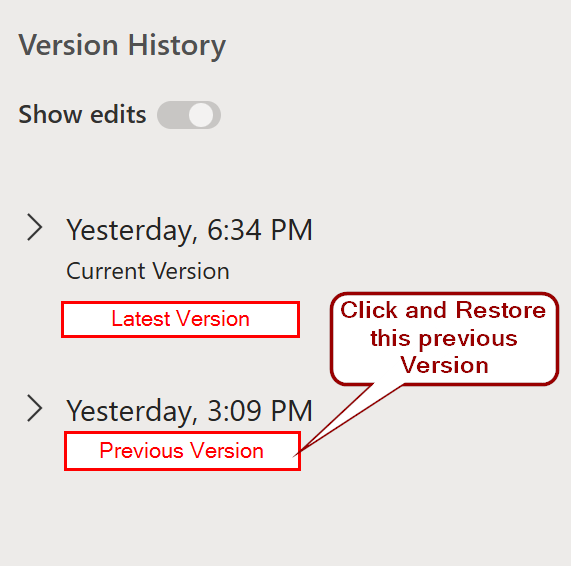
In this article, we will explain in detail how to recover previous versions of Excel files using Windows File History, OneDrive Version History, AutoRecover, and Excel’s built-in features.
Using Version History Feature to Restore Previous Version of Excel File
Version History is a feature that helps you to restore an earlier version of an Excel file. This method is useful if you are working on shared files or cloud-based documents and need to undo unwanted changes. Use this when you have accidentally deleted data or made changes that you want to revert in an Excel file saved on OneDrive.
Steps:
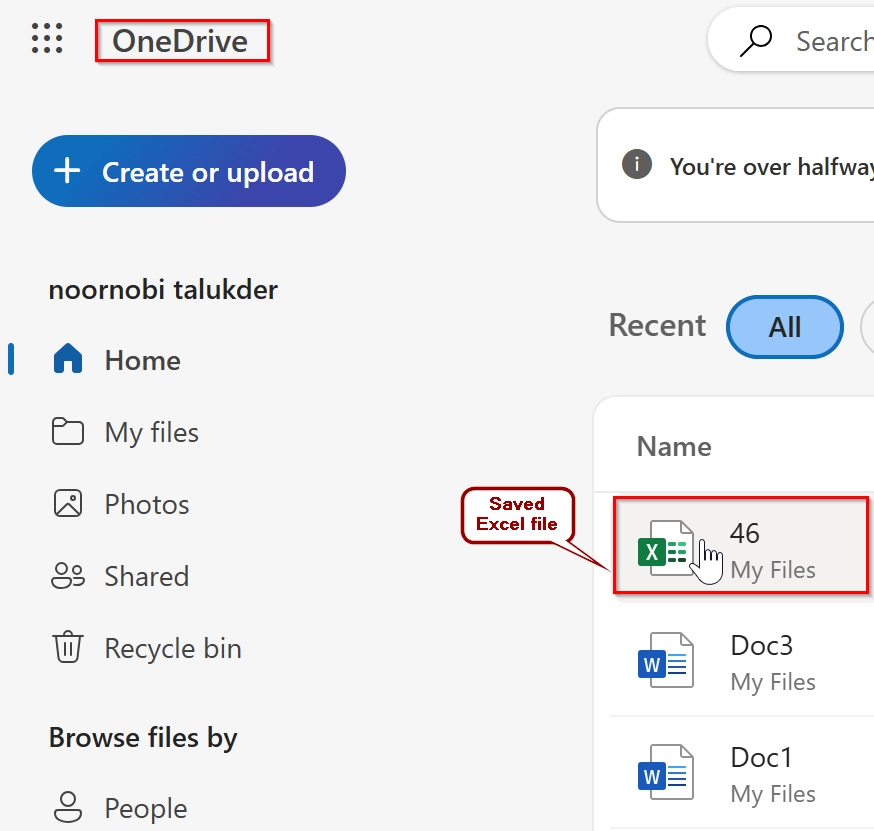
➤ Open OneDrive in your web browser. To do that, go to https://onedrive.live.com and log in with the Microsoft account that stores your Excel files. You will see the list of excel files that are saved in OneDrive. Select the excel file that you want to recover the previous version.
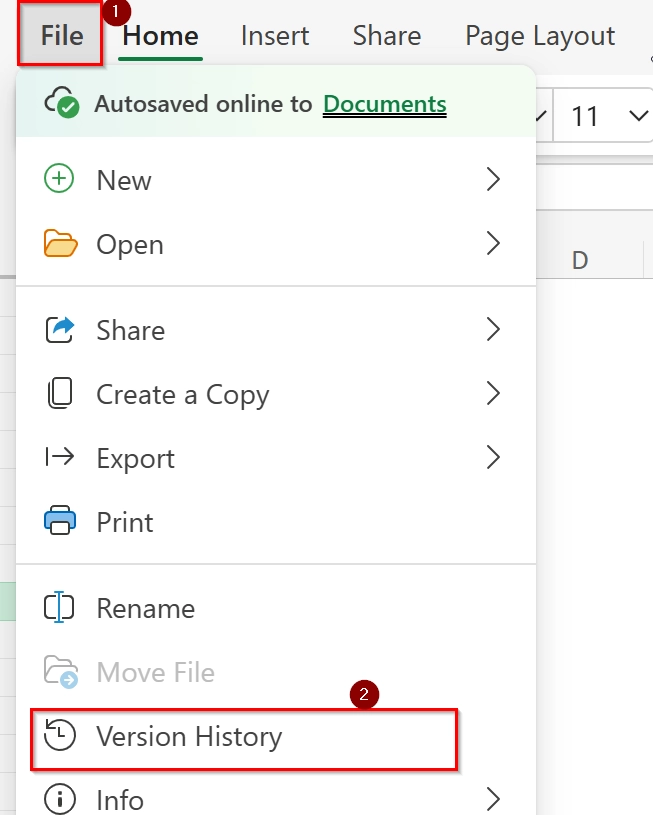
➤ Click on the File menu on the left corner of the Excel file. Then click on Version history.
➤ After selecting Version History it will open a side pane or new window listing previous saved versions of the file. Click on any Previous Version you want to restore to preview it.
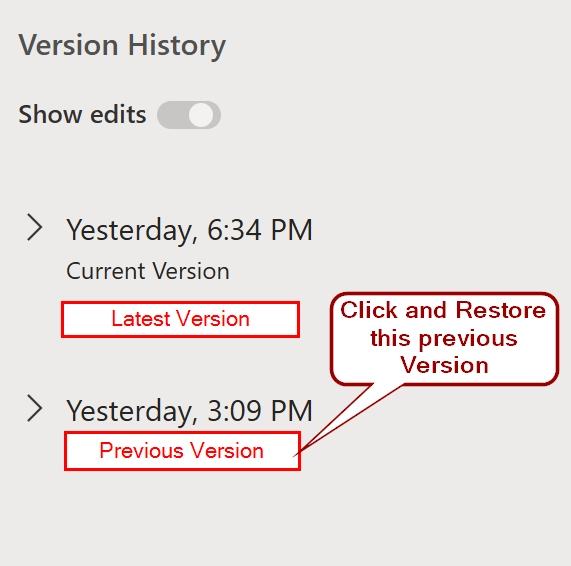
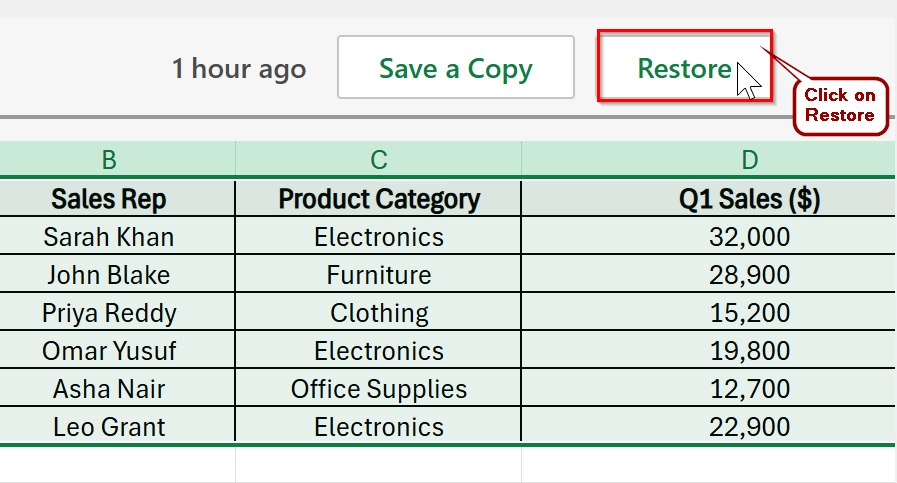
➤ Click the Restore button on the version you want to bring back. This will overwrite the current file with the selected version.
Note:
➥ You must have the Excel file stored in OneDrive or SharePoint for Version History to work following this method.
➥ The number of saved versions may vary depending on your organization’s settings or personal OneDrive plan. You may see multiple versions there.
Using Manage Workbook Feature to Recover Previous Version of Excel File
The Manage Workbook feature in Excel helps you to view and restore autosaved versions of a file. This is helpful if you have closed a file accidentally without saving or want to revert to an earlier state. It works best when AutoSave or AutoRecover is enabled and useful for local files that are not stored on OneDrive.
Steps:
➤ Open the workbook in which you want to recover a Previous version.
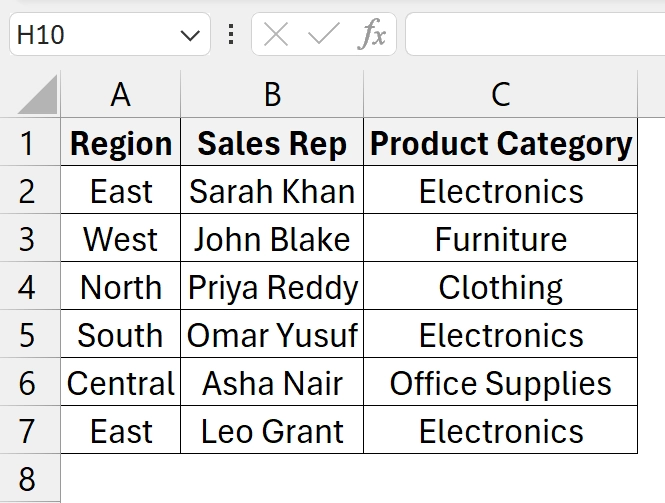
➤ Go to the File tab.
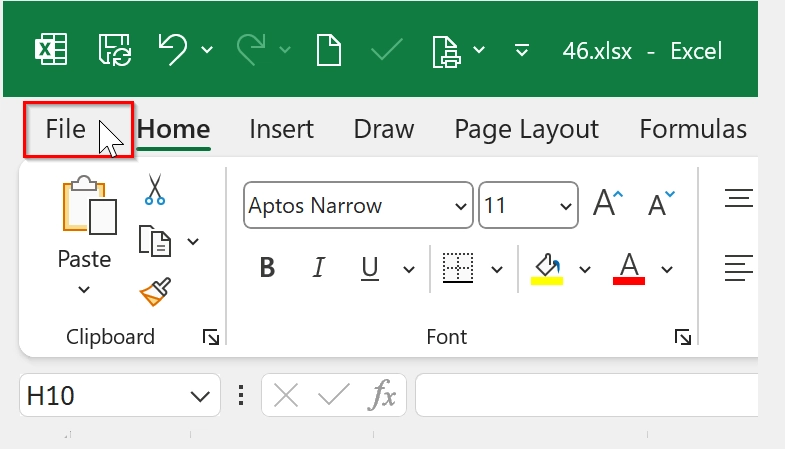
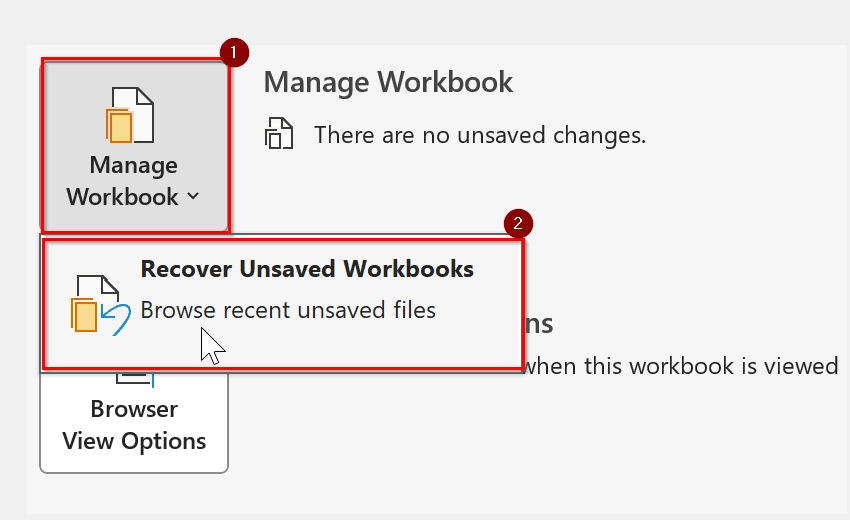
➤ Click on ‘Info’ and you will see ‘Manage Workbook’.
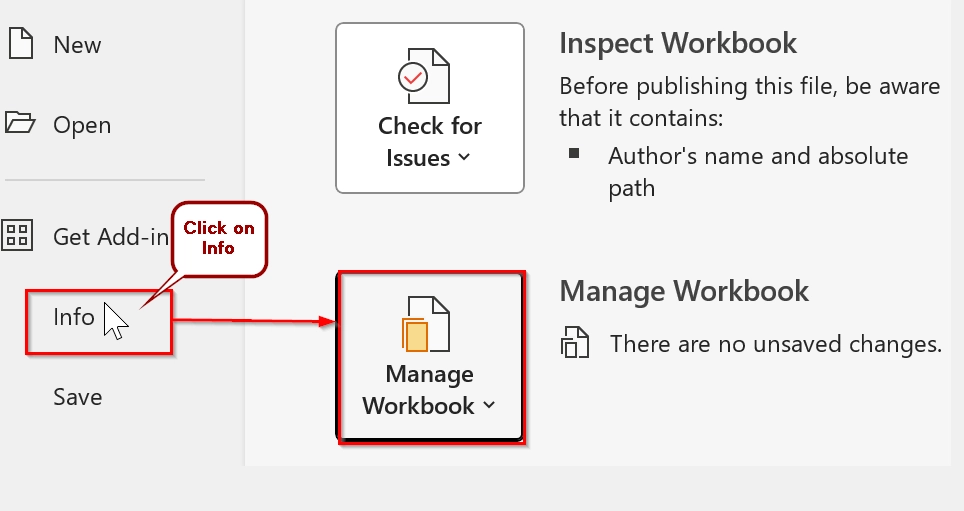
➤ Select ‘Manage Workbook’ and click on Recover Unsaved Workbooks. Here you will see the previous version of the excel file to restore.
Note:
➥ Ensure AutoRecover is enabled in Excel settings (File > Options > Save) to use this feature effectively.
➥ This method works for files saved locally or on network drives- not on OneDrive/SharePoint.
Using 'Recover Unsaved Workbooks' Option to Recover Previous Version of Excel
Excel automatically saves temporary versions of your files in case of unexpected closures or if you accidentally close a file without saving. The Recover Unsaved Workbooks feature lets you retrieve these previous versions before closing the excel application as temporary files. This method is helpful when working with new Excel files that have not been saved manually even once, or when Excel crashes before you could hit “Save.”
Steps:
➤ Open any excel file.
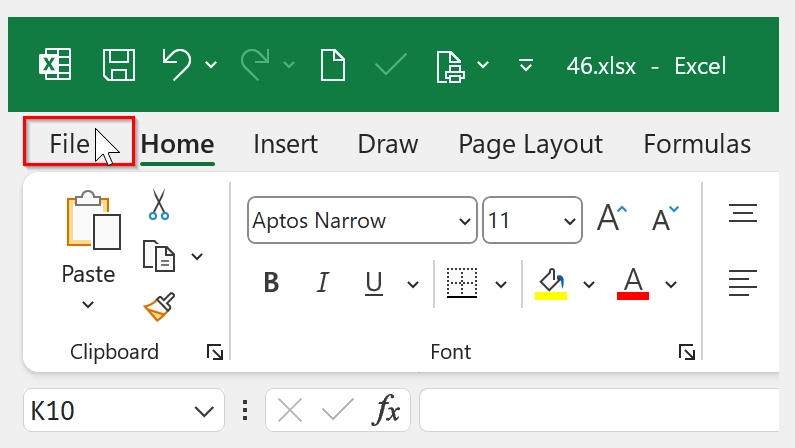
➤ Click on the “File” tab
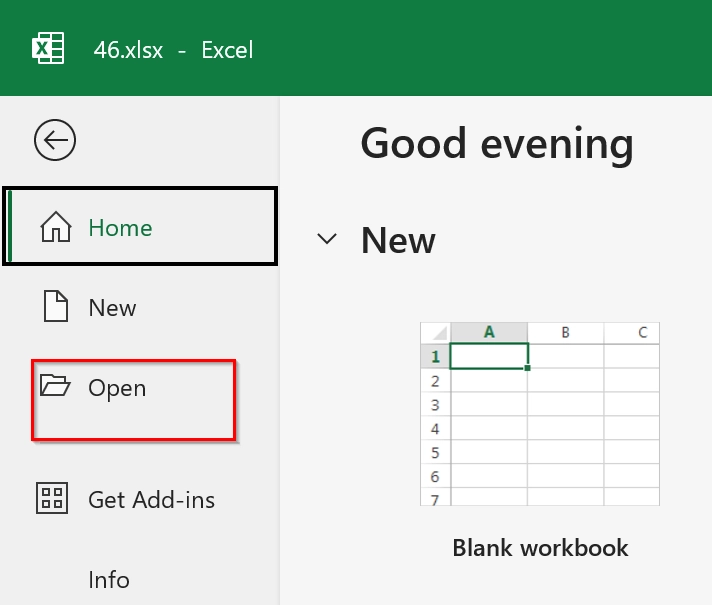
➤ Click on “Open” from the sidebar
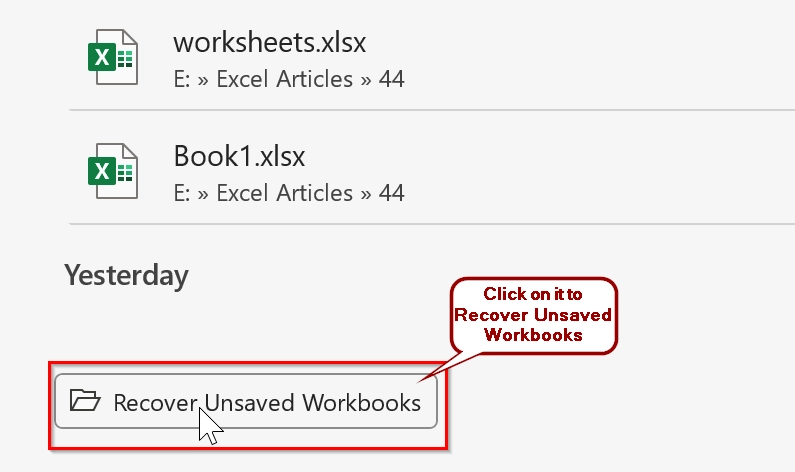
➤ Scroll to the bottom and click “Recover Unsaved Workbooks”. This will open a folder showing any temporary autosaved Excel files.
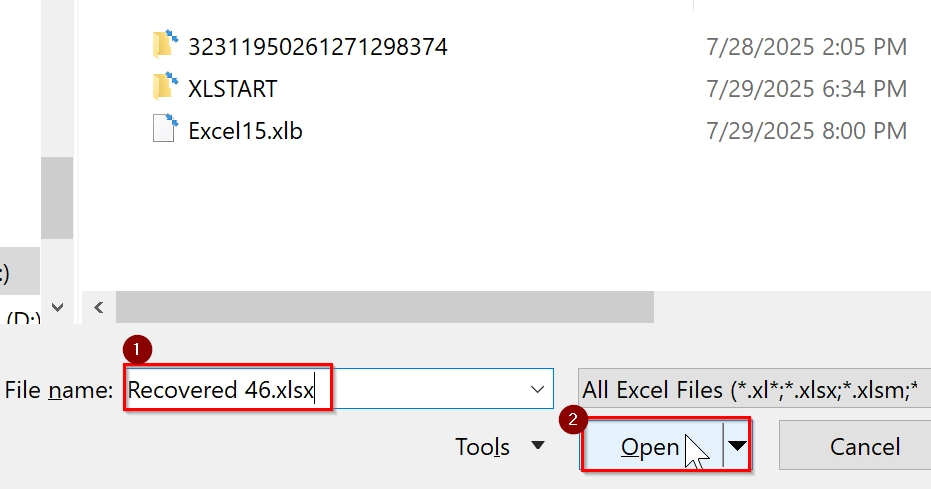
➤ Select the file you want to recover and give the file name with an .xlsx (eg;Recovered 46.xlsx) then click Open.
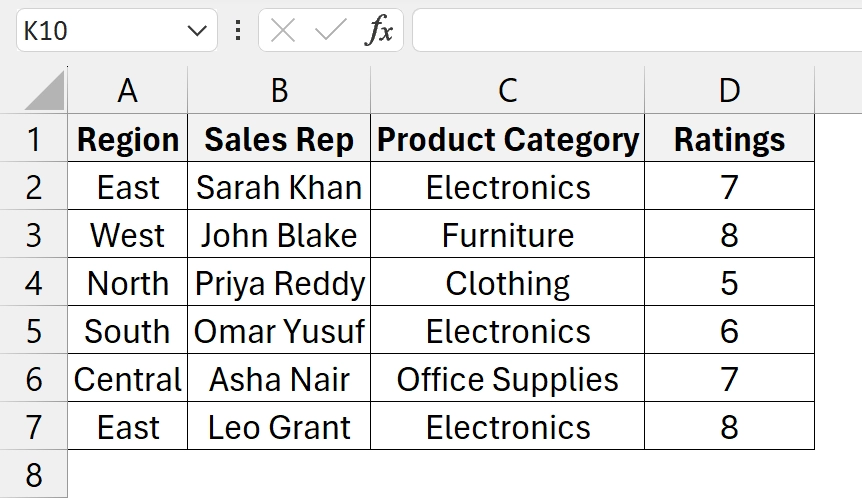
➤ Once the file opens, save it immediately using File > Save As. Preview after opening the Recovered Previous version of the excel file.
Note:
➥ This method only works for files that were never saved manually or were closed unexpectedly.
➥ Make sure AutoRecover is enabled in Excel: File > Options > Save > Keep AutoRecover info every X minutes.
Using File History to Recover Previous Version of Excel File
Windows Previous Versions from file properties File History is a built-in feature that helps you to restore older versions of your Excel files. You can use it when you have accidentally overwritten or lost important data in your Excel sheet and need to recover a Previous version. This method works best if File History or System Restore points are enabled on your system.
Steps:
➤ Go to the folder where the file is saved using File Explorer. Right-click on the Excel file. Then click on the “Properties” from the context menu.
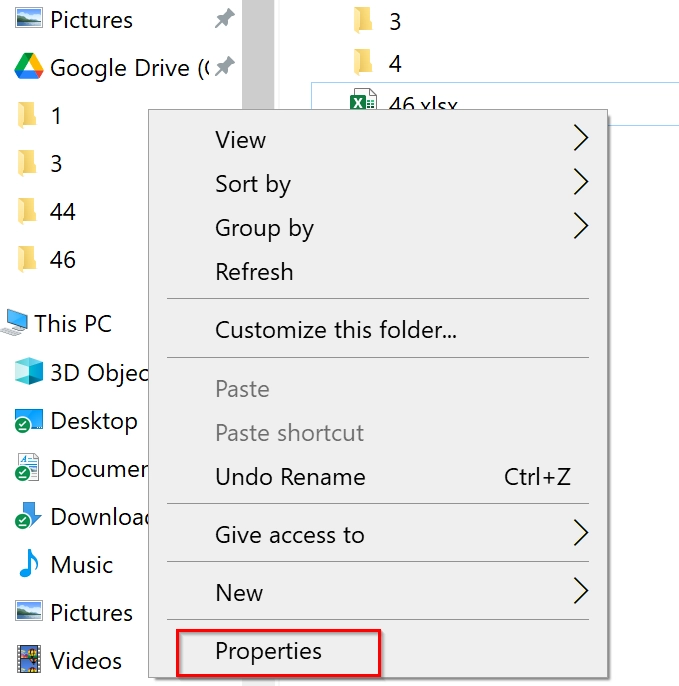
➤ In the Properties window, click on the “Previous Versions” tab. If you have any previous version saved by the windows file management system it will show in the below box. Select the previous version and click on the Restore button. Then click Ok.
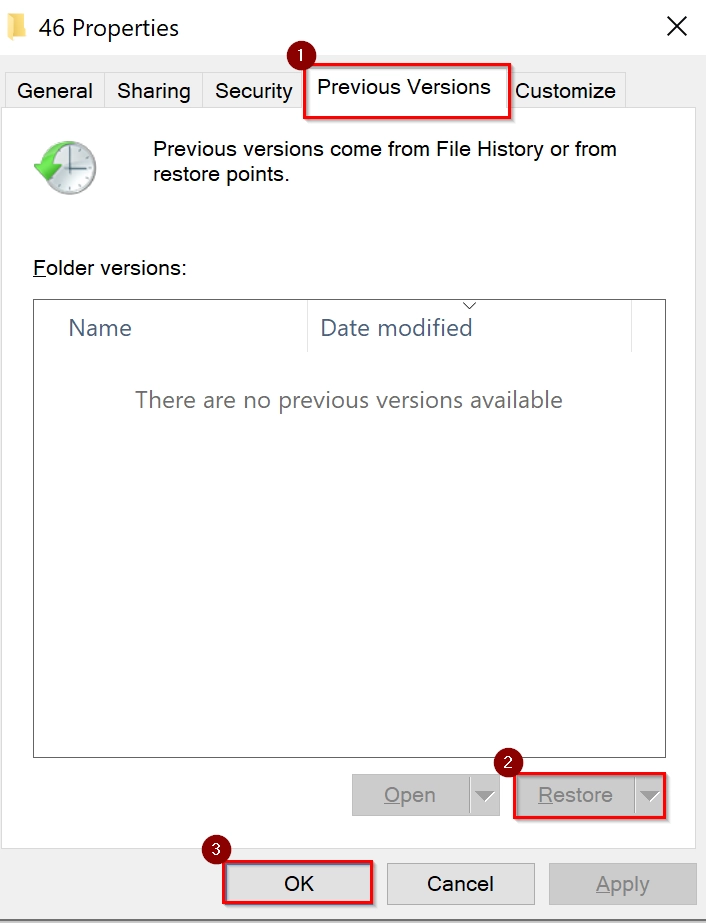
Note:
This method will only work if you have File History or System Restore enabled on your Windows computer.
Downloadable Resources
Get our practice workbook or necessary files that we have worked with to prepare this article.
Recover Previous Version of Excel File.xlsx
Frequently Asked Questions (FAQs)
How do I recover an overwritten Excel file?
Use Windows File History, OneDrive Version History, or AutoRecover in Excel to restore an earlier version of the file.
How do I restore a previous version of an Office file?
Open the file location, right-click the file, go to Properties > Previous Versions, and select the desired version to restore.
Where do Excel recovery files go?
Excel recovery files are stored in the AutoRecover file location. You can find the path under File > Options > Save in Excel.
How do I go back to the original Excel after saving?
Right-click the file, choose Properties, and use the Previous Versions tab to revert to the original copy.
Concluding Words
Recovering a previous version of an Excel file is simple using methods like Windows File History, OneDrive Version History, and Excel AutoRecover. Each method is easy to perform and takes no time. If you have your file connected to Ondrive then it is very easy to restore the previous version.





Me fresher in excel like to learn & work onit practical on my mobile through guidance of excel basis to advanced on free tutorials sir at TQ. Have a nice day
Hello Arun!
Right now we don’t have any full course for Basic to Advanced Excel. But you can start with our Google Sheets tutorials here:
https://excelinsider.com/google-sheets/basics/introduction-to-google-sheets/