When you are working with data in Excel, dashes are often used to separate different parts of text or numbers, like a phone number, product code, or employee ID. Sometimes these dashes can complicate data analysis, especially when you need to combine the parts into a single string. Fortunately, Excel offers a variety of tools, from quick fill features and simple functions to advanced tools like Power Query, which can help remove dashes. In this article, we will guide you through several methods to remove dashes in Excel.
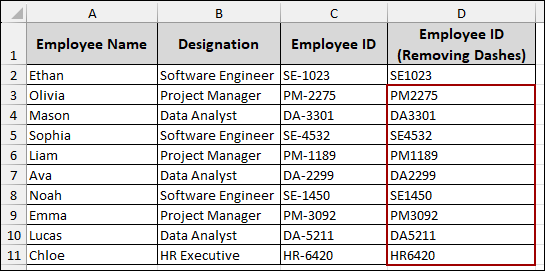
To remove dashes in Excel, here is one simple solution by using the Flash Fill feature.
➤ In the adjacent cell, write next to the data with dashes, and manually type the desired result for the first entry.
➤ Select the next cell below and press Ctrl + E to apply Flash Fill.
➤ Excel will automatically detect the pattern and fill the rest of the column, removing dashes.
Removing Single Dash From Fixed Position
If all the dashes appear in a fixed location in the dataset, you can use the Flash Fill feature to remove dashes easily. Furthermore, you can use the REPLACE function to clean dashes in Excel.
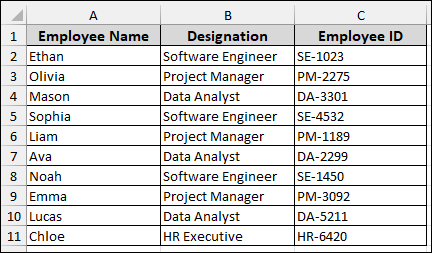
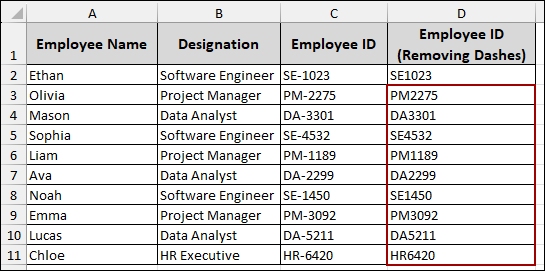
Imagine you have a dataset with employee information, including an Employee ID in column C, where the dash is consistently the third character. Now, we will use Flash Fill and the REPLACE function to remove dashes.
Using Flash Fill to Extract Text Without Dashes
For a non-formula solution, you can use Excel’s Flash Fill feature. This works by recognizing a pattern in the data you manually enter.
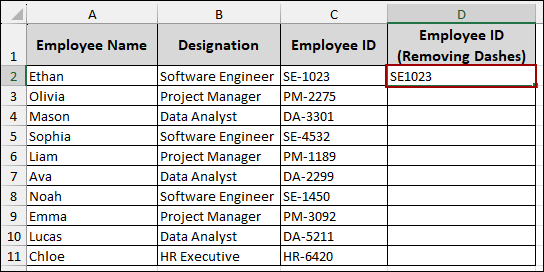
➤ In the adjacent cell, D2, manually type the desired result for the first entry (e.g., SE1023), without the dash from the data in C2.
➤ Click on cell D3, and then press Ctrl + E to apply the Flash Fill tool.
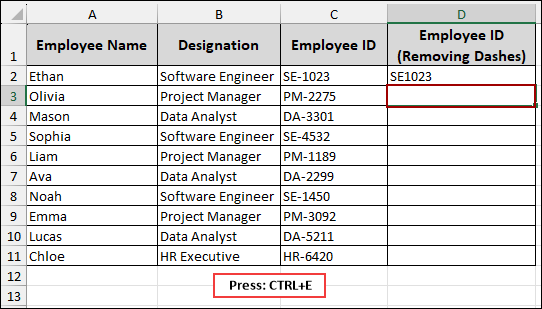
Excel will automatically detect the pattern (removing the dash) and fill the rest of the column, and provide a dash-free list of Employee IDs.
Applying REPLACE Function to Remove Fixed Dash
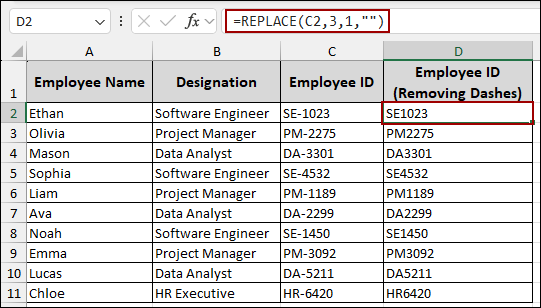
The REPLACE function specifies a starting position and the number of characters to replace. By replacing the dash with an empty string, we will clear dashes from the Employee IDs.
➤ In cell D2, enter the formula, press ENTER, and drag down the Fill Handle.
=REPLACE(C2,3,1,"")
This formula targets cell C2, starts at the third character, replaces one character (the dash), and replaces it with nothing (“”).
The entire column of Employee IDs is now clean and dash-free.
Removing Multiple Dashes
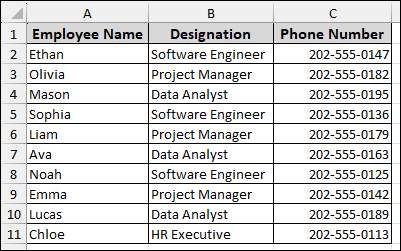
Sometimes you will get multiple dashes within a single cell, especially for phone numbers. To remove those, you can use the Find and Replace tool or apply the SUBSTITUTE function.
Imagine a dataset of some employees and their phone numbers in column C, where dashes appear multiple times within each entry.
Utilizing Find and Replace Feature to Delete Dashes
The Find and Replace feature is the fastest way to remove all dashes from a selected range.
➤ Select the range of data in column C that contains the dashes.
➤ Go to the Home tab on the ribbon.
➤ In the Editing group, click on the Find & Select dropdown menu, and choose Replace.
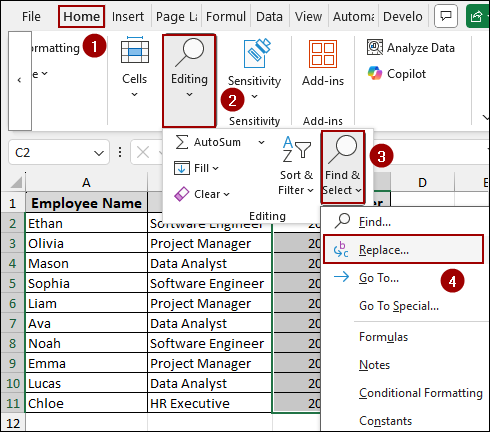
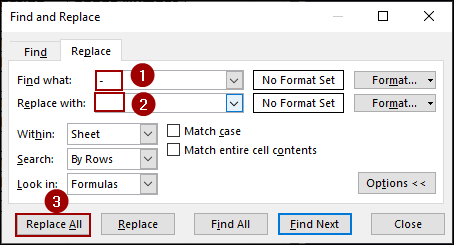
➤ In the Find and Replace dialog box, ensure you are on the Replace tab.
➤ In the Find what box, type a single dash (-) and in the Replace with box, leave it completely blank.
➤ Click the Replace All button to execute the command.
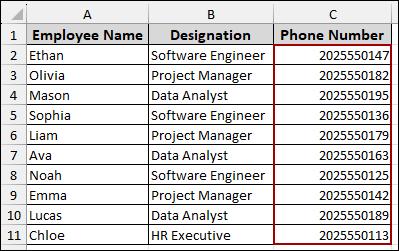
Thus, all dashes are removed, leaving only the digits in a clean format.
Using SUBSTITUTE Function to Clear All Dashes
If you need to keep your original data intact and place the dash-free result in a new column, the SUBSTITUTE function is the formula-based solution.
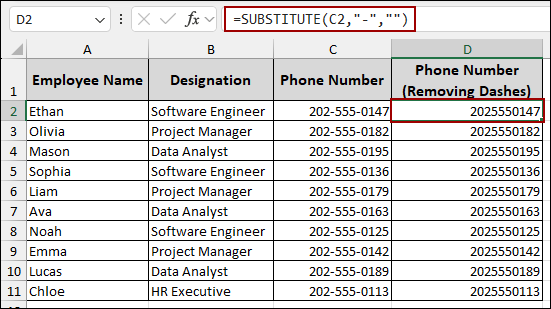
➤ In cell D2, put the formula below, press ENTER, and drag down the Fill Handle.
=SUBSTITUTE(C2,"-","")
This formula tells Excel to look at cell C2, find every instance of a dash (“-“), and replace it with nothing (“”).
As a result, you will get the numbers only by cleaning all the dashes.
Removing Double Dashes From Different Locations
Sometimes, data entry errors happen due to double dashes (–) within a cell, and these need to be removed as well. The SUBSTITUTE function can be nested to handle both single and double dashes effectively.
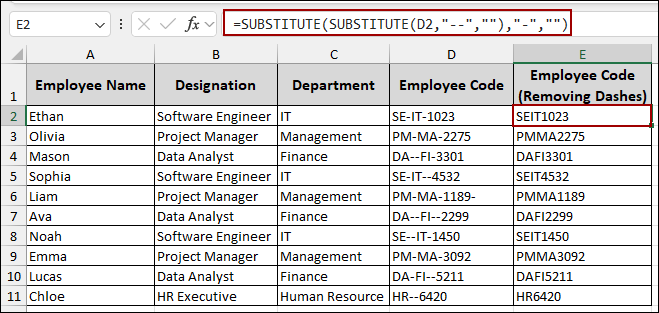
Imagine an Employee Code dataset in column D, which contains both single dashes and double dashes (–).
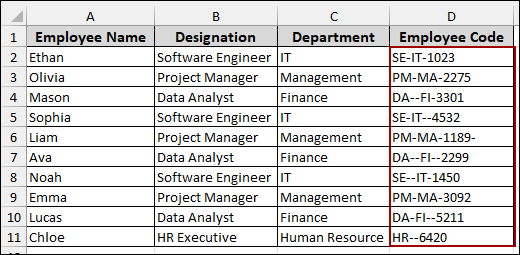
➤ Choose cell E2, enter the formula, press ENTER, and drag the Fill Handle down.
=SUBSTITUTE(SUBSTITUTE(D2,"--",""),"-","")
The inner SUBSTITUTE first removes all double dashes (–) by replacing them with a blank, and the outer SUBSTITUTE then removes all remaining single dashes (-).
Finally, you will get clean data, removing all single and double dashes.
Removing Dashes with Extra Spaces
Data imported from external sources often contains extra spaces alongside dashes. You can combine the TRIM and SUBSTITUTE functions to clean both spaces and dashes.
Consider a phone number dataset in column C where dashes and extra spaces are present.
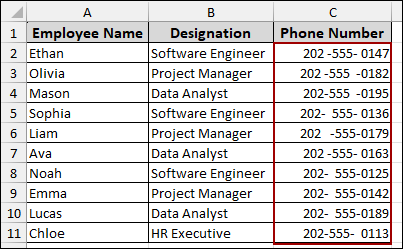
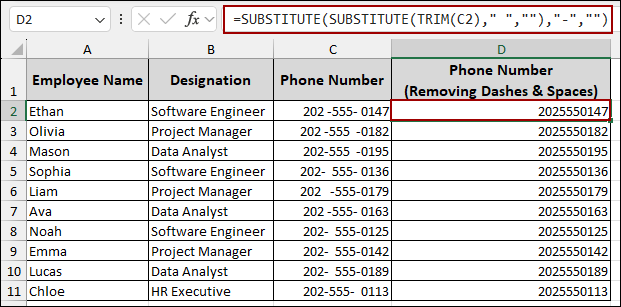
➤ Select cell D2, write down the following nested formula, hit ENTER, and drag down the Fill Handle.
=SUBSTITUTE(SUBSTITUTE(TRIM(C2)," ",""),"-","")
Here, the TRIM function first removes any leading or trailing spaces. The inner SUBSTITUTE then removes all spaces (” “) within the cleaned string. Finally, the outer SUBSTITUTE removes all remaining dashes (“-“).
Thus, you will get the phone numbers, with all dashes and spaces removed.
Removing Dashes in Bulk
Applying formulas again and again can be hectic. For cleaning a large amount of data, you can utilize the Find and Replace tool, the Power Query feature, and embed VBA code.
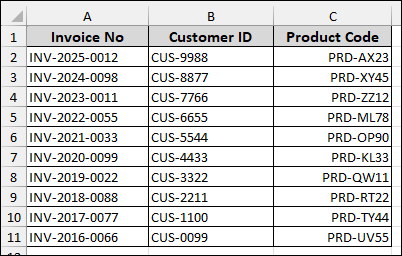
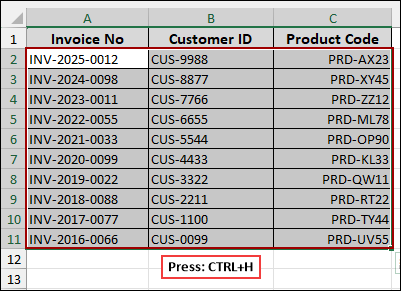
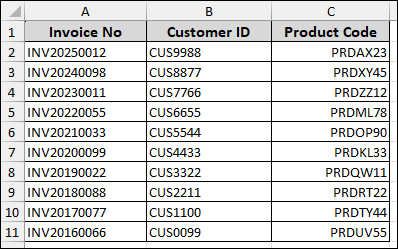
Start with a large table containing multiple columns (e.g., Invoice No, Customer ID, and Product Code) where dashes are present in many cells.
Using Find and Replace Window to Clear Dashes
This method is similar to the single-column approach. But here we will apply across the entire sheet for cleaning bulk data.
➤ Select the entire range of data.
➤ Press Ctrl + H on your keyboard to open the Find and Replace dialog box.
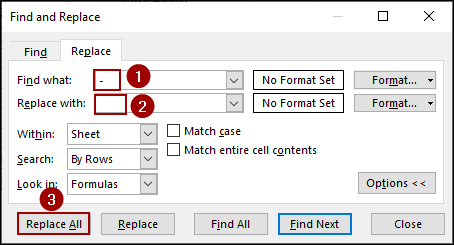
➤ In the Find what box, type a single dash (-) and in the Replace with box, leave it blank.
➤ Click Replace All.
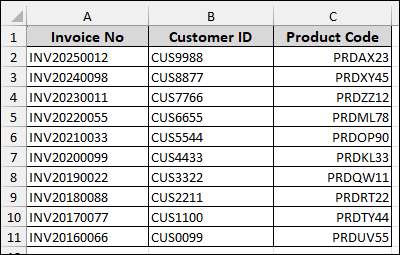
The dashes are immediately removed from all selected cells in the Invoice No, Customer ID, and Product Code columns.
Applying Power Query Tool to Remove Dashes from Large Dataset
Power Query is an extremely powerful tool for importing, transforming, and cleaning large datasets without altering the source data. Here, we will use the tool to clear dashes and put the clean data in another sheet.
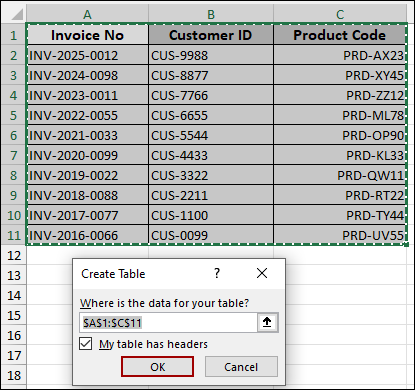
➤ Select the data range and go to the Insert tab and click Table to convert your data into an Excel Table.
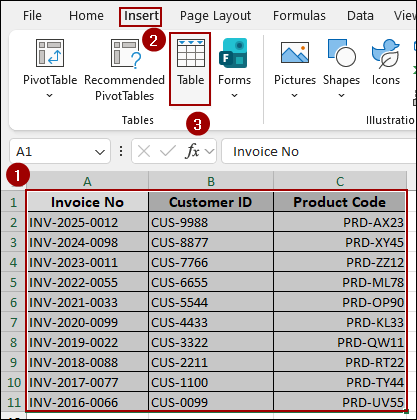
➤ Confirm the range and ensure that My table has headers is checked.
➤ Click OK.
➤ Go to the Data tab and click From Table/Range in the Get & Transform Data group.
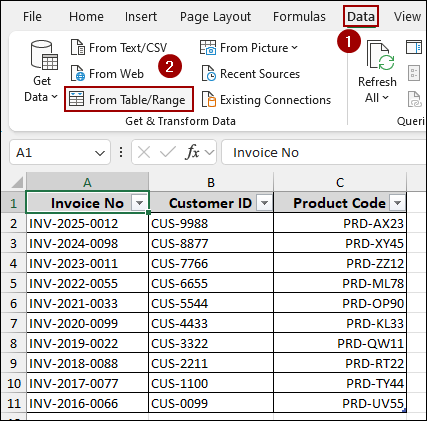
This opens the Power Query Editor.
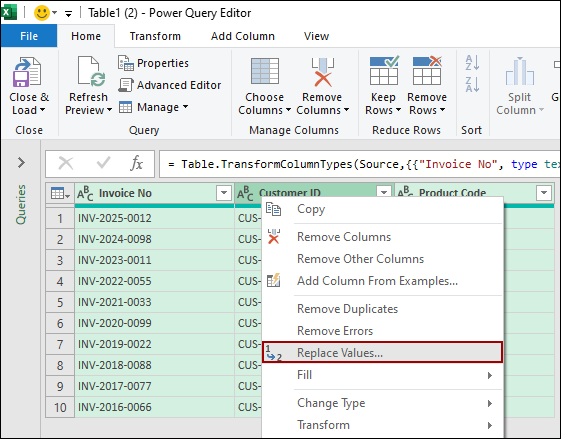
➤ In the Power Query Editor, select the columns you wish to clean (e.g., Invoice No, Customer ID, and Product Code) by holding down the Ctrl key.
➤ Right-click on one of the selected columns and choose Replace Values from the context menu.
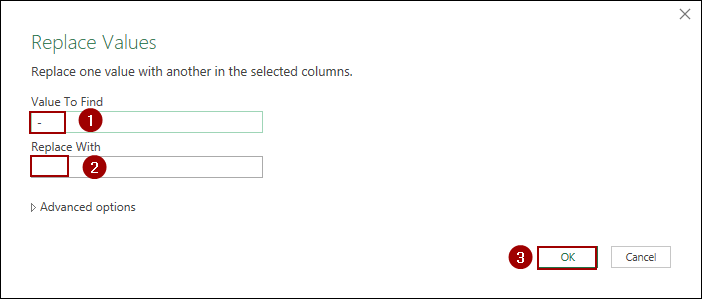
➤ In the Replace Values dialog box, type a dash (-) in the Value To Find field, leave the Replace With field blank, and click OK.
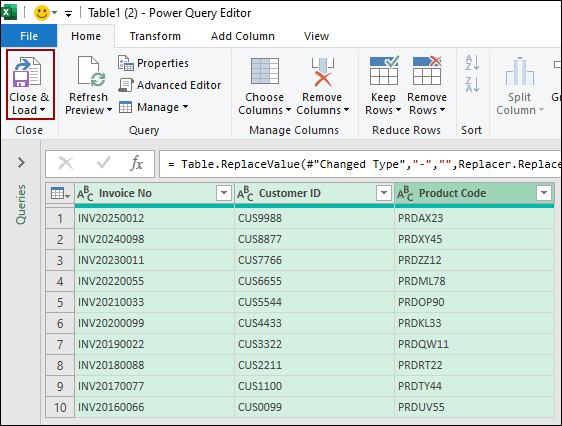
The data grid instantly updates, showing the values without any dashes.
➤ Go to the Home tab in the Power Query Editor and click Close & Load to return the cleaned data to a new sheet in your Excel workbook.
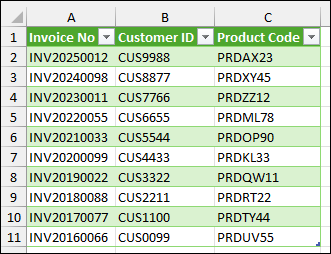
Finally, you will get the clean data in a new sheet, removing dashes.
Embedding VBA Code to Remove All Dashes from Active Sheet
If you need to remove dashes from various sheets, a simple VBA macro can provide a one-click solution.
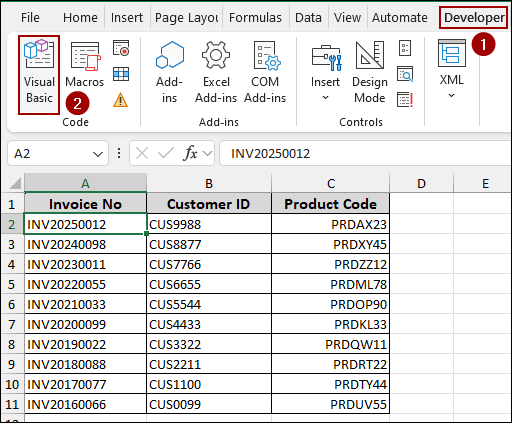
➤ Go to the Developer tab and click Visual Basic to open the VBA Editor.
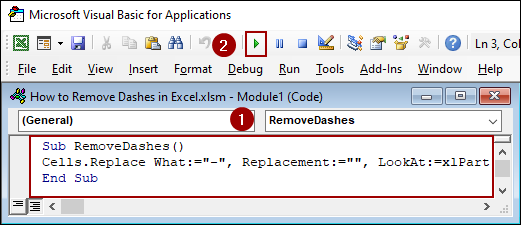
➤ Open a new module, paste the code, and hit Run.
Sub RemoveDashes()
Cells.Replace What:="-", Replacement:="", LookAt:=xlPart
End Sub
This code tells Excel to search the entire active sheet’s cells for a dash (“-“) and replace it with nothing (“”).
The dashes are instantly removed from all cells on the active sheet, providing a clean dataset.
Frequently Asked Questions
What if my dash is part of a negative number (e.g., -500)?
You need to be careful while using the SUBSTITUTE function, as it will remove the negative sign, too. In that case, replace only in the middle of the text using the REPLACE or TEXT functions.
Will removing dashes affect calculation or sorting?
Yes, removing dashes converts text-like entries into clean numeric values, which makes sorting, filtering, and calculations more accurate.
Is there a way to remove dashes automatically every time new data is entered?
Yes, you can use the Data Validation or VBA Worksheet Change Event to clean dashes as soon as the user inputs data.
Concluding Words
Above, we have explored several methods to remove dashes in Excel. Excel’s Flash Fill tool can instantly remove dashes if the dashes are in a fixed position. The Find and Replace tool is mostly used for bulk data. Using the SUBSTITUTE function, you can remove dashes from any place in a cell. Cleaning dashes with extra spaces is easy with the combination of TRIM and SUBSTITUTE functions. On the other hand, the Power Query tool and VBA provide a quick solution for bulk data. If you have any questions, feel free to share them in the comments section below.