Trailing spaces in Excel are unwanted blank characters that can affect how your data behaves in formulas, lookups, and sorting. They make cells appear identical on screen but act differently during calculations or text comparisons. Removing these spaces keeps your data clean, consistent, and ready for accurate analysis or reporting.
In this article, you’ll learn how to remove trailing spaces in Excel step by step using different methods.
Here’s how to remove trailing spaces in Excel:
➤ Open your dataset in Excel.
➤ Click on cell B2 and enter the following formula:
=TRIM(A2)
➤ Press Enter. Excel will instantly remove trailing spaces from the text in cell A2.
➤ Drag the fill handle down to apply the formula to the remaining rows in column C.
What is Trailing Space in Excel?
A trailing space in Excel is an extra blank character that appears at the end of text within a cell. It is not visible on the screen, but Excel treats it as part of the text. This small difference can cause issues in sorting, filtering, or matching values using formulas like VLOOKUP or IF.
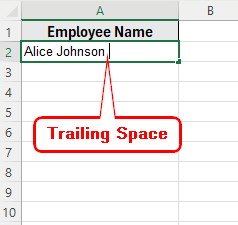
Trailing spaces usually appear when data is copied from external sources such as web pages, databases, or text files. They can also occur due to accidental typing during data entry. Removing these spaces is important to keep your data clean, consistent, and ready for accurate analysis or reporting.
Using the TRIM Function to Remove Trailing Spaces in Excel
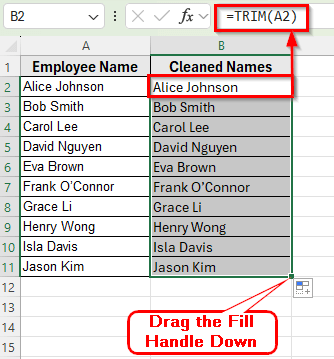
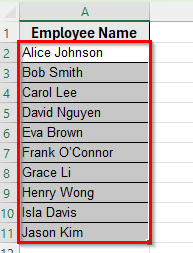
In this following dataset, we have employee names where trailing spaces might exist. Column A contains Employee Name and Column B labeled Cleaned Names which is currently empty. We’ll use Column B to apply our cleaning formulas.
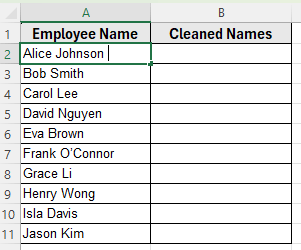
The TRIM function is the simplest and most reliable way to remove trailing spaces in Excel. It cleans text by removing extra spaces at the end of a cell, and it also reduces multiple spaces between words to a single one. This method is especially useful when you are preparing data for lookups, comparisons, or text-based analysis.
Here’s how to do it:
➤ Open your dataset in Excel.
➤ Click on cell B2 and enter the following formula:
=TRIM(A2)
➤ Press Enter. Excel will instantly remove trailing and leading spaces from the text in cell A2.
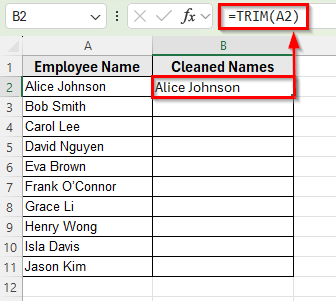
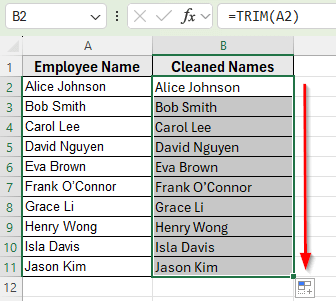
➤ Drag the fill handle down to apply the formula to the remaining rows in column C.
Using SUBSTITUTE, CLEAN, and TRIM Functions Together
Sometimes the TRIM function alone does not remove all trailing spaces, especially when your data contains non-breaking spaces or hidden characters copied from web pages or external files. In such cases, combining the SUBSTITUTE, CLEAN, and TRIM functions provides a more complete solution. This method ensures that all trailing spaces and invisible characters are removed, leaving only clean and consistent text.
Here’s how to do it:
➤ Open your dataset in Excel.
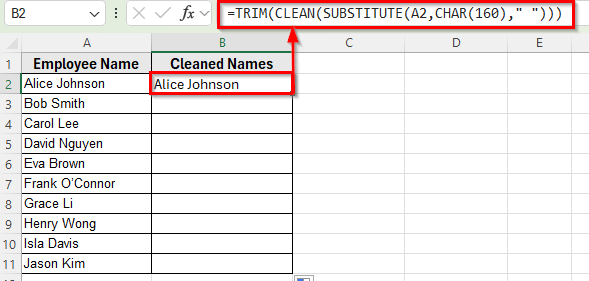
➤ Click on cell B2 and enter the following formula:
=TRIM(CLEAN(SUBSTITUTE(A2,CHAR(160)," ")))
➤ Press Enter. Excel will replace non-breaking spaces, remove non-printable characters, and trim leading and trailing spaces.
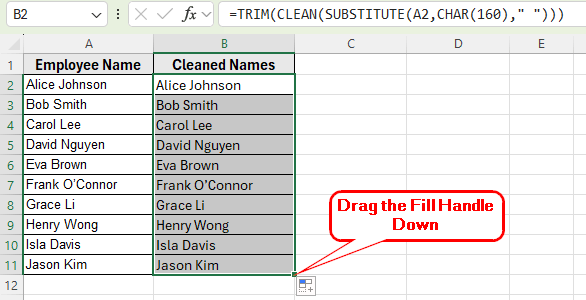
➤ Drag the fill handle down to apply the formula to the rest of the rows in column B.
Using VBA Macro to Remove Leading and Trailing Spaces in Excel
If you often work with large datasets and want to automate the cleaning process, using a VBA macro is an efficient option. A simple VBA script can remove trailing and leading spaces across multiple cells or sheets in just one click. This saves time and ensures consistent results without the need to reapply formulas.
Here’s how to do it:
➤ Press Alt + F11 to open the VBA Editor.
➤ Click Insert on the menu bar and choose Module.
➤ In the new module window, paste the following code:
Sub RemoveSpaces()
    Dim cell As Range
    For Each cell In Selection
        If Not cell.HasFormula Then
            cell.Value = Trim(cell.Value)
        End If
    Next cell
End Sub 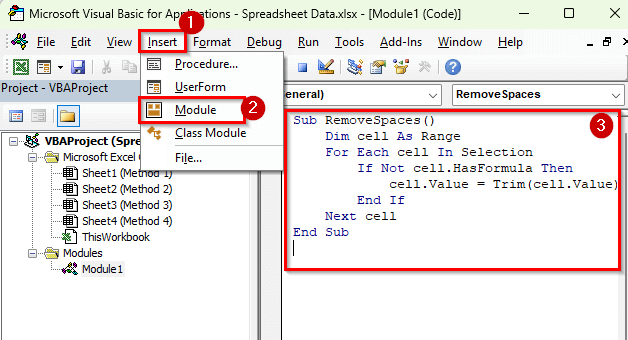
➤ Close the VBA Editor and return to Excel.
➤ Select the range of cells you want to clean. For example, A2:A11.
➤ Press Alt + F8 , choose RemoveSpaces, and click Run.
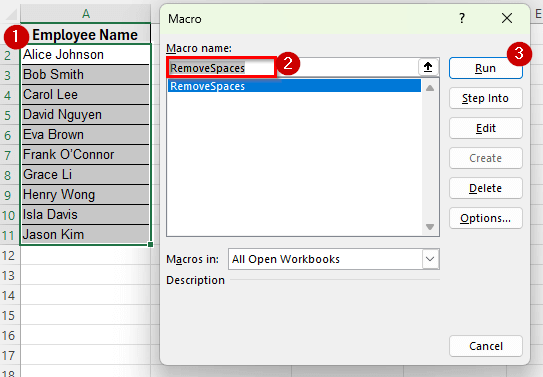
➤ Excel will instantly remove all trailing and leading spaces from the selected cells.
Downloadable Resources
Get our practice workbook or necessary files that we have worked with to prepare this article.
Frequently Asked Questions
How do I remove only trailing spaces without affecting spaces between words?
You can use this formula:
=TRIM(CLEAN(SUBSTITUTE(A2,CHAR(160)," ")))
However, the TRIM function alone usually handles both leading and trailing spaces effectively without touching the normal spaces between words.
Why do spaces remain after using the TRIM function?
Sometimes the spaces are not standard ones but non-breaking spaces copied from web pages or PDFs. These have a different character code and are not removed by TRIM alone. To fix this, use:
=TRIM(SUBSTITUTE(A2,CHAR(160)," "))
Is using VBA safe for cleaning spaces in Excel?
Yes, VBA macros are safe when used correctly. The provided code removes only extra spaces and does not modify any other content or formulas in your worksheet. It’s ideal for recurring cleaning tasks.
Wrapping Up
Cleaning trailing spaces in Excel is essential for maintaining accurate and reliable data. Extra spaces can cause errors in formulas, sorting, and lookups, making it difficult to analyze or share information effectively.
By removing these spaces, your data becomes consistent, easier to work with, and ready for reporting or presentation. Properly cleaned text ensures that calculations, comparisons, and data operations work correctly.