A text string in Excel is any sequence of characters, including letters, numbers, or symbols. Sometimes, you may need to reverse the order of characters in a text string. For example, you might want to flip first and last names, check for palindromes, or work with data that requires characters to be reversed for analysis.
Excel doesn’t have a built-in REVERSE function, but you can achieve this using formulas, Power Query, or even VBA.
In this article, we’ll learn how to reverse a text string in Excel using some simple methods.
Here’s how to reverse a text string in Excel using the MID and LEN functions:
➤ Open your dataset in Excel.
➤ Click on cell C2 and enter the following formula:
=TEXTJOIN(“”,1,MID(B2,LEN(B2)-ROW(INDIRECT(“1:”&LEN(B2)))+1,1))
➤ Press Enter.
➤ Excel will instantly reverse the characters in the string from column B.
➤ Drag the fill handle down to apply the formula to the rest of the rows.
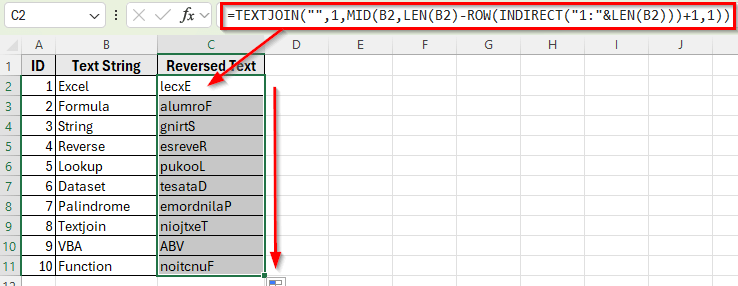
Reverse a Text String with MID and LEN Functions in Excel
In the following dataset, we have a list of words and names in Column B that we want to reverse. Column A shows the ID, Column B contains the Text Strings, and Column C will display the Reversed Result.
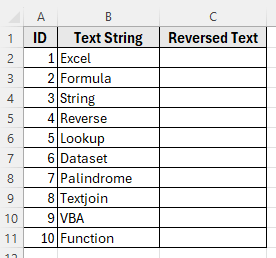
We’ll use this dataset to demonstrate different ways to reverse text strings in Excel.
The most common way to reverse text in Excel is by combining MID, LEN, and ROW functions inside a formula. When wrapped with TEXTJOIN, these functions can extract characters one by one in reverse order and then join them back into a single string.
Let’s apply this method to our dataset.
Here’s how to do it:
➤ Open your dataset in Excel.
➤ Click on cell C2, where you want the reversed text to appear.
➤ Enter the following formula:
=TEXTJOIN("",1,MID(B2,LEN(B2)-ROW(INDIRECT("1:"&LEN(B2)))+1,1))
➤ If you’re using Excel 365 or Excel 2019, press Enter.
➤ If you’re using Excel 2016 or earlier, press Ctrl + Shift + Enter because this is an array formula.
➤ Excel will instantly reverse the characters in the text from cell B2. For example, if B2 contains Excel, the result in C2 will be lecxE.

➤ Now, drag the fill handle down from C2 to C11 to apply the formula to the rest of the rows in your dataset. Each text string will be flipped automatically.
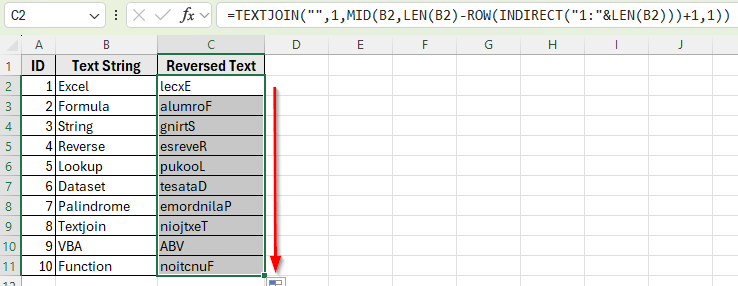
Using CONCAT, MID, SEQUENCE, and LEN to Reverse Text String
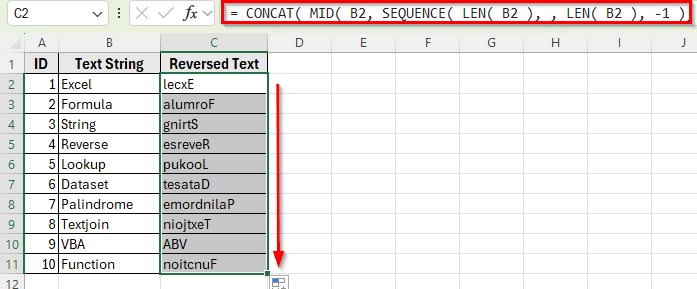
In Excel 365 or Excel 2021, you can reverse a text string easily using the combination of CONCAT, MID, SEQUENCE, and LEN functions. This method is simpler than the older array formula method.
Here’s how to apply it:
➤ Open your dataset in Excel.
➤ Click on cell C2, where you want the reversed text to appear.
➤ Enter the following formula:
= CONCAT( MID( B2, SEQUENCE( LEN( B2 ), , LEN( B2 ), -1 ), 1 ) )
➤ Press Enter. The text in B2 will instantly be reversed in C2.

➤ Drag the fill handle down to apply the formula to all rows in column C.
Reverse a Text String Using VBA in Excel
If you frequently need to reverse text strings in Excel, writing a simple VBA function is a quick and reusable solution. With VBA, you can create your own custom ReverseText function that works just like any other Excel function.
Here’s how to set it up:
➤ Press Alt + F11 to open the VBA editor.
➤ In the editor, click Insert >> Module.

➤ Copy and paste the following code into the new module:
Function ReverseText(ByVal Txt As String) As String
    Dim i As Integer
    Dim Result As String
    For i = Len(Txt) To 1 Step -1
        Result = Result & Mid(Txt, i, 1)
    Next i
    ReverseText = Result
End Function 
➤ Close the VBA editor and go back to Excel.
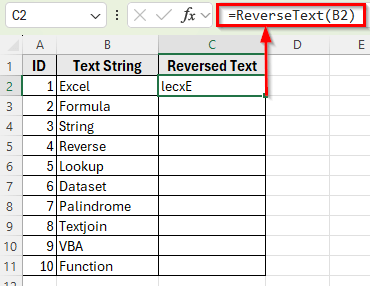
➤ In cell C2, type the following formula
=ReverseText(B2)
➤ Press Enter. You’ll see the text string from B2 reversed in C2.
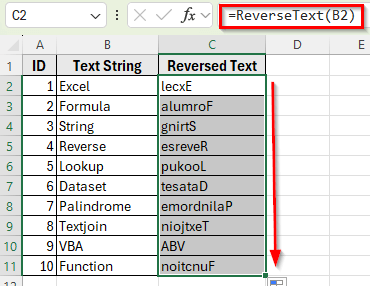
➤ Drag the fill handle down to apply the formula to all rows in column C.
Using Power Query to Reverse a Text String
If you’re working with large datasets or prefer a no-formula solution, Power Query is one of the easiest ways to reverse text strings in Excel. Power Query has a built-in function called Text.Reverse that flips text instantly.
Here’s how to apply this method:
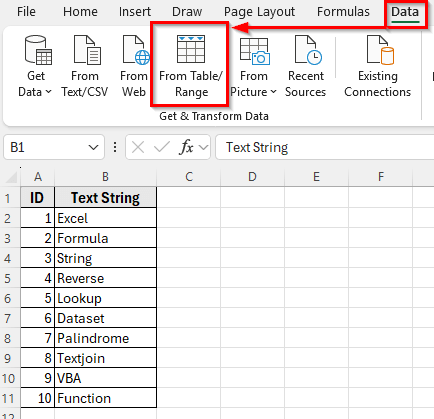
➤ Select your dataset in Excel.
➤ Go to the Data tab and click Get & Transform Data >> From Table/Range.
➤ Click Ok.

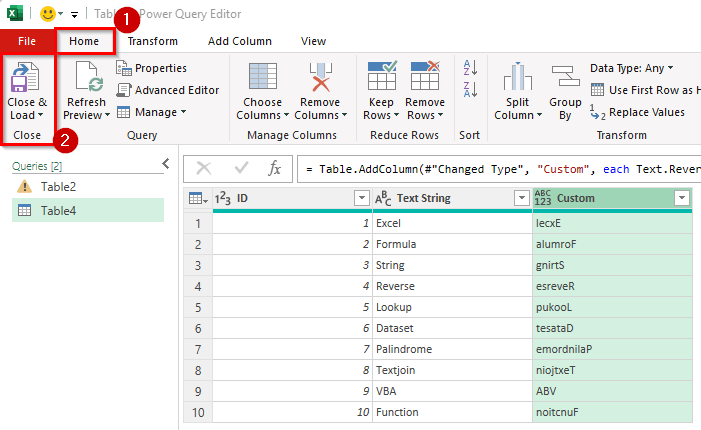
➤ In the Power Query editor, click Add Column >> Custom Column.

➤ In the formula box, type:
=Text.Reverse([Text String])
➤ Click OK.
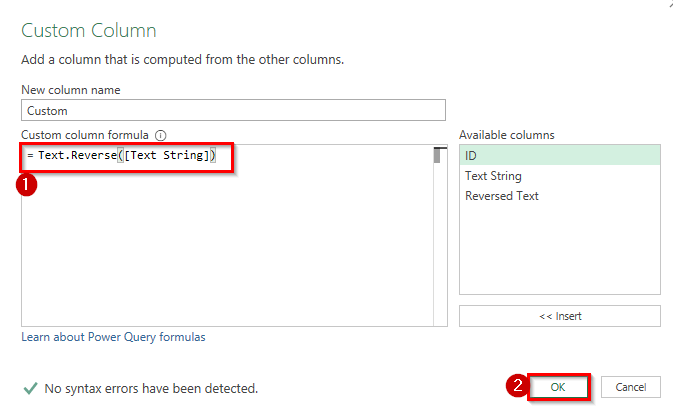
➤ A new column will be added with the reversed text.
➤ When you’re done, click Close & Load to return the results to Excel.
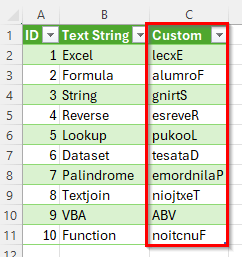
➤ Now, your dataset will show an extra column with reversed strings next to the original text.
Frequently Asked Questions
Can I reverse a text string in Excel without using formulas?
Yes, you can reverse a text string in Excel without using formulas by utilizing Power Query or VBA. Power Query imports your data into Power Query, uses the Text.Reverse function, and then loads the data back into Excel. In VBA, you have to write a custom VBA function to reverse the text string. This method is more advanced and requires some programming knowledge.
Is there a built-in function in Excel to reverse text strings?
No, Excel does not have a built-in function specifically for reversing text strings. However, you can achieve this using the methods mentioned above, such as combining CONCAT, MID, SEQUENCE, and LEN functions, or using Power Query or VBA.
Can I reverse a text string in Excel using a single formula?
Yes, you can reverse a text string in Excel using a single formula. The methods involving CONCAT, MID, SEQUENCE, and LEN, or TEXTJOIN and MID, are examples of single-formula solutions. These formulas are dynamic and will update automatically if the original text string changes.
Wrapping Up
Excel does not have a built-in function to reverse text strings, but there are several ways to do it. You can use formulas like CONCAT with MID, SEQUENCE, and LEN or TEXTJOIN with MID to reverse text directly in a cell. VBA allows you to create a custom function that works anywhere in your workbook. Power Query is useful for reversing text in larger datasets without complex formulas.
Each method works best in different situations. If you want a quick formula solution, use CONCAT or TEXTJOIN. If you want a reusable function, use VBA. For large datasets or automated processes, Power Query is the most efficient.
With these techniques, you can reverse any text string in Excel, whether it’s a single word, a phrase, or an entire column of data.