The Share Workbook feature in Excel allows multiple users to work on the same file simultaneously. However, if you’re using Excel 2019, Excel 2021, or Microsoft Office 365, you may notice that the Share Workbook button no longer appears on the ribbon by default. Microsoft has hidden this legacy tool in favor of co-authoring through OneDrive and SharePoint.
In this article, you’ll learn why the Share Workbook option isn’t visible, how to re-enable it using the Quick Access Toolbar, and modern alternatives for real-time collaboration. Let’s get started.
Steps to fix Share Workbook not showing in Excel:
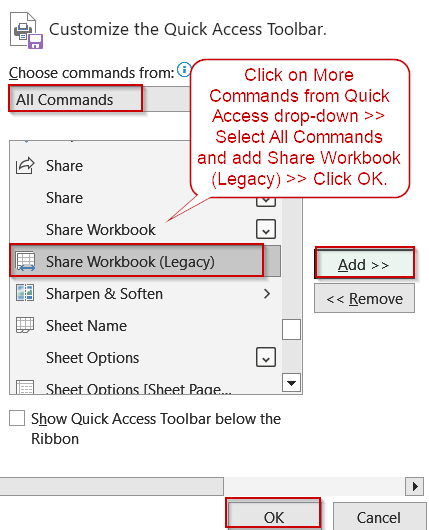
➤ Click the dropdown arrow on the Quick Access Toolbar and choose More Commands.
➤ In Choose commands from, pick All Commands.
➤ Find Share Workbook (Legacy) and click Add.
➤ Click OK to save.
Most Common Reasons for Share Workbook Option is Hidden
Microsoft deprecated Share Workbook to reduce file conflicts and corruption risks. Modern co-authoring tools provide real-time updates without the limitations of the old system. Other reasons it might not appear include:
- Using Excel 2019 or later, where it’s no longer on the ribbon by default.
- Working in an older .xls format rather than .xlsx.
- Workbook protection or organizational policies restricting legacy features.
Add Share Workbook (Legacy) to the Ribbon
In newer versions of Excel, the Share Workbook feature no longer appears on the default ribbon, as Microsoft encourages users to switch to co-authoring through OneDrive or SharePoint. However, you might still encounter situations such as working with older spreadsheets, collaborating with colleagues who use older Excel versions, or needing features specific to legacy sharing where enabling the old Share Workbook tool is necessary. By customizing the ribbon, you can easily restore the command for quick access without affecting your workflow or compatibility.
Steps:
➤ If it’s an old .xls file, click File >> Save As and choose Excel Workbook (.xlsx).

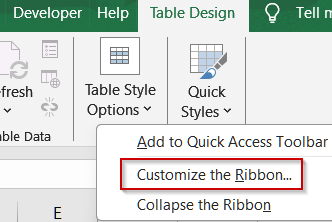
➤ Right-click the ribbon and choose Customize the Ribbon.
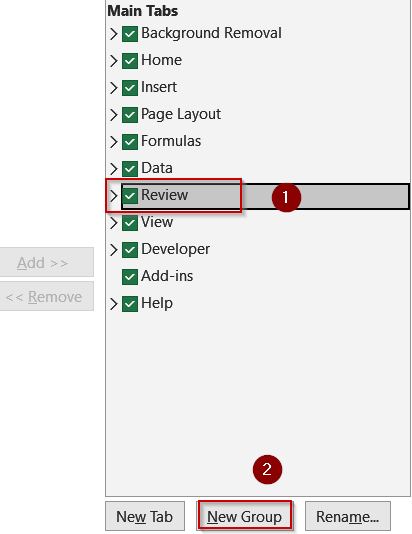
➤ In the right pane, select the tab where you want to add the command (e.g., Review).
➤ Click New Group to create a custom group.
➤ In the left pane, from the Choose commands from dropdown, select All Commands.
➤ Scroll down, select Share Workbook (Legacy), and click Add.
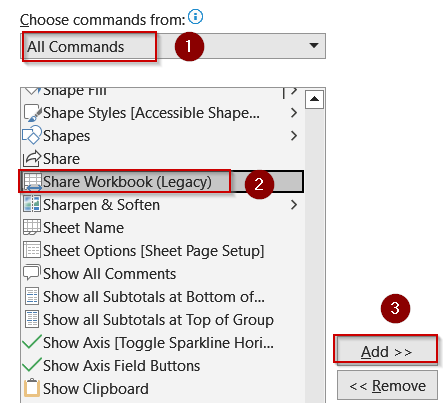
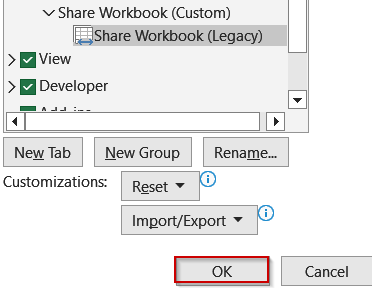
➤ Click OK to save.
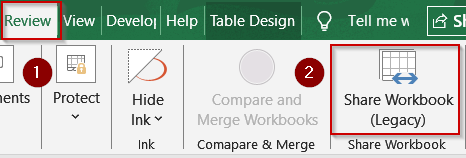
You’ll now see the Share Workbook button on the ribbon from the Review tab.
Use the Quick Access Toolbar (Alternative)
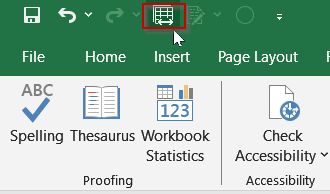
If you’d rather not modify the ribbon but still want quick access to the legacy Share Workbook feature, you can pin it to the Quick Access Toolbar. This method is ideal for users who prefer to keep the main ribbon uncluttered or who only need the feature occasionally. By adding it to the toolbar, the command will remain visible and accessible above the ribbon across all workbooks, saving you from navigating through menus each time.
Steps:
➤ Click the dropdown arrow on the Quick Access Toolbar and choose More Commands.

➤ In Choose commands from, pick All Commands.
➤ Find Share Workbook (Legacy) and click Add.
➤ Click OK to save.
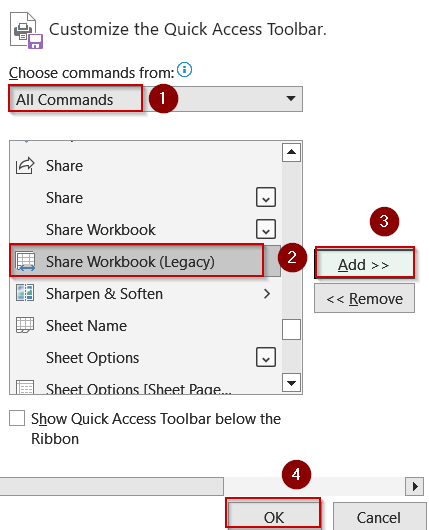
The button will now always appear above your ribbon for easy access.
Check Trust Center and Workbook Protection
Even after adding Share Workbook (Legacy) to the ribbon or Quick Access Toolbar, you might find the feature still unavailable or grayed out. This often happens because certain security configurations or workbook protection settings can block legacy sharing features. Excel’s Trust Center includes privacy options that may restrict workbook sharing, and enabling workbook protection can also disable the Share Workbook command. Verifying these settings ensures nothing is preventing you from using the feature.
Steps:
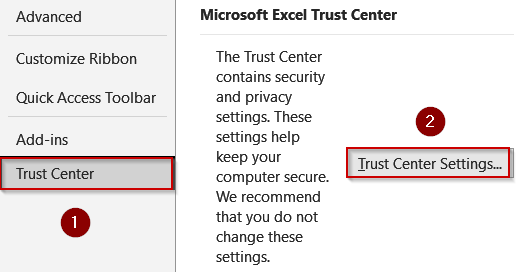
➤ Go to File >> Options >> Trust Center >> Trust Center Settings.
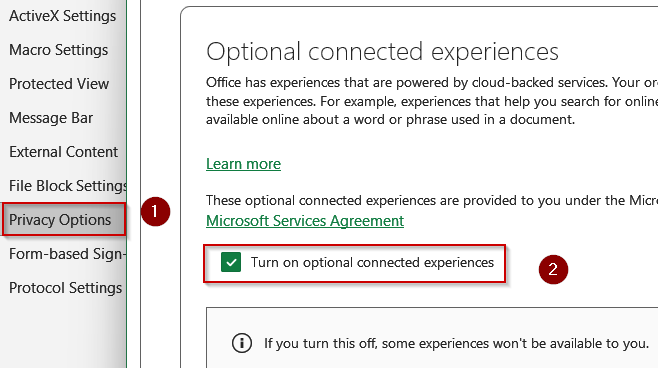
➤ Under Privacy Options, ensure workbook sharing features aren’t restricted and click on Turn on optional connected experiences.
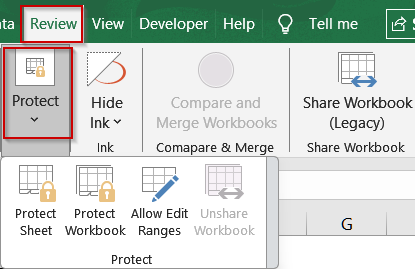
➤ Check Review tab >> Protect Workbook to confirm protection isn’t enabled. Turn off protection if necessary.
Try Modern Co-Authoring via OneDrive
Microsoft recommends switching to co-authoring for a smoother collaboration experience. By saving your file to OneDrive or SharePoint, you ensure automatic syncing, version history tracking, and reduced risk of data loss or inconsistencies. If you frequently work on projects with team members or clients, switching to co-authoring provides a future-proof and more efficient solution.
Steps:
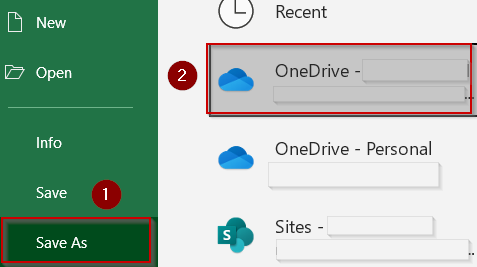
➤ Save your workbook to OneDrive or SharePoint using File >> Save As.
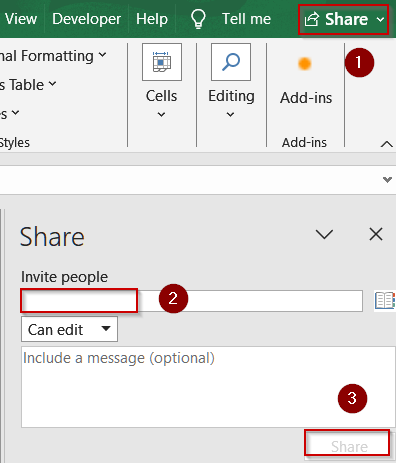
➤ Click Share in the top-right corner of Excel.
➤ Enter the email addresses of collaborators and choose their permissions.
➤ Click Share. Now, everyone can work on the same file simultaneously.
Frequently Asked Questions
Why is the Share Workbook feature hidden in newer Excel versions?
Microsoft hid the Share Workbook feature to encourage users to switch to co-authoring, which offers real-time updates, fewer conflicts, and improved performance compared to the older legacy sharing method that sometimes caused file corruption or sync issues.
Can I still enable Share Workbook in Excel 365 or 2021?
Yes, you can re-enable it by adding Share Workbook (Legacy) to your Quick Access Toolbar or Ribbon via File >> Options >> Customize Quick Access Toolbar. This restores the button for legacy shared workbook usage when necessary.
Is co-authoring better than using Share Workbook (Legacy)?
Co-authoring is generally better because it allows simultaneous editing, automatic syncing via OneDrive or SharePoint, and fewer version conflicts. Legacy Share Workbook can still work but is more prone to limitations, errors, and outdated collaboration workflows compared to modern alternatives.
What file format should I use for workbook sharing?
Use .xlsx or .xlsm formats for sharing. Older formats like .xls may disable certain sharing options or cause compatibility problems. Saving your workbook in the recommended formats ensures better performance and access to Excel’s modern sharing features without issues.
What if Share Workbook still doesn’t appear after adding it?
Check that your workbook isn’t protected, confirm the file format is .xlsx, and review Trust Center settings. Organizational policies or add-ins may also disable the feature, you can try co-authoring via OneDrive or SharePoint instead as an alternative.
Wrapping Up
In this tutorial, we explored why Share Workbook is not showing in Excel and how to fix it by adding Share Workbook (Legacy) to the Quick Access Toolbar. We also discussed using co-authoring for modern collaboration. By ensuring proper file formats, checking protection settings, and understanding Microsoft’s changes, you can confidently choose between restoring the legacy option or embracing cloud-based tools like OneDrive and SharePoint for efficient teamwork.