Sorting data in Excel is an effective way to organize and analyze information. While standard ascending or descending sorts work for most tasks, sometimes you need a specific order that matches your workflow or priorities. Sorting by a custom list in Excel allows you to arrange data according to a predefined sequence, such as days of the week, months, or any other specific list you create.
In this article, you’ll learn how to sort by a custom list in Excel step by step. We’ll prepare your dataset, create a custom list, and apply the sort to get your data arranged exactly the way you need.
Steps to sort by a custom list in Excel:
➤ Select your dataset and ensure headers are properly labeled.
➤ Open the Sort dialog box from the Data tab.
➤ Choose the column you want to sort by in the “Sort by” dropdown.
➤ Select “Custom List” from the Order dropdown.
➤ Pick a predefined list or create your own custom order.
➤ Click OK to apply the sort instantly.
Steps to Sort by Custom List in Excel
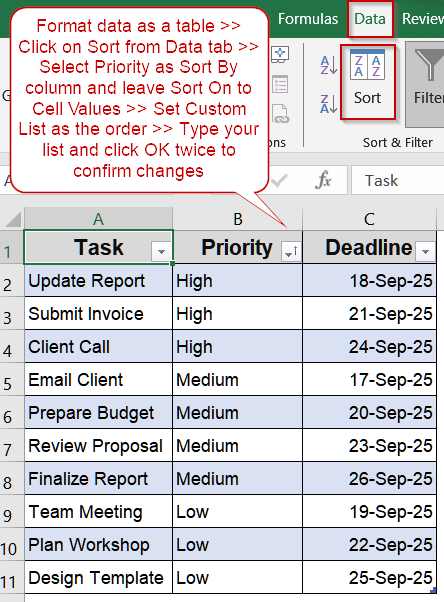
Sorting by a custom list in Excel is an efficient way to control the order of your data beyond simple alphabetical or numerical sorting. Whether you’re working with product priorities, project stages, or weekdays, Excel allows you to define exactly how rows should appear. For demonstration, we’ll use a small sample dataset containing tasks, priorities, and deadlines.
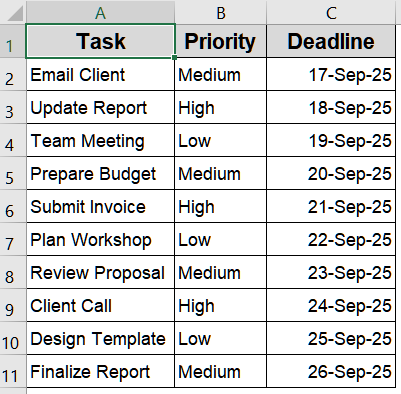
Step 1: Prepare Your Dataset
Before sorting, make sure your dataset is structured correctly. Headers should be in the first row, and each column should contain consistent data types. This ensures Excel can apply sorting correctly without errors.
Steps:
➤ Open a new worksheet and enter your dataset with proper headers.
➤ Ensure there are no blank rows within your table.
➤ Format your table using borders or the “Format as Table” option from the Home tab for clarity.
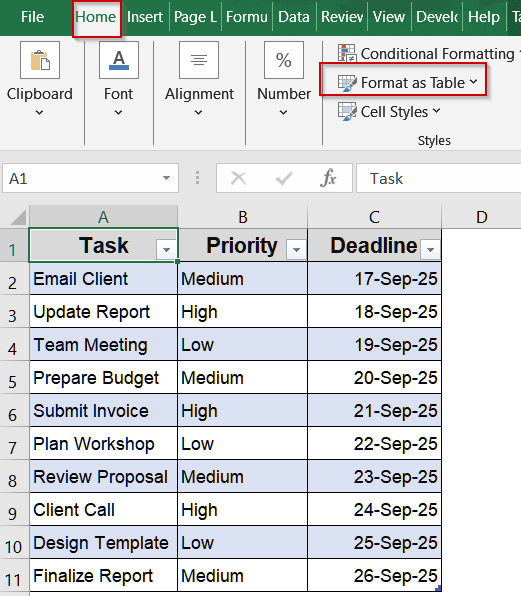
Step 2: Open the Sort Dialog Box
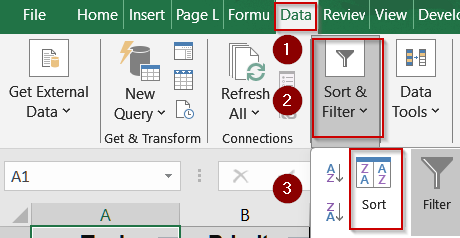
To sort your data by a custom list, you first need to access the Sort options. Excel provides a dedicated dialog for advanced sorting.
Steps:
➤ Click any cell within your dataset.
➤ Go to the Data tab on the ribbon.
➤ Click Sort under the Sort & Filter group.
Step 3: Select the Column to Sort
Identify the column whose order you want to control. For example, you might want to sort tasks by Priority or Weekdays.
Steps:
➤ In the Sort dialog box, make sure “My data has headers” is checked.
➤ In the “Sort by” dropdown, select the column you want to sort (e.g., Priority).
➤ In the “Sort On” dropdown, leave it as Cell Values.
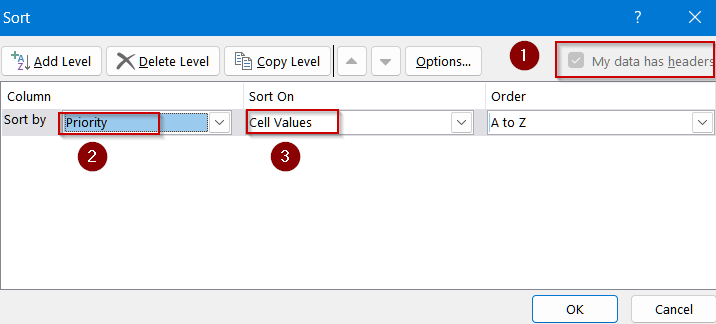
Step 4: Apply a Custom List
Instead of sorting alphabetically or numerically, you can use a custom list to dictate the order. Excel comes with predefined lists like weekdays and months, but you can create your own as well.
Steps:
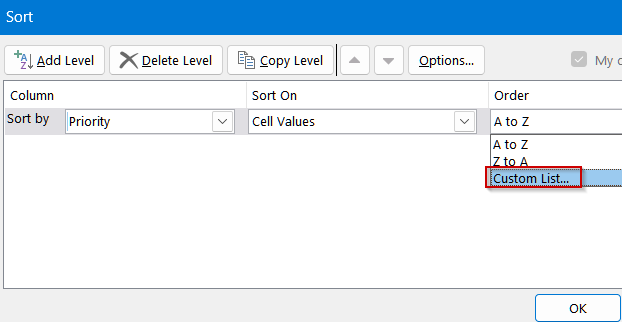
➤ In the Order dropdown, select Custom List…
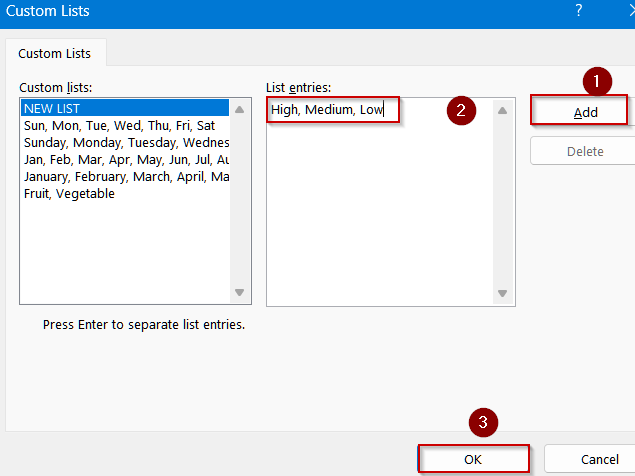
➤ In the Custom Lists dialog, choose a predefined list (like Mon, Tue, Wed…) or type your own sequence under List entries, separating items with commas (e.g., High, Medium, Low).
➤ Click Add if creating a new custom list.
➤ Click OK to close the dialog.
Step 5: Complete the Sort
Once the custom list is selected, Excel will rearrange your data according to your specified order.
Steps:
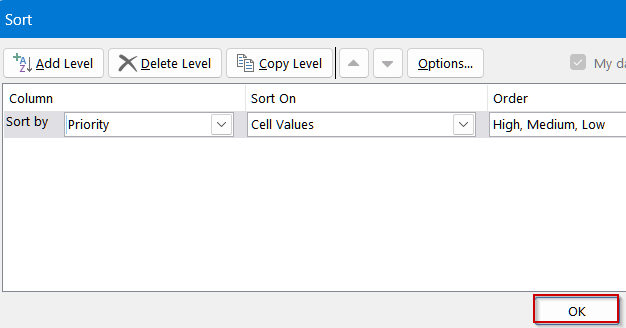
➤ Click OK in the Sort dialog box.
➤ Your dataset will now be sorted according to the custom order.
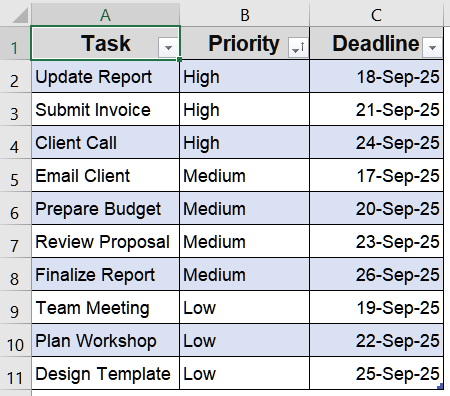
Now, sorting by the Priority column with the custom list High, Medium, Low will rearrange the tasks so that all High priority tasks come first, followed by Medium and then Low.
Frequently Asked Questions
What is a custom list in Excel?
A custom list in Excel is a sequence of values that you define yourself to control sorting order. Excel also provides predefined lists like weekdays or months, allowing you to quickly sort data in any preferred sequence efficiently.
Can I create multiple custom lists?
Yes, Excel allows the creation of multiple custom lists, each with its own sequence of values. These lists can be applied to different columns or datasets, giving you flexibility to organize data exactly the way you need across multiple tables.
Will my custom list sort apply to filtered data?
Yes, sorting with a custom list works with filtered data. To ensure accuracy, include the entire dataset in the selection. This prevents misplaced rows or incorrect order when applying the custom sequence to filtered tables.
Can I edit a custom list after creating it?
Yes, Excel lets you edit or delete any custom list you’ve created. Navigate to File >> Options >> Advanced >> Edit Custom Lists, where you can modify sequences, add new values, or remove lists as necessary.
Wrapping Up
In this tutorial, we walked through how to sort by custom list in Excel. We structured a dataset, opened the Sort dialog, selected a column, and applied a custom list to sort data exactly the way we needed. This feature is perfect for prioritizing tasks, arranging months or weekdays, or applying any order that standard sorting options can’t handle. Feel free to download the practice file and share your feedback.