When working with large Excel workbooks or complex formulas, multi-threaded calculations can use all available CPU cores, sometimes maxing out 8 threads or more. While this speeds up recalculation, it can slow down your computer, affect other programs, or cause Excel to behave sluggishly. Knowing how to stop or limit thread calculations helps you manage performance and maintain control over your workbook’s resources.
In this article, we’ll cover multiple methods to stop Excel from calculating threads, including limiting to fewer cores, using manual calculation, and applying VBA automation. Let’s get started.
Steps to stop calculating threads in Excel:
➤ Click File in the Excel ribbon.
➤ Select Options from the left pane.
➤ Go to the Advanced category >> Scroll down to the Formulas section.
➤ Uncheck Enable multi-threaded calculation.
➤ Click OK to save changes.
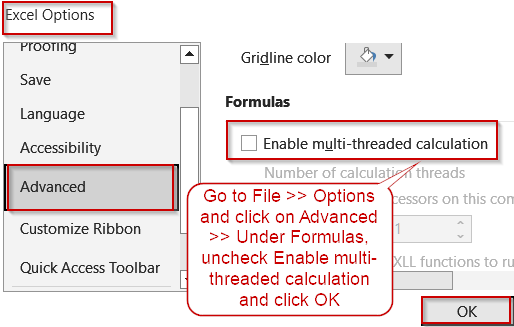
Disable Multi-Threaded Calculation from Excel Options
This method directly stops Excel from using multiple threads for calculations. It’s useful when you notice your CPU running at full load (like all 8 threads active) or when Excel is slowing down other programs.
Steps:
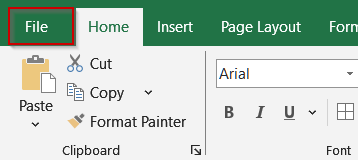
➤ Click File in the Excel ribbon.
➤ Select Options from the left pane.
➤ Go to the Advanced category.
➤ Scroll down to the Formulas section.
➤ Uncheck Enable multi-threaded calculation.
➤ Click OK to save changes.
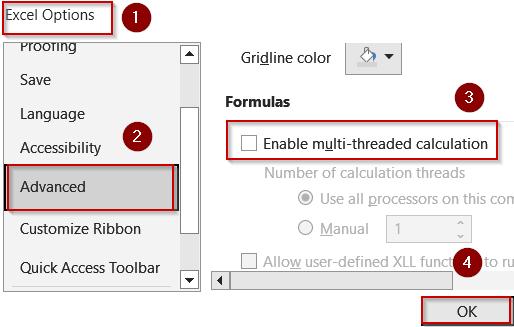
After this, Excel will perform all calculations using a single thread, which reduces CPU usage but may slow down recalculations in large workbooks.
Switch to Manual Calculation Mode
Manual calculation mode prevents Excel from recalculating formulas automatically, giving you full control over when calculations occur. This is ideal for workbooks with hundreds of formulas where recalculating with all 8 threads can be overwhelming.
Steps:
➤ Click the Formulas tab in the ribbon.
➤ In the Calculation Options group, click Calculation Options.
➤ Select Manual from the dropdown menu.
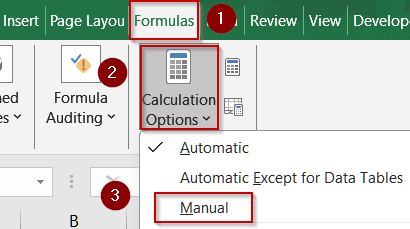
This stops Excel from recalculating automatically, allowing you to manage CPU usage manually.
Tip:
To recalculate, press F9 whenever you need to update formula results.
Limit Number of Calculation Threads in Excel
Instead of fully disabling threads, you can limit the number of CPU threads Excel uses. For example, even if your system has 8 threads, you might want Excel to use only 4 threads to leave resources free for other tasks.
Steps:
➤ Click File >> Options >> Advanced.
➤ Scroll to the Formulas section.
➤ Check Enable multi-threaded calculation if it’s not already checked.
➤ Select Manual and enter the number of threads to use. For example, you can use 2 instead of 8 threads.
➤ Click OK to apply.
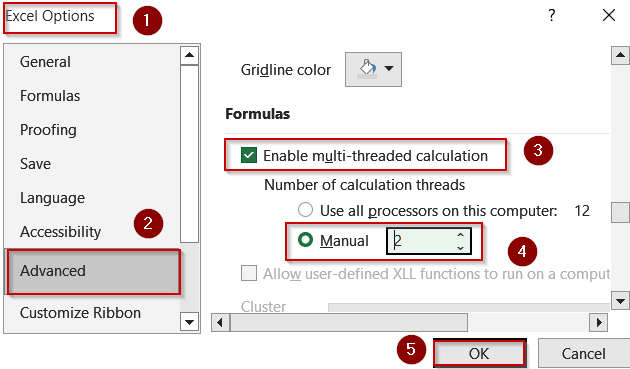
Excel will now use only the specified number of threads for calculations, reducing overall CPU load while still benefiting from parallel processing.
Use VBA to Stop Multi-Threaded Calculations
Using VBA allows you to automate the process of stopping or enabling multi-threaded calculations. This approach is especially useful for shared workbooks, recurring reports, or scenarios where you want consistent CPU usage control across multiple sessions. By implementing a simple macro, you can quickly toggle thread usage without navigating menus, saving time and ensuring your Excel environment performs efficiently.
Steps:
➤ Press Alt + F11 to open the VBA editor.
➤ Insert a new module (Insert >> Module).
➤ Paste the following code to disable multi-threaded calculation:
Sub DisableThreads()
    Application.MultiThreadedCalculation.Enabled = False
End Sub
➤ Press F5 to run the code.
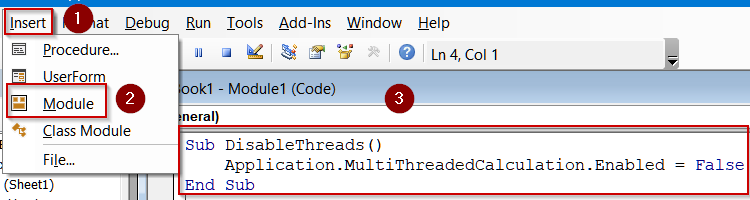
➤ To enable threads again, use this macro:
Sub EnableThreads()
    Application.MultiThreadedCalculation.Enabled = True
End Sub
Frequently Asked Questions
Will disabling threads slow down Excel calculations?
Yes. Disabling multi-threaded calculation forces Excel to use a single thread, which reduces CPU load but slows recalculation speed in large or formula-heavy workbooks. Small workbooks are typically unaffected by this change.
Can I limit Excel threads without fully disabling them?
Yes. Excel allows specifying the number of calculation threads manually, letting you reduce CPU usage while still benefiting from parallel processing. This is ideal for multi-core systems to prevent excessive resource consumption.
How does manual calculation mode affect formulas?
Manual mode does not alter formulas but stops automatic recalculation. Formulas only update when you press F9 , giving you control over performance and CPU usage, particularly in large workbooks with many complex formulas.
What does “8 threads” mean in Excel?
Excel uses multiple CPU threads to calculate formulas in parallel. “8 threads” means Excel is using eight logical processors simultaneously, which speeds up large workbook calculations but can also max out CPU usage.
Is VBA required to stop multi-threaded calculations?
No, VBA is optional. It provides automation for quickly disabling or enabling threads across workbooks. Regular users can stop or limit threads directly from Excel Options without using VBA, making it a convenient alternative.
Wrapping Up
In this tutorial, we explored multiple ways to stop calculating threads in Excel. From disabling multi-threaded calculation and switching to manual mode to limiting thread counts and using VBA, these methods help reduce CPU load, manage large workbooks efficiently, and prevent Excel from maxing out all 8 threads unnecessarily. Applying these approaches ensures smoother performance without affecting your formulas or data integrity.