When working with Excel, sometimes we need to look at two worksheets or workbooks at the same time. It allows us to copy and paste data, formulas, or just compare entries between the files more easily. Viewing Excel sheets side-by-side may also help reduce time switching between worksheets, allowing us to work more accurately and efficiently.
The good news is that Excel makes this very easy. You can view worksheets side-by-side vertically so both are visible at the same time. In this article, we’re going to learn different methods to open multiple Excel sheets simultaneously.
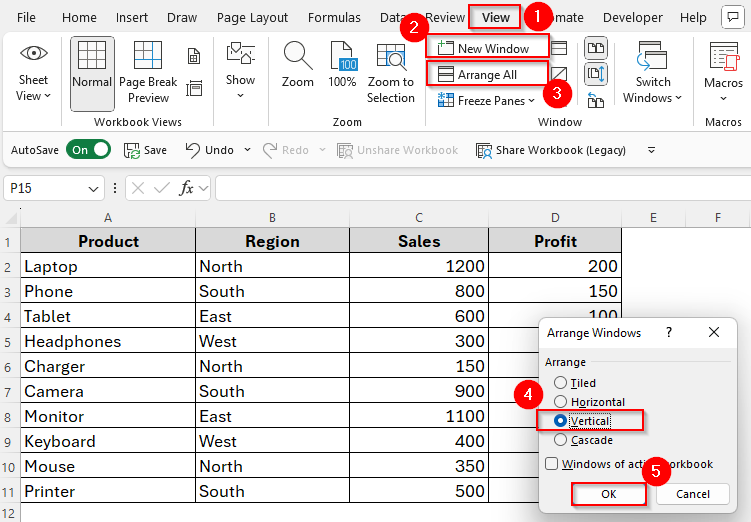
➤ Select View tab and choose New Window.
➤ Then go to Arrange All.
➤ Choose Vertical and tap Ok.
Now let’s go through the other methods step by step.
Creating New Window to View Excel Worksheets Side-by-Side Vertically
One way to view multiple sheets within the same workbook at the same time is using the New Window feature. Using this feature, we can create a new window and access required sheets vertically.
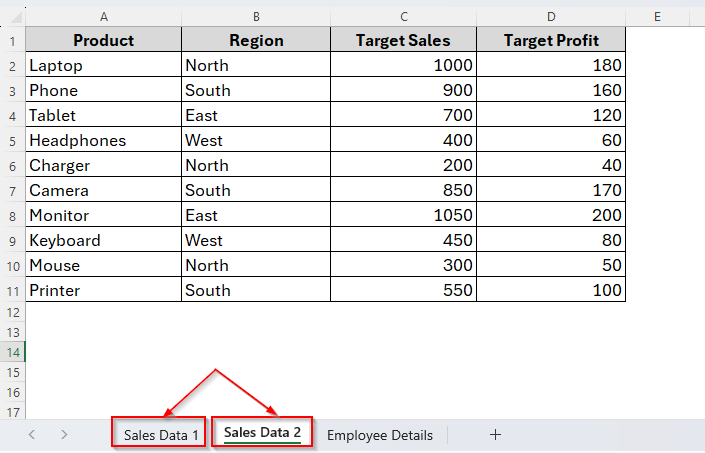
For example, we have a workbook with three different worksheets including Sales Data 1, Sales Data 2 and Employee Details. Here, the Sales Data 1 contains Sales and Profit while the Sales Data 2 includes Target Sales and Target Profit.
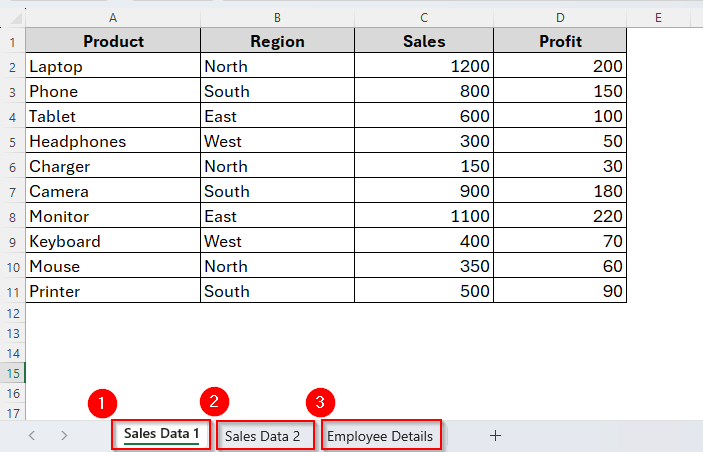
Now we have to compare data from Sales Data 1 to Sales Data 2. To make it more accessible, we’ll open these two sheets vertically and so, we’ll be creating a New Window.
Here’s how it goes.
Steps:
➤ Go to the New Tab and then click the New Window button. In this case, the keyboard shortcut is Alt + W + N .
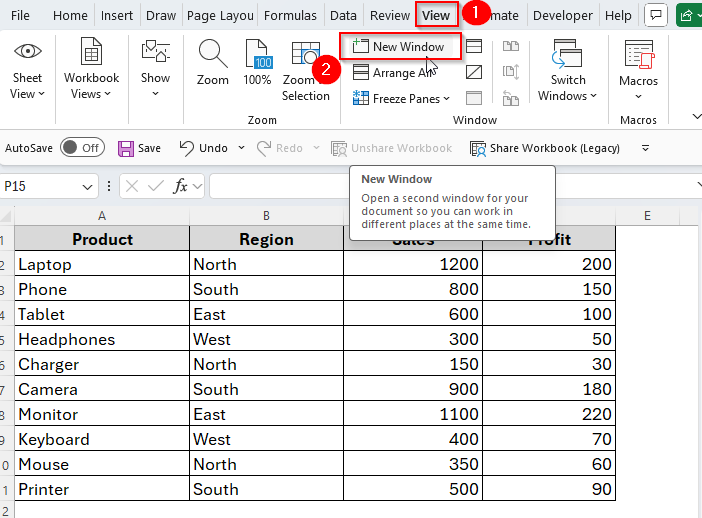
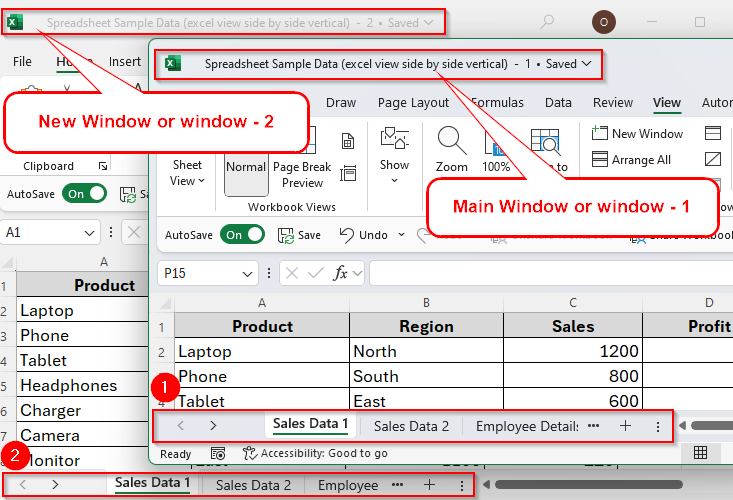
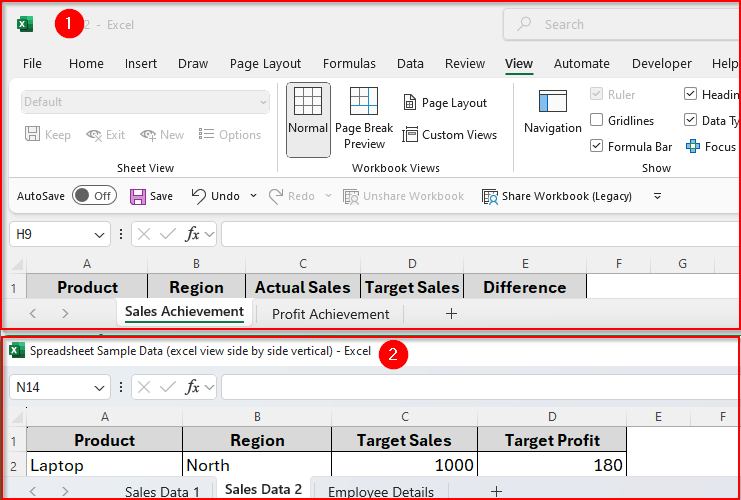
This will create a new window with the same workbook. You can see that right up in the title bar right after the filename referring to a dash (-) with 2. If we go down to the task bar we can also see that here as the following image. And we can navigate to different worksheets.
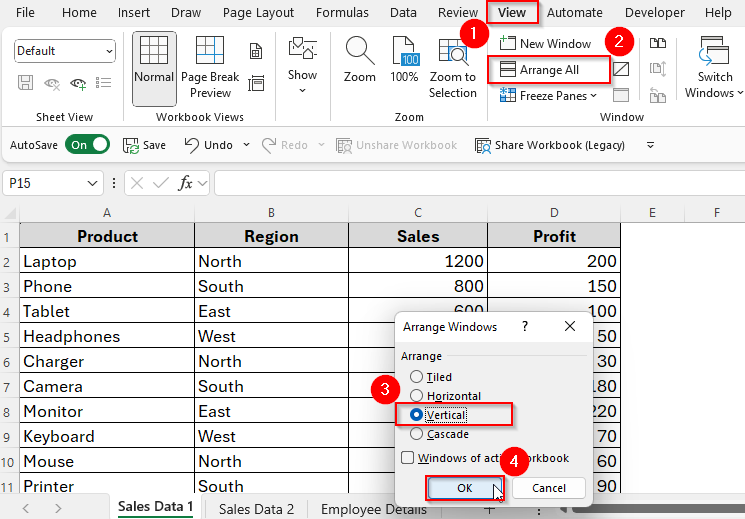
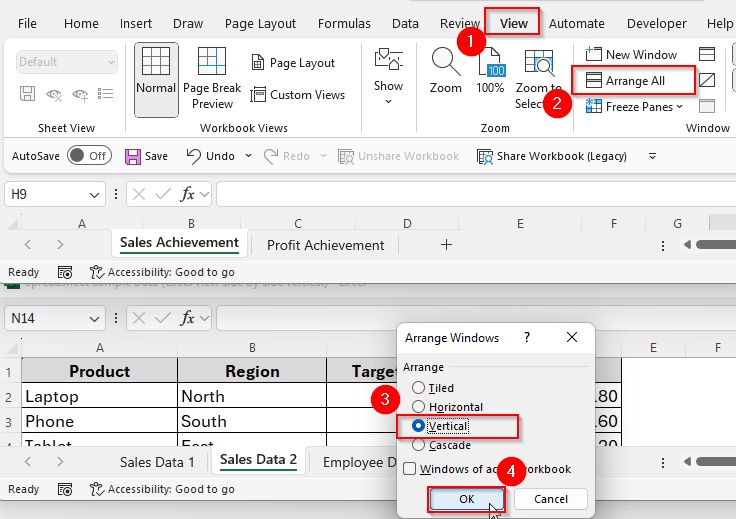
➤ Now navigate the second window. To visually compare these two sheets, go again to the View Tab. Then click Arrange All → Vertical → OK.
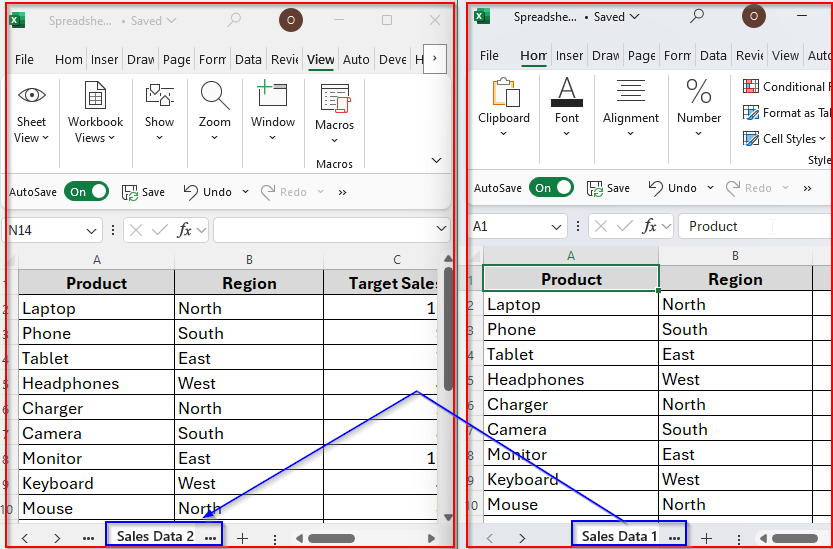
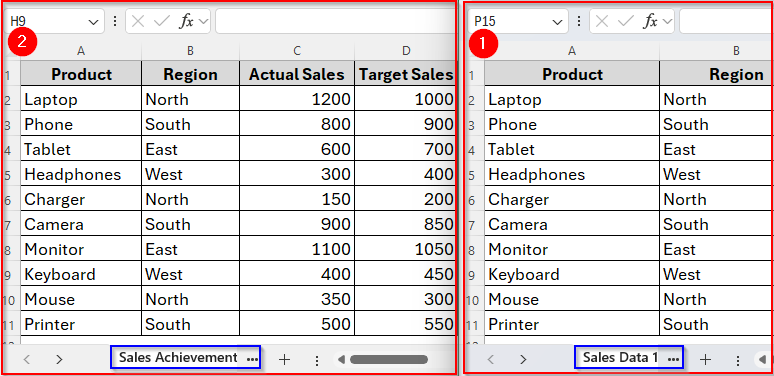
Both sheets will now appear next to each other vertically as we can see in the image below.
Note:
Opening a new window doesn’t mean creating a duplicate workbook. So, if you make any changes in a workbook, it will be automatically updated in the other windows. And when it comes to closing the window once you’re done, you don’t need to save it. Just close it.
Using ‘View Side by Side’ Option to Open Excel Worksheets Vertically from Different Workbook
If you’re working with multiple workbooks, and want to view different sheets vertically, we have to apply the View Side-by-side feature instead of New Window. With this feature, you can open and access sheets from different workbooks at the same time. You can also arrange them horizontally, vertically, or any other way as you prefer.
Steps:
➤ Open both Workbooks.
➤ Go to the View tab and click View Side by Side.
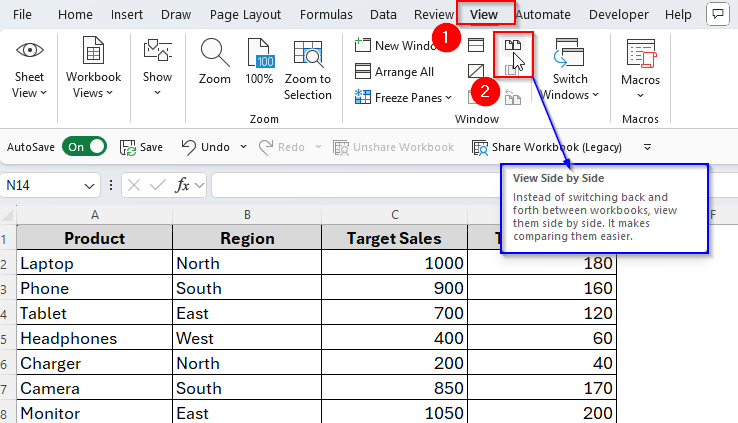
➤ By default, Excel arranges them horizontally.
➤ So, as we want to make it vertical, click Arrange All → Vertical → OK.
➤ Now the worksheets are arranged in a vertical order.
Synchronous Scrolling While Viewing Worksheets Side by Side
When comparing two worksheets, sometimes it becomes useful if both scroll together. This is when we can apply the synchronous scrolling feature. It allows us to scroll both of the sheets or workbooks at the same time. Here are the steps to follow.
Steps:
➤ Just as the previous methods, navigate to the View tab.
➤ Make sure you have New Window or View Side by Side enabled.
➤ Then click the Synchronous Scrolling button just under the View Side by Side.
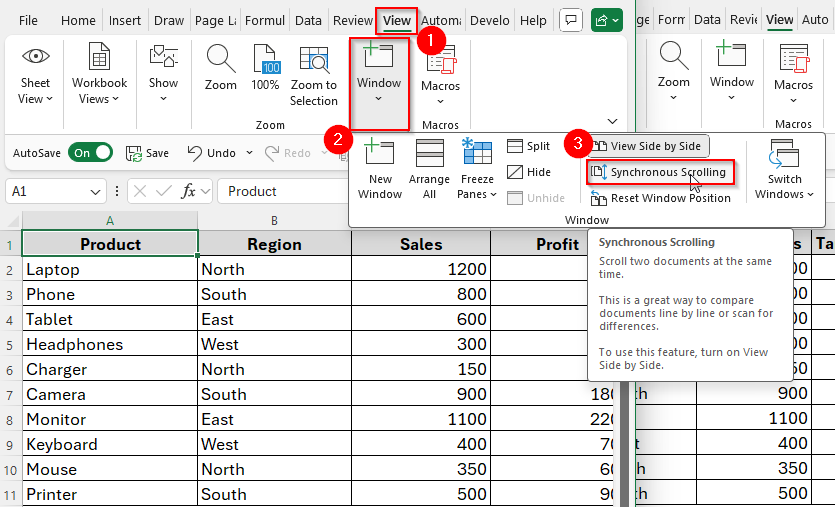
Once you enable the feature, you can simply scroll the sheets together.
Possible Fixes When Side by Side View with Vertical Arrangement Does Not Work
Sometimes this feature may not work as expected. There might be some issues while working. So, here we’ll also discuss some common issues and fixes while using Excel view side by side vertical.
➤ Problem 1: The option is grayed out.
- Fix: Make sure at least two workbooks or two windows are open.
➤ Problem 2: Worksheets still show horizontally.
- Fix: Go to Arrange All and select Vertical
➤ Problem 3: Synchronous scrolling is not available.
- Fix: It only works with two windows. Close extras and keep only two open.
Frequently Asked Questions (FAQs)
Can I view more than two worksheets side-by-side?
Yes, you can. But the screen will get smaller. Excel can arrange multiple windows vertically, horizontally, or in a grid.
Can I split the same worksheet vertically instead of opening new windows?
Yes, definitely. All you need to do is just go to View → Split to divide one sheet into panes.
What is the difference between New Window and View Side by Side?
New Window lets you see different sheets from the same workbook. In contrast, View Side by Side allows you to compare two different workbooks.
Concluding Words
Viewing Excel worksheets side-by-side vertically is a simple trick that saves time and effort. Whether your data is in the same workbook or in different files, you can arrange them next to each other with just a few clicks.
It makes Excel much easier to use and helps you work more efficiently. So, hopefully these guidelines have helped you learn how to view Excel worksheets side-by-side vertically. Still, if you have any queries, you’re welcome in our comment section below.