One of the most crucial skills to have when working with loops in Excel VBA is understanding not only how to begin a loop but also how and when to end it. An effective feature that lets you end a loop early when a certain condition is met is the Exit For statement. Exit For allows you to break out instantly when you find what you need, saving time and resources rather than allowing a loop to go over each data in a range.
➤ Go to the Developer tab and click on Visual Basic to open the VBA Editor.
➤ Select Insert > Module.
➤ Copy and paste the following code in the module. Input your specific condition within the If statement.
Sub FindSpecificValue()
    Dim ws As Worksheet
    Dim cell As Range
    Dim targetID As String
    Set ws = ThisWorkbook.Worksheets("Sheet1")
    targetID = "EMP005"
    For Each cell In ws.Range("A2:A100")
        If cell.Value = targetID Then
            MsgBox "Employee " & targetID & " found in " & cell.Address
            Exit For
        End If
    Next cell
End Sub
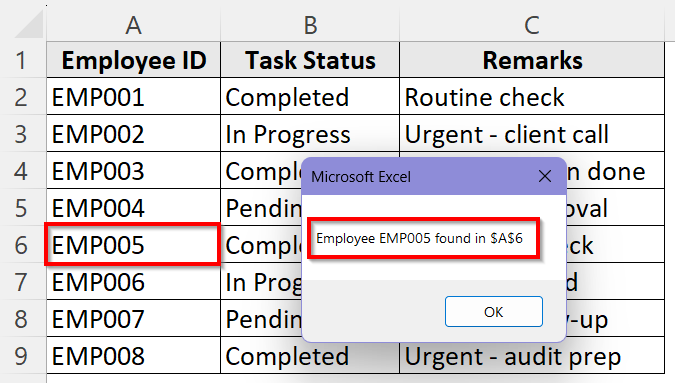
➤ Click on Run. You will see the first result that meets the condition and the loop will stop running.
We have introduced the Exit For command in Excel VBA thoroughly in this article along with the explanation of how it works. You will get to know how you can use the Exit For command to stop the VBA code when a specific condition is fulfilled, a blank cell is found or when the value exceeds a threshold.
What Is Exit For Loop in Excel VBA?
Exit For is a control command which instructs VBA to end a For or For Each loop right away. Even if all the iterations in the worksheet are not finished, this shortcut can exit the loop structure. It can be triggered only when the condition inside the loop evaluates as true. Once the condition is fulfilled, VBA skips the remaining iterations within the loop and jumps straight to the first line of the code again because of the Exit For command.
This command is very similar to the Break command in other programming languages. Since VBA can stop just where you need it by utilizing this command, it doesn’t need to examine every element in the worksheet and saves processing time. So, handling exceptions, verifying conditions, or looking for certain data becomes very easy in a large dataset if you use Exit For in the VBA macro.
How Does Exit For Loop Work in Excel VBA?
The Exit For command functions fundamentally as a component of an If condition inside a loop. At first, VBA starts the loop and evaluates each item individually. Whenever the defined condition is fulfilled, VBA immediately breaks the cycle by using the Exit For command. After that specific loop is finished, VBA proceeds to execute the remainder of the macro starting with the line that follows.
The general structure of the VBA code with Exit For looks like this:
Sub ProcedureName()
For Each cell In Range("A1:A10")
    If cell.Value = "Target" Then
        MsgBox "Found in " & cell.Address
        Exit For
    End If
Next cell
Here, For Each cell In Range(“A1:A10”) starts looping through each cell in the range which is cell A1 to A10. If cell.Value = “Target” Then checks whether the current cell matches the target value which is the condition in this case. Once the target value is found, the Exit For command immediately breaks out of the loop and skips checking the rest of the range.
Examples of Exit For Command in Excel
Example 1: Stop Searching After Finding a Specific Value with Exit For Command
Locating a specific value and exiting the loop is the most fundamental use of the Exit For command. Suppose, you are looking for a certain entry in a list of customer names or IDs. There’s no need to continue looking through every row of the entire worksheet once you’ve located it. This example shows how to use Exit For to end the loop as soon as the desired value is found to give instant feedback to the user.
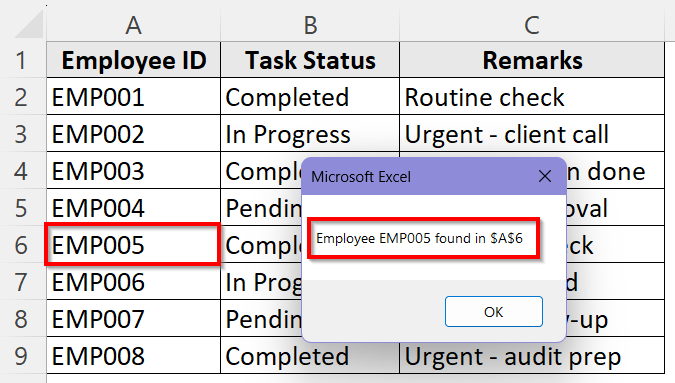
Suppose, this is our dataset which contains the employee IDs of a company along with their task status and remarks about their performance.
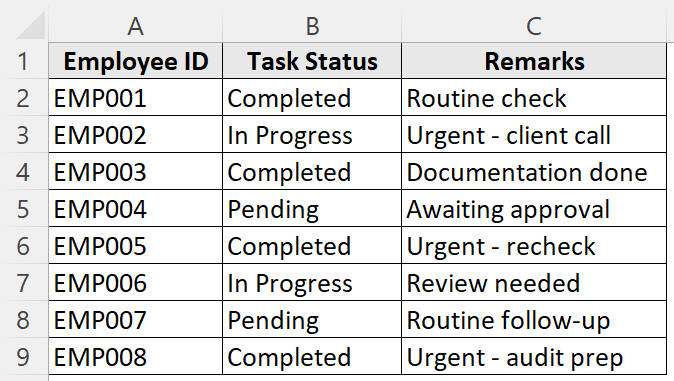
We need to find a particular employee ID EMP005 from column A. We will use the Exit For command to locate and display the ID and exit the loop immediately.
Steps:
➤ Go to the Developer tab.
➤ Click on Visual Basic to open the VBA Editor.
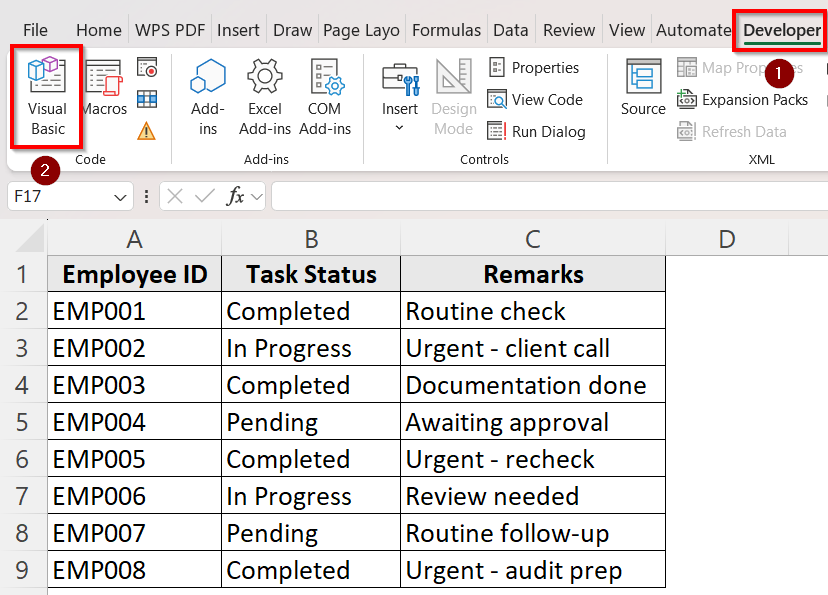
➤ Click on Insert and select Module. A new module in the VBA Editor window will open.
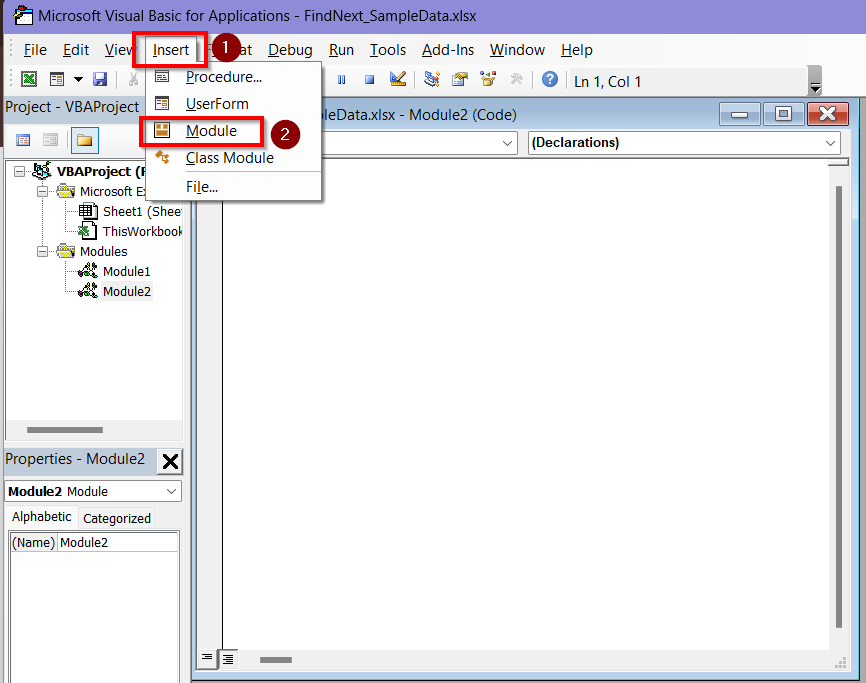
➤ Enter the following code in the module.
Sub FindSpecificValue()
    Dim ws As Worksheet
    Dim cell As Range
    Dim targetID As String
    Set ws = ThisWorkbook.Worksheets("Sheet1")
    targetID = "EMP005"
    For Each cell In ws.Range("A2:A100")
        If cell.Value = targetID Then
            MsgBox "Employee " & targetID & " found in " & cell.Address
            Exit For
        End If
    Next cell
End Sub
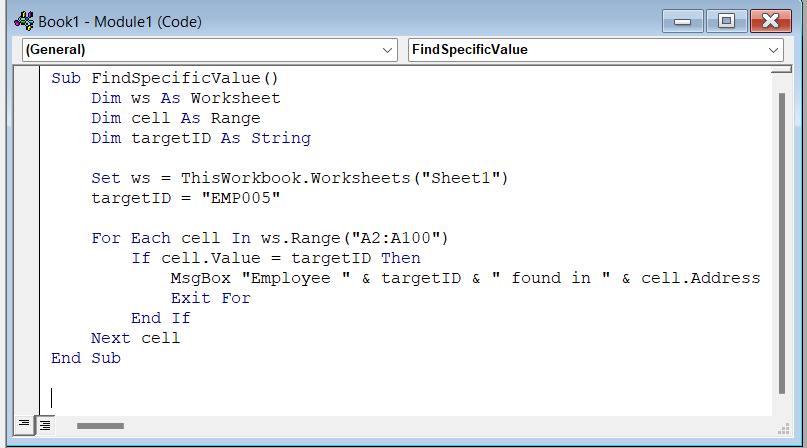
➥ targetID = "EMP005" sets the target value which the macro will look for.
➥ If cell.Value = targetID Then checks if the current cell matches the target value.
➥ MsgBox "Employee " & targetID & " found in " & cell.Address notifies the user when the value is found.
➥ Exit For stops the loop right away once the employee is found and so the search is over.
➤ Click on Run > Run Sub/UserForm to execute the code.
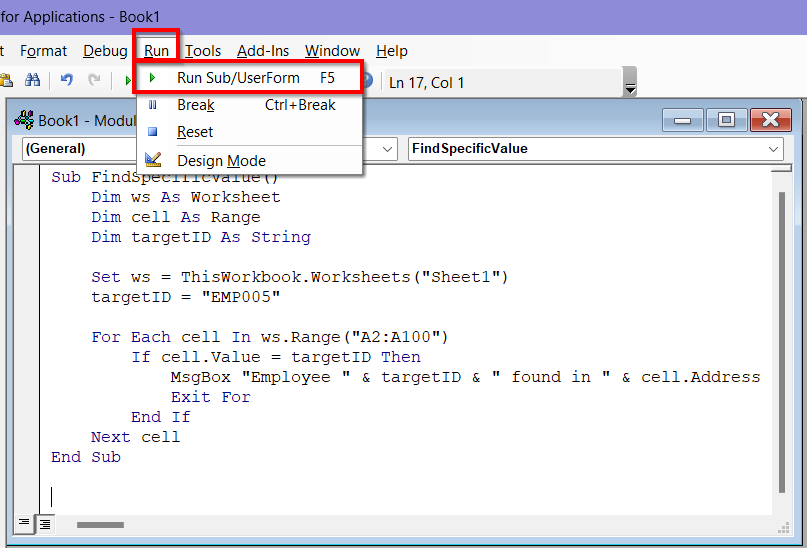
➤ You will see the result in a message box saying Employee EMP005 found in A6. So, the loop will end in cell A6 and the VBA won’t check the rest of the rows in column A.
Example 2: Stop When a Blank Cell is Reached With Exit For Command
While working with large datasets, there could be some mistakes where certain cells could be missing data. You can use the Exit For command to identify such missing data as it can detect a blank cell and show you the location of it, stopping the loop immediately. This will prevent errors and maintain data integrity.
Suppose, this is our dataset:
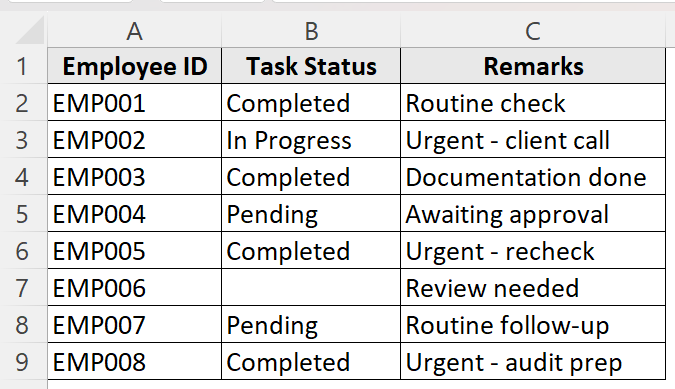
We want to find out if there is any missing data or blank cell in the dataset using the Exit For loop.
Steps:
➤ Go to the Developer tab.
➤ Click on Visual Basic to open the VBA Editor.
➤ Click on Insert and select Module.
➤ Enter the following code in the module.
Sub StopAtBlankCell()
    Dim ws As Worksheet
    Dim cell As Range
    Set ws = ThisWorkbook.Worksheets("Sheet2")
    For Each cell In ws.Range("A2:C9")
        If IsEmpty(cell.Value) Then
            MsgBox "Blank cell found at " & cell.Address
            Exit For
        End If
    Next cell
End Sub
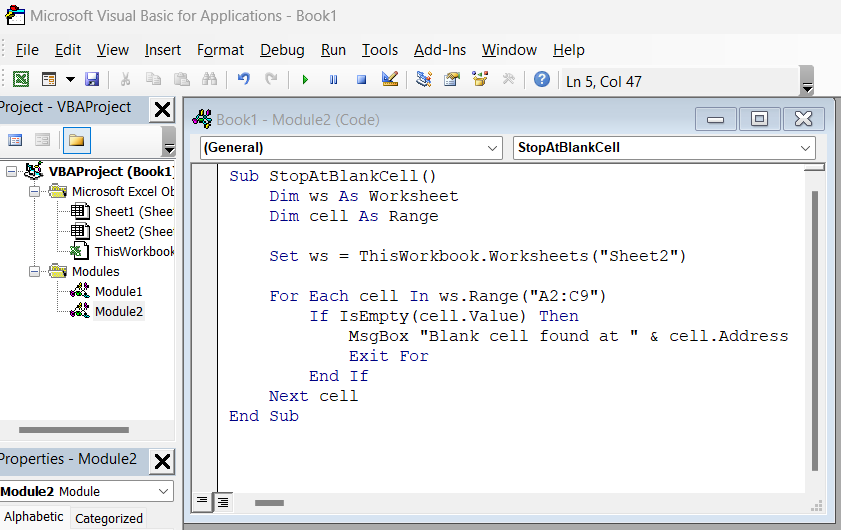
➥ If IsEmpty(cell.Value) Then detects the first blank cell in the dataset.
➥ MsgBox "Blank cell found at " & cell.Address informs the user about the location of the blank cell.
➥ Exit For stops looping beyond this missing data, preventing unnecessary processing.
➤ Click on Run > Run Sub/UserForm to execute the code.
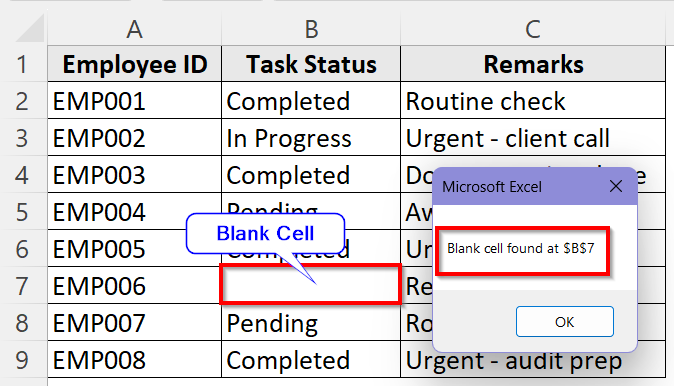
➤ The result will show on row 7, cell B7 is missing data. So, a message box saying, Blank cell found at B7 will be displayed. The rest of the loop will stop searching for more blank cells because of the Exit For command.
Example 3: Exit When Total Completed Count Exceeds a Threshold
Sometimes you need a certain value a specific number of times. For example, you might only need the first three entries of a certain text during partial data handling. In these cases, you can set a threshold and use Exit For in the loop. So when the loop exceeds the threshold number, it exits the VBA immediately without counting the rest of the entries.
Suppose, this is our dataset which contains the employee IDs of a company along with their task status and remarks about their performance.
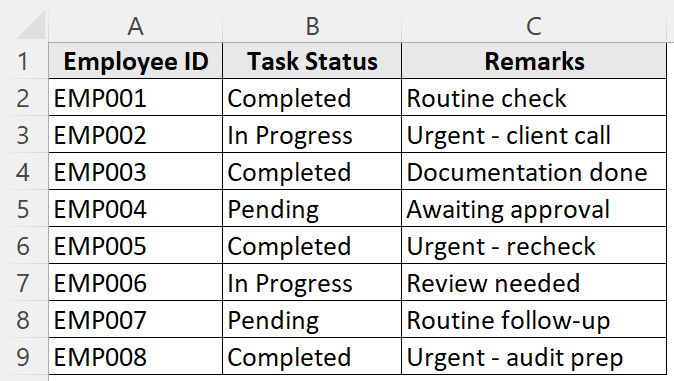
We need to process the Completed task status records up to the first three employees who have completed their task.
Steps:
➤ Go to the Developer tab.
➤ Click on Visual Basic to open the VBA Editor.
➤ Click on Insert and select Module.
➤ Enter the following code in the module.
Sub ExitAfterThreshold()
    Dim ws As Worksheet
    Dim cell As Range
    Dim completedCount As Integer
    Dim threshold As Integer
    Set ws = ThisWorkbook.Worksheets("Sheet1")
    completedCount = 0
    threshold = 3
    For Each cell In ws.Range("B2:B100")
        If cell.Value = "Completed" Then
            completedCount = completedCount + 1
            If completedCount > threshold Then
                MsgBox "Threshold of " & threshold & " exceeded at " & cell.Address
                Exit For
            End If
        End If
    Next cell
End Sub
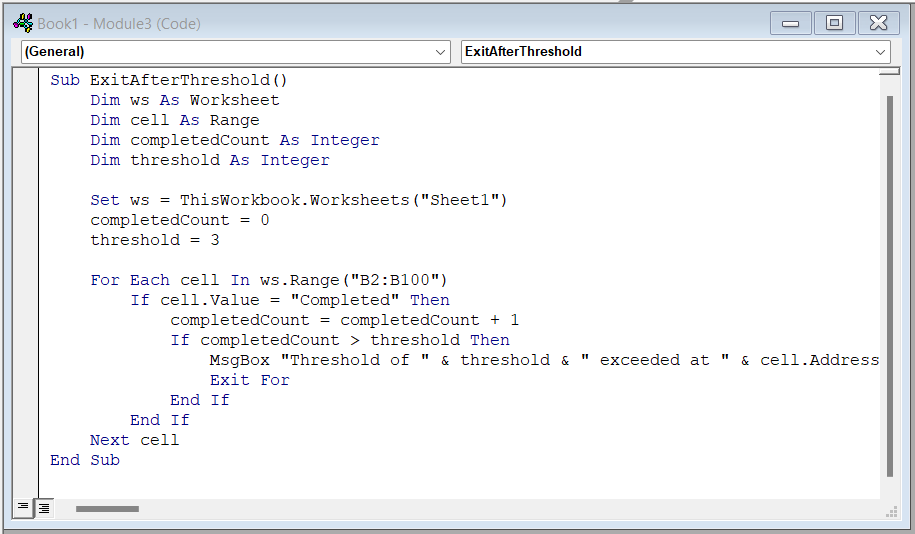
threshold = 3 starts at zero and the threshold is set to 3, meaning the macro should stop once it finds more than three “Completed” records.
➥ For Each cell In ws.Range("B2:B100") begins looping through each cell in column B.
➥ If cell.Value = "Completed" Then checks whether the current cell contains the text “Completed.”
➥ If completedCount > threshold Then is the trigger condition when the number of completed tasks exceeds the defined threshold (3), the next block runs.
➥ Exit For immediately ends the loop, even if there are more cells left to check.
➤ Click on Run > Run Sub/UserForm to execute the code.
➤ The result will detect the first three Completed entries. When it encounters the fourth Completed entry at cell B9, the Exit For loop is activated and the result Threshold of 3 exceeded at B9 is shown in a message box.
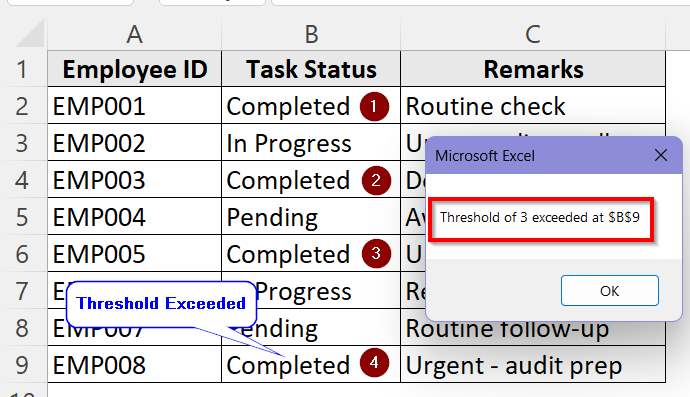
The rest of the loop will stop searching for more cells containing the word Completed because of the Exit For command.
Downloadable Resources
Get our practice workbook or necessary files that we have worked with to prepare this article.
Frequently Asked Questions (FAQs)
Is Exit For the Same as Ending the Macro?
No, Exit for command only stops the For or For Each loop it is applied in. It can’t end the entire macro or VBA code. The rest of the code after the loop continues running after Exit For is executed.
Can I Use Multiple Exit For Statements in One Loop?
Yes, you can use multiple Exit For commands in a single loop. You will need to place them in different If statements where various conditions will exist. So, one single loop can stop for different reasons such as finding a value or reaching a threshold.
What’s The Difference Between Exit For and Exit Sub?
Exit For exits only the current loop but continues executing the rest of the Sub procedure without stopping. On the other hand, Exit Sub exits the entire Sub procedure in Excel VBA depending on the condition, error or validity of the data. If you want to stop only the loop, not the entire macro, use Exit For command instead of Exit Sub.
Wrapping Up
One of VBA’s most useful tools for effectively managing loop behavior is the Exit For statement. You may prevent pointless iterations and improve the speed and intelligence of your macros by carefully positioning it inside your For or For Each loops. Exit For allows you to precisely determine when and how your code should stop, whether you’re validating data, counting certain entries, or highlighting a cell.
We hope this guide strengthened your understanding of this command in Excel VBA and helped you use it successfully in your macros.