In Excel VBA, one of the most commonly used functions is to access a cell by its row and column numbers. Referring to cells by numeric coordinates (row, column) is deterministic and simple to calculate. Regardless of whether you’re reading a single value, filling a table, or iterating through a dataset, getting specific cell values will always be needed. The VBA Macro of Excel offers a bunch of feasible options for this activity.
➤ Press Alt + F11 and open the VBA Editor.
➤ Insert a new module and copy paste the following code. Input the row and column numbers according to the cell value you want.
Sub GetCellValue_Cells()
    Dim ws As Worksheet
    Dim r As Long, c As Long
    Dim v As Variant
    Set ws = ThisWorkbook.Worksheets("Data")
    r = 5      ' Row 5
    c = 2      ' Column 2 (Product)
    v = ws.Cells(r, c).Value
    MsgBox "Value at row " & r & ", column " & c & " is: " & v
End Sub
➤ Name the macro GetCellValue and press F5 to run the code.
➤ You will now see the value of the cell which is in row 5 and column 4 of the table.
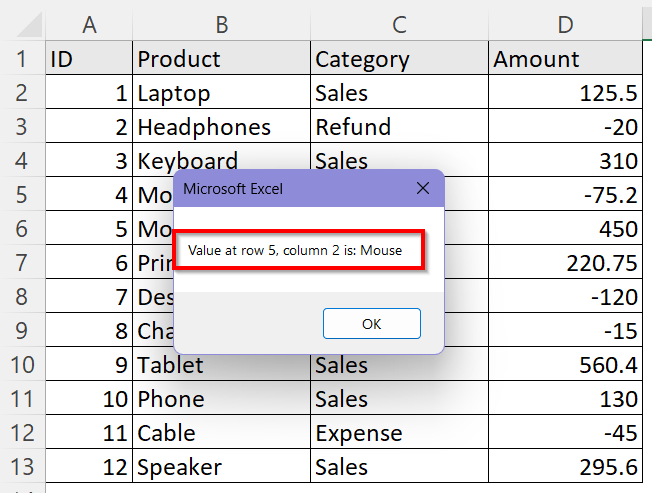
In this article, you will learn three reliable methods for getting a cell’s value from row and column. We have explained simple methods using Cells, dynamic ranges using Range(Cells, Cells) and relative reference method with Offset. Each of these methods are explained step by step for your convenience along with the complete VBA code.
Use Cells(Row, Column) Function to Get Specific Cell Value
The simplest and most straightforward approach to get a cell value is using the Cells(Row, Column) function in the VBA code. When you know the row and column numbers of the cells that you want to read or write, this method is the best choice. It’s also perfect for programmatically looping across cells if you want to increase the row or column later (for example, For i = 1 to n).
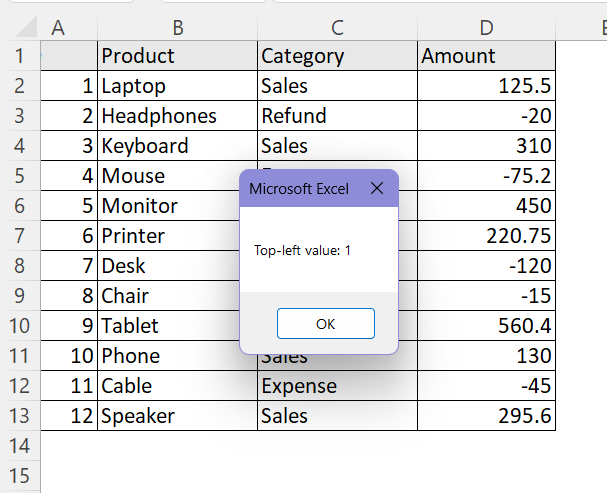
This is our sample dataset:
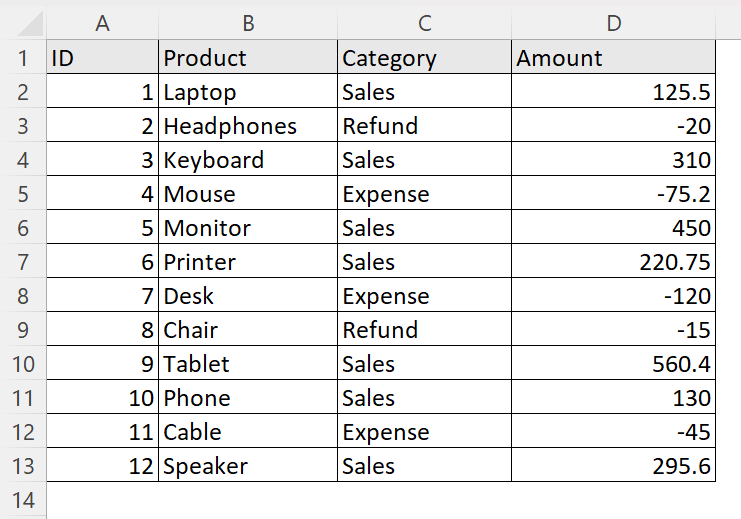
Suppose, we want the cell value of row 5 and column 2 of the dataset.
Steps:
➤ Go to the Developer tab.
➤ Click on Macros.
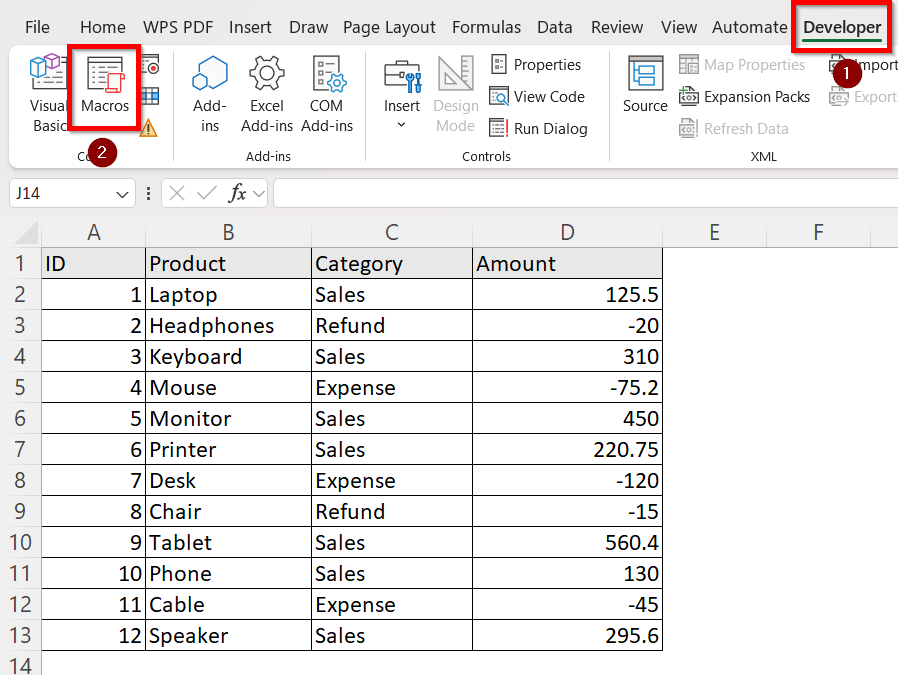
➤ Type in a Macro Name as GetCellValue and click Create.
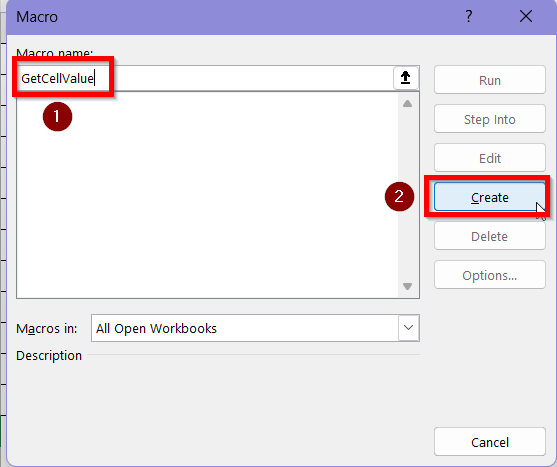
➤ A new module in the VBA Editor window will open.
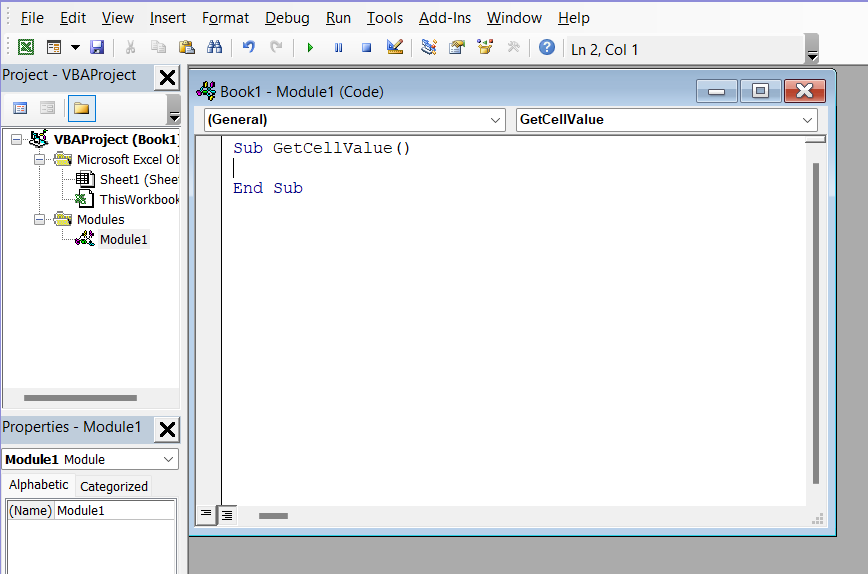
➤ Enter the following code in the module.
Sub GetCellValue_Cells()
    Dim ws As Worksheet
    Dim r As Long, c As Long
    Dim v As Variant
    Set ws = ThisWorkbook.Worksheets("Data")
    r = 5      ' Row 5
    c = 2      ' Column 2 (Product)
    v = ws.Cells(r, c).Value
    MsgBox "Value at row " & r & ", column " & c & " is: " & v
End Sub
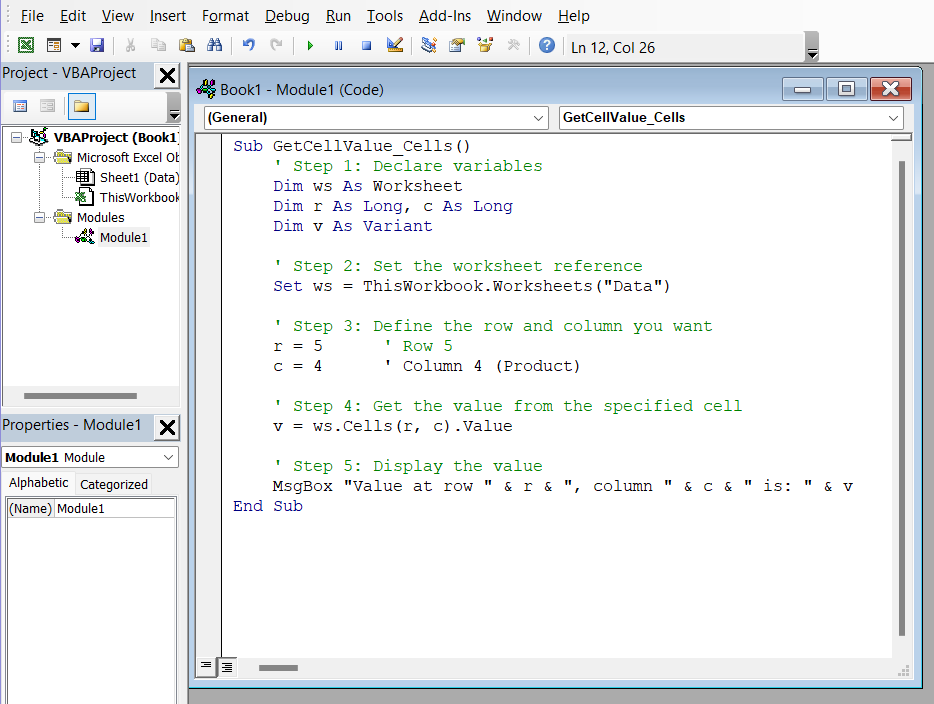
➥ r = 5 and c = 2 define which cell you want: row 5, column 2 → that’s cell D5. Input the row and column numbers according to your need.
➥ v = ws.Cells(r, c).Value reads the value stored in that cell.
➥ MsgBox displays the value in a message box so you can view the result.
➤ You will be redirected to the Excel sheet and it will now show the cell value of A2 as it is (r1,c1) in the range.
Apply Offset Property to Get Cell Values Using Relative Positioning
Offset is a good property to use when you need to select an anchor cell and then get the value of another cell that is positioned relative to it. For example, the value of “two rows down and one column right” from a specific cell. It’s also ideal for dynamic data layouts even when the anchor cell changes.
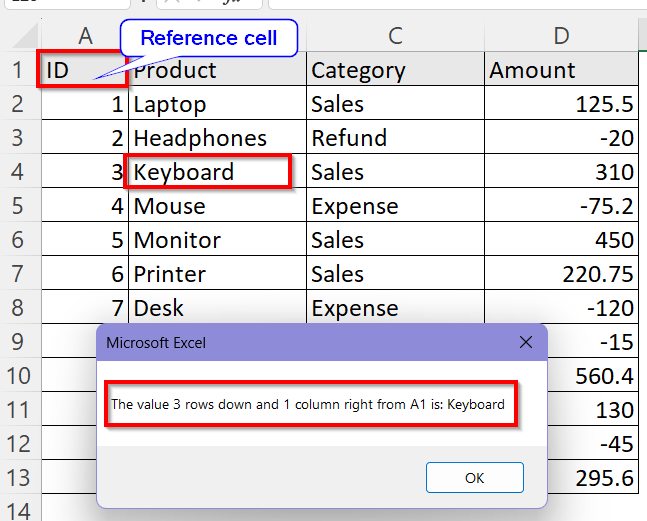
Suppose, we want to get the value of a cell which is three rows down and one column right from cell A1.
Steps:
➤ Go to the Developer tab.
➤ Click on Macros.
➤ Type in a Macro Name as GetValue_RangeCells and click Create.
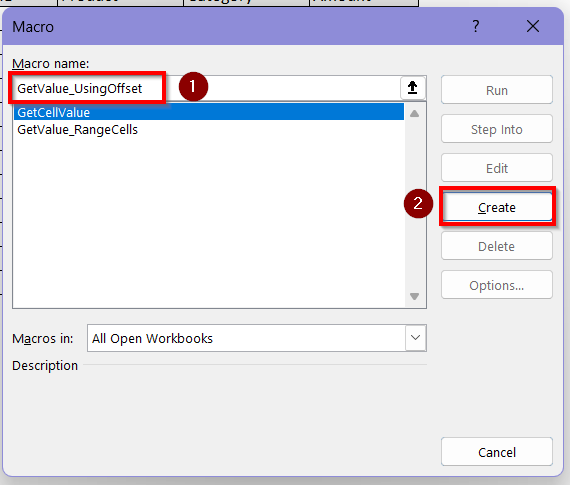
➤ A new module in the VBA Editor window will open.
➤ Enter the following code in the module.
Sub GetValue_UsingOffset()
    Dim ws As Worksheet
    Dim anchor As Range
    Dim v As Variant
    Set ws = ThisWorkbook.Worksheets("Data")
    Set anchor = ws.Range("A1")  ' Starting cell
    ' Move 3 rows down and 1 column right (to B4)
    v = anchor.Offset(3, 1).Value
    MsgBox "The value 3 rows down and 1 column right from A1 is: " & v
End Sub
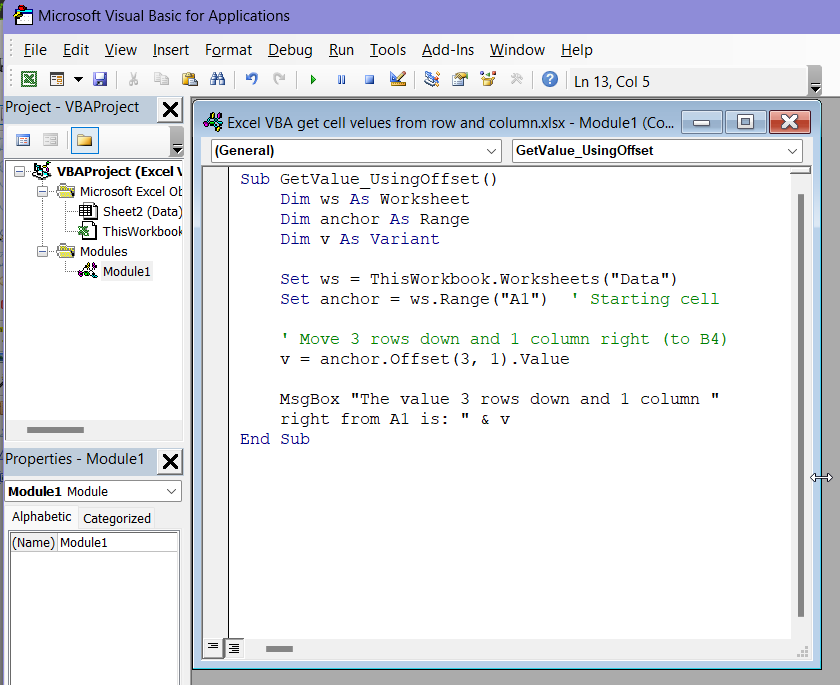
➥ Offset(3, 1) moves down 3 rows and right 1 column which is cell B4.
➥ .Value reads the content of that new cell.
➤ Click on Run and then Run Sub/UserForm or press F5 on the keyboard.
➤ You will be redirected to the Excel sheet and it will now show the cell value of B4 as it is 3 rows down and 1 column right from cell A1.
Frequently Asked Questions (FAQs)
How Can I Get a Value from Another Worksheet Using Row and Column Numbers?
You can change the VBA code to include the specific name of the worksheet you want to work on. After declaring the variables, in the next line of the code, input:
v = ThisWorkbook.Worksheets("SheetName")Inside the brackets (), put the name of the worksheet you want to work on.
How Do I Find The Row and Column Number of a Specific Cell (Like “C5”)?
If you target a cell and want to know what number of row or column that cell belongs to, type this code in the VBA macro:
Dim r As Long, c As Long
r = ws.Range("C5").Row
c = ws.Range("C5").Column
It will give an output of r=5 and c=3 which is the row and column of cell C5.
Can I Use Column Letters with the Cells Property in VBA code?
No, you can’t directly use column letters like A,B,C columns. Cells only accept numbers. If you want to use column letters, you need to use Range(“B2”) format while mentioning columns in the code. You can also convert the letter to a number using a separate helper function first.
Wrapping Up
Learning how to retrieve a cell value by row and column in Excel VBA is one step forward to automating your spreadsheets. Programmatically referencing cells using VBA can save hours of your time. Using the Cells option is the easiest one but as your data grows, you can select a range or apply offset as well in order to get cell values accurately. Whether you are reading data from tables, updating values dynamically or looping through the rows, the methods in this article will help you navigate VBA efficiently.