Sometimes, you might want a single button in Excel to perform multiple actions at once, like formatting data and calculating totals simultaneously. Assigning two macros to one button directly isn’t possible, but you can achieve it by creating a combined macro. This macro acts as a container, running multiple macros in the order you specify. Using a combined macro ensures both macros execute reliably whenever the button is clicked.
In this article, we’ll show you how to create a combined macro, assign it to a button, and test it with a sample dataset. Let’s get started.
Steps to assign two macros to one button in Excel:
➤ Enable the Developer tab to access VBA tools.
➤ Open the VBA editor and insert a new module.
➤ Create a combined macro that calls the two macros sequentially.
➤ Assign the combined macro to the button on your worksheet.
➤ Test the button to confirm both macros run correctly.

Steps to Assign Two Macros to One Button in Excel
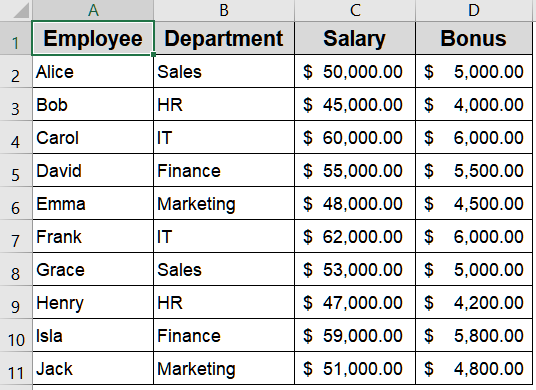
Assigning two macros to a single button simplifies workflows by triggering multiple actions at once. This method eliminates the need to click separate buttons or run macros individually, saving time and ensuring tasks execute in the correct order. We’ll use the following dataset for demonstration:
Step 1: Enable the Developer Tab
The Developer tab is essential for working with macros and VBA in Excel. Without it, you won’t have access to key features like the Visual Basic Editor, macro recording tools, or the ability to assign macros to buttons. Enabling it ensures you have full control over creating, editing, and managing macros efficiently.
Steps:
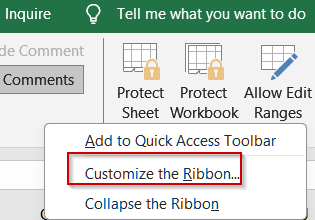
➤ Right-click on any tab in the ribbon and select Customize the Ribbon.
➤ In the right-hand panel, check the Developer box under Main Tabs.
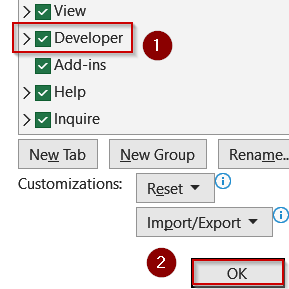
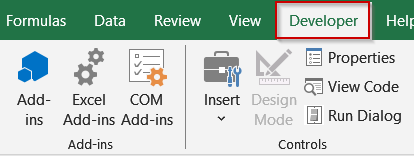
➤ Click OK. The Developer tab will now appear in your ribbon.
Step 2: Open the VBA Editor
The VBA Editor is where all macro codes are located. We’ll use it to create a combined macro that combines two existing macros. Familiarity with this environment allows you to write, edit, and organize your VBA code securely and efficiently.
Steps:
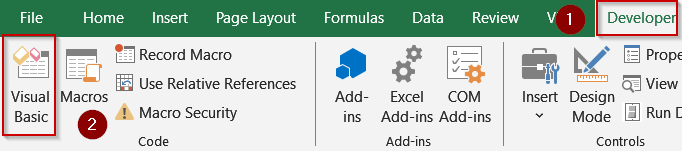
➤ Go to the Developer tab.
➤ Click Visual Basic to open the VBA Editor.
Step 3: Insert a New Module
Modules act as containers for VBA code. Creating a new module for your combined macro keeps your code organized, separates it from other macros, and ensures easy management. This is especially helpful if you plan to maintain or update macros in the future.
Steps:
➤ In the VBA Editor, go to Insert >> Module.
➤ A new blank module will appear in the Project Explorer.

Step 4: Write the Combined Macro
A combined macro is a special macro that sequentially calls other macros. By creating this macro, you can execute multiple actions with a single click, controlling the order in which each macro runs. This approach is ideal for automating workflows without needing multiple buttons.
Steps:
➤ Paste the following code in the blank box:
Sub RunBothMacros()
    Call CalculateBonusTotal
    Call HighlightHighSalary
End Sub
Replace CalculateBonusTotal, and HighlightHighSalary with your actual macro names.
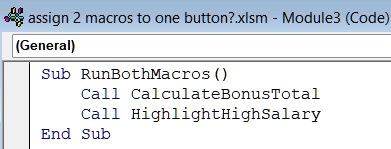
➤ Save your workbook (as .xlsm if not already) from File tab >> Save As >> Excel Macro-Enabled Workbook under Save as type and click OK.

Step 5: Assign the Combined Macro to a Button
Once the combined macro is ready, linking it to a button allows you to trigger multiple macros with a single click. This simplifies workflows, reduces manual steps, and ensures that all necessary actions are performed in the correct sequence automatically.
Steps:
➤ Add a button from the Insert drop-down located in the Developer tab.
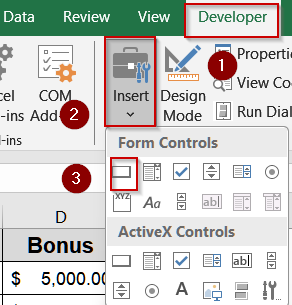
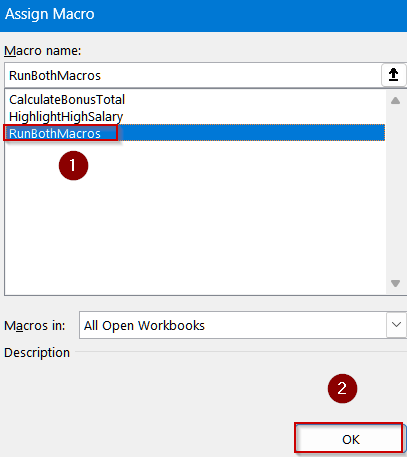
➤ Select RunBothMacros in the Assign Macro dialog and hit OK.
Step 6: Test the Button
Testing the button confirms that both macros run correctly and in the intended order. This step is critical to ensure your automation works as expected and prevents errors before applying the workflow to real data.
Steps:
➤ Click the button on your worksheet.
➤ Observe that CalculateBonusTotal runs first, followed by HighlightHighSalary.
➤ Make any adjustments to the combined macro if needed.
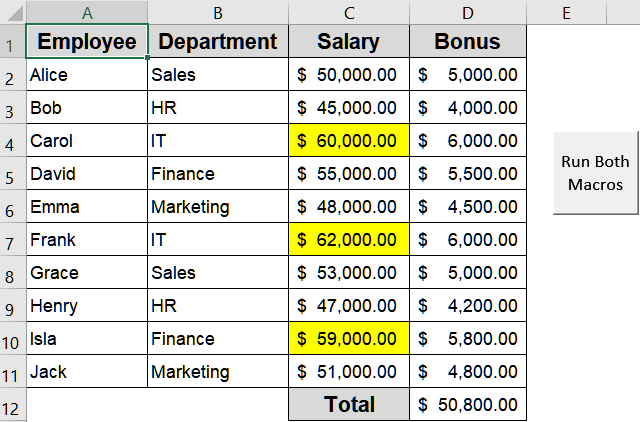
The output will calculate the total salary for each employee including bonus and highlight the highest salaries in yellow altogether.
Frequently Asked Questions
Can I assign more than two macros to one button?
Yes. By adding multiple Call MacroName lines in a combined macro, you can run several macros in sequence from a single button. There’s no strict limit, allowing flexible automation for complex tasks.
Do the original macros need to be in the same workbook?
Yes. The macros you want to combine must exist in the same workbook or module. If they are missing or in another workbook not referenced, Excel will return an error when the combined macro is executed.
Will creating a combined macro change my original macros?
No. The combined macro only calls the original macros in order. It does not modify or overwrite the code, so the original macros remain fully functional and can still be run individually if needed.
Can I assign a keyboard shortcut to the combined macro?
Yes. You can assign a shortcut key to the combined macro through the Macro dialog box. Pressing the shortcut executes all macros listed in the combined sequentially, saving time and avoiding multiple button clicks.
Does this method work on Excel Online or mobile versions?
No. VBA macros, including combined macros, are supported only on desktop versions of Excel for Windows and Mac. Excel Online, iOS, and Android do not execute VBA code, so the button won’t run macros there.
Wrapping Up
Assigning two macros to a single button in Excel is straightforward with a combined macro. By creating a new module, writing a macro that calls both original macros, and assigning it to a button, you can automate multiple tasks efficiently. Use the provided dataset to practice, ensuring both macros execute in the correct sequence.