When working with large Excel files, size can quickly become a problem, especially if you’re sharing them via email, cloud storage, or enterprise platforms. Large files not only slow down performance but also make collaboration more difficult, and sometimes you may not even want to open the workbook to reduce its size.
In this article, you’ll learn step-by-step how to reduce Excel file size without opening it, including simple compression techniques. Let’s get started.
Steps to reduce Excel file size without opening:
➤ Locate your Excel file in File Explorer.
➤ Right-click the workbook in File Explorer and select Compress to… >> ZIP File.
➤ Windows will instantly create a .zip version of your Excel file in the same folder.

Compress Excel File Using Windows Explorer Without Opening
Sometimes, you just need a quick way to reduce file size without touching Excel itself. File compression is the simplest and fastest method, leveraging Windows’ built-in tools to shrink the file into a zip archive. This approach is perfect for emailing, storing, or sharing large workbooks without altering the data or formatting inside. It’s ideal when you want speed and convenience over deep optimization.
Steps:
➤ Locate your Excel file in File Explorer.
➤ Right-click the workbook in File Explorer and select Compress to… >> ZIP File.
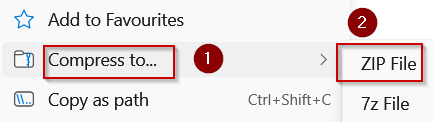
➤ Windows will instantly create a .zip version of your Excel file in the same folder.

The new zipped file can be shared or stored easily, reducing space usage without altering the workbook itself.
Using an Online Excel Compressor
When you want to reduce an Excel file’s size without opening it, an online compression tool is a convenient solution. These tools automatically optimize your workbook by removing redundant formatting, compressing embedded objects, and simplifying internal data storage without requiring Excel to be opened. This method is ideal for quick size reduction when working remotely, on a shared computer, or when you need to email large files efficiently.
Steps:
➤ Open your web browser and go to a trusted Excel compression site such as Pdfcandle.
➤ Click Choose File or Select File, then upload your Excel workbook from your device or cloud storage.

➤ The tool will automatically start compressing your selected file.
➤ Once done, click Download to save the smaller Excel file to your device.

Your compressed workbook will now take up less storage space and can be shared or stored more easily without needing to open Excel.
Downloadable Resources
Get our practice workbook or necessary files that we have worked with to prepare this article.
Reduce Excel File Size Without Opening.xlsx
Frequently Asked Questions
Can I reduce Excel file size without opening the file?
Yes, you can compress the Excel file using Windows Explorer or other compression tools like WinRAR or 7-Zip. This reduces the file size without altering or opening the workbook itself.
Will compressing an Excel file affect its data or formatting?
No. Compression only reduces the file’s storage size. It doesn’t alter your data, formulas, or formatting in Excel. When you unzip or open the file again, everything will appear exactly as before.
How much space can I save by compressing images?
Compressing images in Excel can reduce file size by 20–50%, depending on the number of images and their original resolution. Lower resolutions like 96 ppi are ideal for email or cloud storage without noticeable quality loss.
Are online Excel compressors safe to use?
Most reputable tools like Smallpdf or PDFcandle are safe. However, avoid uploading sensitive data to unknown websites. Always choose trusted services with strong privacy and data protection policies.
Wrapping Up
In this tutorial, you learned how to reduce Excel file size without opening it using quick compression via Windows Explorer and using an online tool which ensures your Excel files stay lightweight, efficient, and fast for sharing, storage, or large dataset management. Feel free to download the practice file and share your feedback.