Excel and PowerPoint are effective tools for managing data and presenting it visually. While Word supports direct mail merge, PowerPoint does not natively allow merging Excel data for personalized slides. This limitation requires creative alternatives to automate content effectively.
In this article, we’ll guide you through using Word’s Mail Merge feature to merge Excel data, then import the results into PowerPoint. You’ll learn how to prepare your Excel dataset, create a mail merge in Word, and generate PowerPoint slides automatically
Steps to merge Excel data into PowerPoint via Word:
➤ Prepare your Excel dataset with proper headers and save the file.
➤ Create a Mail Merge in Word and connect it to the Excel file.
➤ Insert merge fields in the desired layout in Word.
➤ Generate merged Word documents for all records.
➤ Import the Word document into PowerPoint using “Slides from Outline”.
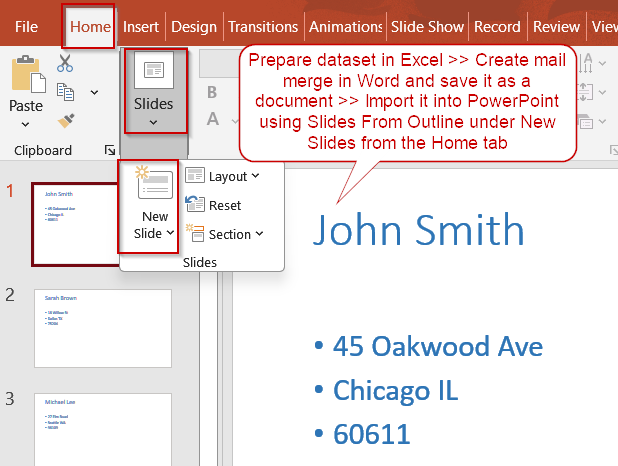
Steps to Merge Excel Data into PowerPoint Using Word
To demonstrate, we’ll use a sample dataset containing basic contact information. This dataset will be used to create slides automatically, with each record appearing on its own slide in PowerPoint.

Step 1: Prepare Your Excel File
Before starting the Mail Merge, it’s crucial to make sure your Excel dataset is properly formatted. Headers allow Word to recognize each column as a distinct field, which makes the merge process accurate and efficient. A clean, structured Excel file prevents errors later and ensures your PowerPoint slides reflect the correct information.
Steps:
➤ Open your Excel file and verify that the dataset has headers (Name, Street Address, City, State, Zip Code).

➤ Save and close the Excel file.
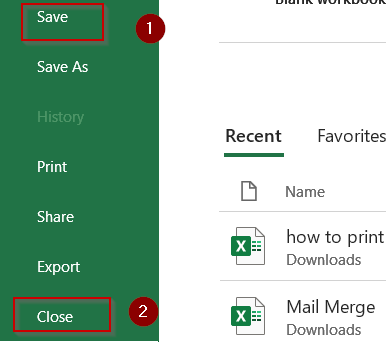
Step 2: Start a Mail Merge in Word
Using Word as an intermediary allows you to format and control how each record appears before creating PowerPoint slides. Starting a Mail Merge sets up a document that will dynamically pull data from Excel, so you don’t have to manually type each entry. This step ensures consistency and saves time when dealing with multiple records.
Steps:
➤ Open Microsoft Word.
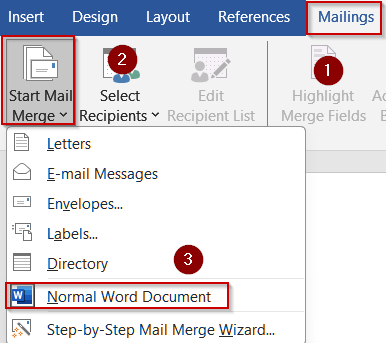
➤ Go to the Mailings tab >> Click Start Mail Merge >> Select Normal Word Document.
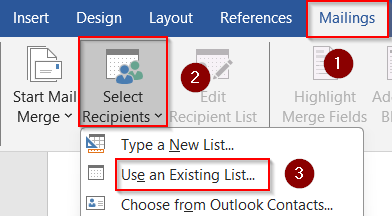
➤ Click Select Recipients >> Use an Existing List, then choose your Excel file.
➤ Confirm the correct sheet and ensure “First row contains headers” is checked. Then, click OK.
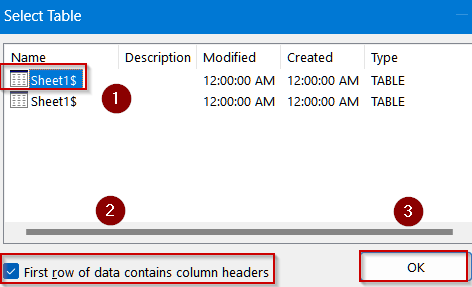
Step 3: Insert Merge Fields and Format Text
Merge fields are placeholders for your Excel data. Formatting these fields in Word ensures each slide in PowerPoint will look professional, readable, and consistent. You can adjust fonts, colors, sizes, and alignment before generating slides.
Steps:
➤ Place your cursor in the Word document.
➤ Insert merge fields such as Name, Street Address, City, State, Zip Code.
➤ Press Enter or add spaces to format the fields neatly for readability.
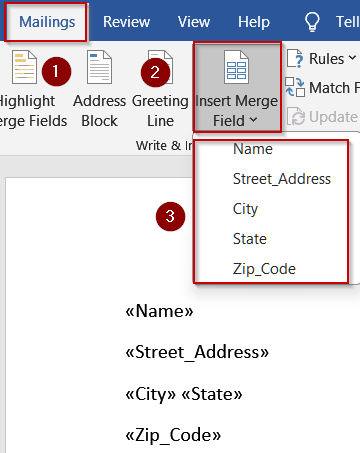
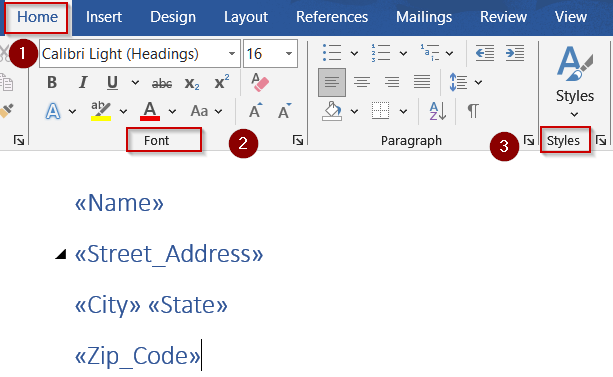
➤ Format the text by adjusting font type, size, bold/italic styling, colors, and paragraph spacing from the Home tab.
➤ Preview a few records using Preview Results in the Mailings tab to confirm the layout.
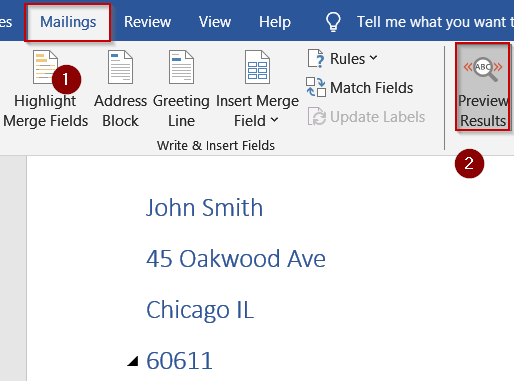
Step 4: Generate Merged Documents
Once you’ve inserted merge fields, Word can create a complete document with all your records. Each record will occupy its own section or line, forming the basis for individual slides. Generating merged documents ensures all your data is compiled and ready for import without needing to copy-paste manually.
Steps:
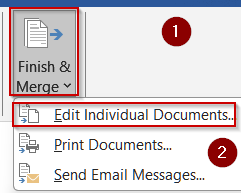
➤ Click Finish & Merge >> Edit Individual Documents.
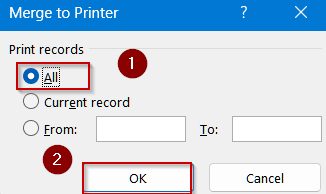
➤ Choose All and click OK. A Word document containing all merged records will be generated.
➤ Press Ctrl + S to save the Word file and then close it.
Step 5: Import Word Document into PowerPoint
PowerPoint can automatically generate slides from a structured Word document. Each heading or section in Word becomes a separate slide, which saves time and ensures layout consistency. This step turns your data into professional slides ready for presentation.
Steps:
➤ Open PowerPoint.
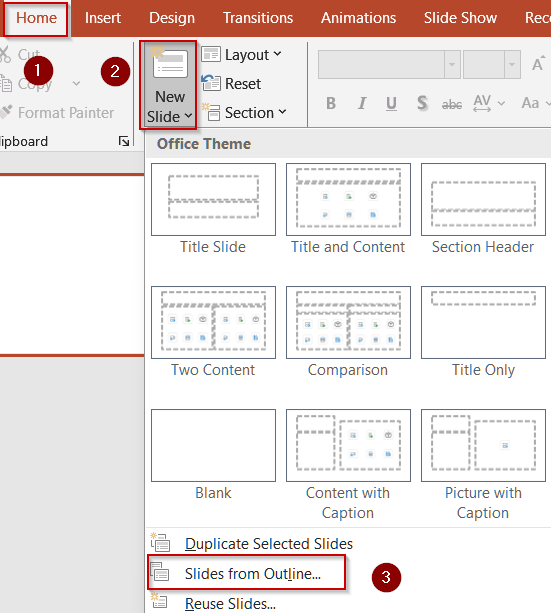
➤ Go to Home >> New Slide >> Slides from Outline.
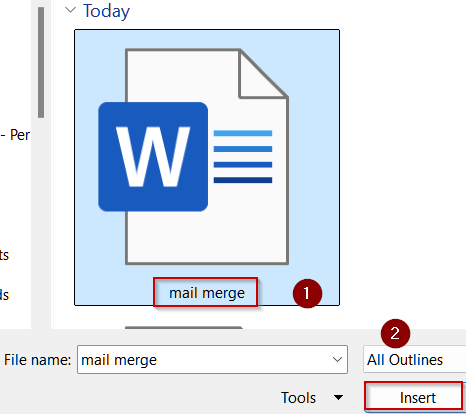
➤ Select the merged Word document and click Insert.
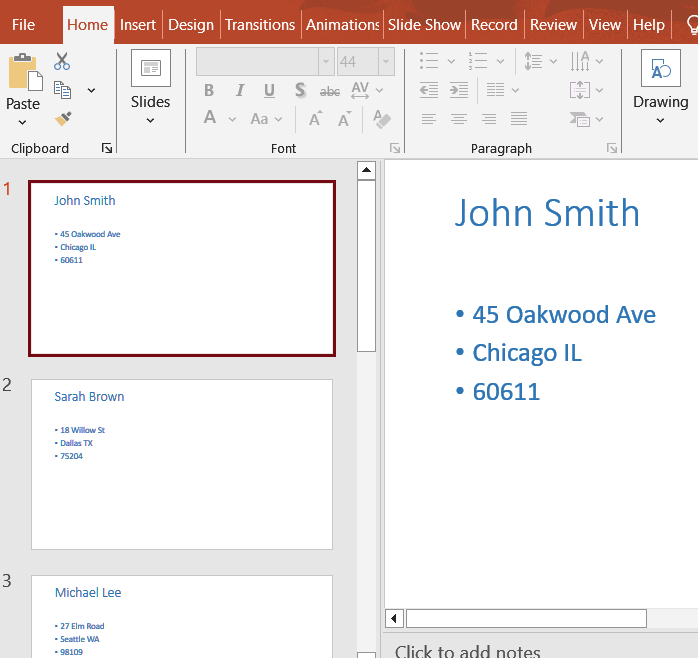
PowerPoint will create slides automatically for each record.
Downloadable Resources
Get our practice workbook or necessary files that we have worked with to prepare this article.
Mail Merge from Excel to PowerPoint.zip
Frequently Asked Questions
Can I perform a direct mail merge from Excel to PowerPoint?
No, PowerPoint does not support direct mail merge like Word. You must use online merge services, link Excel objects as live data, or use text outlines to convert structured Excel data into slides effectively.
Does linking Excel data in PowerPoint update automatically?
Yes, when you paste Excel content as a linked object in PowerPoint, any changes made to the source Excel file automatically reflect in the presentation, keeping your slides synchronized without manual copying or updating each time data changes.
Can images from Excel be included in a PowerPoint merge?
Yes, some online services allow you to include image URLs from your Excel sheet, inserting personalized images into your slides alongside text, ensuring each slide is customized for the intended recipient or dataset entry.
What is the best Excel structure for merging into PowerPoint?
Your Excel file should be clean, with a header row and consistent formatting. Each column should correspond to a placeholder in PowerPoint, and all data should be organized to avoid errors during merging or slide generation.
Wrapping Up
In this tutorial, we explored how to bring Excel data into PowerPoint effectively using Microsoft Word. By preparing your dataset, inserting and styling merge fields, generating merged documents, and importing them into PowerPoint, you can efficiently create professional slides without manual repetition. Feel free to download the practice file and share your feedback.