Excel Pro Tips
How to Create Drop-Down List Using IF Statement in Excel
Learn how to create conditional drop-down lists in Excel using IF statements, direct references, and named ranges for dynamic data.
Read article

1285 articles
Learn how to create conditional drop-down lists in Excel using IF statements, direct references, and named ranges for dynamic data.
Learn how to fix Excel drop-down lists not working with easy steps—resolve hidden arrows, blank cells, and validation issues fast.
Learn how to link a cell value with a drop-down list in Excel using VLOOKUP, INDEX-MATCH, SUMIF, INDIRECT, and FILTER functions.

Learn how to combine SUMIF with INDEX-MATCH in Excel to create dynamic, criteria-based summations and advanced lookup formulas.
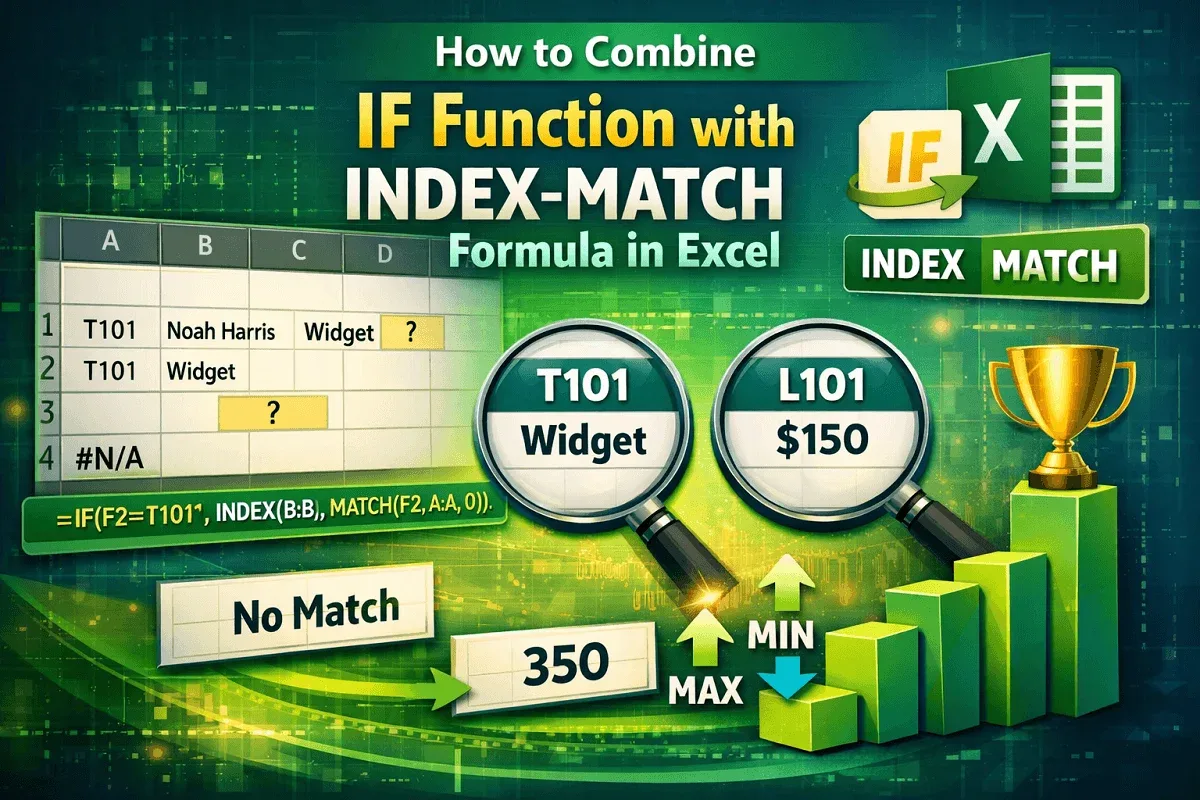
Learn how to combine IF with INDEX-MATCH in Excel for dynamic lookups, error handling, and conditional value extraction.
Learn how to create a drop-down list in Excel that allows multiple selections using VBA, with easy step-by-step instructions.

Learn how to copy data validation in Excel using Paste Special. Step-by-step guide to ensure consistent rules across cells.

Learn how to get data from another sheet in Excel using INDEX/MATCH, VLOOKUP, INDIRECT, HLOOKUP, and Advanced Filter methods.
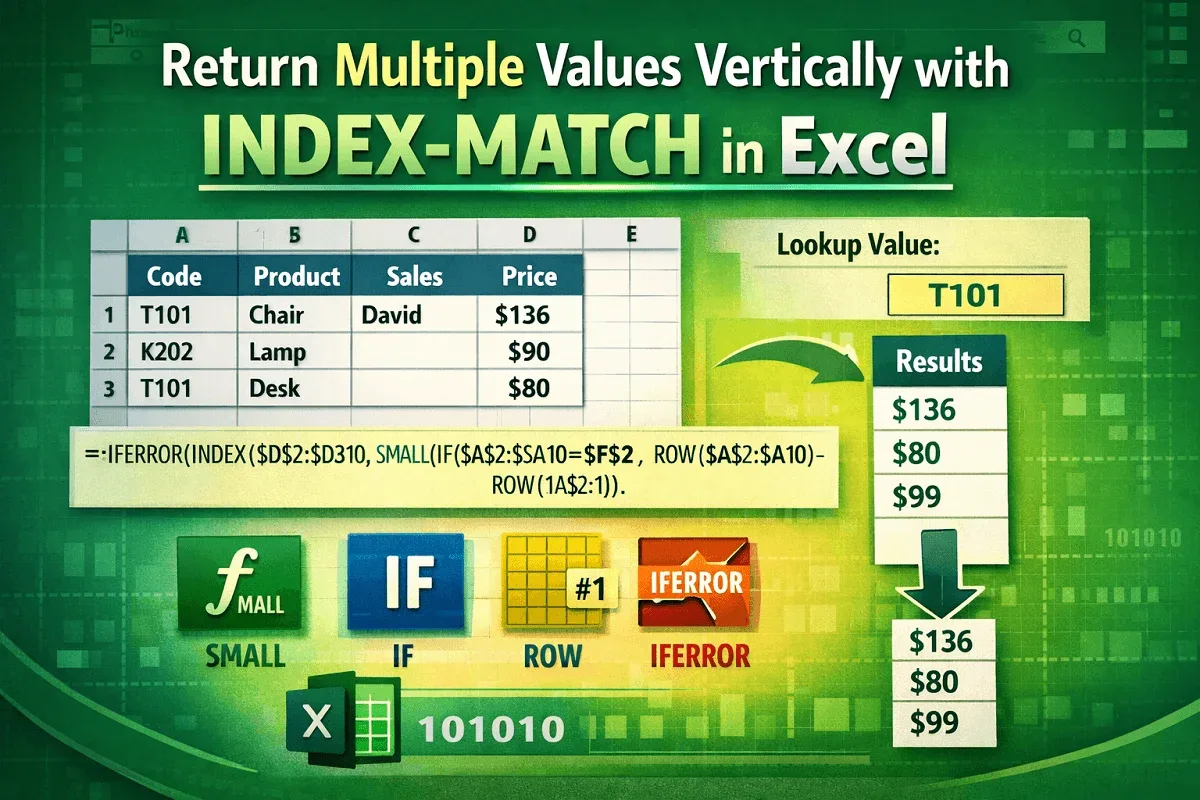
Learn how to use the INDEX-MATCH formula in Excel to return multiple values vertically, including partial matches and multi-criteria results.
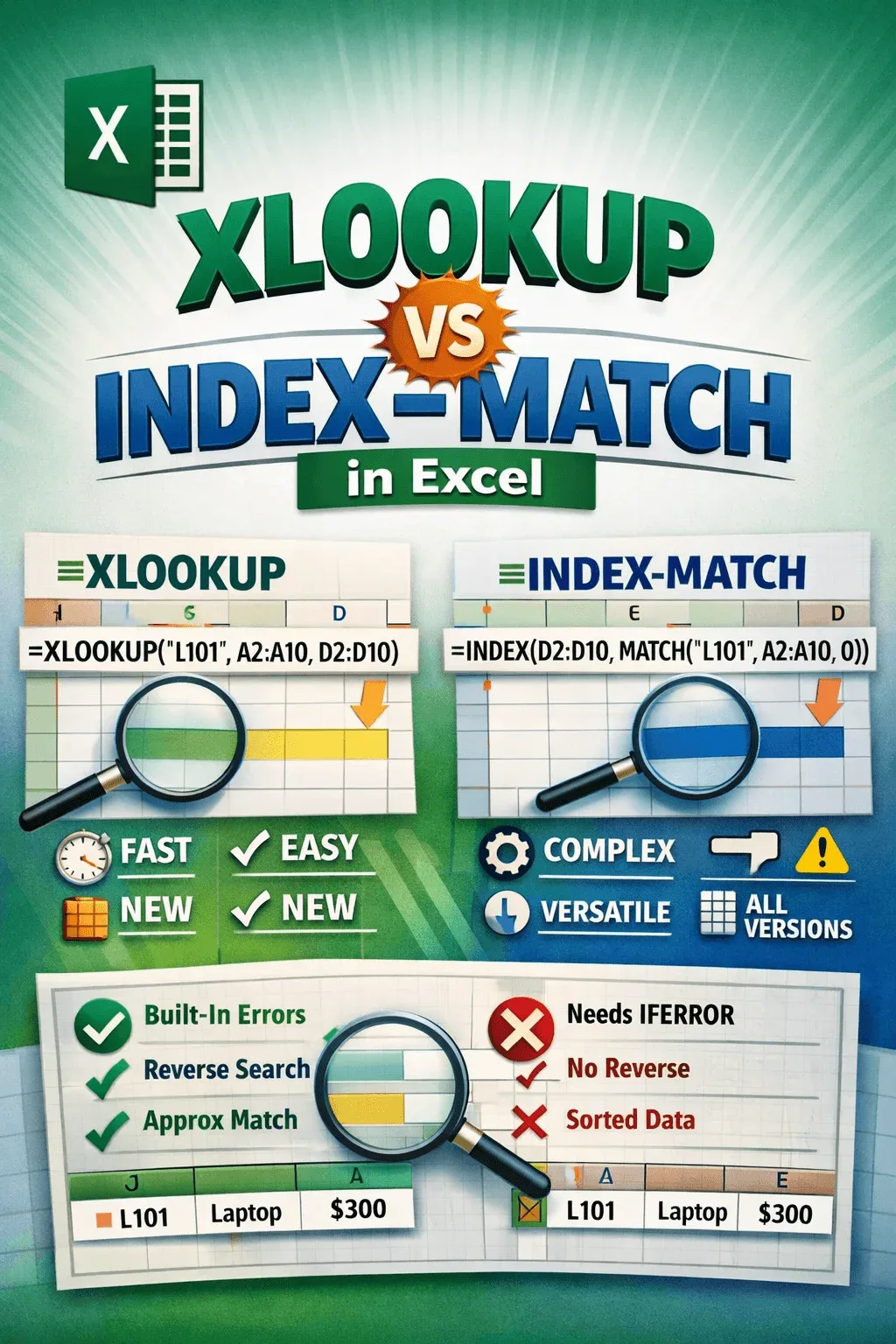
Compare XLOOKUP vs INDEX MATCH in Excel: syntax, speed, compatibility, error handling, and advanced lookup functions in detail.
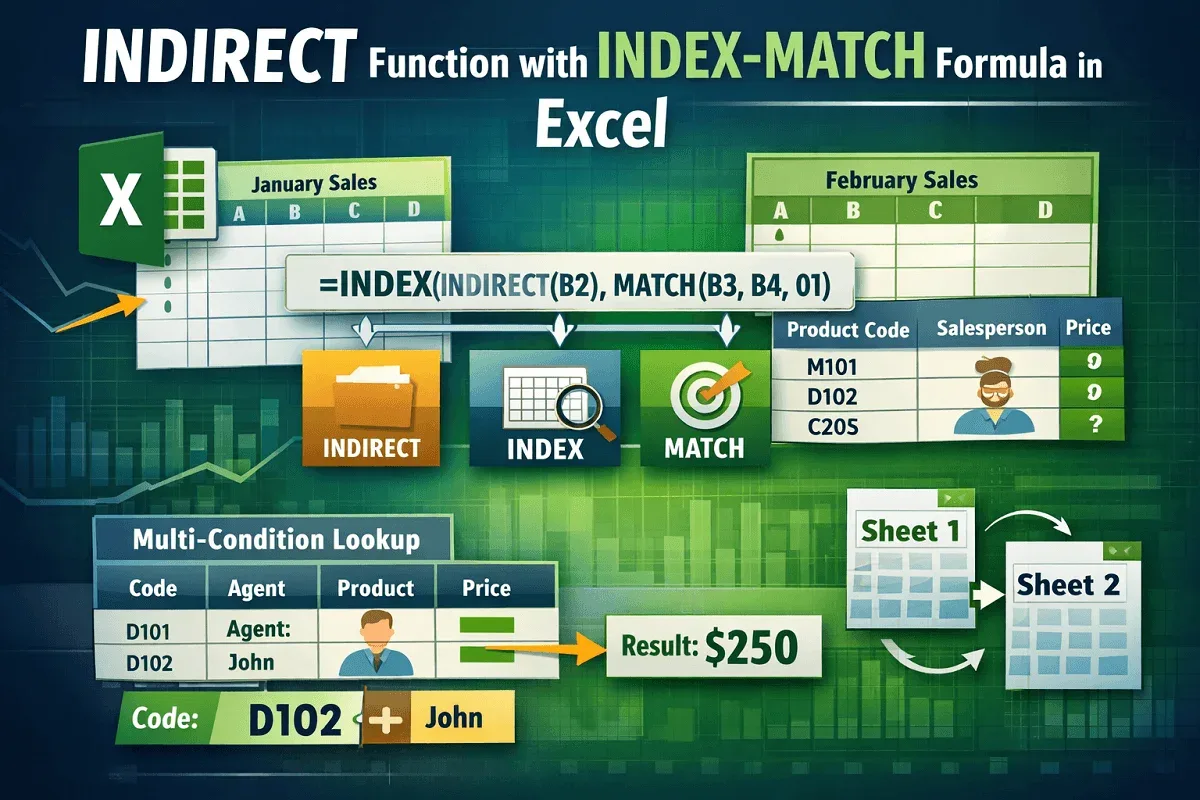
Master the INDIRECT, INDEX, and MATCH functions in Excel for dynamic lookups, cross-sheet references, and advanced data matching tasks.
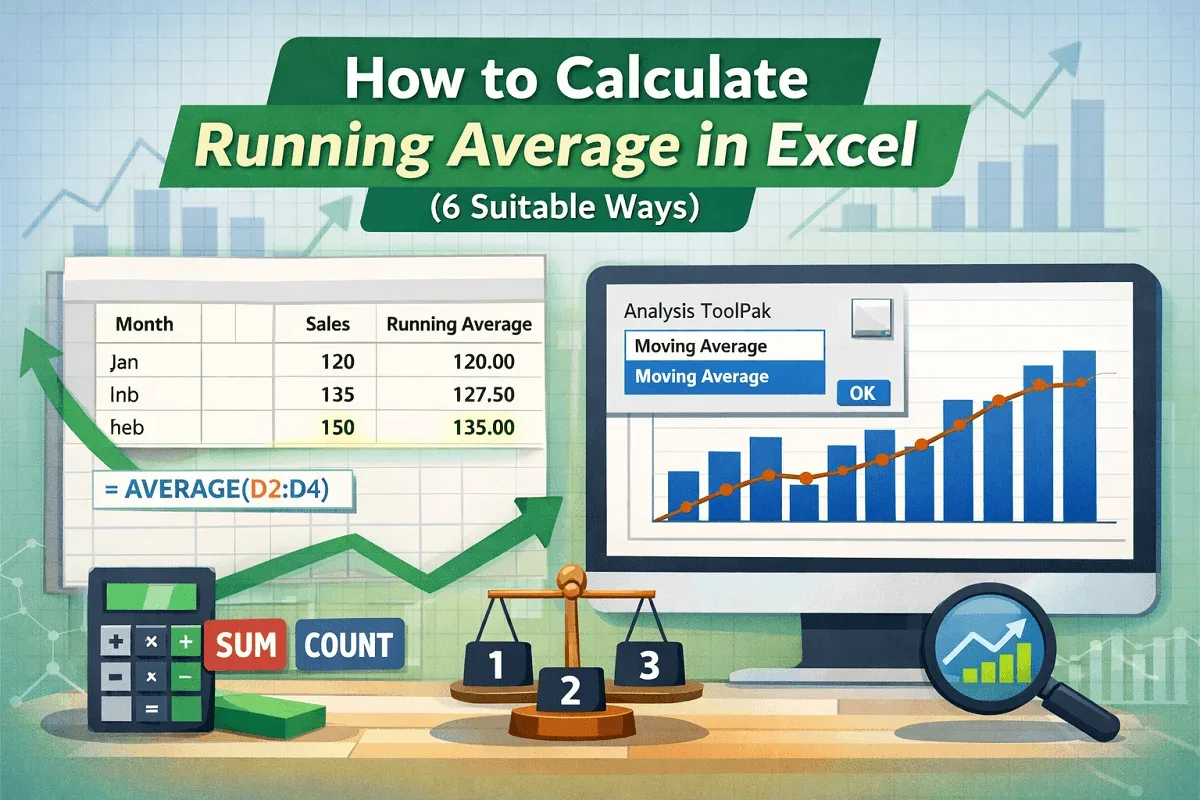
Learn how to calculate running averages in Excel using AVERAGE, SUM, COUNT, and visualize trends with charts and the Data Analysis ToolPak.