When working with spreadsheets, you’ll often encounter situations where you need Excel to perform calculations only if certain cells are not blank. For example, you may want to sum values, calculate averages, or subtract numbers, but only when the required data is available. Attempting calculations on blank cells can lead to unwanted zeros, errors, or misleading results.
In this article, we’ll cover four effective methods to perform calculations only when cells are not blank using different functions like IF, COUNTBLANK, ISBLANK, COUNTA, AND, OR and SUM. Let’s get started.
Steps to calculate if cells aren’t blank in Excel:
➤ Select a blank cell like D2 for the result.
➤ Type this formula: =IF(COUNTBLANK(B2:C2)=0,SUM(B2:C2),””)
➤ Press Enter. If none of the cells are blank, Excel sums them. Otherwise, it returns blank.
➤ Drag down to fill for B3:B11.
➤ Check that rows with blanks return nothing, while complete rows display sums.

Use IF Function to Calculate Based on a Single Cell
In many cases, you only need Excel to perform a calculation if a single cell contains data. For example, you might want to double a value, find a percentage, or run another formula only when the input cell isn’t blank. The IF function is perfect for this scenario as it checks the cell’s content and runs your calculation only if data is present. This method is simple, efficient, and ideal for small datasets or straightforward checks.
We’ll use the following dataset:
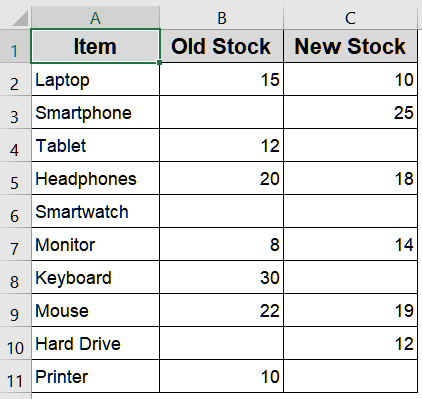
Steps:
➤ Select cell D2 for the result.
➤ Enter the formula:
=IF(B2<>"",B2*2,"")
➤ Press Enter. If B2 is not blank, Excel doubles the value. Otherwise, it returns a blank.
➤ Drag the fill handle down to apply the formula to rows B3:B11.
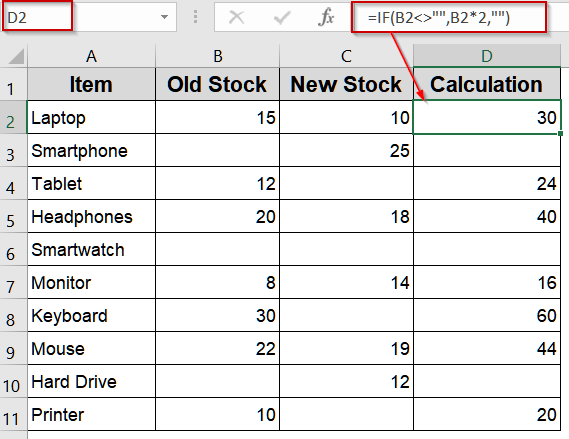
Now blank rows should remain empty while non-blank ones show calculations according to column B.
Apply IF and COUNTBLANK Functions for Entire Ranges
Sometimes your calculation should run only if every cell in a range contains data, for example, summing values only when all required entries are filled. The COUNTBLANK function makes this easy by counting any empty cells. Combined with IF, you can ensure Excel performs calculations only on complete rows. This approach prevents partial or misleading results and is especially useful when handling multi-column data where missing values could skew your analysis.
Steps:
➤ Select a blank cell like D2 for the result.
➤ Type this formula:
=IF(COUNTBLANK(B2:C2)=0,SUM(B2:C2),"")
➤ Press Enter. If none of the cells are blank, Excel sums them. Otherwise, it returns blank.
➤ Drag down to fill for B3:B11.
➤ Check that rows with blanks return nothing, while complete rows display sums.
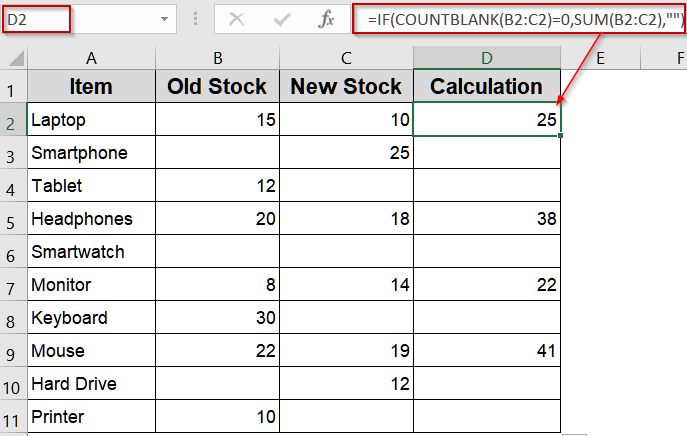
Combine IF with OR/AND Function for Flexible Conditions
In some situations, you need more control over how Excel handles blanks like performing calculations only when all cells contain data or skipping calculations if any cell is blank. Functions like AND and OR give you that flexibility. AND function ensures every specified cell is filled before calculating, while OR function quickly checks for any blank cells to prevent incorrect results. This approach is ideal for more complex conditions where simple blank-counting isn’t enough.
Steps:
➤ Select a blank cell like D2 for the result.
➤ Use AND formula to calculate only when all cells are filled:
=IF(AND(B2<>"",C2<>""),SUM(B2:C2),"")
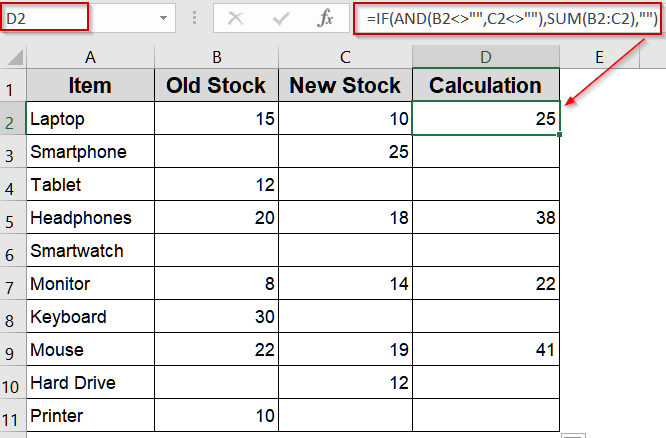
➤ Alternatively, use OR function to skip when any cell is blank:
=IF(OR(B2="",C2=""),"",SUM(B2:C2))
➤ Press Enter, then copy down for rows B3:B11.
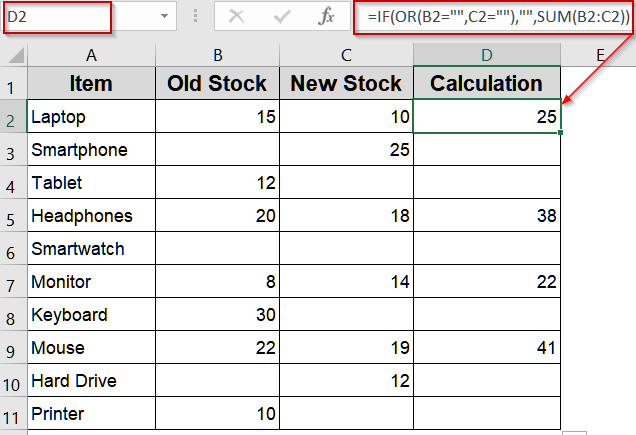
Now rows with incomplete data stay blank, while complete rows perform calculations.
Use COUNTA or ISBLANK Function for Specific Checks
Sometimes you may want even more control over blank detection such as counting only non-empty cells or explicitly checking for blanks. The COUNTA function counts all non-empty values (including text), making it ideal when working with mixed data types. Meanwhile, ISBLANK function is perfect for explicitly identifying empty cells. These approaches are great when you need precision for conditional calculations or when your dataset mixes numbers and text entries.
Steps:
➤ Select a blank cell like D2 for the result.
➤ To ensure exactly two non-empty cells, enter:
=IF(COUNTA(B2:C2)=2,SUM(B2:C2),"")

➤ Alternatively, use ISBLANK function for more explicit testing:
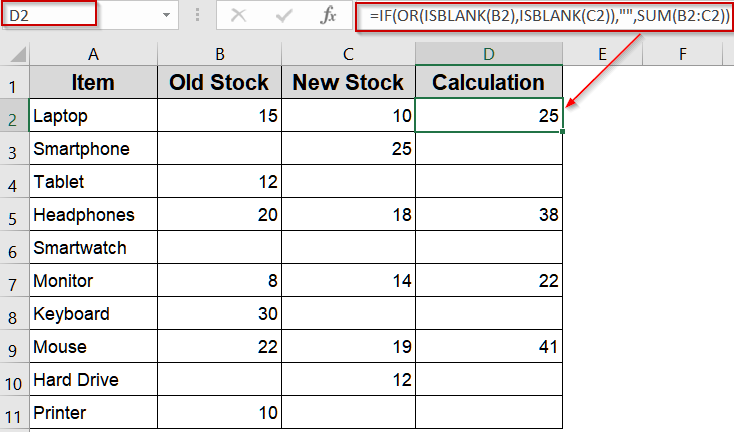
=IF(OR(ISBLANK(B2),ISBLANK(C2)),"",SUM(B2:C2))
➤ Press Enter and fill down for B3:B11.
➤ Confirm that only complete pairs are summed while rows with blanks stay empty.
Frequently Asked Questions
Why should I use IF to calculate only when cells aren’t blank?
Using IF function prevents unwanted zeros, errors, or misleading results. It ensures calculations only happen when data exists, keeping your worksheets cleaner, more professional, and avoiding accidental inclusion of incomplete or missing values.
What’s the difference between ISBLANK and the “<>” operator?
ISBLANK function checks for truly empty cells, while <> operator evaluates non-empty content. If a formula returns “”, the ISBLANK function treats it as blank, but the <> operator considers it filled. Choose based on desired behavior for formula-generated blanks.
Can I apply these checks to multiple cells or ranges?
Yes. Use COUNTBLANK, COUNTA, AND, or OR function to evaluate multiple cells. These functions allow you to confirm whether all required cells contain data before performing calculations, ensuring accurate results and avoiding partial or misleading computations.
Do these methods work with both numbers and text?
Yes. Logical checks like <>”” and functions such as COUNTA treat any non-empty content whether numbers or text as valid entries. This flexibility makes them effective for mixed datasets, like names and amounts, where both trigger calculations.
Wrapping Up
In this tutorial, we explored four reliable methods to calculate values in Excel only when cells are not blank. From simple single-cell checks to handling entire ranges with COUNTBLANK, OR, and AND, these techniques help you control calculations, avoid errors, and keep your worksheets accurate and professional. Feel free to download the practice file and share your feedback.