Conditional Formatting is a powerful Excel feature that highlights cells based on specific rules, making patterns and trends easier to spot. However, excessive formatting can clutter the worksheet and reduce readability. By using Excel’s built-in tools and features, we can easily get rid of it.
Follow the steps below to remove conditional formatting from your worksheet.
➤ First, select the cells from which you want to remove conditional formatting.
➤ Then, click the Quick Analysis tool icon that appears at the bottom-right corner of the selection.
➤ From the Quick Analysis tool menu, go to the Formatting tab and click Clear Format to remove the conditional formatting from the selected cells.

In this article, we will discuss five effective methods of removing conditional formatting in Excel.
Use the Quick Analysis Tool to Remove Conditional Formatting
In the sample dataset, we have a worksheet called “Student Grades” containing information about Student names, Subject, Score and their Grades. Conditional formatting has been applied to highlight the students’ names in different colors based on the grades they achieved.
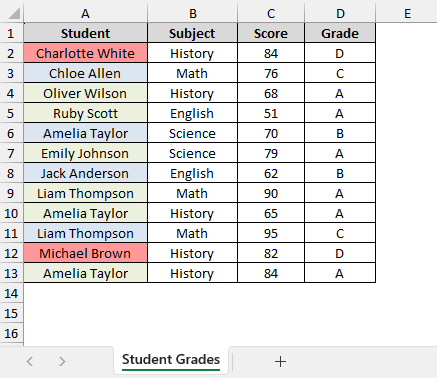
By using the Quick Analysis tool, we will now remove the conditional formatting from column A and display the updated dataset in a separate “Quick Analysis Tool” worksheet.
Quick Analysis is an important Excel tool that allows users to instantly apply common features like formatting, charts, totals, and sparklines to selected data. We can also use it to remove conditional formatting rules with just a few clicks.
Steps:
➤ Head to the Quick Analysis Tool worksheet, and select cells A2 to A13.
➤ Next, click on the Quick Analysis icon that appears at the bottom-right corner of the selected range.
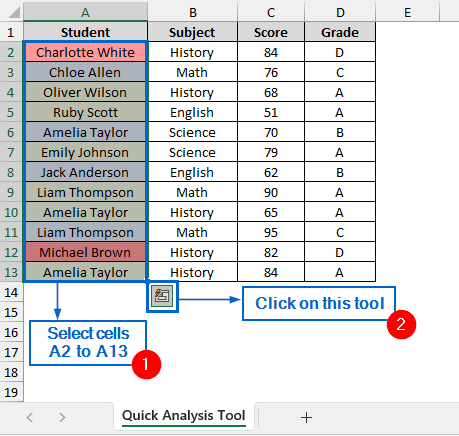
➤ In the Quick Analysis tool menu, click on Clear Format from the Formatting tab.

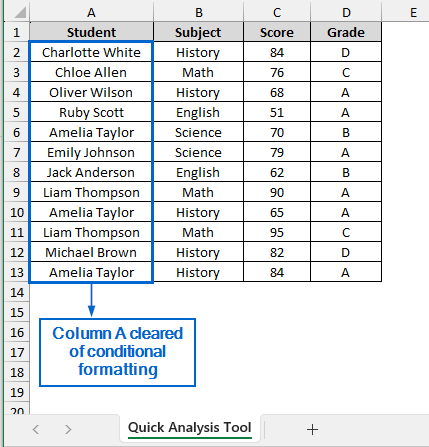
➤ Column A should now be cleared of all conditional formatting.
Using the Clear Rules Tool from the Conditional Formatting Menu
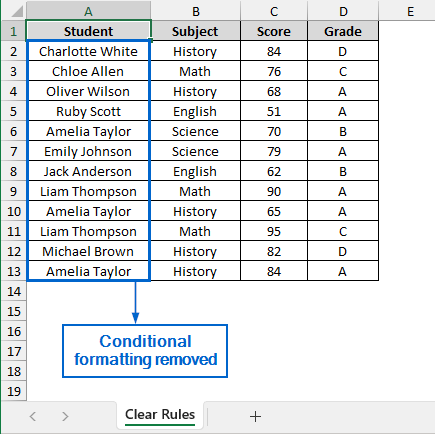
The Clear Rules option in the Conditional Formatting menu helps users quickly remove all applied formatting rules, restoring the cells to their default style. Working with the same dataset, we will now remove conditional formatting from column A using the Clear Rules tool. We will display the updated dataset in a separate “Clear Rules” worksheet.
Steps:
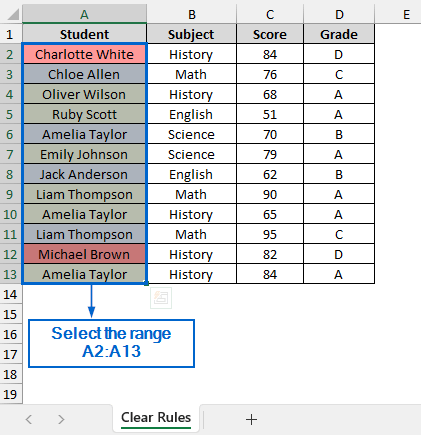
➤ Head to the Clear Rules worksheet, and select the range A2:A13.
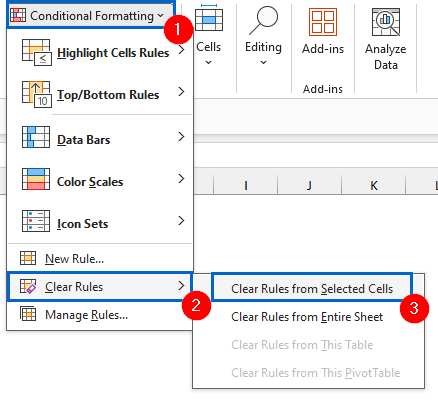
➤ Next, from the main menu, navigate to Conditional Formatting >> Clear Rules >> Clear Rules From Selected Cells.
Note:
To remove formatting rules from the entire dataset instead of just the selected cells, choose Conditional Formatting >> Clear Rules >> Clear Rules from Entire Sheet.
➤ The dataset should now be free of any conditional formatting.
Remove Conditional Formatting Using the Paste Special Tool
The Paste Special tool in Excel lets users choose how copied content is pasted. Instead of pasting everything, it allows users to paste only specific elements, such as values, formulas or formats.
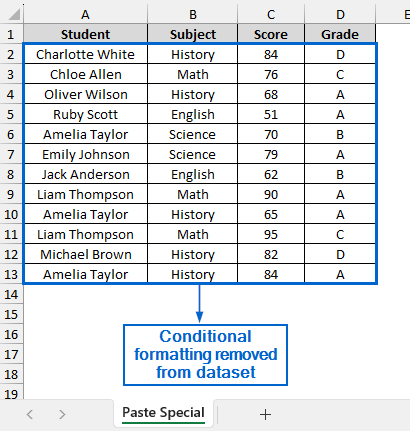
Working again with the same dataset, we will now use the Paste Special tool to remove conditional formatting from column A of the dataset. We will display the modified dataset in a separate “Paste Special” worksheet.
Steps:
➤ Head to the Paste Special worksheet and press Ctrl + A to select the entire dataset.
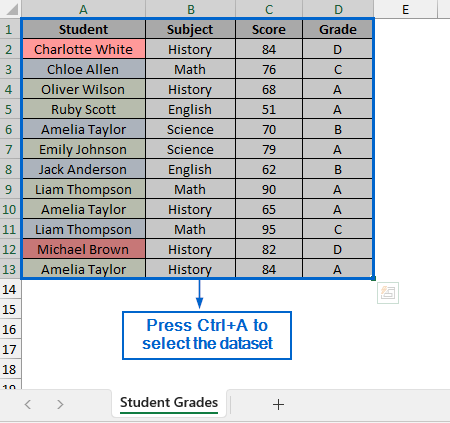
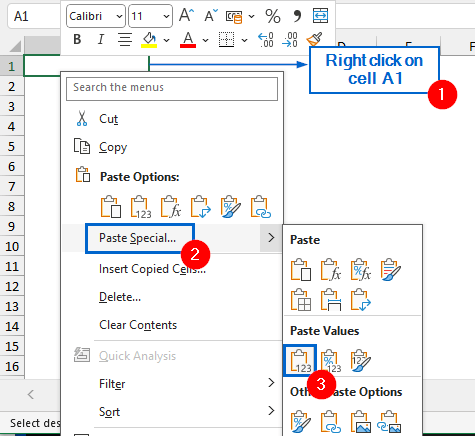
➤ Next, navigate to Paste Special worksheet and right-click on cell A1 to open the context menu.
➤ From the context menu, choose Paste Special >> Paste Values.
➤ The entire dataset should now be pasted, free from any conditional formatting.
Use the ‘Clear Format’ Option to Remove Conditional Formatting
Clear Tool in Excel is used to quickly remove content, formatting, comments, hyperlinks, or conditional formatting from selected cells. Using the same dataset, we will now use the Clear Tool to remove conditional formatting from the Student column. The updated dataset will be displayed in a separate “Clear Tool” worksheet.
Steps:
➤ Go to the Clear Tool worksheet and select the range A2:D13.
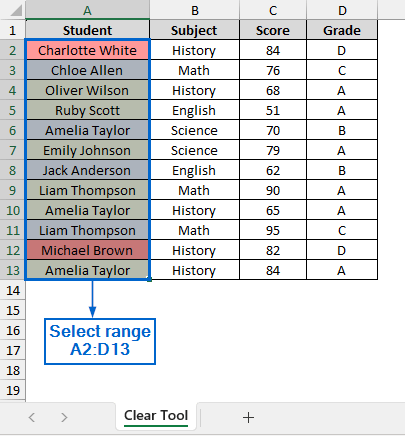
➤ Now from the main menu, navigate to Home >> Clear >> Clear Formats.

➤ All conditional formatting is now removed from the dataset.
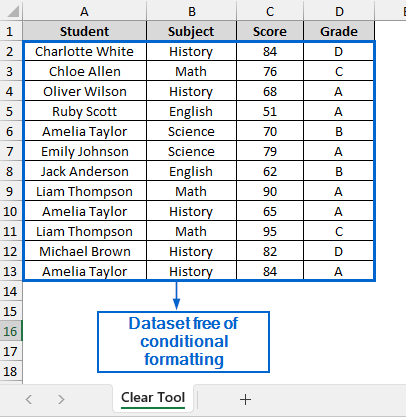
Automatically Remove Conditional Formatting Using VBA Editor
Excel’s VBA Editor allows users to automate tasks by writing custom macros, which can also be used to remove conditional formatting from a dataset.
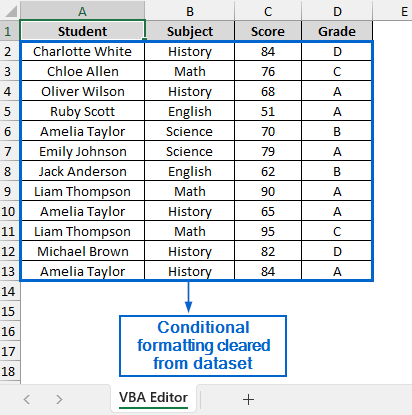
Again, using the same dataset, we will write a custom VBA macro and remove conditional formatting from column A of the dataset. We will display the updated dataset in a separate worksheet called “VBA Editor”.
Steps:
➤ Go to the VBA Editor worksheet and press Alt + F11 to launch the VBA Editor window.
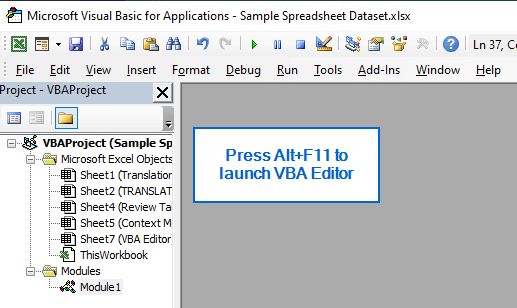
➤ Next, from the main menu, navigate to Insert >> Module and paste the following code:
Sub ClearFormatting()
    Worksheets("VBA Editor").Cells.ClearFormats
End Sub
➤ Now, press Alt + F8 , select the ClearFormatting macro from the Macros dialogue box, and click Run.
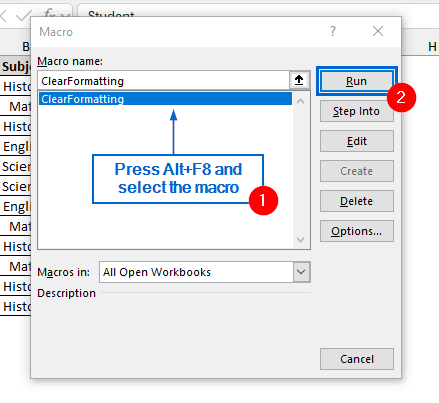
➤ All conditional formatting will now be automatically cleared from the dataset.
Frequently Asked Questions
Which Method Works Best for Large Datasets?
For large datasets, the VBA Editor method is the most efficient, as it can automatically remove conditional formatting in bulk with a single macro, saving time and effort compared to other methods.
Why Is the Quick Analysis Tool Not Appearing in the Dataset?
The Quick Analysis icon shows up only when the feature is enabled. To turn it on, go to File >> Options >> General, and check the box for Show Quick Analysis options on selection.
Concluding Words
Knowing how to remove conditional formatting from an Excel dataset is crucial for maintaining a clean worksheet, improving readability, and ensuring that unnecessary formatting does not slow down performance.
In this article, we have discussed five effective methods of removing conditional formatting from an Excel dataset, including using the Quick Analysis Tool, Clear Rules Tool, Paste Special Tool, Clear Tool and VBA Editor. Feel free to try each method and select one that best aligns with your needs.