In Excel, small arrows often appear beside cells or headers to indicate drop-down lists or filter options. These arrows are useful for sorting data, selecting values, or controlling input, but sometimes you may prefer a cleaner look in your worksheet. For example, you might want to hide them when creating a report, sharing a template, or finalizing a presentation file.
In this article, you’ll learn how to remove drop-down arrows in Excel using different methods, depending on how those arrows were added.
Here’s how to remove drop down arrow in Excel:
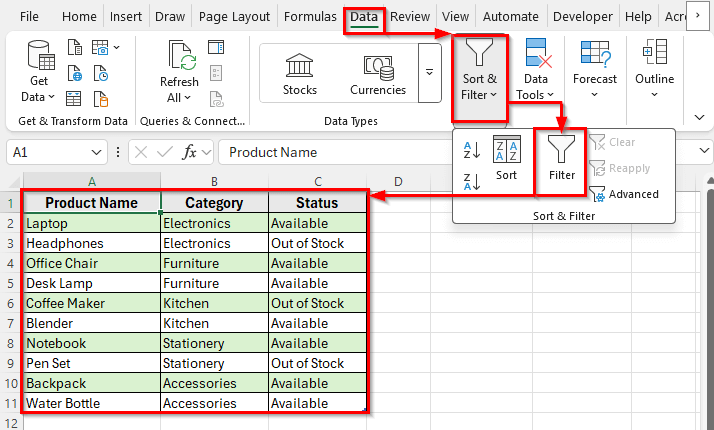
➤ Open your dataset in Excel that contains the filtered data.
➤ Select any cell in your dataset or click on the header row that contains the filter arrows.
➤ Go to the Data tab on the Ribbon.
➤ In the Sort & Filter group, click the Filter button to turn off the filter option.
➤ Once you click it, the drop-down arrows will instantly disappear from the header row.
Removing Filter Drop-Down Arrows in Excel
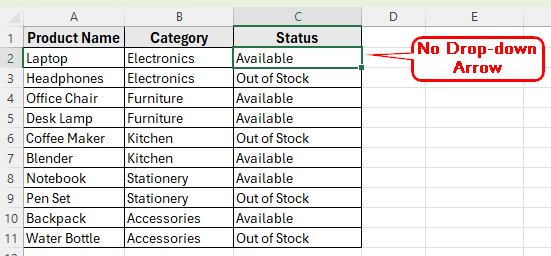
In the following dataset, we have a table of products and their sales status. Column A contains the Product Names, Column B shows the Category, and Column C lists the Status, which can be either Available or Out of Stock. The headers also display drop-down arrows.
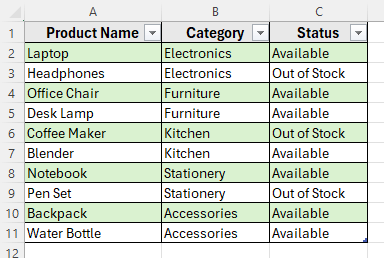
We’ll use this dataset to demonstrate how to remove the drop-down arrow in Excel.
The most common type of drop-down arrow in Excel appears when filters are applied to your column headers. These arrows allow you to sort and filter data easily, but you might want to remove them for a cleaner presentation or when filters are no longer needed.
Here’s how to do it:
➤ Open your dataset in Excel that contains the filtered data.
➤ Select any cell in your dataset or click on the header row that contains the filter arrows.
➤ Go to the Data tab on the Ribbon.
➤ In the Sort & Filter group, click the Filter button to turn off the filter option.
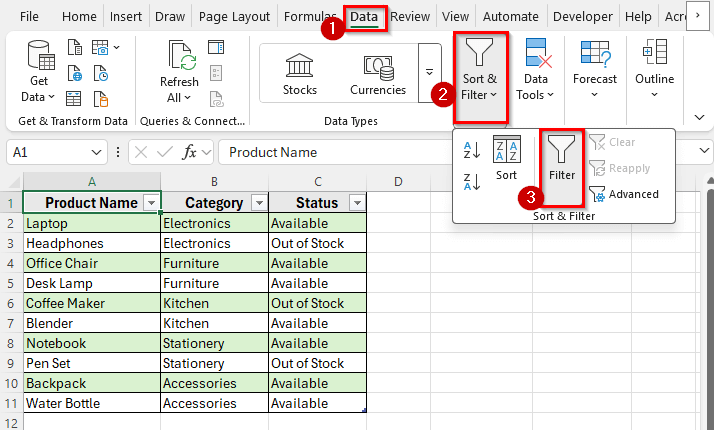
➤ Once you click it, the drop-down arrows will instantly disappear from the header row.
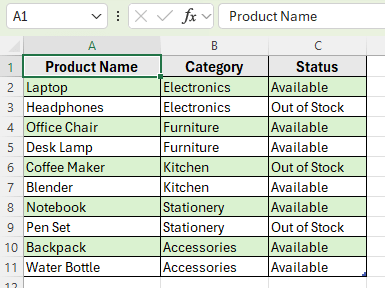
Removing Drop-Down Arrows in Excel Tables
When you format your data as a table in Excel using the Format as Table option, filter drop-down arrows automatically appear in each header cell. These arrows help sort and filter table data, but sometimes you may want to remove them for a cleaner appearance or when you’ve finished analyzing your data.
Here’s how to do it:
➤ Open your dataset that has been formatted as a table.
➤ Click anywhere inside the table to activate the Table Design tab. In some Excel versions, it may appear as Table Tools.
➤ In the Table Design tab, click Convert to Range in the Tools group.
➤ A message will appear asking, Do you want to convert the table to a normal range? Click Yes.
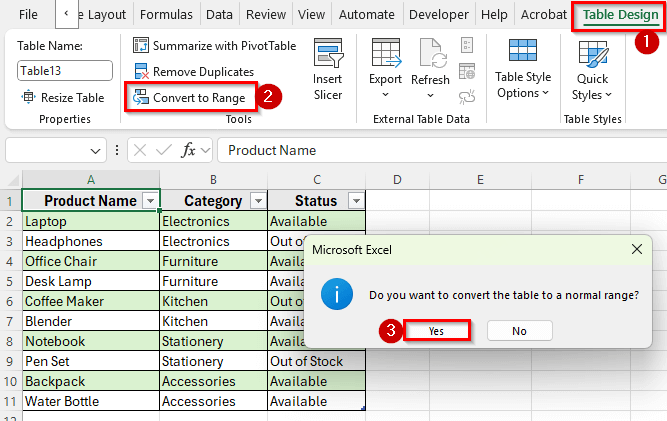
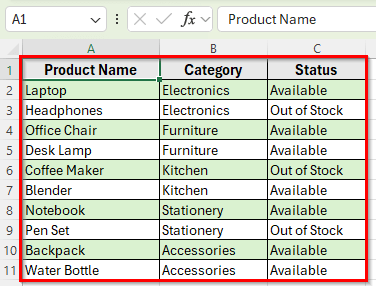
➤ The table will convert to a regular range, and all drop-down arrows in the header row will disappear.
➤ After converting, your data will still look the same, but it will no longer function as an Excel table. You won’t have automatic filtering, structured references, or table formatting features.
Using Data Validation to Remove Drop-Down Arrow in Excel
Another most common reason you see a drop-down arrow in a cell is that it was created through Data Validation. This feature restricts entries to a specific list of values. If you no longer need the list or want to make the sheet look cleaner, you can remove the arrow easily using the Data Validation tool.
Here’s how to do it:
➤ Open your dataset in Excel.
➤ Select the cells that contain the drop-down list. In our example, select C2:C11.
➤ Go to the Data tab on the Ribbon and click Data Validation in the Data Tools group.
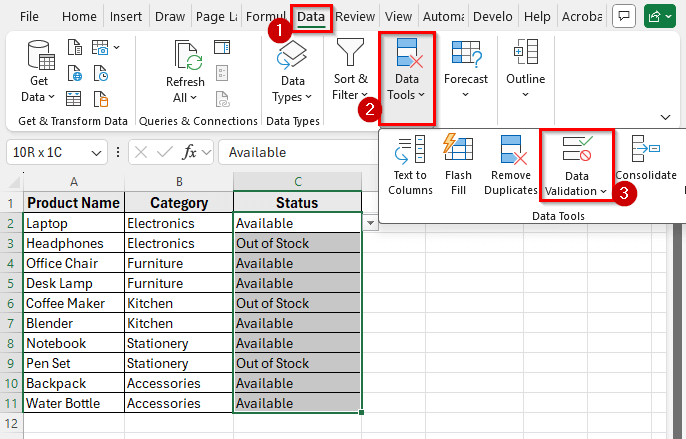
➤ In the Data Validation dialog box, stay on the Settings tab and click Clear All.
➤ Click OK to confirm.
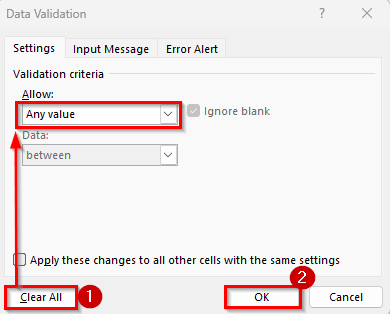
➤ The drop-down arrow will disappear, and the selected cells will now accept any text or number.
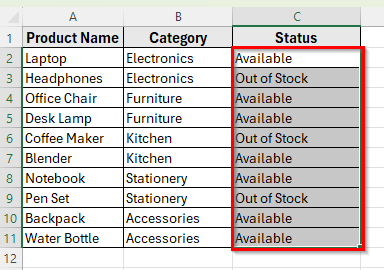
Using Paste Values Option to Remove Drop-Down Arrows
Another simple way to remove drop-down arrows created through Data Validation is to replace the cells with their plain values. By pasting values only, you remove any underlying validation rules but keep the existing text or numbers intact.
Here’s how to do it:
➤ Open your dataset that contains the drop-down list.
➤ Select any empty cell in your dataset and press Ctrl + C in your keyboard to copy it.
➤ Select the cells that have the drop-down arrows. In this example, select C2:C11.
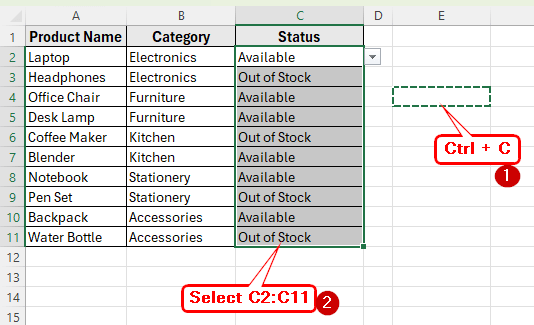
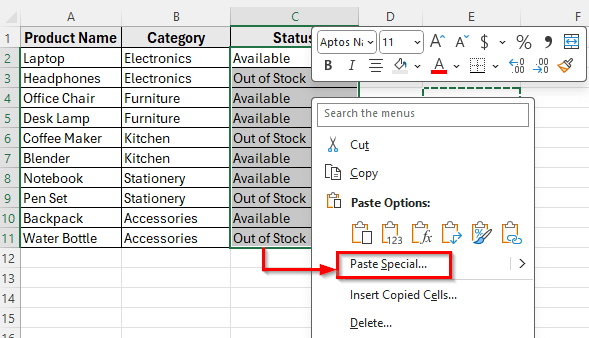
➤ Right-click on the range and go to Paste Special from the context menu.
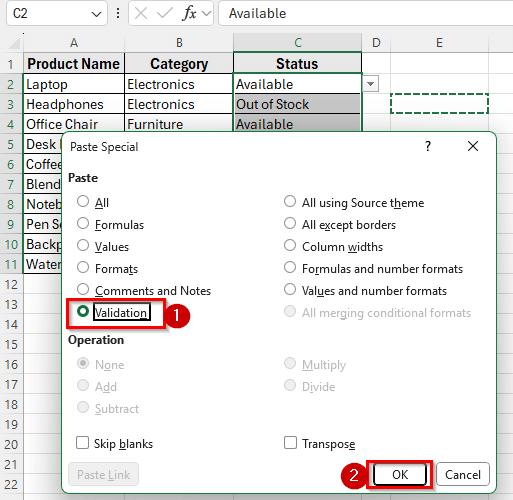
➤ In the Paste Special window, check Validation and click Ok.
➤ The drop-down arrows will disappear, and the cells will now contain only static text or numbers.
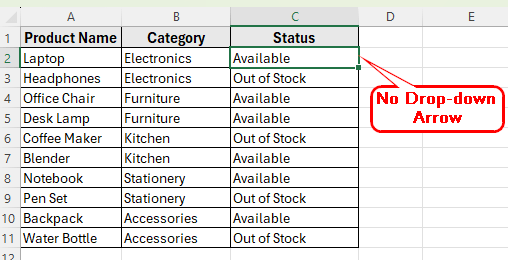
Apply VBA to Remove Drop-Down Arrows in Excel
If you need to remove multiple drop-down arrows at once or clear validation across large sheets, using a short VBA script can save time. This method is especially useful when arrows come from different sources like Data Validation or when you want to automate cleanup in multiple sheets.
Here’s how to do it:
➤ Open your Excel workbook and select the cells that have the drop-down arrows such as C2:C11.
➤ Press Alt + F11 to open the VBA editor.
➤ Click Insert on the menu and select Module to create a new code module.
➤ In the module window, copy and paste the following VBA code:
Sub RemoveAllDropDownArrows()
    Dim ws As Worksheet
    Dim cell As Range
    'Loop through all worksheets
    For Each ws In ThisWorkbook.Worksheets
        'Clear all data validation (drop-down lists)
        ws.Cells.Validation.Delete
        'Turn off filters if active
        If ws.AutoFilterMode Then ws.AutoFilterMode = False
    Next ws
    MsgBox "All drop-down arrows have been removed.", vbInformation
End Sub 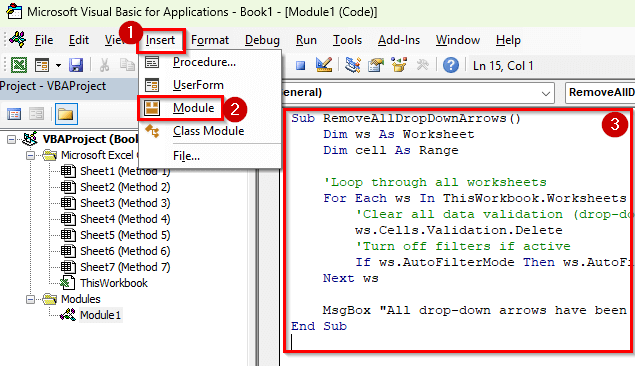
➤ Go to Run >> Run Sub/UserForm F5 to run the macro.
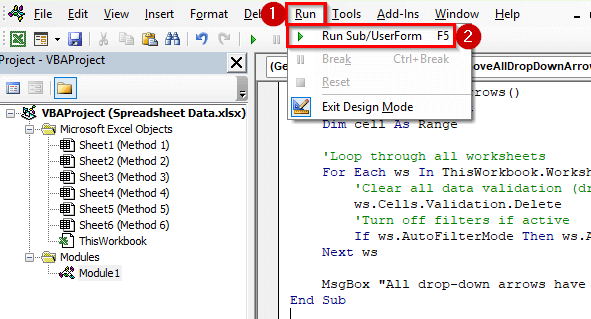
➤ Once the code runs, all Data Validation drop-downs and filter arrows will be removed from every worksheet in the workbook.
➤ A confirmation prompt will appear, click Ok.
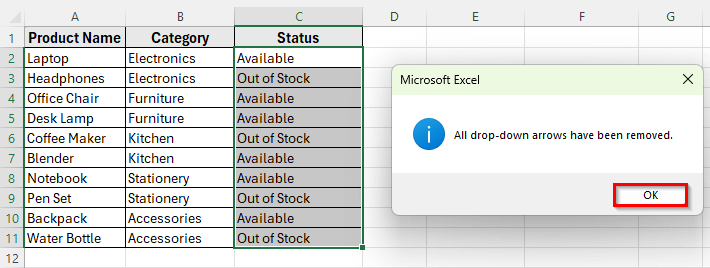
➤ Close the VBA editor and back to your excel dataset. Now, you’ll see all the drop-down arrows are removed.
Using Go To Special to Remove Hidden Drop-Down Objects
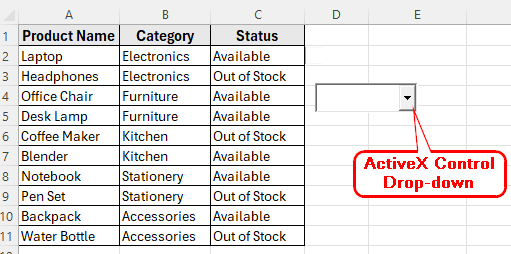
Sometimes, a drop-down arrow stays visible even after clearing Data Validation or filters. In such cases, the arrow might actually be a Form Controls or ActiveX Controls, not a typical validation list. These are shapes or objects placed on the worksheet, and Excel treats them differently. You can use the Go To Special feature to find and remove them.
In this following dataset, we have an ActiveX Control drop-down arrow. Our goal is to remove this drop down arrow using the Go To Special feature.
Here’s how to do it:
➤ Open your worksheet where the drop-down arrow remains visible.
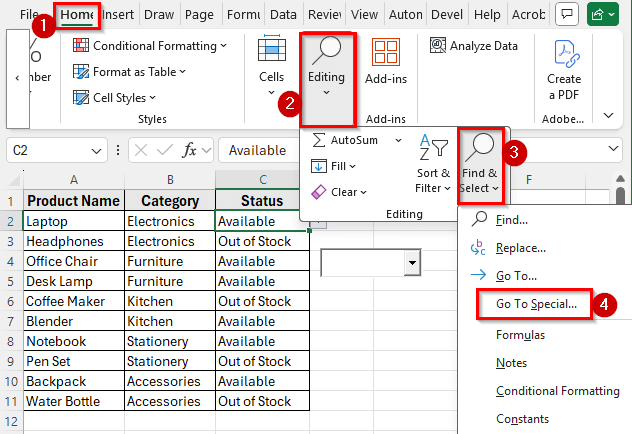
➤ Go to the Home tab on the Ribbon.
➤ Click the Find & Select button in the Editing group, then choose Go To Special.
➤ In the Go To Special dialog box, select Objects and click OK.
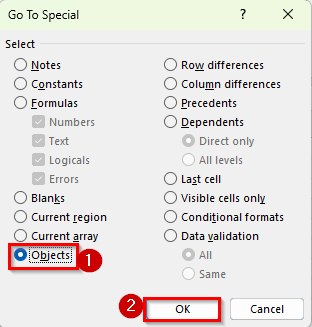
➤ Excel will highlight all the objects in your sheet, including any hidden drop-down form controls.
➤ Press the Delete key on your keyboard to remove them.
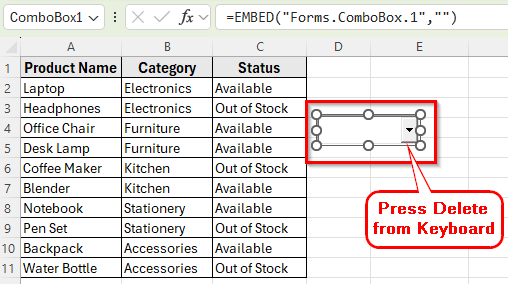
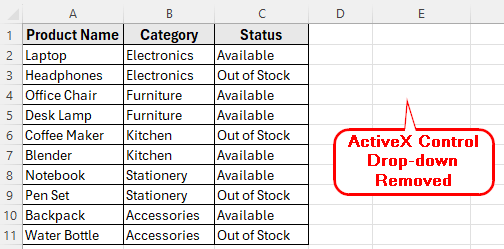
➤ After doing this, the ActiveX Control drop-down arrow or form controls will disappear from your worksheet.
Downloadable Resources
Get our practice workbook or necessary files that we have worked with to prepare this article.
Frequently Asked Questions
How do I remove a drop-down arrow but keep the data in the cell?
You can remove the arrow by using Data Validation or by using Paste Values. Both methods keep the existing cell content intact while removing the drop-down arrow.
Can I remove only some drop-down arrows and keep others?
Yes. Select only the cells that contain the arrows you want to remove and apply Data Validation >> Clear All >> Ok to that selection. The remaining arrows in other cells will stay.
Why does the drop-down arrow still appear after clearing Data Validation?
It might be caused by a filter, a table, a pivot table, or a form control object. Check if filters are applied, convert the table to a range, or use Go To Special >> Objects to find hidden form controls.
Will removing the drop-down arrow affect formulas in my sheet?
No. Removing the drop-down arrow only affects data validation or objects. Any formulas referencing the cells will continue to work normally.
Wrapping Up
Removing drop-down arrows in Excel helps make worksheets look cleaner and more professional. It is useful when preparing reports, sharing templates, or presenting data to others. By clearing these arrows, your spreadsheet becomes easier to read and less distracting, allowing users to focus on the content instead of interface elements.
Cleaning up drop-down arrows also ensures that only the necessary data is visible, which can simplify analysis and reduce confusion. This makes your workbook more user-friendly and polished for any audience.