
While we are working with Excel, sometimes we find datasets where cells contain a mix of letters and numbers, such as product codes, invoice IDs, or customer references. But what if we need to extract only the numeric portion for analysis, sorting, or calculations? This is common in accounting, inventory management, and data cleaning workflows. We can remove text from an Excel cell while leaving the numbers as it in the Excel, and the process is quite easy.
To remove text and keep numbers in Excel, follow these simple steps:
➤ Identify the cells containing mixed text and numbers, using the Array formula.
➤ Enter the following formula:
=TEXTJOIN(“”, TRUE, IFERROR(MID(B2, SEQUENCE(LEN(B2)), 1)*1, “”)
➤ Press Enter.
➤ Copy the formula down for all rows in your dataset.
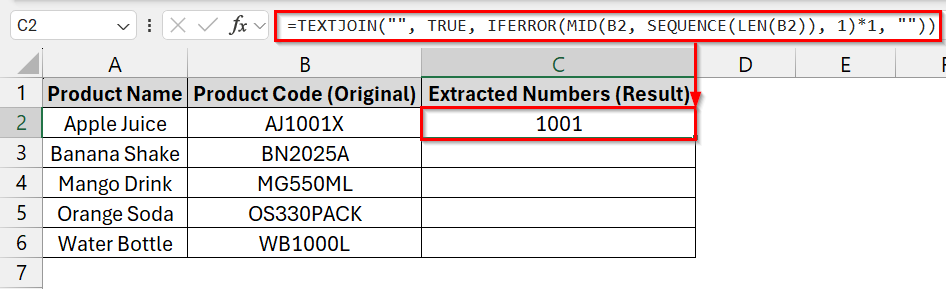
In this article, we will provide a detailed explanation of multiple methods to remove text and retain numbers in Excel. We will cover formula-based approaches, Excel’s Flash Fill feature, Find and Replace tool, Dynamic array formula, and VBA macros.
Using Dynamic Array Formula to Remove Text and Keep Only Numbers in Excel
A Dynamic array formula can scan each character in a text cell, check if it’s numeric, and join only the numbers into a single result. It is best used when your data includes mixed alphanumeric values and you need to retain only the numbers.
We have a dataset that contains mixed text and numbers in Column B. Using the Complex Dynamic Array formula, we will extract only the numeric parts (Column C) while removing all letters and text symbols.
Steps:
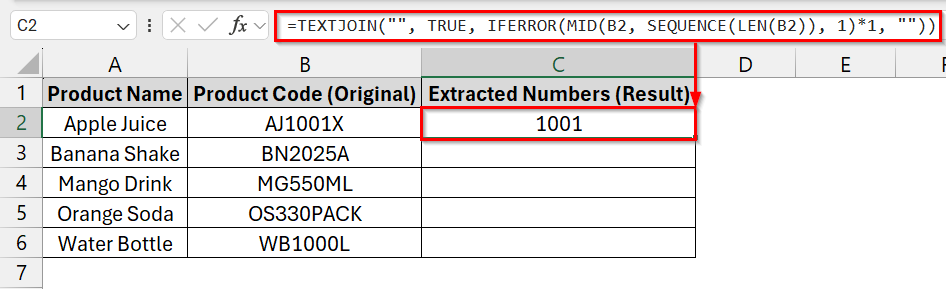
➤ Open your dataset. We have the Product Name in Column A, and Product Code (Original) in Column B, and the Extracted Numbers (Result) in Column C. We want to display the extracted numbers in Column C with the help of the dynamic array formula.
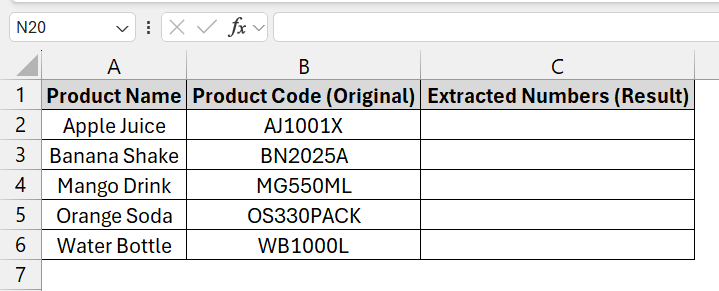
➤ Click on cell C2 to display the extracted numbers.
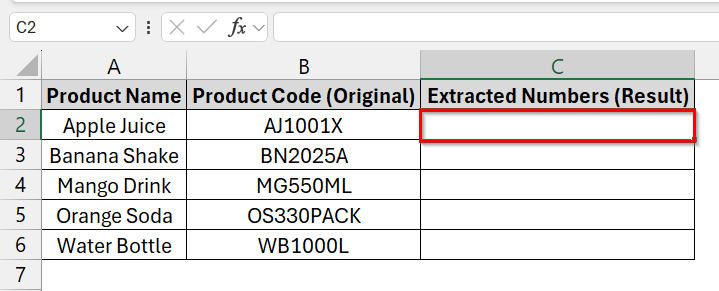
➤ Enter the following formula in cell C2:
=TEXTJOIN("", TRUE, IFERROR(MID(B2, SEQUENCE(LEN(B2)), 1)*1, ""))
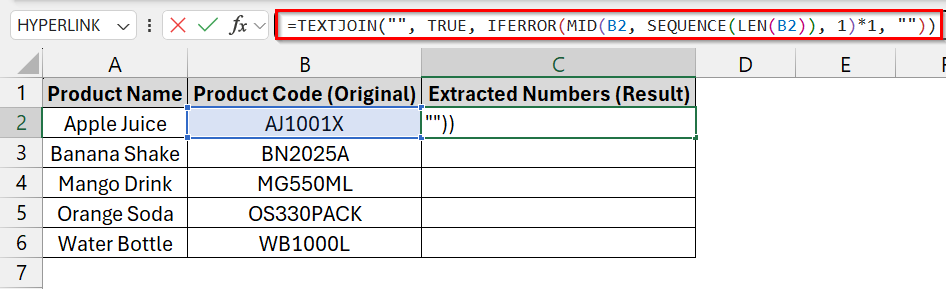
➤ Press Enter. Excel will automatically display only the numeric characters from cell B2.
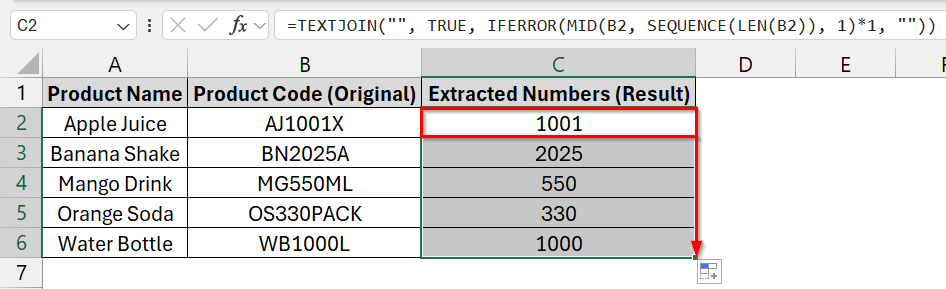
➤ Dragging the fill handle down to apply it to the rest of the dataset.
Applying the Find & Replace Tool to Remove Text from Excel while Leaving Numbers
The Find and Replace tool is widely used to remove known text from a range of cells. It is ideal when your dataset has consistent text prefixes or suffixes that you want to delete, leaving the numeric portions of your entries intact.
We have a dataset where column B contains a mix of text and numbers. Using the Find & Replace method, we will remove the known text strings (e.g., “PROD”, “ITEM”, “CODE”) from each cell, leaving only the numeric parts in column D.
Steps:
➤ Open your Excel file and identify the column that contains the mixed text and numbers.
For example, column B might have product codes like PROD101, ITEM205, etc.
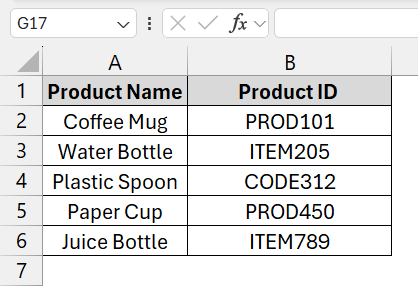
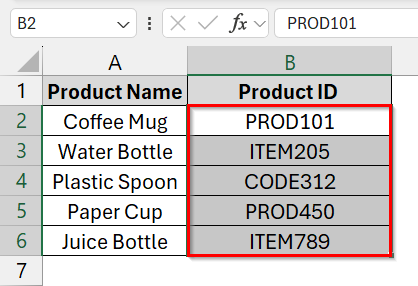
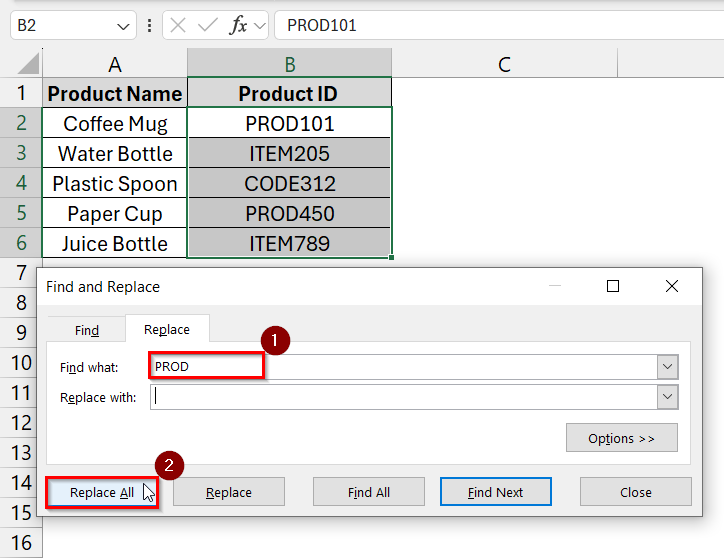
➤ Select the range of cells where you want to remove text, for example, B2:B6.
➤ Press Ctrl + H on your keyboard. This opens the Find and Replace dialog box.
➤ In the Find what field, type the exact text you want to remove (e.g., PROD).
➤ Leave the Replace with the field blank.
➤ Then click Replace All.
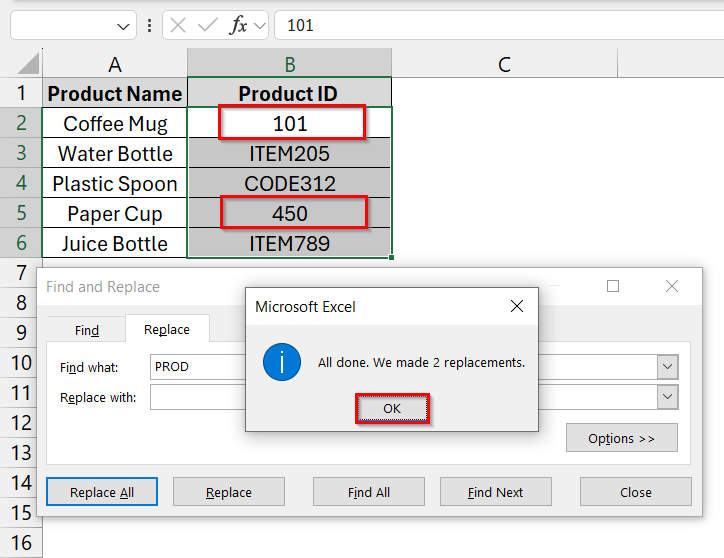
➤ Excel will remove all instances of that text in the selected range, leaving behind only the numeric parts. You will see a confirmation message like: “All done. We made 2 replacements.”
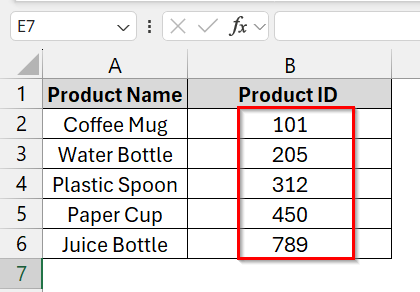
➤ Repeat the process for other text patterns (e.g., ITEM, CODE) if your dataset contains different prefixes or suffixes.
Remove Text from Excel Cell and Leave Numbers with Flash Fill
Flash Fill is an intelligent Excel tool that automatically detects patterns in your data and fills in the remaining cells accordingly. It is perfect for quick cleanup tasks where your data has a consistent format, such as removing text and keeping only the numbers.
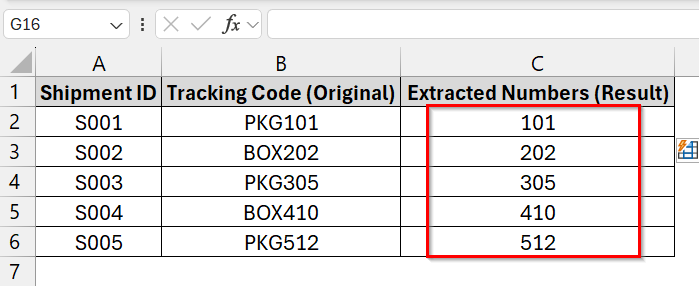
We have a dataset that shows a list of mixed text-number tracking codes. Using Excel’s Flash Fill feature, we will automatically detect the numeric pattern once we manually type the first example, and Excel fills in the rest instantly.
Steps:
➤ Open your Excel worksheet containing the mixed text-number data. For example, your tracking codes may be in column B (cells B2:B6).
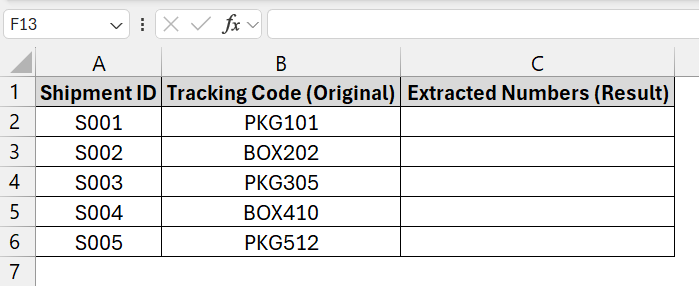
➤ In the cell right next to your first data entry (e.g., C2), manually type the numeric portion of the first value.
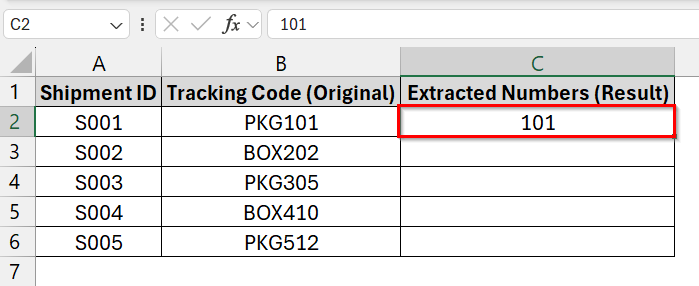
➤ Press (Ctrl + E) to accept the Flash Fill suggestion. Excel will instantly fill all remaining rows with the correct numeric results.
Applying a VBA Macro to Remove Text from an Excel Cell
A VBA Macro is used to remove all non-digit characters from a cell. It is best for large datasets where each entry has inconsistent text and symbols mixed with numbers.
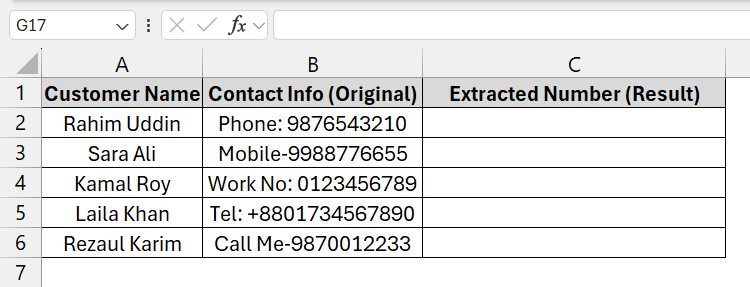
We have a dataset, column B, that contains text with numbers mixed in. After applying the VBA Macro, only the numeric digits will be kept in column C.
Steps:
➤ Open your Excel workbook where you want to remove text from the Excel Cell, leaving numbers. For example, our mixed data is in column B (from B2:B6).
➤ Press Alt + F11 to open the Visual Basic for Applications (VBA) Editor window.
➤ Click on Insert and then select the Module from the drop-down.

➤ A new bank box will appear. Copy and paste the following VBA code in that blank box.
Function KeepNumbersOnly(ByVal txt As String) As String
    Dim RE As Object
    Set RE = CreateObject("VBScript.RegExp")
    With RE
        .Global = True
        .Pattern = "\D"   ' \D matches any non-digit character
    End With
    KeepNumbersOnly = RE.Replace(txt, "")
End Function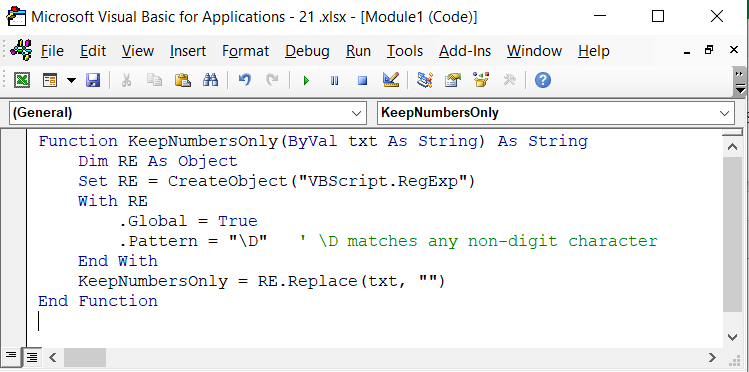
➤ Close the VBA editor by pressing Alt + Q , and return to Excel.
➤ In your worksheet, click on cell C2, type:
=KeepNumbersOnly(B2)
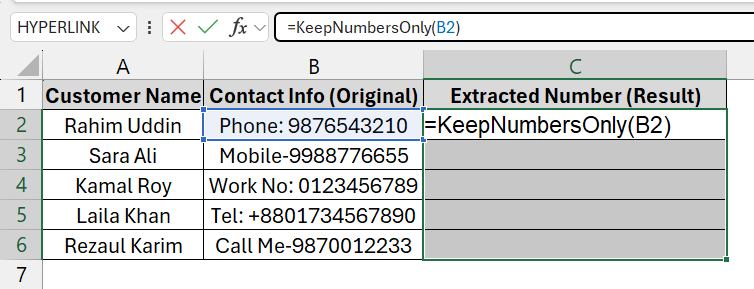
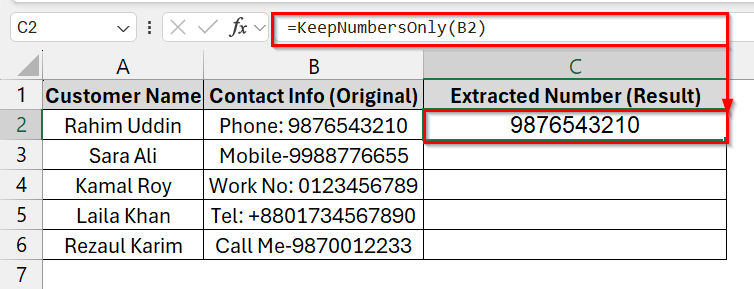
➤ Press Enter to extract the number from the mixed text in B2.
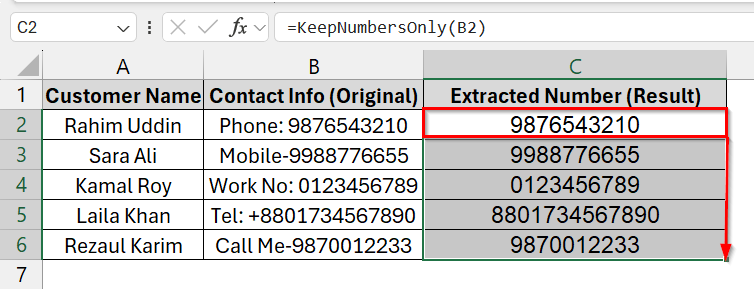
➤ Drag the fill handle down to apply the formula to the rest of the Cells.
Note:
Macros must be enabled for this function to work.
Downloadable Resources
Get our practice workbook or necessary files that we have worked with to prepare this article.
Remove Text from Cell But Leave Numbers.xlsx
Frequently Asked Questions
How to remove text and keep numbers in Excel cells?
Use a Dynamic Array formula (TEXTJOIN + SEQUENCE + MID), Flash Fill, or a VBA UDF with RegExp to extract only numeric characters.
How to extract just numbers from a cell in Excel?
You can type the numeric result manually for Flash Fill, use the formula =TEXTJOIN(“”, TRUE, IFERROR(MID(A1, SEQUENCE(LEN(A1)),1)*1,””)), or apply a VBA macro for large datasets.
How do you remove text and leave numbers in Excel?
Identify the mixed cell, then apply one of the methods: formula for dynamic arrays, Flash Fill for pattern recognition, or VBA RegExp for automated extraction.
Concluding Words
To efficiently remove text and retain only numbers in Excel, you can rely on the Dynamic Array formula, Flash Fill, or VBA Macro. Each method suits different scenarios: formulas for automated formulas, Flash Fill for small datasets, and VBA for large or complex data. We have also uploaded the Excel files used in this article for demonstration purposes. You can download them and use them for practice.”