When entering data like phone numbers, ZIP codes, or product IDs in Excel, you might notice that leading zeros disappear automatically, for example, typing 00789 turns into 789. This happens because Excel treats your entry as a number and removes unnecessary zeros.
In this article, we’ll explore five effective methods to fix leading zeros not showing in Excel. Whether you’re preparing datasets, formatting codes, or handling sensitive IDs, these techniques ensure your values remain exactly as you type them.
Steps to show leading zeros in Excel:
➤ Click the cell where you want to input your value such as B2.
➤ Type an apostrophe (‘) followed by your entryr, for example, ‘07001.
➤ Press Enter, and repeat the same for other cells to fix your issue.
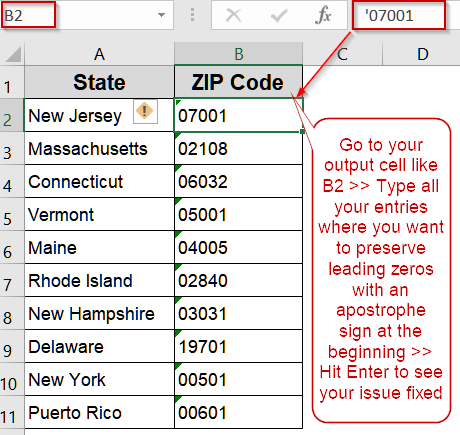
Solve Leading Zero Issue by Adding an Apostrophe at the Beginning
If you only need to fix a few entries, adding an apostrophe before typing ensures Excel treats them as text. This lightweight solution instantly preserves all leading zeros which is ideal for quick corrections without adjusting format settings or formulas.
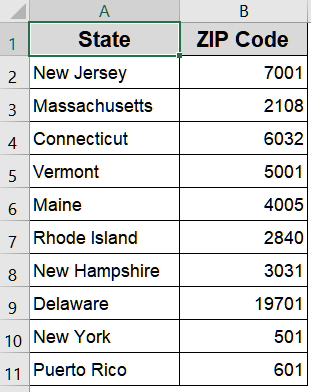
We’ll use the following dataset where the leading zeros entered at the beginning doesn’t appear:
Steps:
➤ Click the cell where you want to input your value such as B2 cell.
➤ Type an apostrophe (‘) followed by your entry, for example, ‘07001.
➤ Press Enter, and repeat the same for other cells.
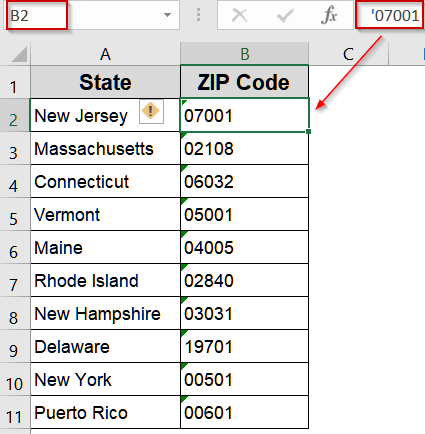
Excel will fix the issue with leading zeros and store the value as text.
Format as Text to Keep Leading Zeros Without Auto-change
If Excel keeps stripping zeros when typing or pasting values, formatting the cells as Text provides a permanent fix. By converting the format type, Excel treats your entries as text rather than numbers, ensuring zeros stay visible and unchanged.
Steps:
➤ Select the range of cells where you plan to enter or paste numbers such as B2:B11.
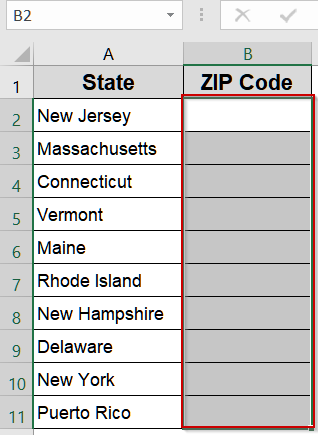
➤ Press Ctrl + 1 to open the Format Cells tab.
➤ Under the Number tab, select Text and click OK.

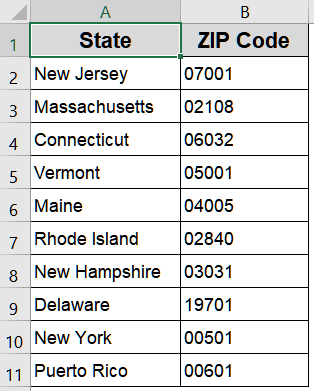
➤ Now type the ZIP codes and they will appear with as many leading zeros you have entered.
Restore Leading Zeros Using Custom Formatting
When you need to display zeros without changing underlying numeric values, custom formatting is the best fix. This method adds zeros visually based on a defined format (e.g., 00000), ensuring consistent digit length while keeping numbers functional for calculations.
Steps:
➤ Highlight the range of number cells you wish to format.
➤ Go to Home >> Number group >> More Number Formats.
➤ In the Format Cells dialog box, choose Custom under Category.
➤ In the Type field, type 00000 (for 5-digit formatting or adjust based on your requirement).
➤ Click OK.

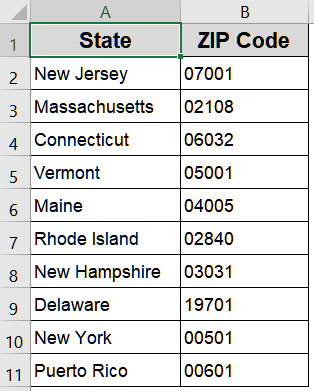
Excel will display all the missing leading zeroes without altering their numeric value.
Make Leading Zeros Appear with REPT and LEN Functions
When Excel automatically removes leading zeros, one reliable fix is combining the REPT and LEN functions. This approach rebuilds numbers into a fixed-length format by repeating zeros based on the original value’s length, ensuring every entry displays consistent leading zeros across your dataset.
Steps:
➤ Go to a blank cell like C2.
➤ Type the formula:
=REPT("0",5-LEN(B2))&B2
➤ Press Enter.
➤ Drag the fill handle downward to apply it to all rows.

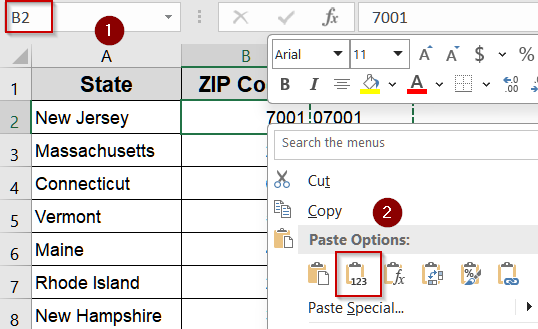
➤ Then copy cells C2:C11 and go to B2 cell >> Right-click and choose Paste Values under Paste Options.
➤ Select column C and hit Delete to maintain a clean look.

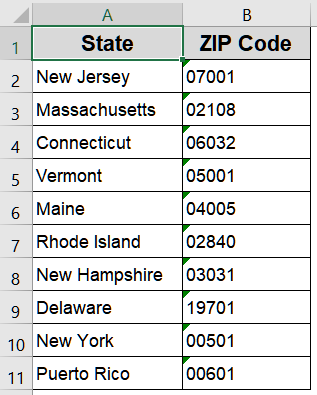
Now the REPT function generates the required number of leading zeros so that each value has five characters in your original column.
Apply the TEXT Function to Display Leading Zeros Properly
Another simple way to fix missing leading zeros is by using the TEXT function. This method converts numbers into text strings following a specified format (e.g., five digits). It’s perfect when you need all entries to follow the same digit structure automatically.
Steps:
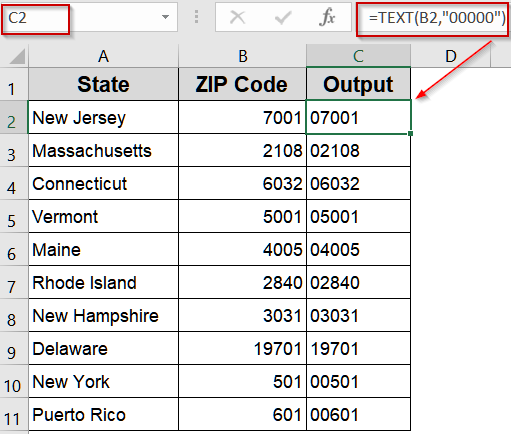
➤ Go to a blank cell like C2.
➤ Type the formula:
=TEXT(B2,"00000")
➤ Press Enter for output.
➤ Drag the fill handle downward to apply the formula to all rows.
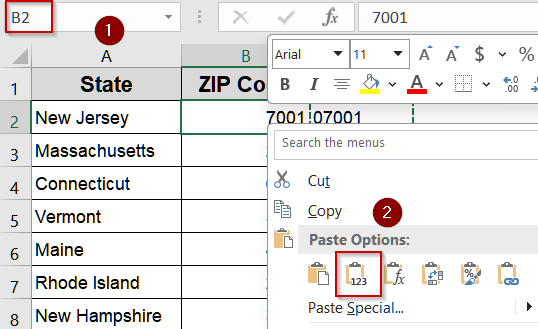
➤ Then copy cells C2:C11 and go to B2 cell >> Right-click and choose Paste Values under Paste Options.
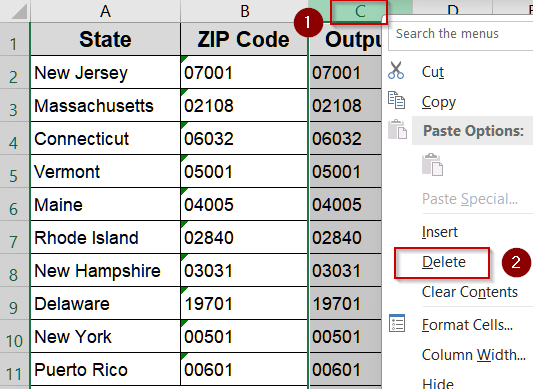
➤ Select column C and hit Delete to maintain a clean look.
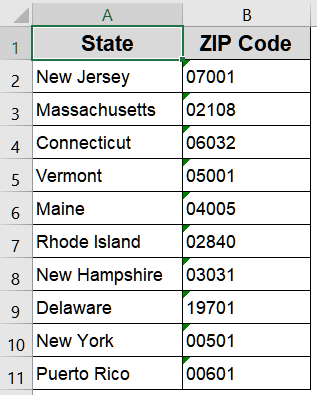
Now our original column displays the amount of leading zeroes we couldn’t add earlier.
Frequently Asked Questions
Why does Excel automatically strip leading zeros from numbers?
Excel treats entries as numeric values by default, and numeric formatting ignores unnecessary leading zeros. This helps calculations remain accurate, but it removes zeros from values like ZIP codes or product IDs unless formatting adjustments are made.
Can I keep leading zeros when importing a CSV or text file?
Yes. Use Excel’s Import Wizard and set the column data type to Text during import. Alternatively, format the column as Text beforehand to ensure Excel preserves every leading zero from the external file.
Does applying custom number formatting change the underlying values?
No. Custom formatting affects only the display, not the stored numeric value. Even if Excel shows 00789, the underlying number remains 789 for calculations, ensuring accurate formulas and computations while maintaining consistent visual presentation.
What’s the quickest way to preserve leading zeros for single entries?
Use an apostrophe (‘) before typing your number. For example, enter ‘00567. Excel will display all leading zeros while treating the entry as text, making this the simplest method for one-off corrections.
Can I permanently store numbers with leading zeros for calculations?
To retain zeros permanently without altering values, use Text formatting or the TEXT function for display, while keeping a numeric version elsewhere for calculations. Excel itself cannot treat true numbers with permanent leading zeros during math operations.
Wrapping Up
In this tutorial, we explored five practical methods to fix the issue of leading zeros not showing in Excel. From quick solutions like using an apostrophe to advanced options like REPT and LEN, these techniques give you control over how your data is displayed. Feel free to download the practice file and share your feedback.