When working with ZIP codes, product IDs, employee codes, or any data where leading zeros are essential, Excel often strips those zeros because it treats entries as plain numbers. This can cause formatting issues, inconsistent records, or even errors when exporting to databases or sharing files with others. Maintaining those zeros is crucial for accurate reporting and professional-looking spreadsheets.
In this article, we’ll explore nine reliable methods to convert numbers to text with leading zeros in Excel. From basic formatting tricks to advanced tools like Power Query, you’ll learn multiple approaches suited for different scenarios whether you’re working with a small list or a massive dataset. Let’s get started.
Steps to convert number to text with leading zeros in Excel:
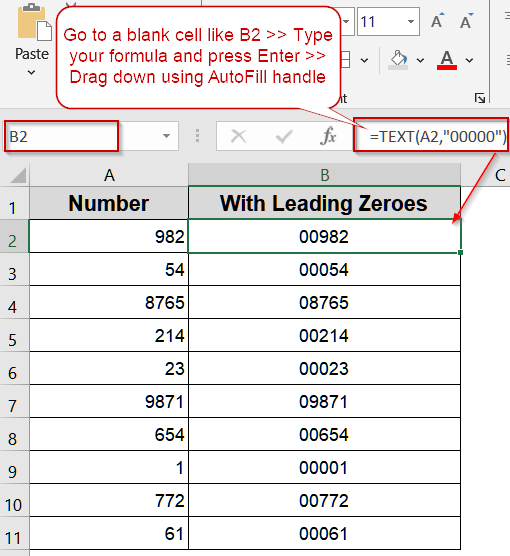
➤ Go to a blank cell like B2.
➤ Type the formula: =TEXT(A2,”00000″)
➤ Press Enter for output.
➤ Drag the fill handle downward to apply the formula to all rows.
Apply the TEXT Function for Flexible Formatting
The TEXT function is a powerful way to convert numbers into text while controlling exactly how they appear. By defining a custom format pattern, you can ensure leading zeros remain intact, making this method ideal for ZIP codes, employee IDs, or any standardized numbering system. Unlike basic formatting, this approach works dynamically, meaning even if your source numbers change, the displayed text updates automatically without losing the desired format.
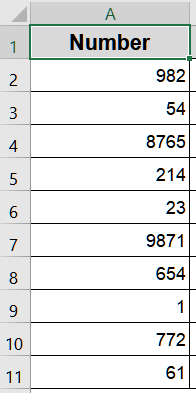
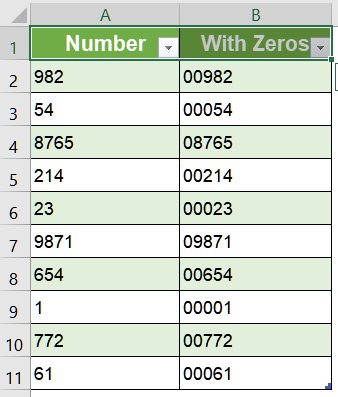
We’ll use the following dataset:
Steps:
➤ Go to a blank cell like B2.
➤ Type the formula:
=TEXT(A2,"00000")
➤ Press Enter for output.
➤ Drag the fill handle downward to apply the formula to all rows.

Apply the RIGHT Function to Pad Zeros
The RIGHT function is a simple yet effective way to pad shorter numbers with leading zeros while keeping the total length consistent. By joining extra zeros to the start of your value and then trimming to the desired length, you can standardize formats like ZIP codes, product IDs, or employee numbers without altering the original data. This method is flexible and works even if your source numbers vary in length.
Steps:
➤ Go to a blank cell like B2.
➤ Type the formula:
=RIGHT("00000"&A2,5)
➤ Press Enter for output.
➤ Drag the fill handle downward to apply the formula to all rows.
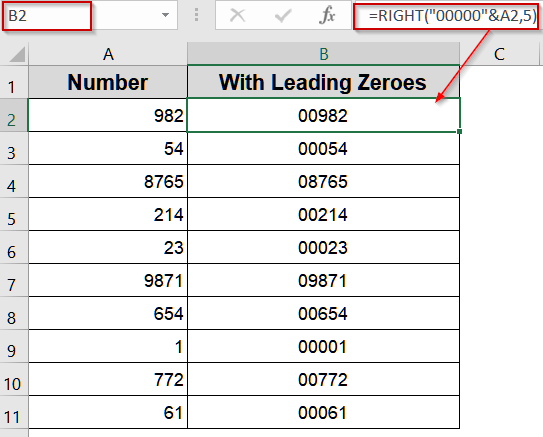
The function combines zeros with your value and trims the result to five characters.
Insert the BASE Function for Fixed-Length Numbers
The BASE function is a versatile tool for converting numbers into text while specifying a fixed length, making it perfect for standardizing codes or IDs. By using base 10 and defining the number of digits, Excel pads shorter numbers with leading zeros automatically. This method is especially useful for situations where uniform formatting is required across a dataset, such as generating 5-digit product codes or aligning numeric entries for export.
Steps:
➤ Go to a blank cell like B2.
➤ Type the formula:
=BASE(A2,10,5)
➤ Press Enter for output.
➤ Drag or fill down to apply the formula across your dataset.
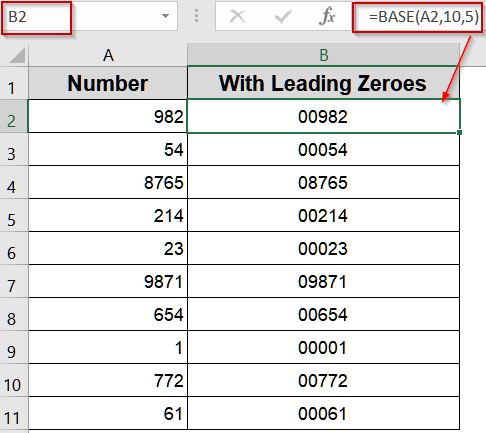
The numbers are displayed as text, padded with leading zeros to always show five digits.
Make Use of CONCAT or CONCATENATE Function to Prefix Zeros
The CONCAT and CONCATENATE functions allow you to manually add leading zeros to numbers by joining them with text strings. This method is simple, flexible, and works well for small datasets or when you want complete control over how many zeros appear. It’s especially useful for product codes, employee IDs, or any field requiring a consistent prefix without altering the numeric value for calculations.
Steps:
➤ Go to a blank cell like B2.
➤ Type the formula:
=CONCATENATE("00",A2)
➤ Press Enter for output.
➤ Drag or fill down to apply the formula across your dataset.
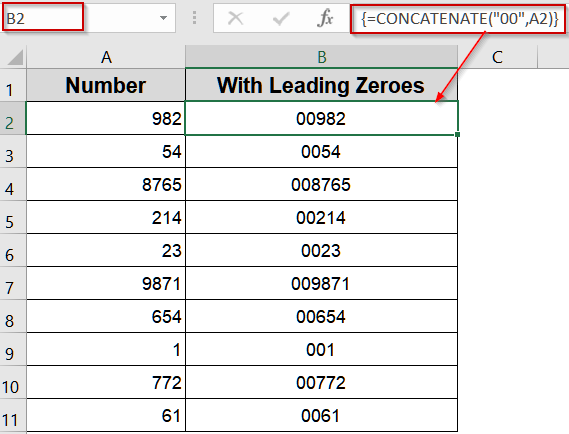
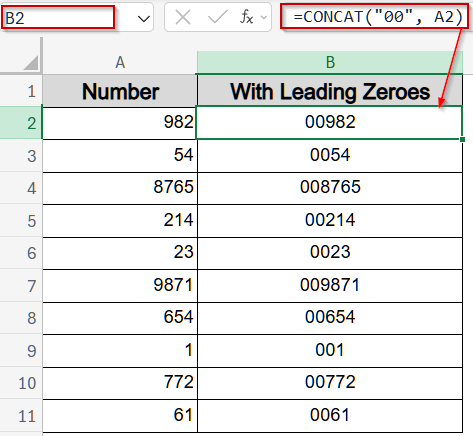
➤ Alternatively, use this formula in newer Excel versions:
=CONCAT("00",A2)
Adjust the number of zeros in the formula to match the desired total length.
➤ Press Enter.
➤ Drag the fill handle downward to apply the formula to the full range.
Combine REPT and LEN Functions for Dynamic Padding
The combination of REPT and LEN functions provides a dynamic solution for numbers of varying lengths. By calculating how many zeros are needed based on the length of each number, this method ensures a consistent total length across your dataset. It’s ideal for situations where source numbers are irregular and you want to automatically pad them to a fixed number of digits, such as standardized codes, ZIP codes, or ID numbers.
Steps:
➤ Go to a blank cell like B2.
➤ Type the formula:
=REPT("0",5-LEN(A2))&A2
➤ Press Enter.
➤ Drag the fill handle downward to apply it to all rows.

REPT function generates the required number of leading zeros so that each value has five characters.
Format as Text to Preserve Leading Zeros
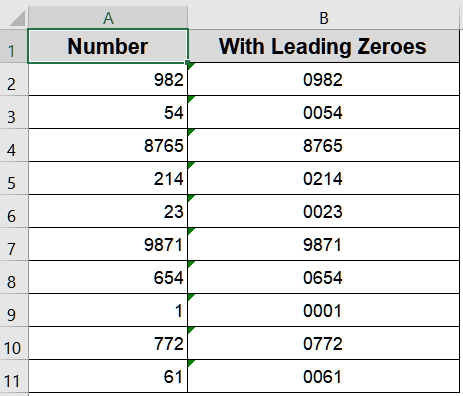
Formatting your cells as text is one of the simplest and most reliable ways to keep leading zeros in Excel. By doing this before entering your numbers, Excel will treat them purely as text strings rather than numerical values. This approach is especially useful for fields like ZIP codes, product IDs, or employee numbers, where leading zeros are significant but not meant for calculations. It prevents Excel’s default behavior of stripping zeros and ensures your data appears exactly as intended.
Steps:
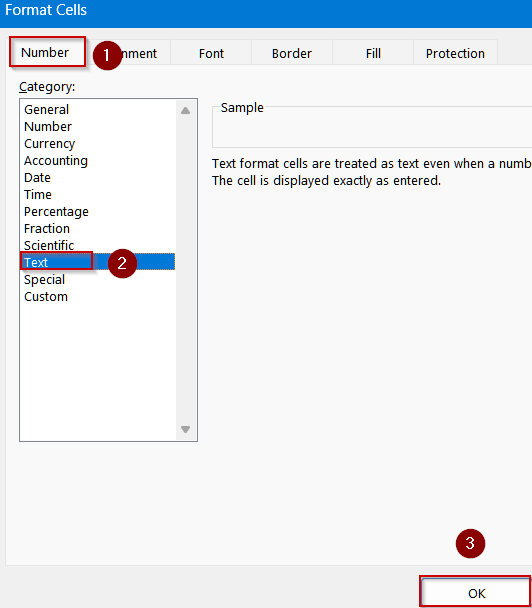
➤ Select the range of cells where you plan to enter or paste numbers such as B2:B11.
➤ Press Ctrl + 1 to open the Format Cells tab.
➤ Under the Number tab, select Text and click OK.
➤ Enter or paste your numbers and the leading zeros will remain intact.
Display Leading Zeros Using Custom Formatting
Custom number formatting is ideal when you want to show numbers with leading zeros while keeping them numeric for calculations or sorting. This method doesn’t convert your data to text, ensuring formulas and numeric operations still work smoothly. It’s particularly useful for standardized formats like ZIP codes, invoice numbers, or employee IDs, where a fixed number of digits is needed for consistency.
Steps:
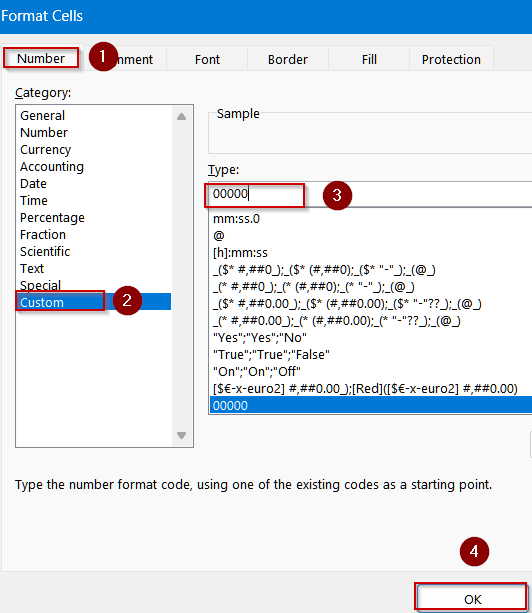
➤ Highlight the range of number cells you wish to format.
➤ Go to Home >> Number group >> More Number Formats.
➤ In the Format Cells dialog box, choose Custom under Category.
➤ In the Type field, type 00000 (for 5-digit formatting or adjust based on your requirement).
➤ Click OK.
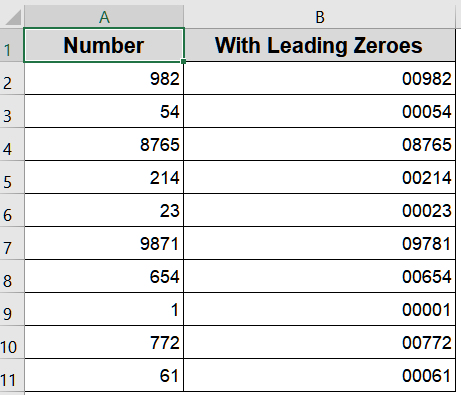
Excel will display values like 00045 without altering their numeric value.
Add an Apostrophe Before the Number
Adding an apostrophe is the fastest way to preserve leading zeros for occasional or small-scale entries. Excel interprets everything after an apostrophe as text, preventing automatic formatting changes that would otherwise strip the zeros. This method is perfect for quick corrections, entering codes, or handling a few special values without altering column-wide settings.
Steps:
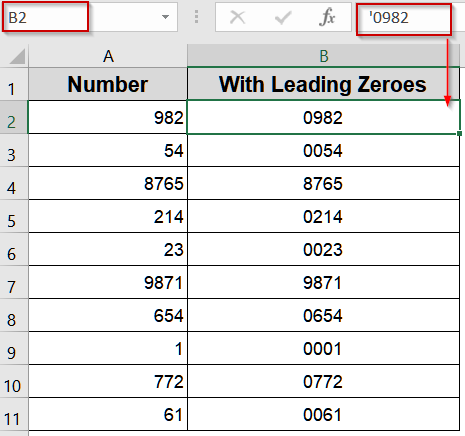
➤ Click the cell where you want to input the number.
➤ Type an apostrophe (‘) followed by your number, for example, ‘0982.
➤ Press Enter, and Excel will keep the leading zeros intact while storing the value as text.
Use Power Query for Bulk Conversion
Power Query is a robust solution for converting numbers to text with leading zeros, especially for large datasets or recurring data transformations. It allows you to automate padding, maintain data consistency, and handle dynamic ranges efficiently without manually writing formulas. This method is ideal when working with imported data, standardized codes, or when you want to create repeatable workflows that preserve leading zeros across thousands of rows.
Steps:
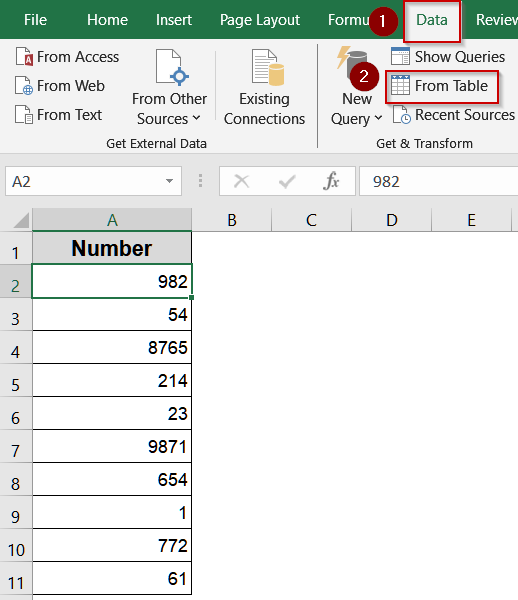
➤ Select your dataset and go to Data >> Get & Transform Data >> From Table/Range.
➤ In Power Query, select the column containing your numbers.
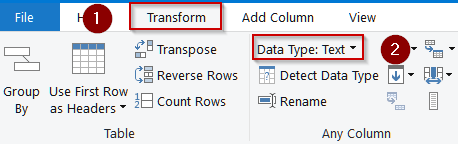
➤ Navigate to Transform tab >> Set your Data Type to Text.
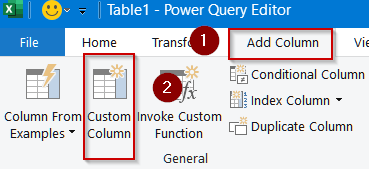
➤ Go to the Add Column tab >> Click on Custom Column.
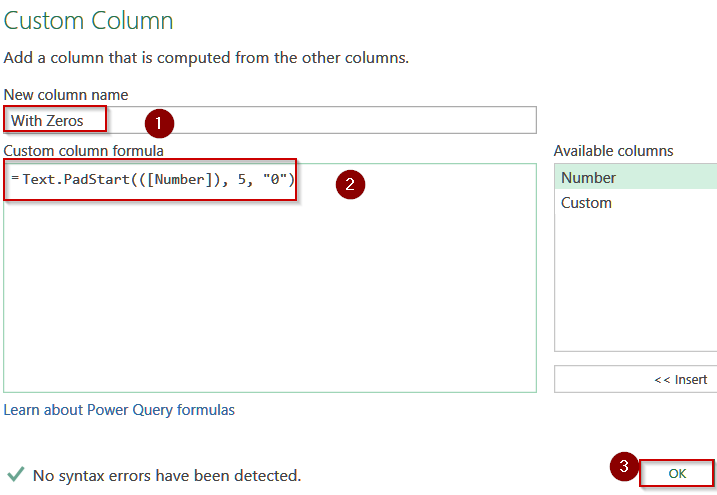
➤ Add a column name for your column.
➤ Type this following formula:
=Text.PadStart(([Number]), 5, "0")
Replace Number with your actual column name.
➤ Click OK to save changes.
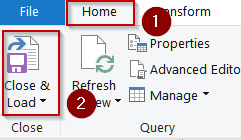
➤ Click Close & Load to update your Excel sheet with the formatted values.
Your new column will appear with zeros on a new sheet.
Frequently Asked Questions
Why does Excel remove leading zeros from numbers?
Excel automatically treats numbers as numerical values and strips leading zeros since they don’t affect numeric values. To preserve them, you must format cells as text or apply functions like TEXT for custom formatting.
Which method is best for bulk conversion of numbers to text with leading zeros?
For large datasets, Power Query is the most efficient method. It allows automated padding, dynamic formatting, and quick updates without manually editing each cell, making it perfect for managing thousands of entries.
Can I still perform calculations on numbers converted to text with leading zeros?
No, text values aren’t treated as numbers in calculations. To calculate while showing leading zeros, use Custom Formatting instead. This way, the numbers retain their numerical value but display zeros visually.
What happens if I copy-paste numbers with leading zeros into another workbook?
If pasted into cells formatted as General or Number, Excel will strip the zeros again. Always paste into Text-formatted cells or use Paste Values after applying TEXT or RIGHT functions to preserve formatting.
Does the TEXT function work with different lengths of leading zeros?
Yes. The TEXT function can handle varying lengths by adjusting the format code. For example, =TEXT(A1,”000000″) produces six-digit outputs. Change the number of zeros in the format string to match your requirements.
Wrapping Up
In this tutorial, we explored nine effective ways to convert numbers to text with leading zeros in Excel, from simple formatting options like Text and Custom formats to advanced solutions like Power Query. Whether you’re working with small ZIP code lists or massive datasets, these methods ensure your data looks exactly as intended without losing critical formatting. Feel free to download the practice file and share your feedback.