Saving Excel worksheets as PDFs is a common requirement when preparing reports, sharing dashboards, or archiving data. By default, Excel often saves sheets in portrait orientation, which can cut out wide tables or charts. Switching to landscape orientation ensures that your content fits neatly across the page, making it more readable and professional.
In this article, we’ll walk you through how to save Excel as a PDF in landscape orientation, using step-by-step instructions. You’ll learn multiple approaches, including print settings adjustments, scaling options, and exporting worksheets efficiently. Let’s get started.
Steps to save Excel as PDF landscape:
➤ Adjust the page orientation to Landscape for wider content.
➤ Set print scaling to fit your data neatly on a page and set your Print Titles.
➤ Choose “Microsoft Print to PDF” or “Save as PDF” as the printer.
➤ Select the desired location and filename to save your PDF.
➤ Apply settings consistently across multiple worksheets if needed.
Steps to Save Excel as PDF in Landscape Orientation
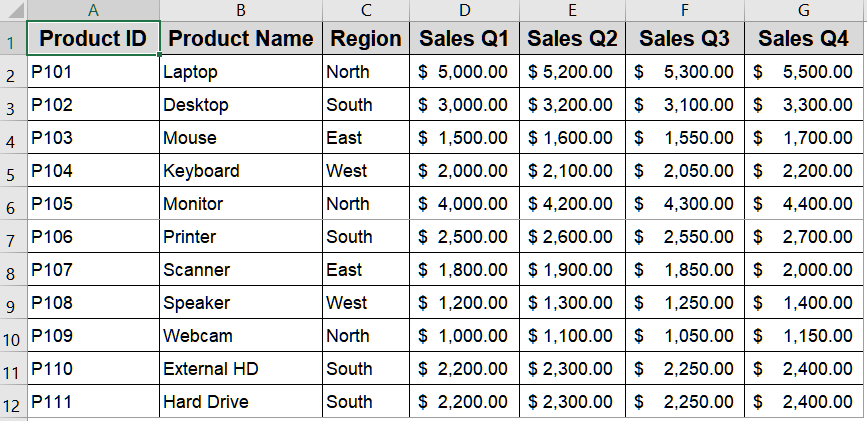
Saving an Excel file in landscape orientation while storing it as PDF is a simple and easy process to follow. For demonstration, we’ll use the following dataset:
Step 1: Adjusting Page Layout for Landscape Orientation
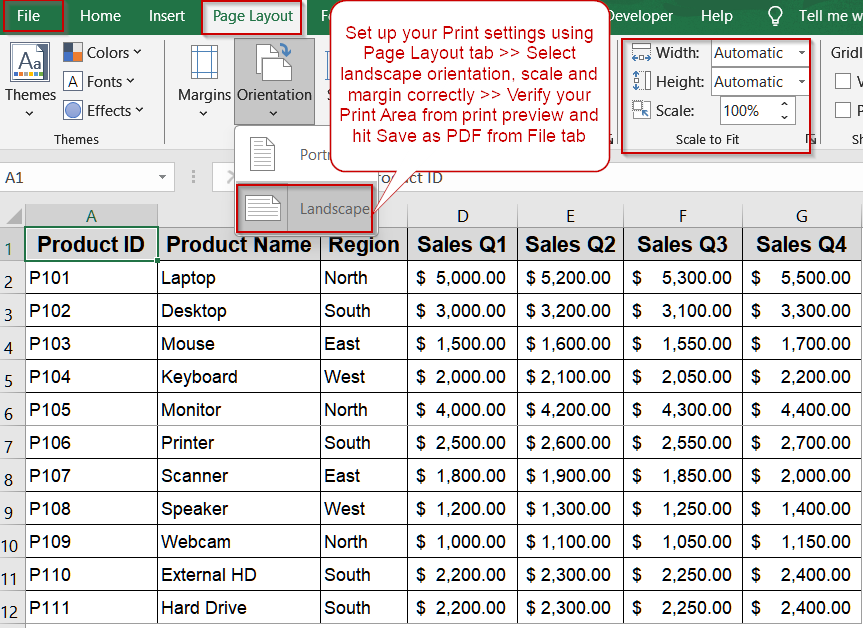
Setting up your page layout is the first and most critical step in preparing a worksheet for PDF export. By adjusting margins, orientation, and paper size, you ensure that all content fits neatly within the page boundaries. This is especially important for wide tables or dashboards, as it prevents columns from being cut off.
Steps:
➤ Click the Page Layout tab in Excel.
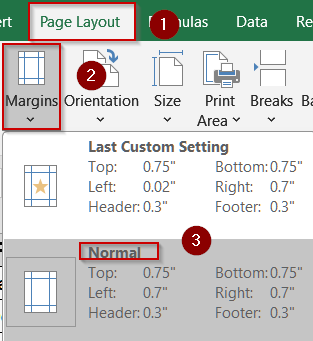
➤ Open the Margins menu and choose Normal.
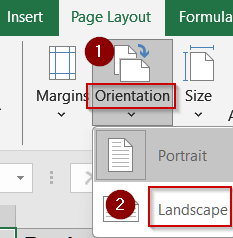
➤ Click Orientation and select Landscape.
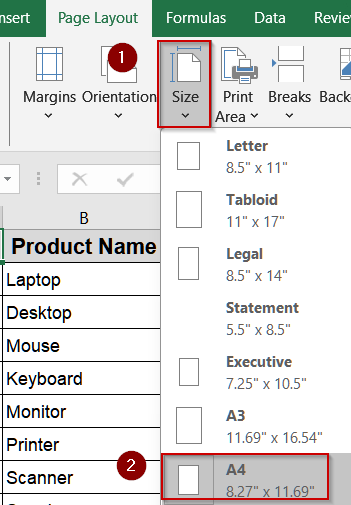
➤ Open the Size menu and select your desired paper size (e.g., A4).
Step 2: Defining the Print Area
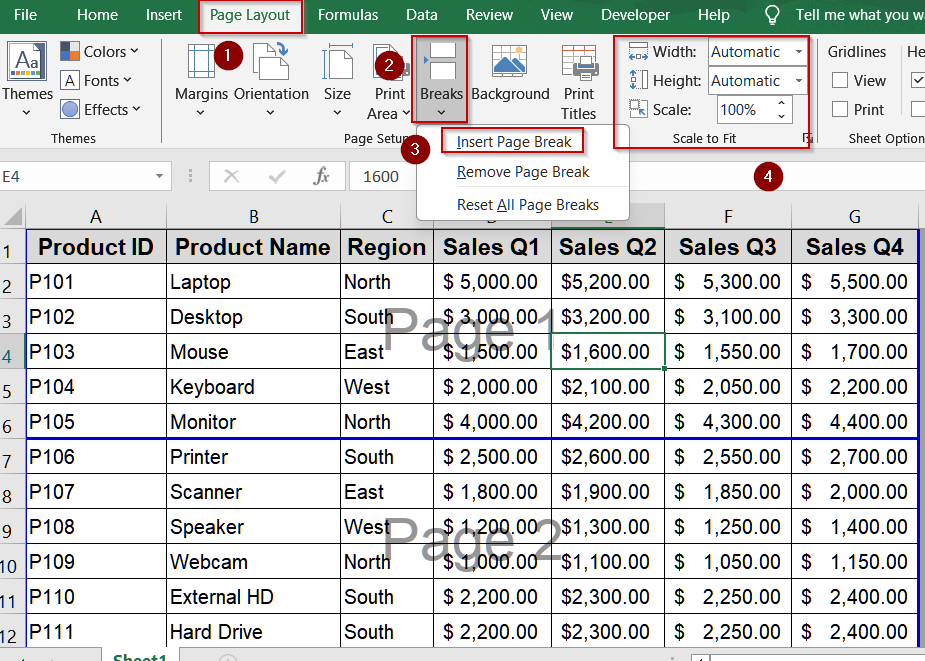
Defining the print area ensures that only the necessary data is included in the PDF. Without this step, Excel may include blank rows or columns, wasting space and creating an unprofessional look. Setting a print area is particularly useful for large datasets, allowing you to control exactly which cells appear on each page. You can also use this step to insert page breaks, ensuring that sections of your worksheet are separated logically.
Steps:
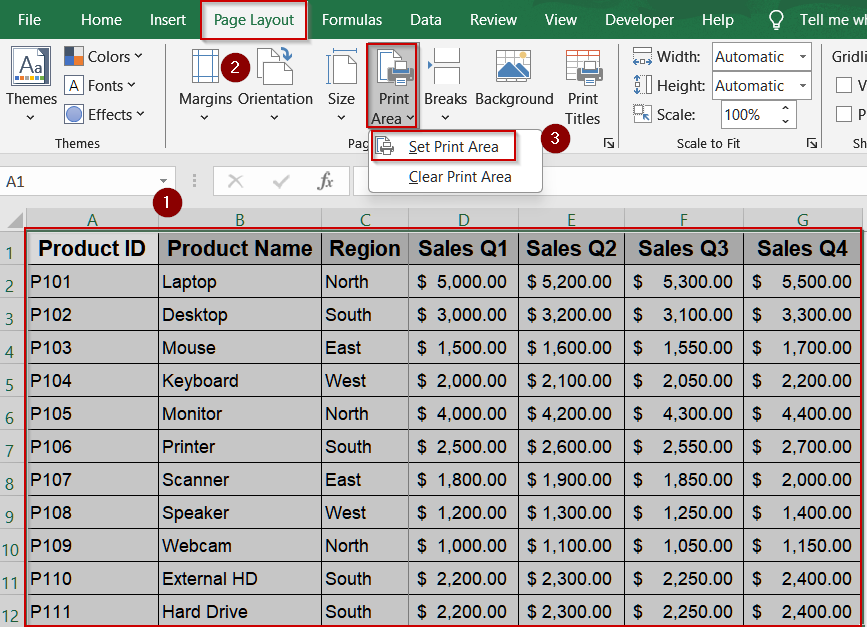
➤ Highlight the range of cells to include in the PDF.
➤ Go to Page Layout >> Print Area >> Set Print Area.
➤ Insert page breaks if needed via Breaks >> Insert Page Break.
➤ Adjust scaling under Page Layout >> Scale to Fit to make all columns fit on one page if necessary.
Step 3: Configuring Sheet Options
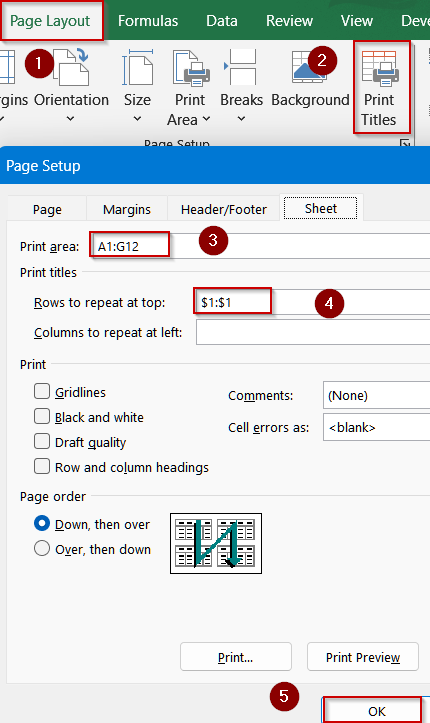
Sheet-specific settings give you additional control over how your worksheet appears in the PDF. This includes repeating headers, specifying the print order, and confirming print titles. Configuring these options helps make long tables readable and ensures that key information, like column headers, remains visible on every page. Proper sheet setup prevents misaligned content and helps your PDF look polished and professional.
Steps:
➤ Click Page Layout >> Print Titles.
➤ In the Sheet tab, set the Print Area and any rows or columns to repeat as headers.
➤ Confirm titles, print order, and other sheet-specific options.
➤ Click OK to save these settings.
Step 4: Checking the Print Preview and Exporting as PDF
With page layout, print area, and sheet settings configured, you can now export the worksheet as a PDF. Exporting at this stage ensures that all previous adjustments are preserved, giving you a clean, professional PDF output.
Steps:
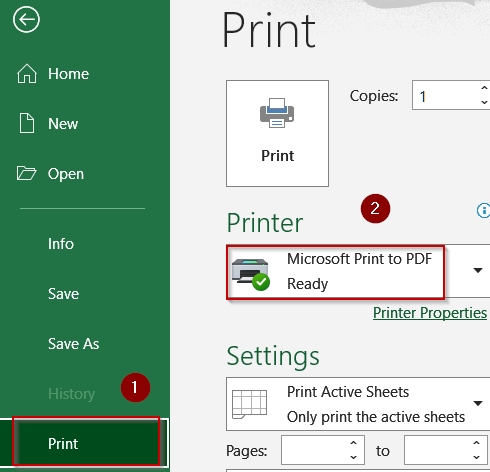
➤ Click the File tab >> Print >> Set the Printer to Microsoft Print to PDF.
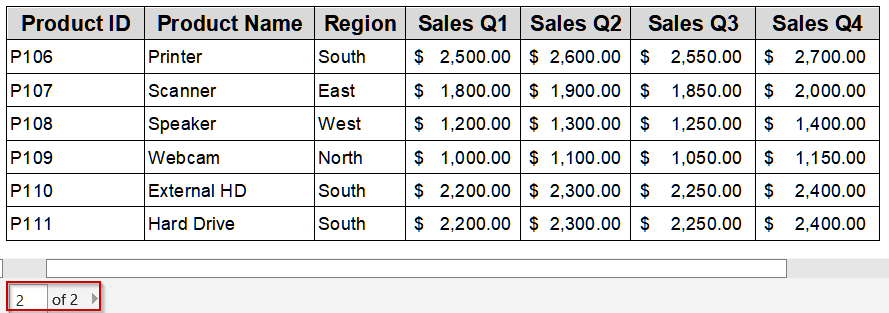
➤ In the preview, check if the settings are working correctly for each page.
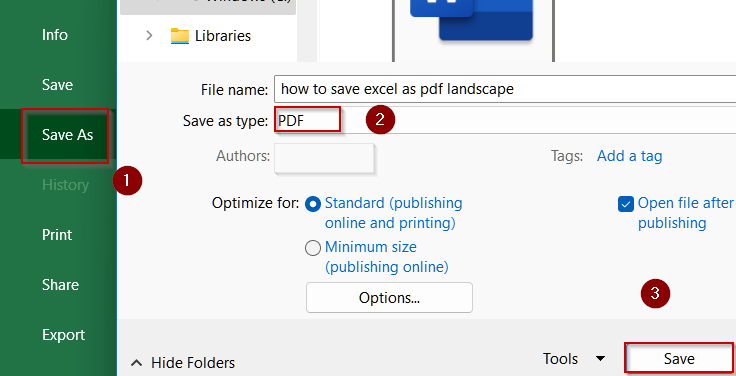
➤ Go to Save As >> Pick your location.
➤ In the Save as type dropdown, select PDF (*.pdf).
➤ Click Save to create your landscape PDF.
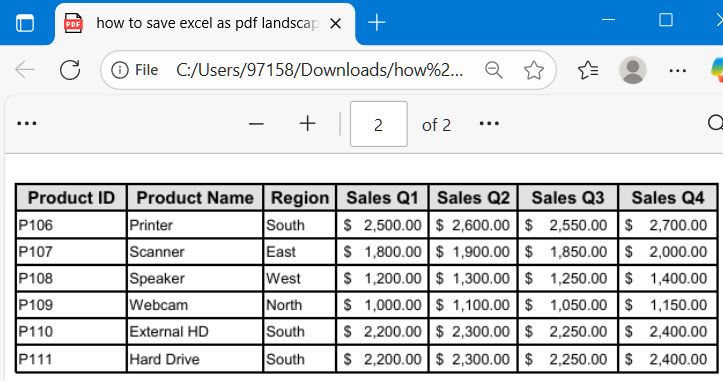
➤ Open the PDF to see your file saved in landscape orientation.
Frequently Asked Questions
Can I export multiple sheets as one landscape PDF?
Yes. When exporting, select the Entire Workbook option instead of just the active sheet. Ensure each worksheet is set to landscape orientation beforehand. This allows all sheets to appear in a single PDF while maintaining consistent formatting.
Will landscape orientation affect printing on standard printers?
No. Landscape orientation is compatible with standard printers. It simply rotates the page to fit wider tables or charts, preventing content from being cut off, while retaining the original layout and all formatting elements in your printouts.
How can I make all new sheets default to landscape?
You can set landscape as the default orientation by creating a template workbook. Configure page layout settings in the template, save it as an Excel template (*.xltx), and base all new sheets on this template automatically.
Can I scale large datasets to fit on one PDF page?
Yes. Using Page Layout >> Scale to Fit, you can adjust Width, Height, or Scale settings to compress large datasets. This ensures all columns fit on one page while preserving readability and layout accuracy.
Does this method work for charts and tables simultaneously?
Yes. Any visual elements, including charts, graphs, and tables, follow the page orientation. Setting the sheet to landscape ensures that all content, not just tabular data, is exported correctly without truncation or misalignment.
Wrapping Up
In this tutorial, you learned how to save Excel worksheets as PDF in landscape orientation using a structured, step-by-step approach. By adjusting page layout, defining the print area, configuring sheet options, and exporting as PDF, your wide tables and charts now fit neatly across pages. Feel free to download the practice file and share your feedback.