Sorting data by color in Excel is a practical way to organize and analyze information quickly. Many users apply colors to highlight priorities, track statuses, or distinguish categories, but without proper sorting, colored cells can appear scattered and hard to interpret.
In this article, we’ll explore several methods to sort your data by cell or font color, ranging from quick AutoFilter options to advanced Custom Sort techniques. You’ll also learn how to handle conditional formatting highlights and practice with a sample dataset to apply these techniques effectively. Let’s get started.
Steps to sort by color in Excel:
➤ Activate AutoFilter by clicking any cell within your table and then going to the Data tab >> Filter.
➤ Open the dropdown arrow in the Status column to access filter options.
➤ Hover over Sort by Color and pick the cell color you want to appear at the top or bottom.
➤ Optionally, use Custom Sort feature to add more color levels.

Quickly Sort by Color Using AutoFilter
When you need to organize data by a single color, the AutoFilter dropdown provides a fast and simple solution. This method works best for small datasets or when you want quick visual grouping without setting multiple sorting levels. By using AutoFilter, you can instantly bring all cells of a chosen color to the top or bottom of your table, making important information easier to review.
We’ll use the following dataset:
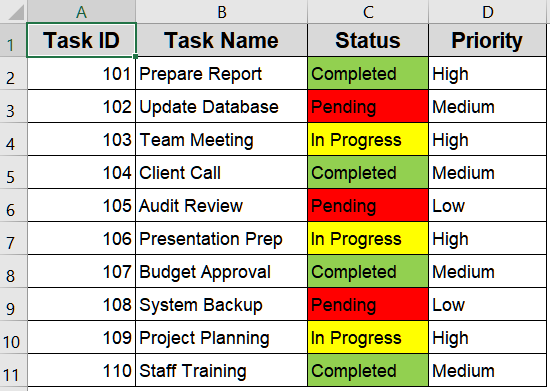
Steps:
➤ Activate AutoFilter by clicking any cell within your table and then going to the Data tab >> Filter.
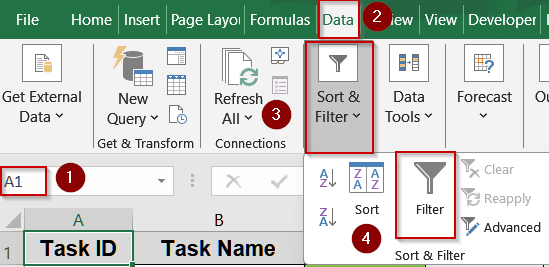
➤ Open the dropdown arrow in the Status column to access filter options.
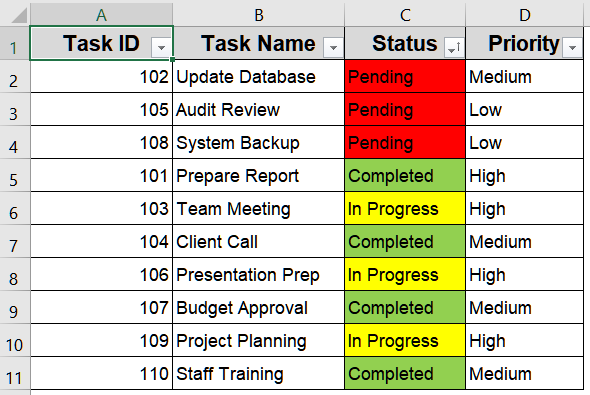
➤ Hover over Sort by Color and pick the cell color you want to appear at the top or bottom.

This immediately rearranges the rows, grouping all tasks with the selected color together for clear visual organization.
Advanced Sorting with Custom Sort for Multiple Colors
When you need greater control over your data, especially if sorting multiple colors or using both font and cell colors, the Custom Sort feature is ideal. This method lets you create multiple sorting levels and organize your table exactly as required, ensuring that rows appear in the precise order you want.
Steps:
➤ Open the Sort dialog from the Data tab >> Sort in the Sort & Filter group.

➤ You can also access this via the Sort & Filter options from the Home tab >> Editing group >> Sort & Filter >> Custom Sort….

➤ In the Sort by dropdown, choose the column you want to sort (e.g., Status).
➤ Under Sort On, select either Cell Color or Font Color depending on your requirement.
➤ In the Order dropdown, pick the specific color you want to appear first.
➤ (Optional) Add more sorting levels by clicking Add Level and repeating the previous step for additional colors.
➤ Click OK to apply the custom sort, rearranging rows according to your chosen color hierarchy.

This approach allows precise organization when multiple colors are involved, making complex datasets visually structured and easy to analyze.

Sort Cells Highlighted by Conditional Formatting
Even if your cells are highlighted using Conditional Formatting, Excel can still sort them by color. This method allows you to bring all dynamically highlighted cells based on values, text, or formulas by bringing them to the top or bottom, making it easier to review key data.
Steps:
➤ Apply conditional formatting to your data using rules that highlight cells based on value, text, or formulas.

➤ Select the cell with color you want to see at top such as Red.
➤ Right-click the cell >> Choose Sort >> Choose Put Selected Cell Color On Top.

➤ Choose Expand the Selection and click Sort.
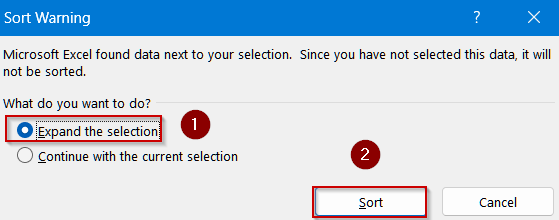
This method ensures that cells formatted dynamically by rules are still visually organized, helping you analyze important information efficiently.

Frequently Asked Questions
Can I sort by multiple colors at once in Excel?
Yes, using the Custom Sort feature, you can add multiple levels to sort several colors simultaneously, ensuring rows with different cell or font colors are grouped according to your preferred hierarchy.
Will sorting by color affect my data values?
No, sorting by color only rearranges rows based on cell or font colors. The underlying data remains unchanged, so formulas, references, and values continue to function correctly after sorting.
Can I sort by conditional formatting colors?
Yes, Excel recognizes colors applied through conditional formatting. You can sort by these highlighted cells to bring important or rule-based data to the top or bottom of your table efficiently.
Is it possible to sort by font color instead of cell color?
Absolutely. In the Custom Sort options, choose Sort On >> Font Color, then select the desired color to prioritize rows with specific text formatting rather than background cell colors.
Can I quickly revert back after sorting by color?
Yes, you can undo the sort immediately by pressing Ctrl + Z . Alternatively, reapply the original sort order or use a helper column with original row numbers to restore the initial arrangement.
Wrapping Up
In this tutorial, we explored multiple ways to sort data by color in Excel, including quick AutoFilter sorting, advanced Custom Sort, Home tab sorting, and conditional formatting. Applying these methods improves data organization and visual clarity effectively. Feel free to download the practice file and share your feedback.