Converting hours to minutes in Excel is a common task for working with time-based datasets, such as employee work logs, project durations, or task management. By using Excel’s built-in tools and functions, we can easily convert hours to minutes and display the results directly in our dataset.
Follow the steps below to convert hours to minutes in Excel and display them in your dataset:
➤ In your dataset, head to the column where you want to display the time converted to minutes and put the following formula:
=HOUR([C1])*60 + MINUTE([C1])
➤ Replace C1 with the cell reference containing the time value you want to convert into total minutes.
➤ Select the entire column and change the cell format to Number.
➤ Then, double-click on the fill handle to apply the formula across the column.
In this article, we will learn 4 effective methods of converting hours to minutes in Excel.
Convert Hours to Minutes Using HOUR and MINUTE Functions
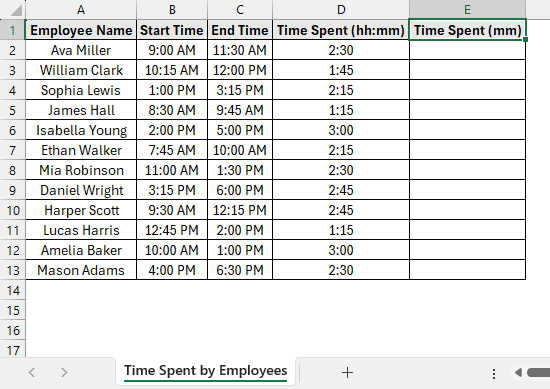
In the sample dataset, we have a worksheet called “Time Spent by Employees” containing information about Employee Name, Start Time, End Time and Time Spent by employees in hours and minutes.
By using the HOUR and MINUTE functions, we will now convert the time values in column D into minutes and display the results in column E. The updated dataset will be stored in a separate worksheet called “HOUR With MINUTE Function”.
The HOUR and MINUTE functions in Excel allow users to convert a time value into its hour and minute components, making it easier to perform time-based calculations.
Steps:
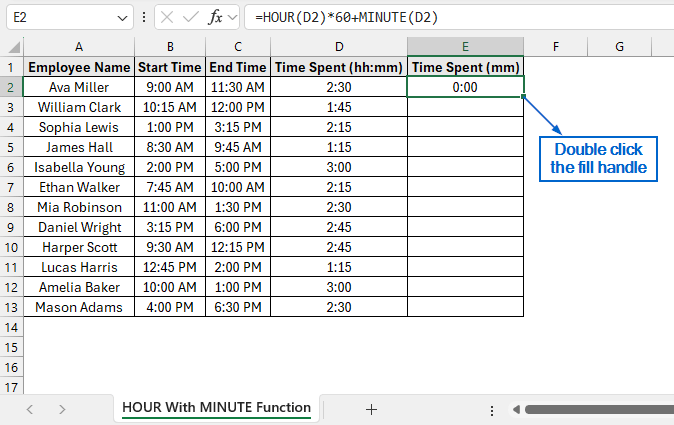
➤ Head to the HOUR With MINUTE Function worksheet, select cell E2 and put the following formula:
=HOUR(D2)*60+MINUTE(D2)
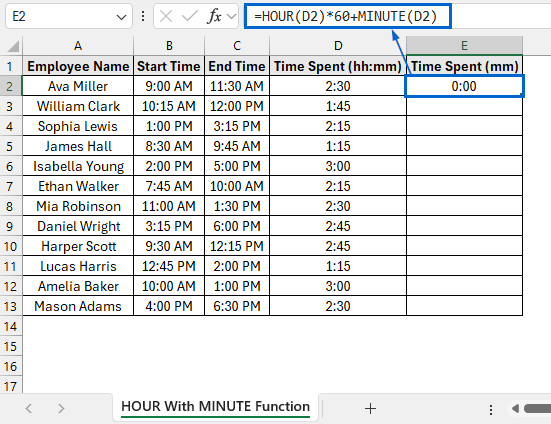
➧ “HOUR(D2)*60” part takes the hour value from cell D2 and converts it to minutes by multiplying with 60.
➧ “+MINUTE(D2)” part adds the minute value from cell D2 with the converted hours to get the total minutes.
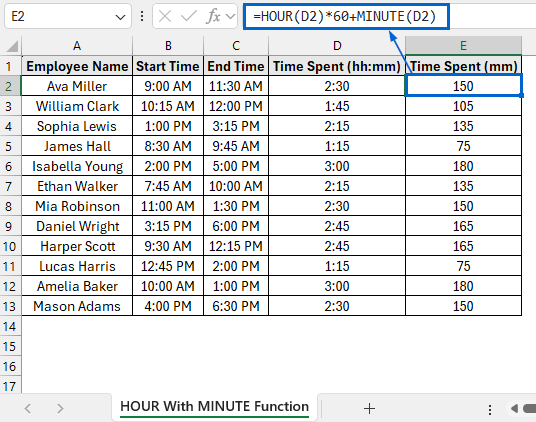
➤ Next, select cell E2 again and double-click on the fill handle to apply the formula across column E.
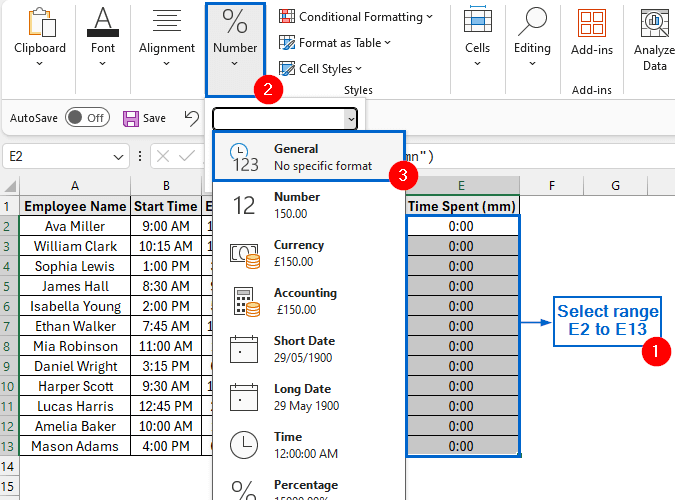
➤ Then, select the range E2 to E13, and change the numer format to General.
Note:
To change the number format, go to Home >> Number group and choose General from the dropdown menu.
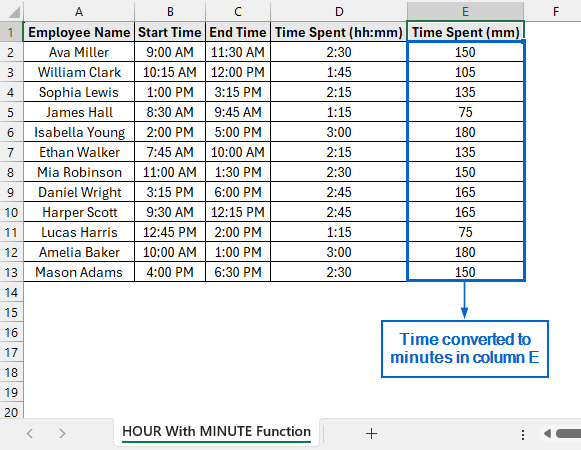
➤ Time converted to minutes should now be displayed in column E.
Use the CONVERT Function to Change Hours to Minutes
The CONVERT function in Excel is a useful tool that allows users to change a number from one measurement unit to another. Working with the same dataset, we will now use the CONVERT function to change the time values in column D into minutes and show the results in column E. We will display the updated dataset in a separate “CONVERT Function” worksheet.
Steps:
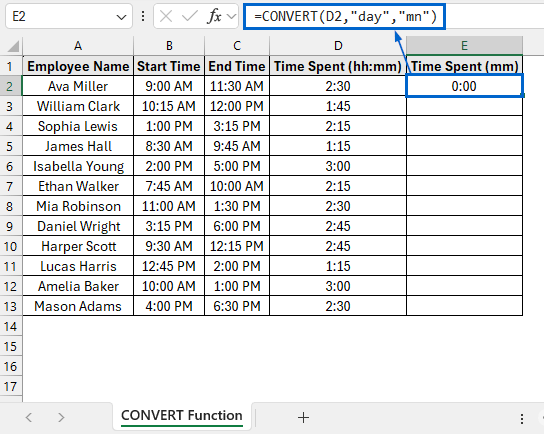
➤ Go to the CONVERT Function worksheet, select cell E2 and put the following formula:
=CONVERT(D2,"day","mn")
Note:
This formula uses the CONVERT function to turn the time value in cell D2, stored as a fraction of a day, into its equivalent number of minutes.
➤ Select cell E2 again and double-click the fill handle to apply the formula to the rest of the column.
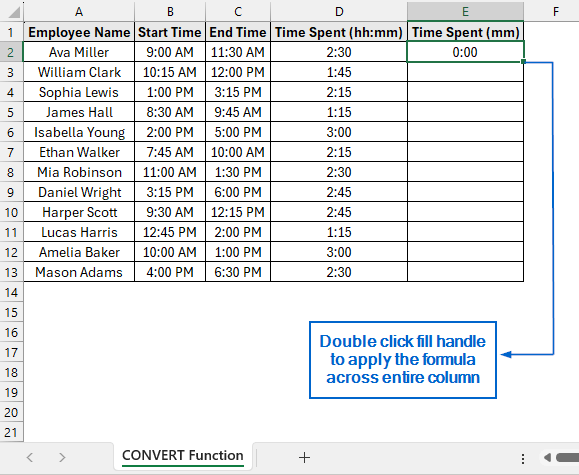
➤ Next, select cells E2 to E13 and set the number format to General.
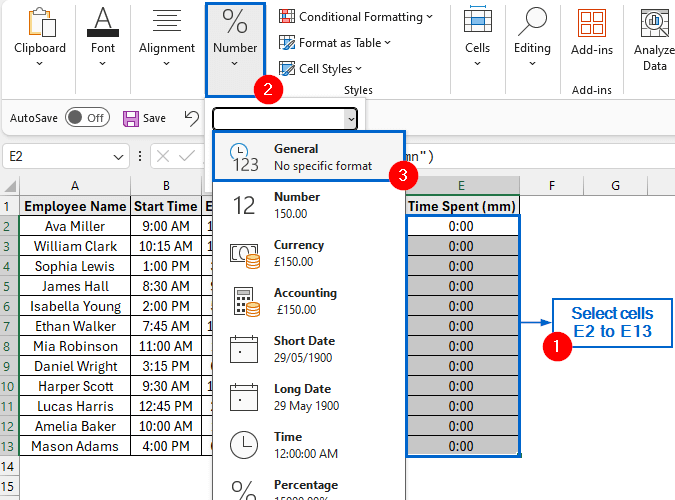
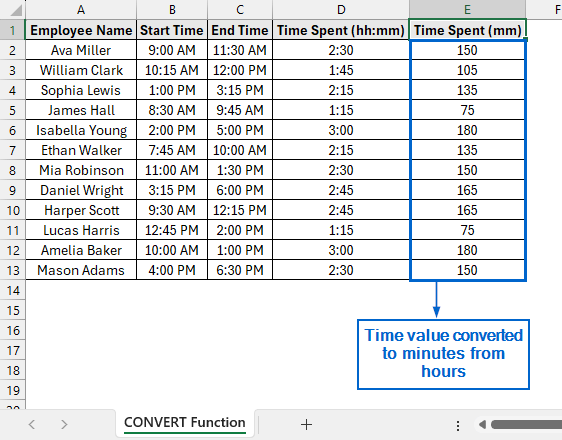
➤ Time values converted into minutes are shown in column E.
Convert Hour to Minute by Formatting Cells with Context Menu
The context menu in Excel provides quick access to commonly used commands, allowing users to perform tasks more efficiently without having to navigate through the ribbon.
We will again work with the same dataset, use context menu to format the cells, and then apply a simple formula to convert time from hours to minutes in column E. The updated dataset will be displayed in a separate worksheet called “Context Menu”.
Steps:
➤ Head to the Context Menu worksheet, select the range E2:E13, right-click to open the context menu, and choose Format Cells from the options.
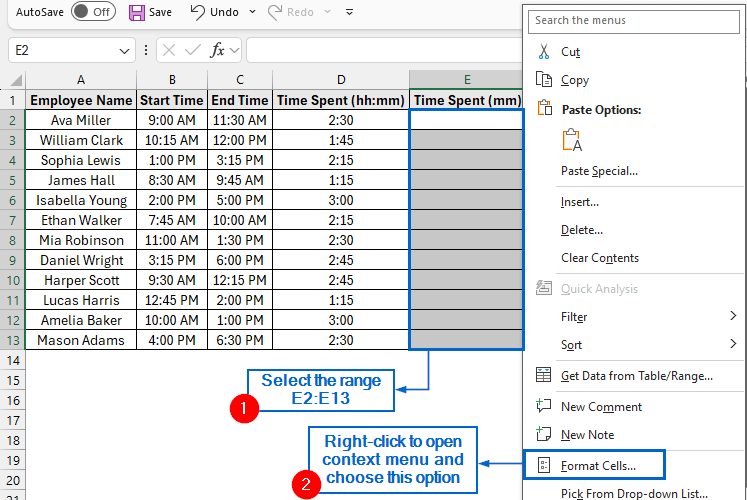
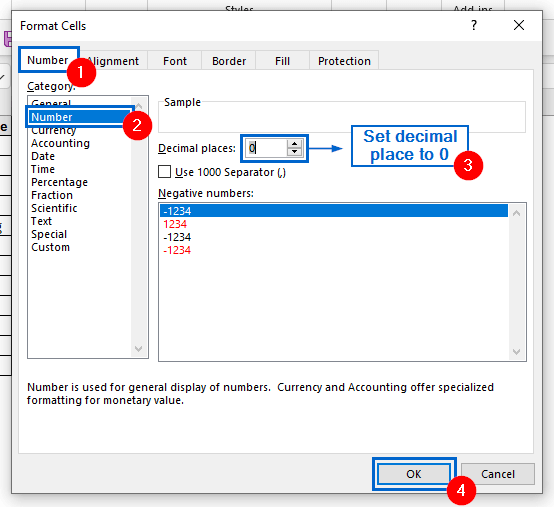
➤ In the Format Cells dialogue box, go to the Number tab, select Number from the Category list and click OK to confirm the selection.
Note:
Set the decimal places to ‘0’ in the Number menu to display whole minutes.
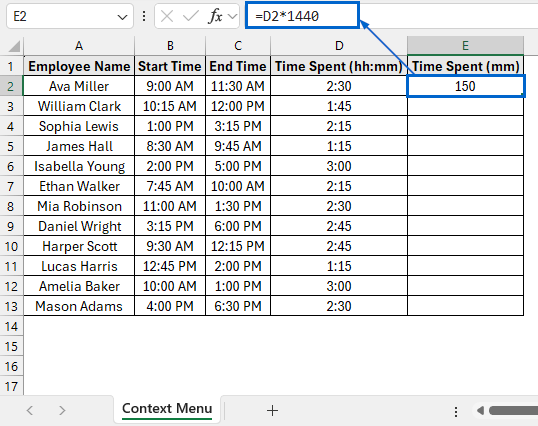
➤ Next, select cell E2 and enter the following formula:
=D2*1440
Note:
This formula multiplies the time value in cell D2 by 1440 (24×60), converting the time in D2 to minutes.
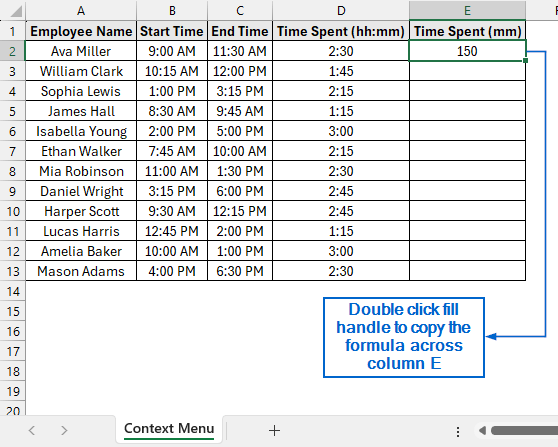
➤ Then, select cell E2 again and double-click the fill handle to copy the formula down the entire column.
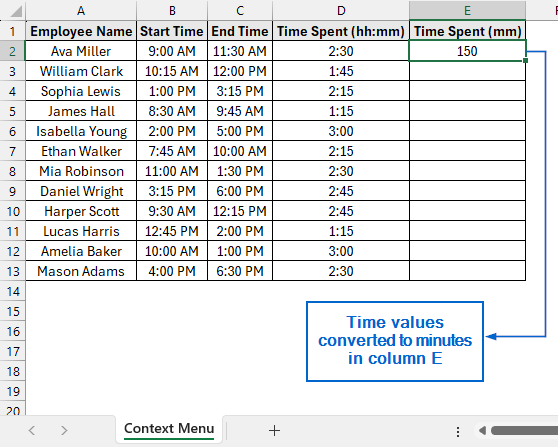
➤ Column E now displays the time values converted into minutes.
Format Cells with Main Menu and Convert Hour to Minute
Unlike the previous method, this approach requires navigating through the main menu to access the Format Cells option. It is particularly useful when you want full access to all formatting features and prefer managing formatting directly from the ribbon interface.
Using the same dataset again, we will now use the main menu to format cells and apply a formula to convert hours into minutes in column E. We will display the updated dataset in a separate “Main Menu” worksheet.
Steps:
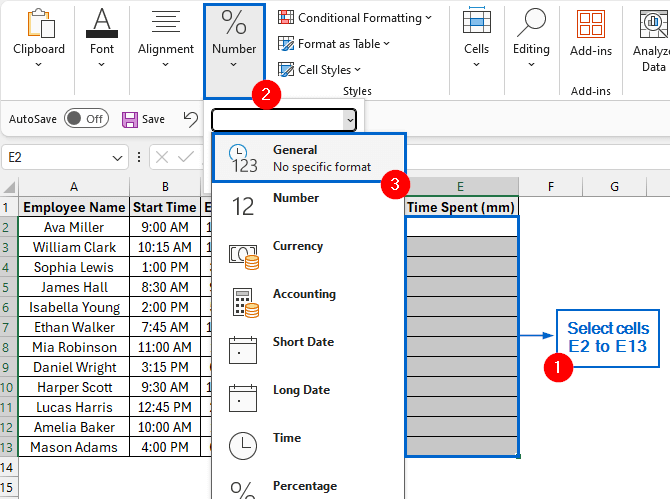
➤ Head to the Main Menu worksheet, select cells E2 to E13, then from the main menu, navigate to the Number group and choose General from the dropdown.
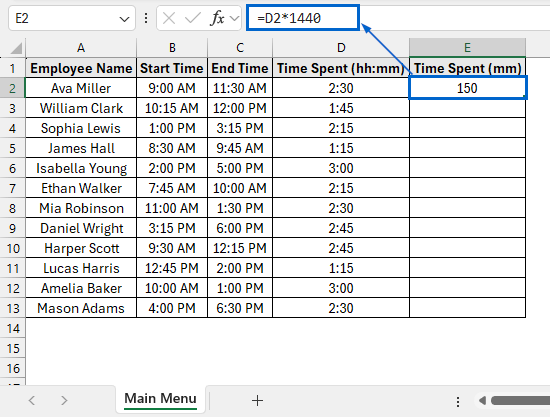
➤ Select cell E2 and put the following formula:
=D2*1440
Note:
This formula works the same way as in the previous method, converting time from hours to minutes by multiplying the value in cell D2 by 1440 (24 × 60).
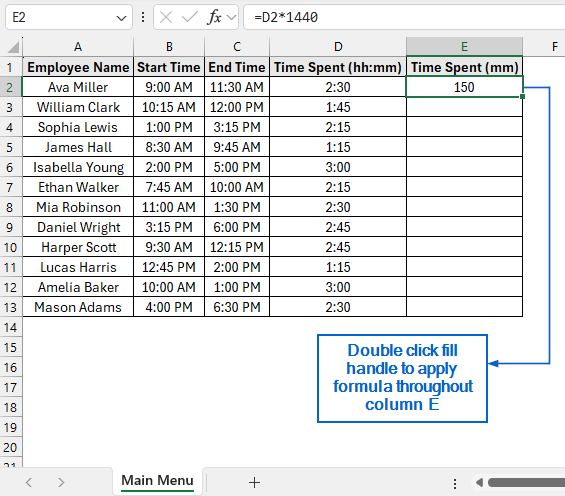
➤ Now, select cell E2 again and double the fill handle to apply the formula throughout column E.
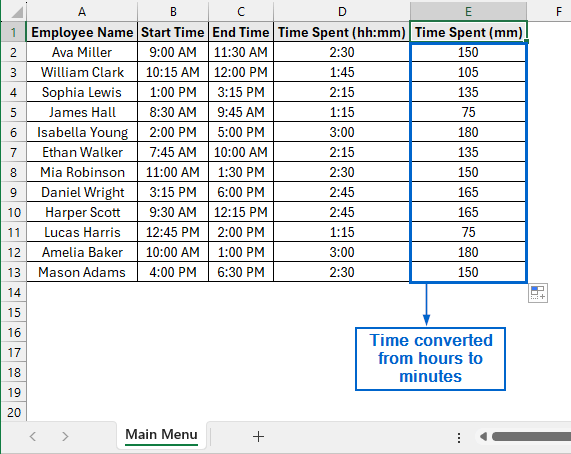
➤ The time converted from hours to minutes is now displayed in column E.
Downloadable Resources
Get our practice workbook or necessary files that we have worked with to prepare this article.
Convert Hours to Minutes in Excel.xlsx
Frequently Asked Questions
Why Is the CONVERT Function Returning an Error?
The CONVERT function might return an error if the input value is not recognized as a valid number. To fix this issue, make sure the cell contains a proper numeric or time value rather than text or an invalid entry.
Which Method Should I Use for Working With Large Datasets?
For large datasets, the HOUR and MINUTE functions or the “=D2*1400” formula would be the most efficient. Both these methods calculate results directly from Excel’s internal time values, making them faster to execute than complex functions.
Concluding Words
Knowing how to convert hours to minutes in Excel is crucial for performing accurate time-based calculations and data analysis. In this article, we have discussed four effective methods for converting time from hours to minutes in Excel, including using the HOUR with MINUTE functions, CONVERT function, Context menu, and Main Menu. Feel free to try out each method and select one that best aligns with your needs.