Macros in Excel are effective tools that automate repetitive tasks, but sometimes you’ll need to remove them. Maybe a macro is outdated, causing errors, or you simply want a clean workbook without embedded code. Knowing how to remove macros is essential for maintaining organized and secure files.
In this article, you’ll learn five effective methods to remove macros from Excel. We’ll cover deleting them directly from the Macro dialog box, using shortcut keys, removing them from modules in the Visual Basic Editor (VBE), and clearing all macros by saving in a non-macro format.
Steps to remove macros from Excel:
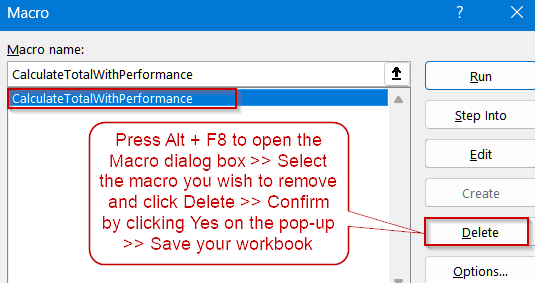
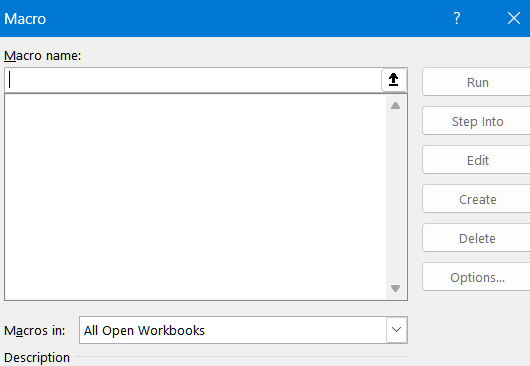
➤ Press Alt + F8 to open the Macro dialog box.
➤ Use the arrow keys to highlight the macro to be deleted.
➤ Press the Delete option.
➤ Confirm the deletion when prompted.
➤ Press Ctrl + S to save your workbook to finalize the removal.
Delete Macros Using the Macro Dialog Box
Deleting macros through the Macro dialog box is the quickest and most user-friendly method, especially for beginners. This approach lists every macro stored in your workbook, letting you review their names, choose the one you no longer need, and safely remove it without affecting your data.
Steps:
➤ Go to the Developer tab >> In the Code group, click Macros.

➤ Select the macro you want to remove from the list.
➤ Click Delete.
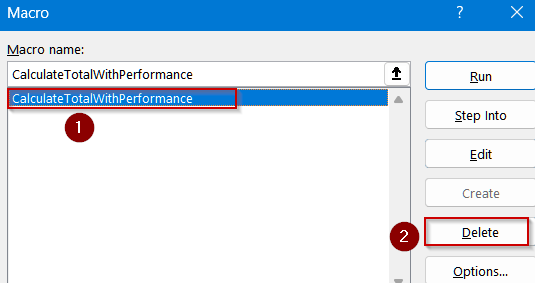
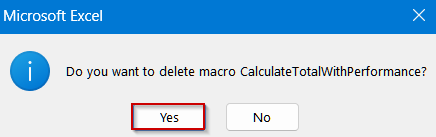
➤ When prompted, confirm the deletion by clicking Yes or OK.
➤ Press Ctrl + S to save your workbook to finalize the removal.
Quickly Remove Macros Using Shortcut Keys
If you’re comfortable with keyboard shortcuts, this method saves time. You can open the Macro dialog box and delete a macro without using the mouse much for an interrupted workflow.
Steps:
➤ Press Alt + F8 to open the Macro dialog box.
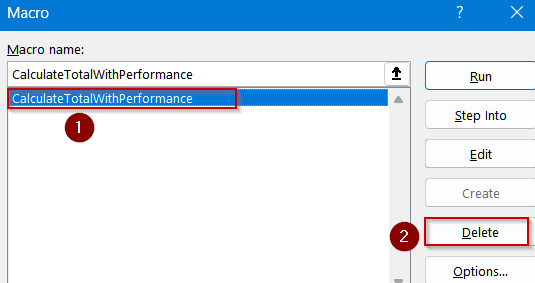
➤ Use the arrow keys to highlight the macro to be deleted.
➤ Press the Delete option.
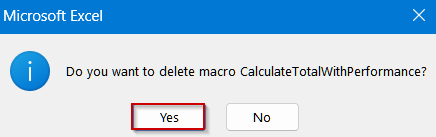
➤ Confirm the deletion when prompted.
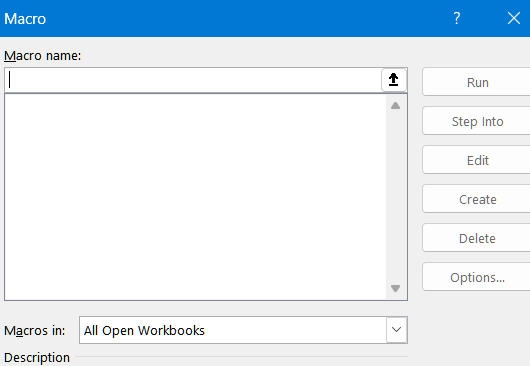
➤ Press Ctrl + S to save your workbook to finalize the removal.
Remove Macros from Excel Modules Using the Visual Basic Editor
Deleting macros from Excel modules using the Visual Basic Editor (VBE) is a hands-on approach that allows you to view and manage the underlying VBA code. This method is particularly helpful when you need to review or back up macros before permanently removing them.
Steps:
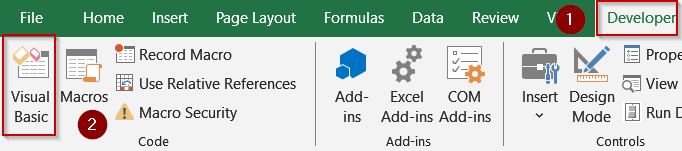
➤ Go to the Developer tab >> Click on Visual Basic to open the Visual Basic Editor (VBE).
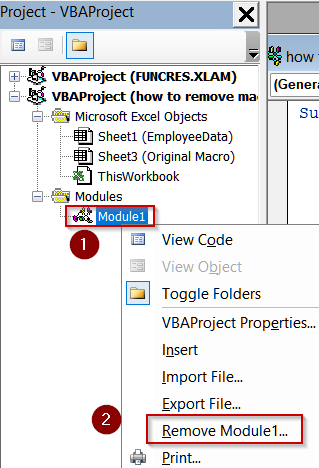
➤ Expand your workbook project and locate the module that contains the macro.
➤ Right-click the module and select Remove Module.
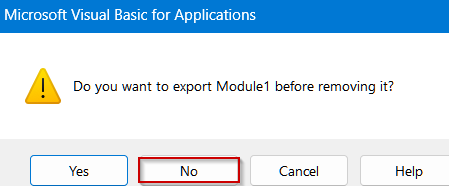
➤ When prompted, click No if you don’t need a backup, or Yes to export a copy before deletion.
➤ Save and close the workbook.
Apply Shortcut Keys to Remove Macros from Modules
Using shortcut keys to remove macros from modules is an efficient method suited for advanced Excel users familiar with the Visual Basic Editor (VBE). It eliminates the need for mouse clicks, allowing you to navigate, select, and remove unwanted macros entirely through keyboard commands.
Steps:
➤ Press Alt + F11 to open the VBE.
➤ Use Ctrl + R to display the Project Explorer.
➤ Use Tab and arrow keys to navigate to the desired module.
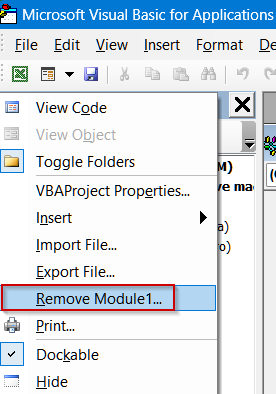
➤ Press Shift + F10 (or the context menu key) to open the context menu.
➤ Choose Remove Module using the arrow keys, and press Enter.
➤ Save your workbook to confirm the removal.
Save File as .xlsx to Delete All Macros
Deleting all macros by saving your file as an Excel Workbook (.xlsx) is the fastest way to completely strip VBA code. This approach is perfect when you need a clean macro-free version of your workbook without manually deleting each macro individually.
Steps:
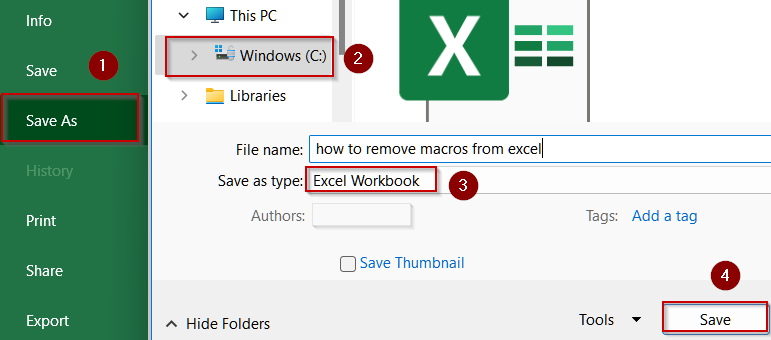
➤ Click File >> Save As.
➤ In the Save as type dropdown, choose Excel Workbook (*.xlsx).
➤ Pick a location and click Save.
➤ Close and reopen the new .xlsx file and none of the macros will remain.
Frequently Asked Questions
What impact does deleting a macro have on my Excel workbook?
Deleting a macro removes its automated instructions but leaves your data, formatting, and formulas unchanged. However, any features, buttons, or processes dependent on that macro will stop working until replaced or reprogrammed accordingly.
Can a deleted macro be recovered if I accidentally remove it?
Once deleted and saved, macros cannot be directly recovered. To prevent permanent loss, export the module or create a backup workbook beforehand. Without these precautions, you’ll need to rewrite or re-import the macro manually.
Does saving a workbook as .xlsx permanently remove all macros?
Yes, saving your file as .xlsx strips every macro permanently, as this format doesn’t support VBA code. To preserve your data safely without macros, save a copy in .xlsx while retaining a macro-enabled version.
Is it necessary to use the Visual Basic Editor to delete macros?
Not always. You can delete macros directly through the Macro dialog box (Alt + F8) without opening the Visual Basic Editor. This method is faster for basic deletions, especially if you’re unfamiliar with VBA.
Can removing macros enhance workbook performance and reduce security risks?
Yes. Removing unused macros can slightly boost performance, shrink file size, and reduce security vulnerabilities. Macros may contain malicious code, so deleting unnecessary ones helps protect your workbook and ensures smoother, more reliable operation overall.
Wrapping Up
In this tutorial, you explored five different methods to remove macros from Excel. Whether you delete them using the Macro dialog box, shortcut keys, the VBE, or by saving as an .xlsx file, these approaches help keep your workbooks clean and secure. Practice using the provided dataset to ensure you’re comfortable removing macros before applying these methods to important spreadsheets.