
The COUNTIF function in Google Sheets is used for counting cells that meet specific criteria. Whether you need to count text values, numbers, blank cells, boolean TRUE or FALSE, or apply complex conditions, the COUNTIF function can simplify the task. In this article, we will provide a complete guide with formula examples and troubleshooting techniques for the COUNTIF function in Google Sheets.
Syntax of COUNTIF Function in Google Sheets
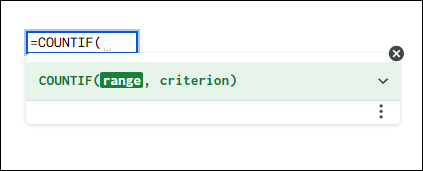
The COUNTIF function counts the number of cells in a range that meet a single criterion.
=COUNTIF(range, criterion)
- range: The range of cells you want to examine.
- criterion: The condition that determines which cells to count. This can be a number, text, cell reference, or an expression.
Using COUNTIF with Text Criteria in Google Sheets
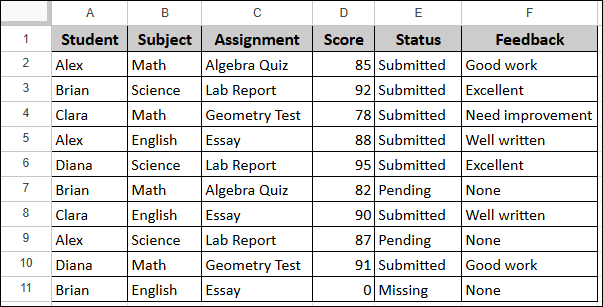
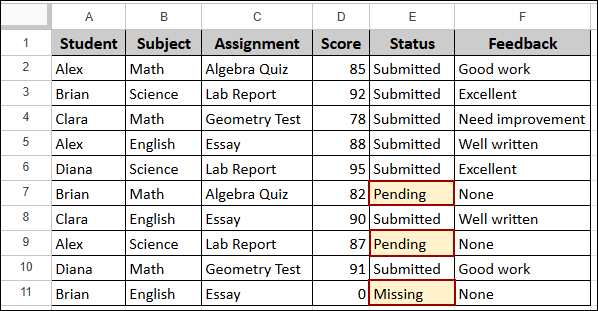
In this section, we will explore how to use the COUNTIF function with various text criteria. Suppose we have a sample dataset containing Student, Subject, Assignment, Score, Status, and Feedback columns.
Counting Cells That Contain Specific Text
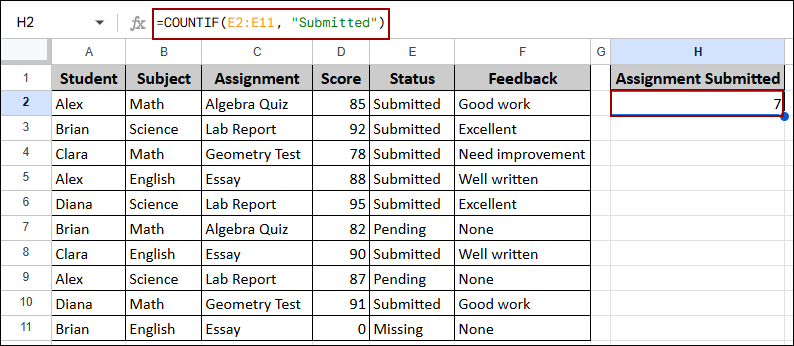
You can use the COUNTIF function to count cells that contain an exact text match. Here, we will count how many assignments have a “Submitted” status.
➤ Select cell H2, write down the formula below, and press ENTER.
=COUNTIF(E2:E11, "Submitted")
Formula Breakdown:
- E2:E11: The range of cells in the Status column that we want to examine.
- “Submitted”: The exact text criterion we are looking for.
- COUNTIF(…): Counts all cells in the range that match “Submitted”.
As a result, the formula returns 7, indicating that seven assignments have been submitted.
Counting Cells with Partial Text Matches
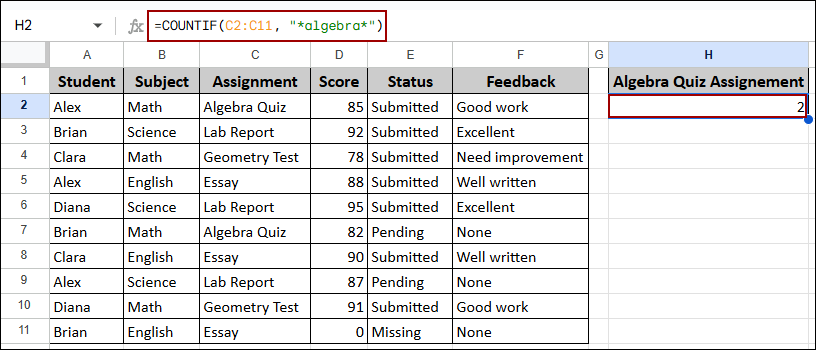
You can also count cells that contain partial text using wildcard characters. The asterisk (*) represents any number of characters. Here, we will count how many assignments contain the word “algebra” in the Assignment column.
➤ Select cell H2, insert the following formula, and click ENTER.
=COUNTIF(C2:C11, "*algebra*")
Formula Breakdown:
- C2:C11: The range of cells in the Assignment column.
- “*algebra*”: The wildcard criterion that matches any cell containing “algebra” anywhere in the text.
- COUNTIF(…): Counts all cells that contain the specified partial text.
Thus, the formula returns 2, showing that two assignments contain “algebra” in their names.
Counting Cells Not Equal to Specific Text
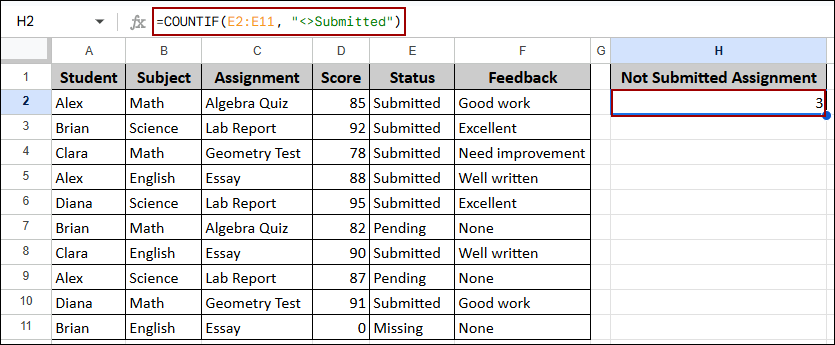
Sometimes you need to count cells that do not match a specific value. You can do this by using the not equal to operator (<>). Here, we will count assignments that are not “Submitted”.
➤ Choose cell H2, enter the formula, and hit ENTER.
=COUNTIF(E2:E11, "<>Submitted")
Formula Breakdown:
- E2:E11: The range we are evaluating in the Status column.
- “<>Submitted”: The criterion that matches any value not equal to “Submitted”.
- COUNTIF(…): Counts all cells that don’t contain “Submitted”.
As a result, the formula returns 3, representing assignments with “Pending” or “Missing” status.
Counting Blank and Non-Blank Cells Using COUNTIF Function
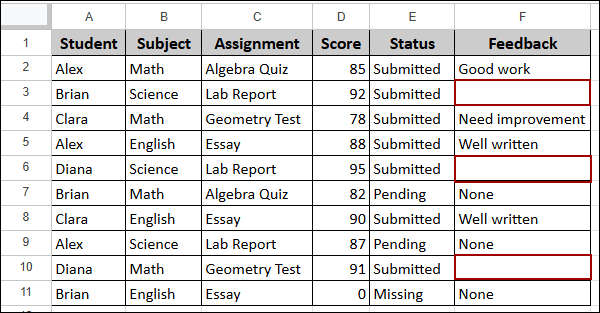
The COUNTIF function is useful for counting both empty and non-empty cells in a range. This helps you track missing data or ensure data completeness. Suppose we have the same dataset with some blanks in the Feedback column.
Counting Non-Blank Cells in a Range
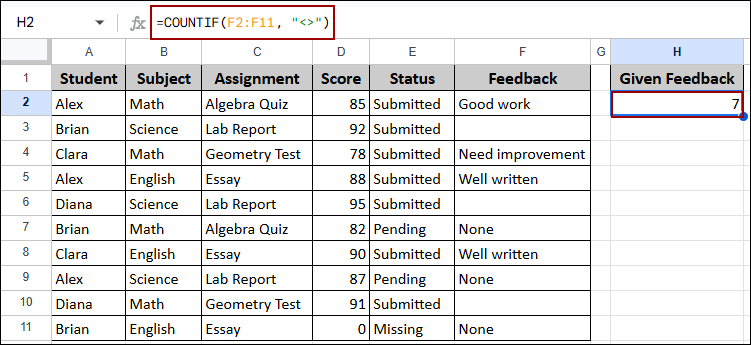
To count cells that contain any value (text, numbers, or formulas), you can use the not equal to blank criterion. Here, we will count how many students have received feedback.
➤ Select cell H2, write down the formula below, and press ENTER.
=COUNTIF(F2:F11, "<>")
Formula Breakdown:
- F2:F11: The range of cells in the Feedback column.
- “<>”: The criterion that matches any non-blank cell.
- COUNTIF(…): Counts all cells that contain any value.
Thus, the formula returns 7, indicating that seven students have received feedback.
Counting Empty Cells in a Range
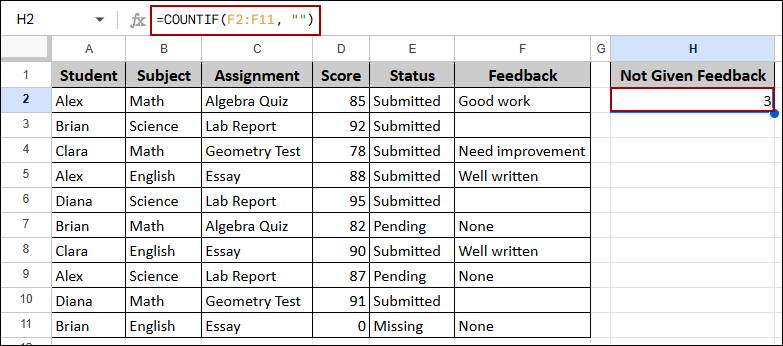
You can also count blank or empty cells using the empty string criterion. Here, we will count how many students have not received feedback yet.
➤ Choose cell H2, insert the formula, and click ENTER.
=COUNTIF(F2:F11, "")
Formula Breakdown:
- F2:F11: The range we are checking in the Feedback column.
- “”: The criterion that matches empty cells.
- COUNTIF(…): Counts all blank cells in the range.
As a result, the formula returns 3, showing that three students are missing feedback.
Counting TRUE Values Using COUNTIF in Google Sheets
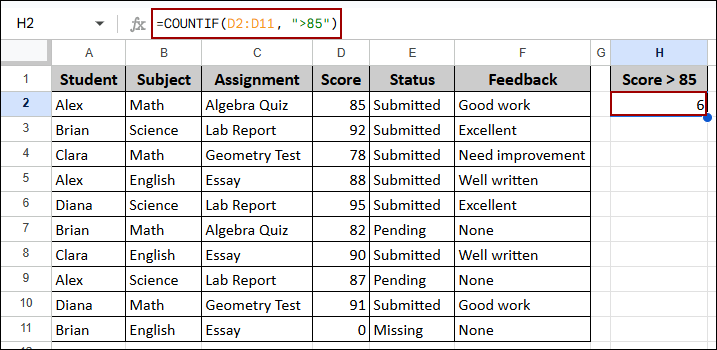
The COUNTIF function can also count cells based on numerical criteria using comparison operators. Here, we will count how many students scored greater than 85.
➤ Select cell H2, enter the following formula, and hit ENTER.
=COUNTIF(D2:D11, ">85")
Formula Breakdown:
- D2:D11: The range of cells in the Score column.
- “>85”: The criterion that checks if values are greater than 85.
- COUNTIF(…): Counts all cells where the score exceeds 85.
Thus, the formula returns 6, indicating that six students scored above 85.
Google Sheets COUNTIFS Function for Multiple Criteria
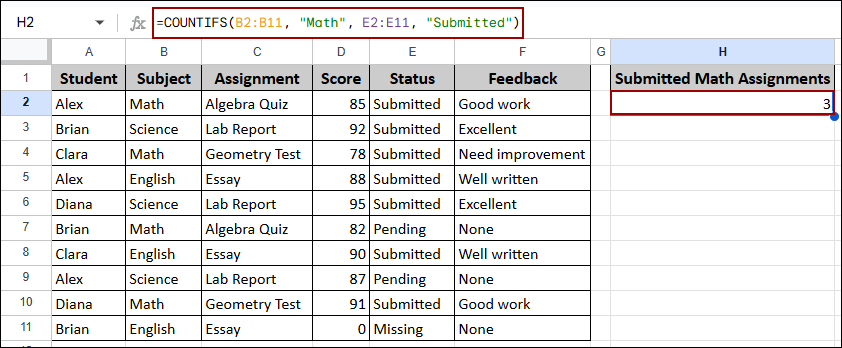
When you need to apply multiple conditions simultaneously, you can use the COUNTIFS function instead of the COUNTIF function. Here, we will count how many “Math” assignments have been “Submitted”.
➤ Choose cell H2, write down the formula, and press ENTER.
=COUNTIFS(B2:B11, "Math", E2:E11, "Submitted")
Formula Breakdown:
- B2:B11, “Math”: The first criterion checks if the Subject is “Math”.
- E2:E11, “Submitted”: The second criterion checks if the Status is “Submitted”.
- COUNTIFS(…): Counts cells that meet both criteria simultaneously.
As a result, the formula returns 3, showing that three Math assignments have been submitted.
Counting Duplicate Values Using COUNTIF Function
The COUNTIF function can also be used for identifying and counting duplicate values. Here, we have a list of students in column H, and we want to count how many times each student appears in the main dataset.
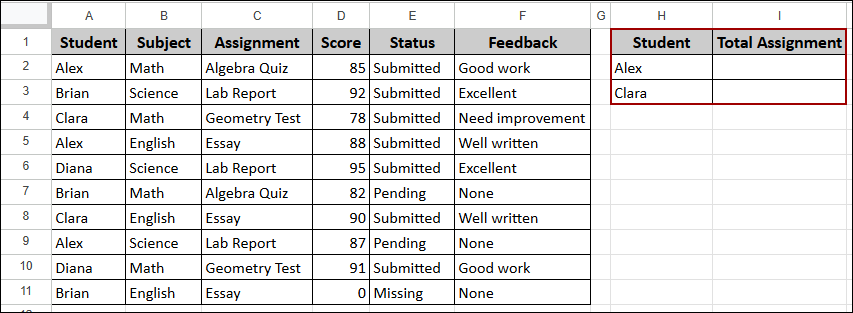
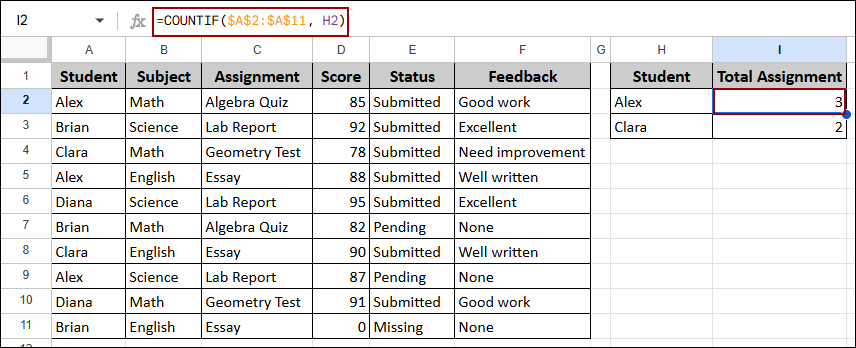
➤ Select cell I2, insert the following formula, click ENTER and drag down the Fill Handle to cell I3.
=COUNTIF(A$2:A$11, H2)
Formula Breakdown:
- $A$2:$A$11: The absolute reference to the Student column in the main dataset, ensuring the range does not change when copied.
- H2: The relative reference to the student name we are counting.
- COUNTIF(…): Counts how many times the student name in H2 appears in the range.
Thus, the formula returns 3 for Alex and 2 for Clara, showing the total number of assignments each student has in the dataset. You can also drag this formula down to count duplicates for other students.
Counting Cells by Color in Google Sheets
Google Sheets does not have a built-in function to count cells by color, but you can create a custom function using Apps Script. Suppose we have the same dataset containing some colored cells in the Status column. Here, we will count cells in the Status column that have a specific background color.
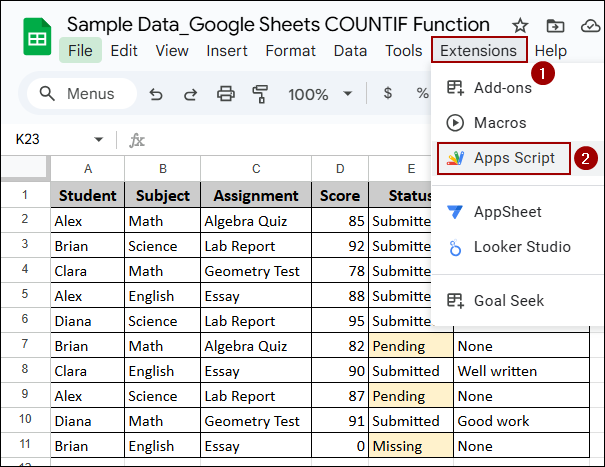
➤ Click on Extensions in the menu bar, then select Apps Script.
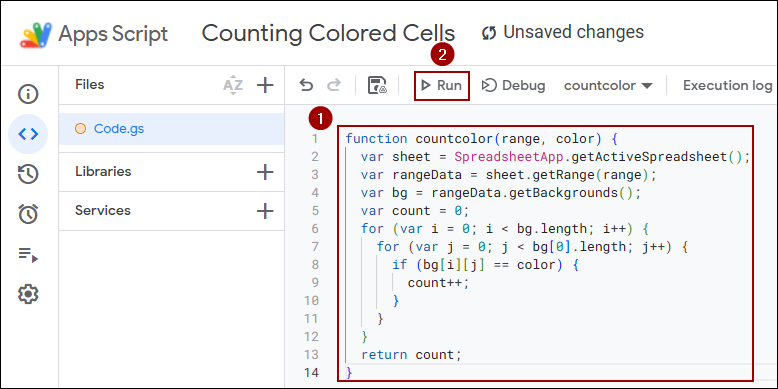
➤ In the Apps Script editor, paste the following script and click Run.
function countcolor(range, color) {
var sheet = SpreadsheetApp.getActiveSpreadsheet();
var rangeData = sheet.getRange(range);
var bg = rangeData.getBackgrounds();
var count = 0;
for (var i = 0; i < bg.length; i++) {
for (var j = 0; j < bg[0].length; j++) {
if (bg[i][j] == color) {
count++;
}
}
}
return count;
}
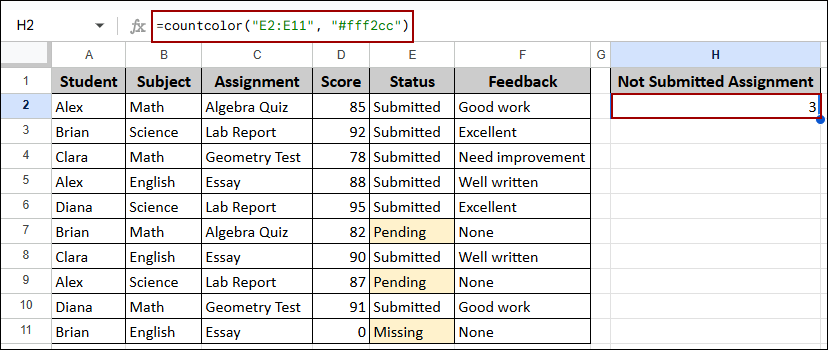
Now you can use this custom function in the sheet. Here, we will count cells with a light orange background color (hex code #fff2cc) in the Status column.
➤ Select cell H2, enter the formula, and press ENTER.
=countcolor("E2:E11", "#fff2cc")
Formula Breakdown:
- “E2:E11”: The range of cells to check for colored backgrounds.
- “#fff2cc”: The hex color code of the background color you want to count.
- countcolor(…): The custom function that loops through the range and counts matching colored cells.
As a result, the formula returns 3, showing that three cells in the Status column have the specified background color.
Fixing COUNTIF Not Working in Google Sheets
Sometimes the COUNTIF function may not return the expected results. This usually happens when numbers are stored as text or when cell formatting issues occur. Let’s explore this common problems and their solutions.
Problem:
Suppose in the Score column some of the numbers are stored as text. When numbers are stored as text format, the COUNTIF function may not recognize them correctly for numerical comparisons. Here, we will try to count scores greater than 90 in the Score column where numbers are stored as text.
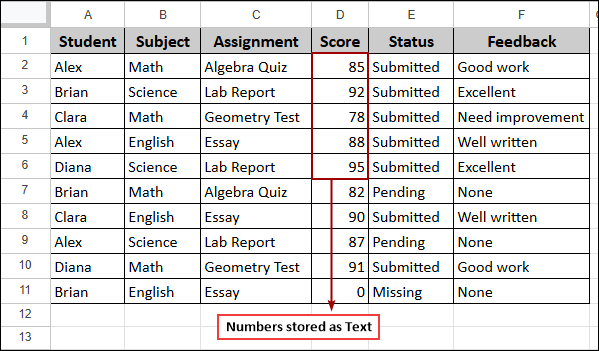
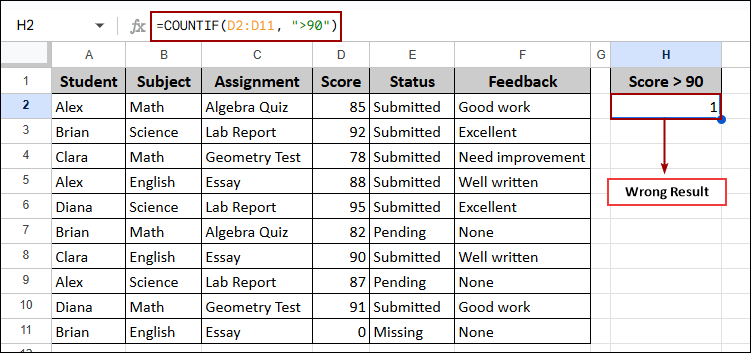
➤ Choose a cell, write down the formula, and click ENTER.
=COUNTIF(D2:D11, ">90")
You will notice the formula returns 1, which is incorrect. This happens because the numbers in the Score column are formatted as text, and Google Sheets treats them differently during comparison.
Solution:
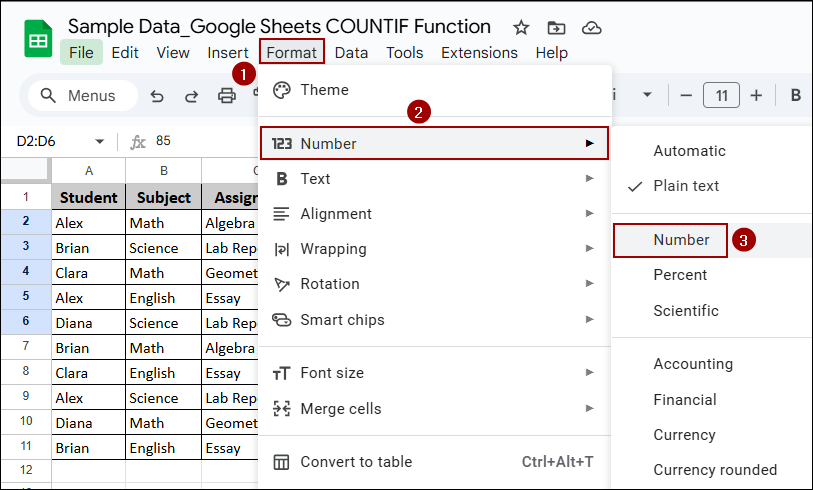
To fix this issue, you need to convert the text-formatted numbers to actual number format.
➤ Select the range D2:D11 (Score column).
➤ Click on Format in the menu bar, then select Number.
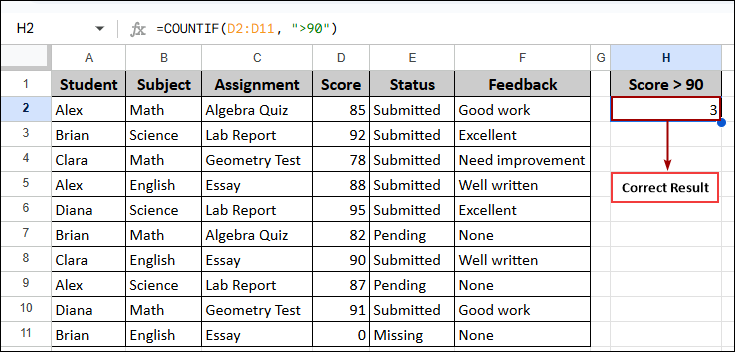
This way, the formula now returns 3, which is the correct count of scores greater than 90. By ensuring your data is properly formatted as numbers, the COUNTIF function will examine numerical criteria accurately.
Frequently Asked Questions
Why does COUNTIF function return 0 when counting dates?
This usually happens due to date formatting issues. Ensure both the criterion and the range are formatted as dates. Use the DATE function in your criterion or reference a cell containing the date instead of typing it directly.
Can COUNTIF function count cells based on partial matches at the beginning or end only?
Yes, you can use wildcards strategically. Use “text*” to match cells that start with “text”, “*text” for cells ending with “text”, and “*text*” for cells containing “text” anywhere.
Why does COUNTIF count hidden or filtered cells?
The COUNTIF function counts all cells in the range, including hidden and filtered ones. To count only visible cells, use the SUBTOTAL function with function number 103: =SUBTOTAL(103,range) for counting non-empty visible cells.
Concluding Words
Above, we have covered a complete guide to the COUNTIF function in Google Sheets. By using this function, you can count cells based on various criteria including text matches, partial matches, numerical comparisons, blank cells, and multiple conditions. We also explored how to count duplicate values, create custom functions for counting colored cells, and troubleshoot common issues like text-formatted numbers. If you have any queries, feel free to share them in the comment section below.