VLOOKUP is a powerful Excel function that we frequently use to fetch data from a lookup table. However, once the data is retrieved, we often want to remove the formula but retain only the values when preparing reports, exporting sheets, or sharing files. The process is easy, and Excel has several options to do that.
To remove the VLOOKUP formula in Excel and keep values, follow these steps:
➤ Select the cells containing the VLOOKUP formulas.
➤ Copy the selected cells using Ctrl + C .
➤ Right-click and choose “Paste Values” to replace formulas with static results.
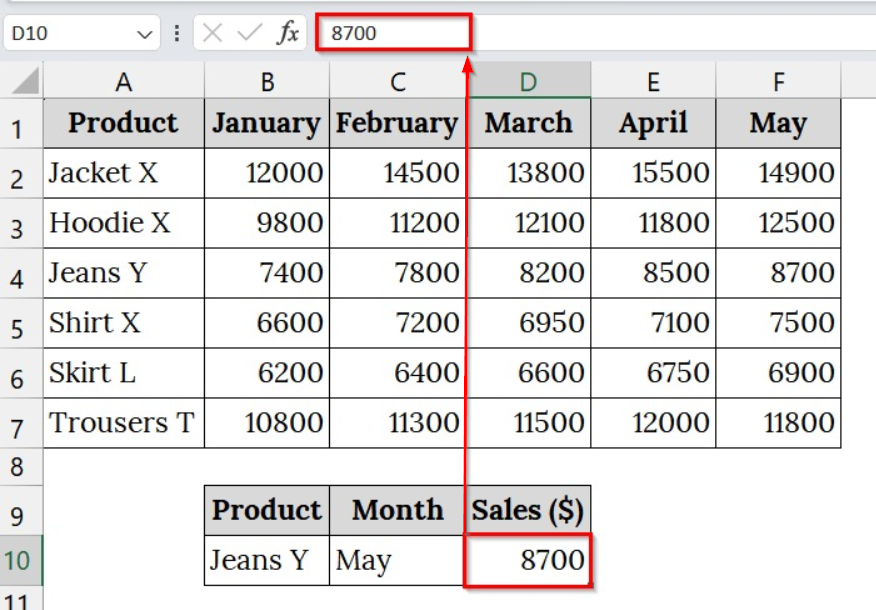
In this article, we will explain how to remove VLOOKUP formulas in Excel and keep values using the Ribbon options, keyboard shortcuts, context menus, and drop and drag method.
Copy VLOOKUP Formula and Paste as Value Only
We use the right-click context menu or Ribbon Options to replace a VLOOKUP formula with its resulting value. This is the simplest method, especially for us who prefer mouse-based actions. Compared to the keyboard shortcuts or macros, this method is visual and doesn’t require memorizing commands. We use it when we work with a few cells or teach Excel to beginners.
We have a dataset that represents a digital agency’s monthly website traffic segmented by service category. Each row tracks how many visitors landed on pages related to a specific service over five months using the VLOOKUP formula. We will use the Context Menu or Ribbon Options to remove the VLOOKUP formula and keep values only.
Steps:
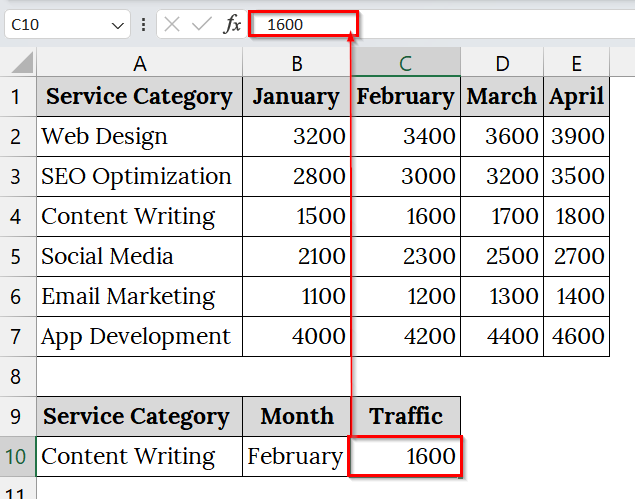
➤ Open your dataset that contains the VLOOKUP formula. For example, we have Service Category in Column A, the traffic load on pages related to a specific service over five months, contained in Columns B to E.
➤ In the below, cell A10 contains the selected service category. Cell B10 contains the selected month name. Cell C10 contains the visitor for the selected service category and month using the VLOOKUP formula.
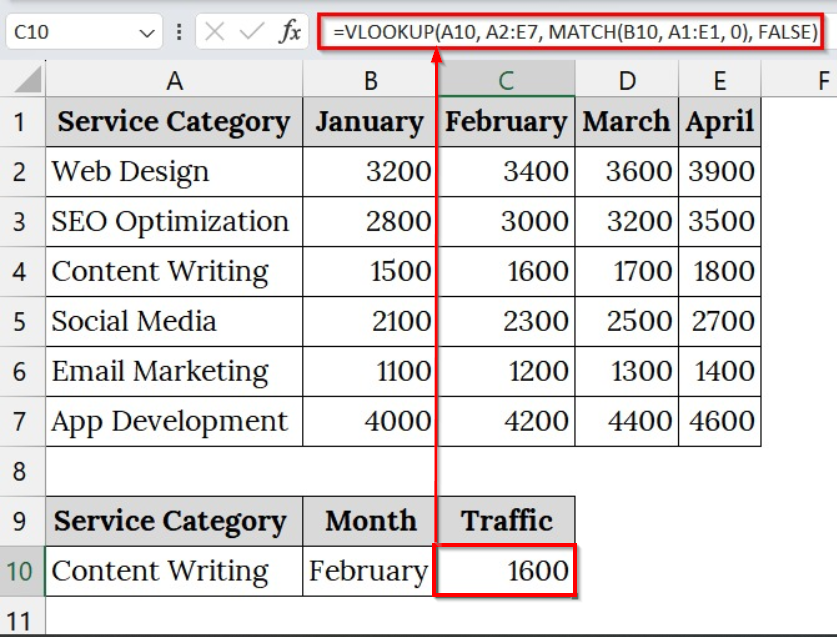
➤ Click on cell C10, which contains the VLOOKUP formula.
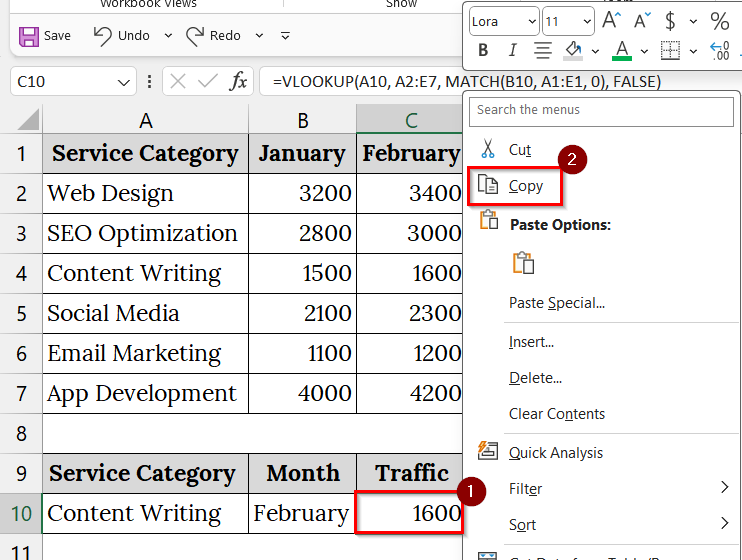
➤ Right-click on the cell and choose Copy from the context menu.
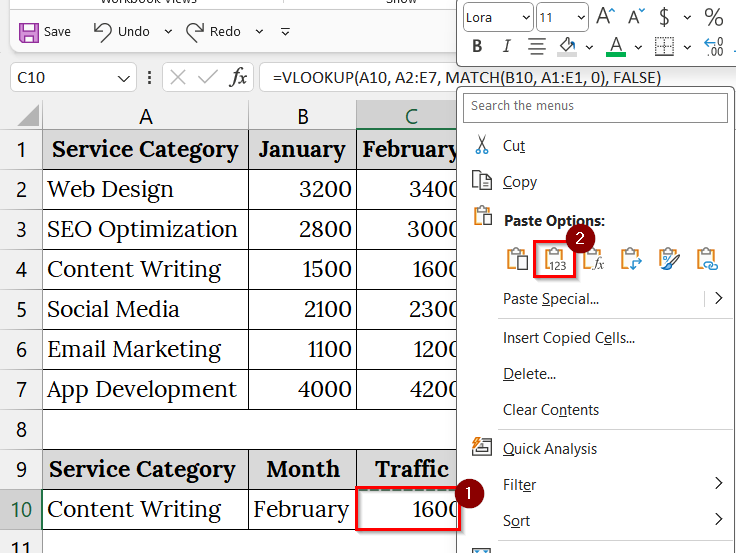
➤ Right-click again on the same cell and choose Paste Values under Paste Options.
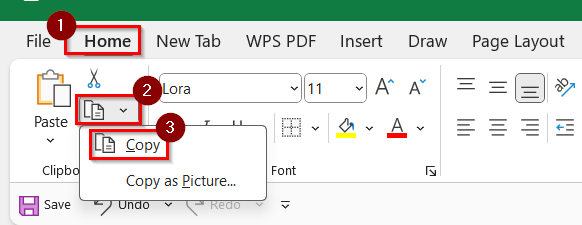
➤ Alternatively: After selecting the cell with VLOOKUP formula, you can click on the Home tab, go to the Clipboard group on the Ribbon and click Copy.
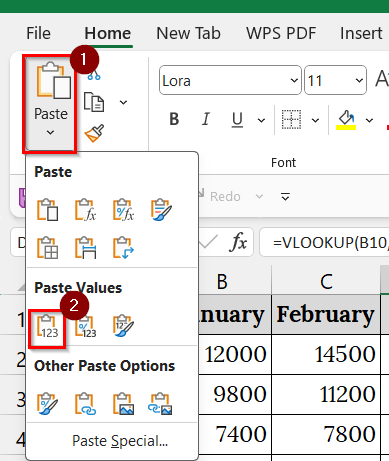
➤ Then, Navigate to the Paste dropdown in the Ribbon. Choose Paste Values.
➤ Now click on cell C10 again to confirm the formula has been removed and only the value remains.
Keyboard Shortcut to Remove VLOOKUP in Excel and Keep Values
This keyboard shortcuts method is used to locate and remove VLOOKUP formulas quickly. We use this method when we work with large datasets or when we want to avoid mouse navigation.
We have a dataset that contains monthly sales of various clothing products for the first five months of the year. We will use the keyboard shortcuts to remove the VLOOKUP formula and keep values only.
Steps:
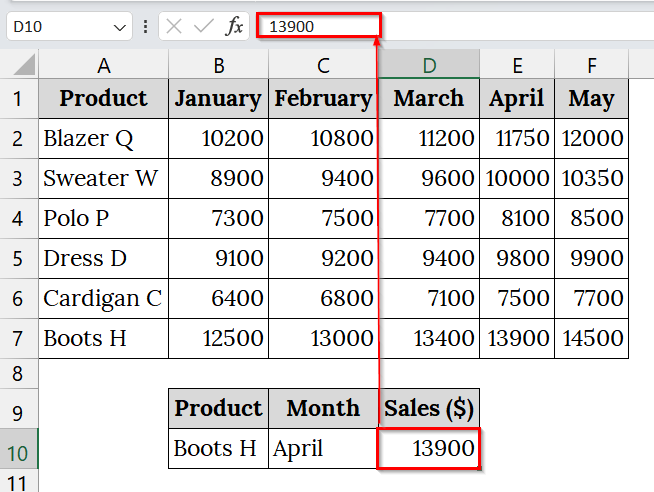
➤ Open your dataset that contains the VLOOKUP formula. For example, we have taken a worksheet that contains Product name Column A, Sales of January to May in Column B to Column F.
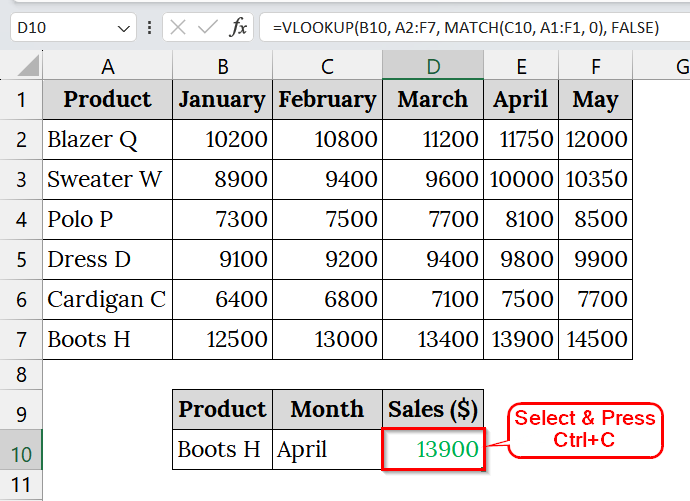
➤ In the below, cell B10 contains the selected product name. Cell C10 contains the selected month name. Cell D10 contains the value for the selected product and month using the VLOOKUP formula.
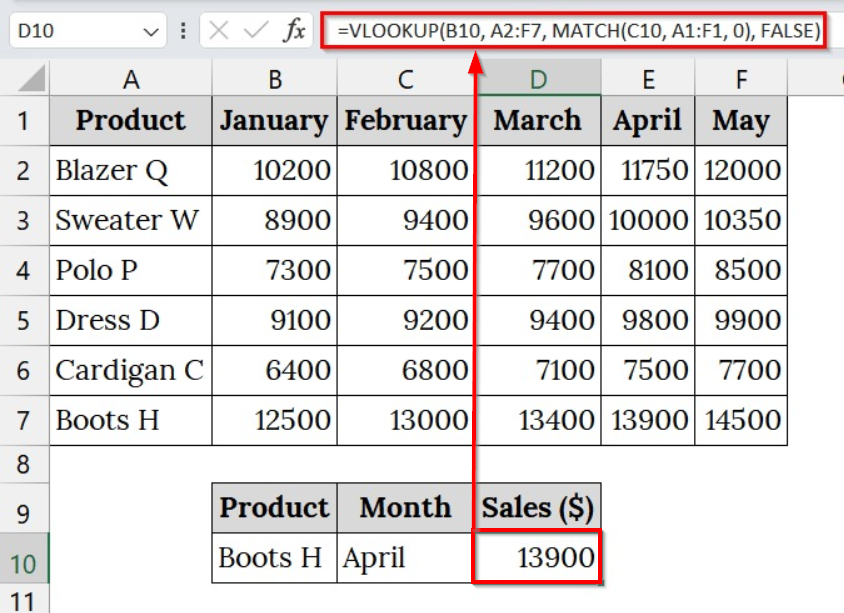
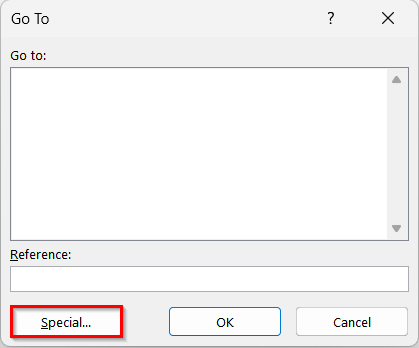
➤ Press Ctrl + G to open the Go To dialog box. Click Special,
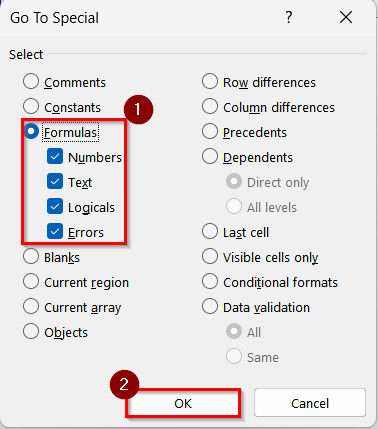
➤ Then choose Formulas and press OK.
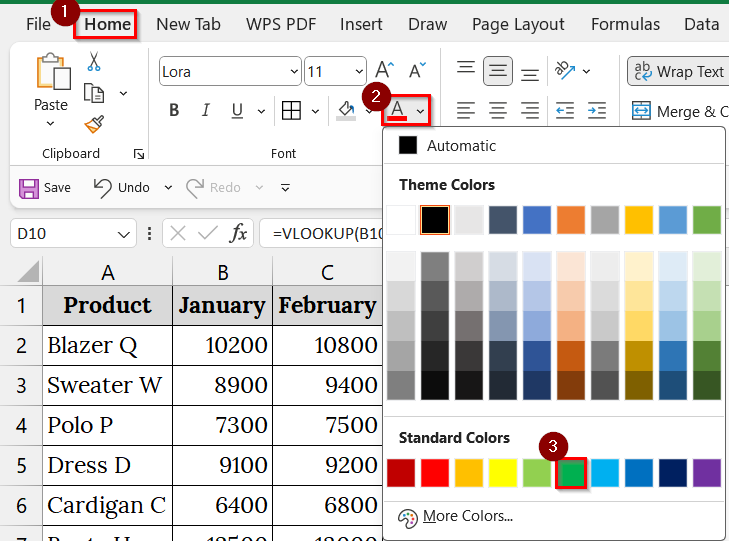
➤ To identify VLOOKUP formula containing cells, you can change the font color from the Font group.
➤ Select the cell with VLOOKUP and press Ctrl + C to copy.
➤ Press Alt + V + V + S to open the Paste Special dialog box. Choose Values and press OK.

➤ Click on D10 again to confirm the formula has been removed.
Note:
This method is ideal for bulk formula removal. It is faster than mouse-based methods and works well for power users.
Drag and Drop to Remove a VLOOKUP Formula & Keep Values
The Drag and Drop method directly copies the result of a VLOOKUP formula and pastes it as a static value in the same cell or another cell, or range. We use this method when we want to preserve the original formula for reference but need a clean, value-only version elsewhere. Compared to the other methods, this one gives us the flexibility to keep both the formula and the value side by side if we choose another cell to paste the value.
We have a dataset that contains monthly sales of various clothing products for the first five months of the year. We will use the Drag and Drop method to remove the VLOOKUP formula and keep the values only.
Steps:
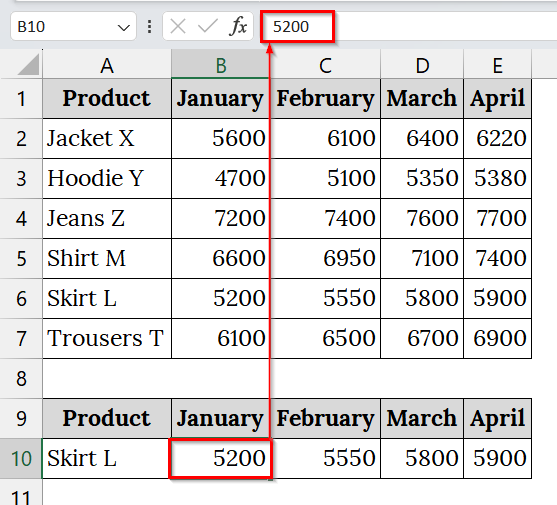
➤ Open your dataset that contains the VLOOKUP formula. For example, we have Product name Column A, Sales of January to April in Column B to E.
➤ In the below, cell A10 contains the selected product name. Cell B10:E10 contains the value for the selected product and month using the VLOOKUP formula.
➤ Select the range B10:E10, which contains VLOOKUP formulas for.
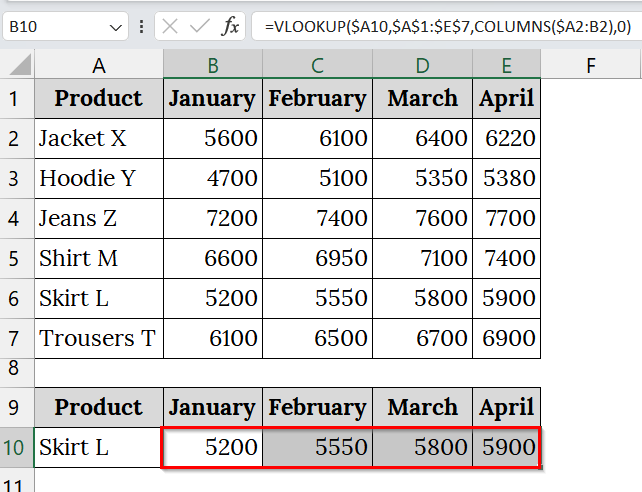
➤ Move your cursor to the right border of the selected cell until the pointer turns into a four-sided arrow.
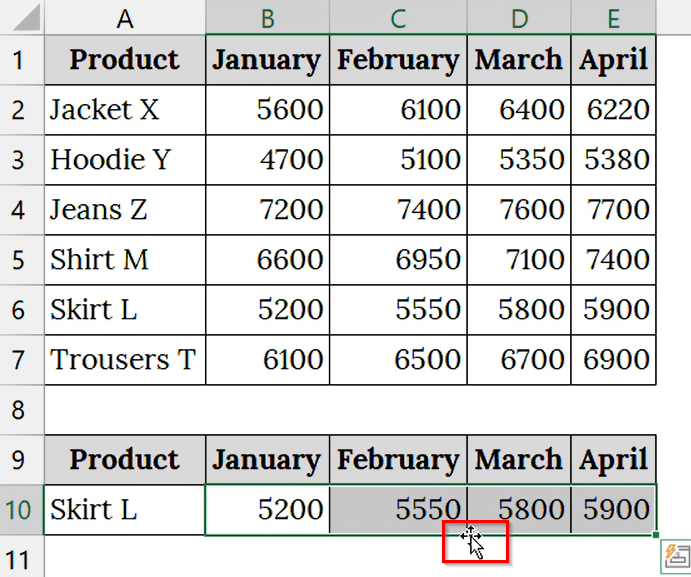
➤ Right-click and hold the mouse button.
➤ Then drag the cursor to the next cell on the right side and back to the selected cell.
➤ Release the right-click button.
➤ A small menu will appear with several options. From the menu, select “Copy Here as Values Only.”
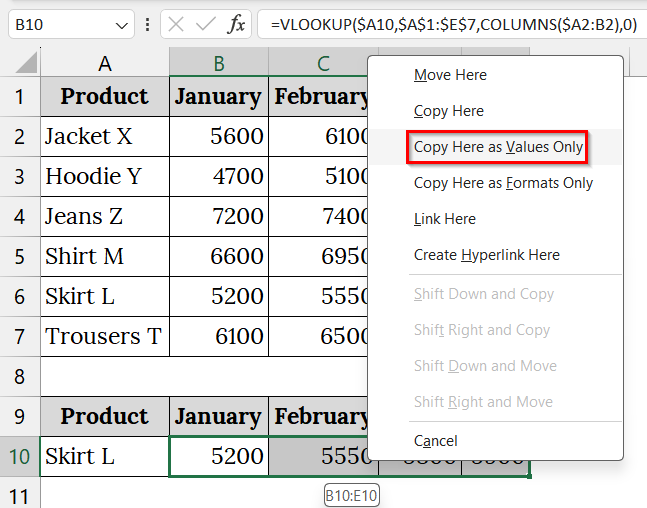
➤ This replaces the VLOOKUP formula with its calculated value only.
➤ Click on the cell B10: E10 to confirm that the formula has been removed and only the value remains.
Downloadable Resources
Get our practice workbook or necessary files that we have worked with to prepare this article.
Remove VLOOKUP But Keep Values.xlsx
Frequently Asked Questions
Will removing the VLOOKUP formula affect my original data?
No. It only affects the cell where the formula was applied. Your lookup table remains unchanged.
Can I undo the formula removal?
Yes, if you haven’t saved or closed the file. Use Ctrl + Z to undo.
Is there a way to remove formulas from multiple sheets at once?
Yes, using a VBA macro can automate formula removal across multiple sheets.
What happens if I paste values over the formula?
The formula is replaced with the final result, and the cell no longer updates dynamically.
Concluding Words
Removing VLOOKUP formulas while keeping values is a common task in Excel reporting. We can use any of these methods, like Ribbon options, keyboard shortcuts, context menus, or the drop and drop to ensure that our data remains clean, static, and ready for export or printing. We have uploaded all the datasets so that you can download and practice with them.