Datasets in minutes for durations work perfectly until you need a precise calculation for small tasks. It seems like minutes is not a good comparison time unit here. For second-level accuracy, it can skew totals, confuse charts, or cause mismatches in calculations. In such cases, you need to know how to convert minutes to seconds in Excel for better number line-up. With this, you can visualize your data with a bird’s-eye view. And fortunately, Excel makes it easier than most people can imagine.
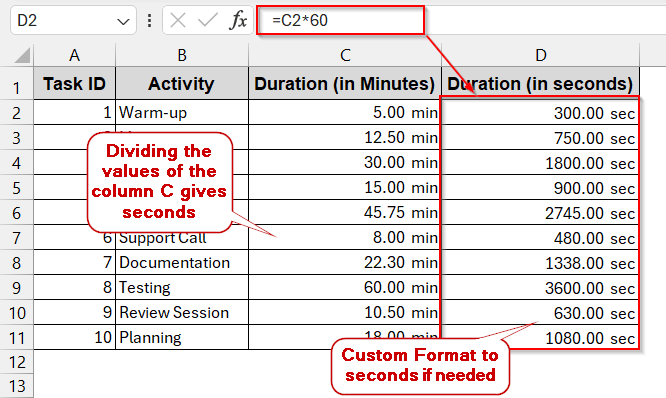
The simplest way to convert minutes to seconds in Excel is –
➤ Open a dataset and create a helper column to store the new values.
➤ In the first cell of the column, write the following formula:
=C2*60
Here, we are assuming C2 contains the time in minutes and is the first cell of the C column, excluding the header.
➤ Press Enter.
➤ Drag the cells or use Fill Handle to generate the same formula for the entire column.
➤ Custom Format them to seconds if you want.
In this guide, we will dive into the ins and outs of how to convert minutes to seconds in Excel. With just simple formulas, CONVERT functions, and even time-formatted values, all are at your fingertips. With proper steps, guidelines, and interactive examples, you will feel like a master of time logs in no time. So, let’s get to the best part.
Convert Minutes to Seconds with Simple Multiplication
The fastest and most convenient way to convert minutes to seconds is by simple multiplication. Yes, it’s the rule that you learned in your primary school. As we know, one minute is equal to 60 seconds; multiplying them easily gets you the second. However, you need a new helper column.
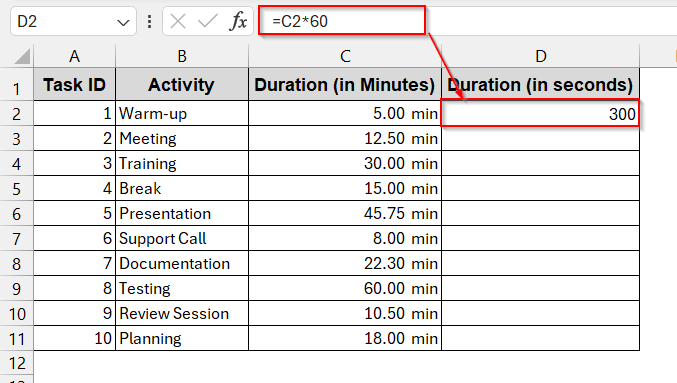
The following dataset has only the time duration in minutes. For a clear understanding, you will convert them to seconds.
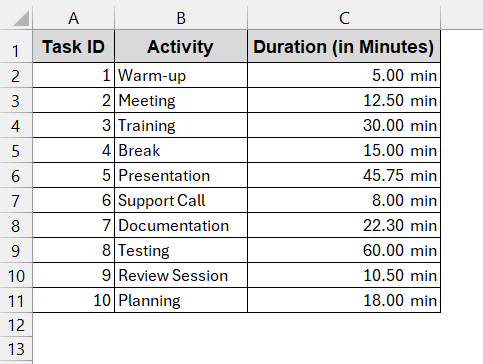
Steps:
➤ Open the sheet and create a new column to store the duration in minutes.
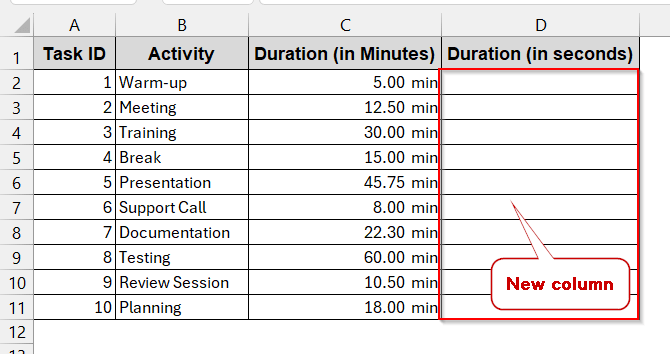
➤ In the first cell of the column, write the formula –
=C2*60
where C2 is the cell containing the duration in minutes.
➤ Press Enter to get the result.
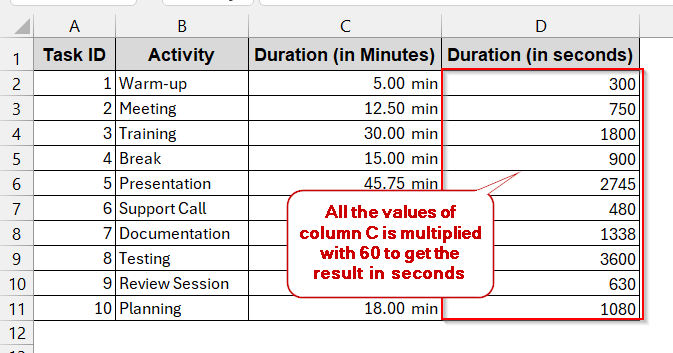
➤ Drag the cells to generate the same formula for each cell.
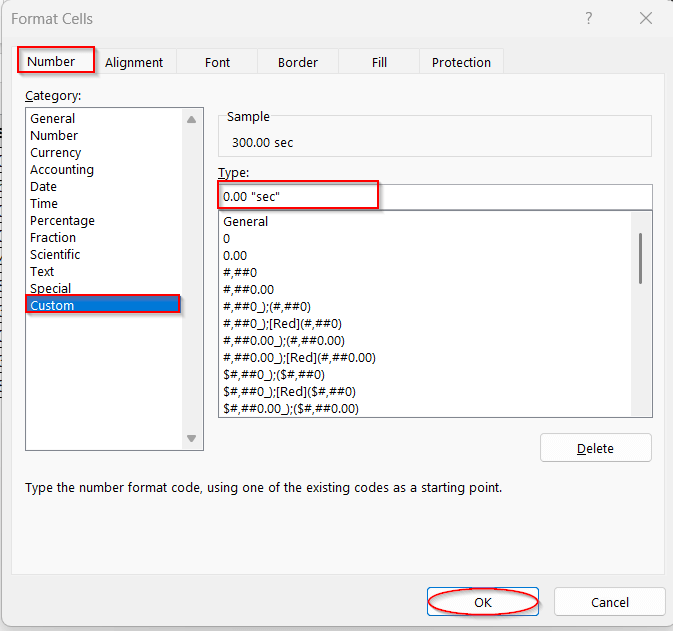
➤ You can custom-format the new column to add text like ‘sec’ to it. Select the column and press Ctrl + 1 .
➤ It will open the Format Cells window. On the Custom Category under the Number tab, write the following in the Type box –
0.00 “ sec”
Here, 0.00 ensures the value is represented in 2 decimal places. And, ‘sec’ is the added text with the values.
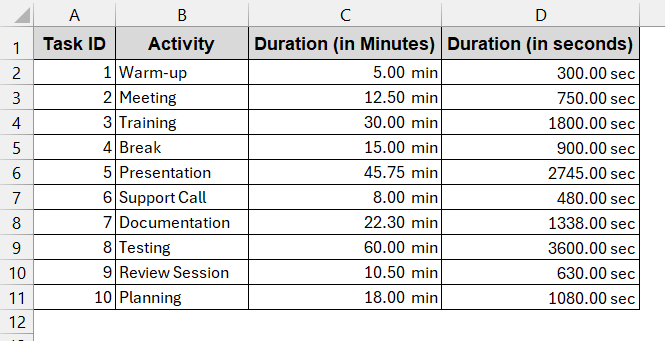
➤ Clicking OK will format the cells with the unit text.
Notes:
➨ Make sure the original column is formatted as Numbers, not in Time format. Otherwise, the result will not make any sense.
➨ This method supports decimal places of time. For example, values like 2.75 minutes, which is equal to 165 seconds.
Minute Conversion to Seconds with the CONVERT Function
Apart from the multiplication method, Excel offers many other functions that can help you with time conversion. One of them is the CONVERT function. This is used universally for all unit conversions and can be leveraged in this case, also. With these formulas, it becomes easier to revisit and avoid further confusion.
Steps:
➤ Open the dataset and create a new column.
➤ In the first cell of the column, write the CONVERT function –
=CONVERT(C2, "mn", "sec")
The function CONVERT changes the C2 value from minutes to seconds.
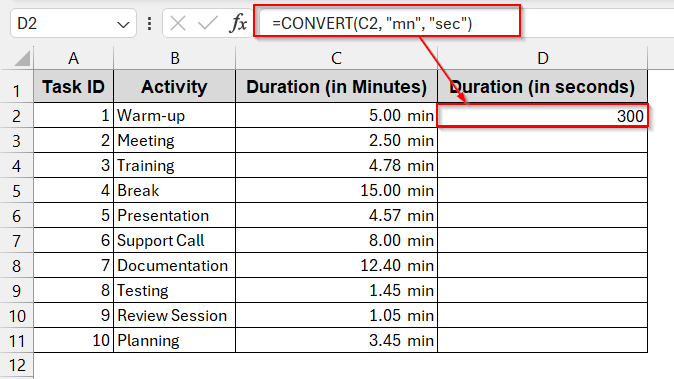
➤ Drag the cells to fill the rest of the column with the same value.
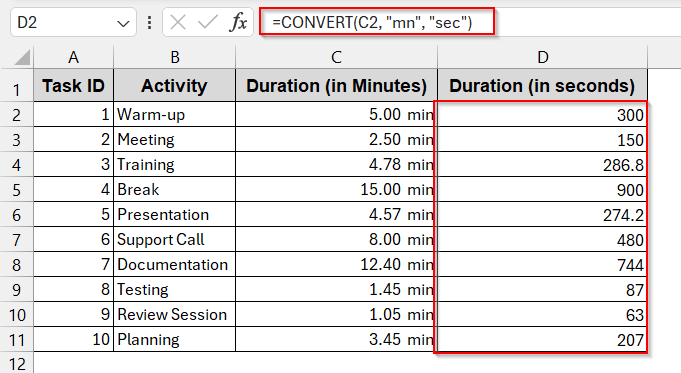
➤ If needed, format the cells into Custom Format to add seconds and consistent decimal places.
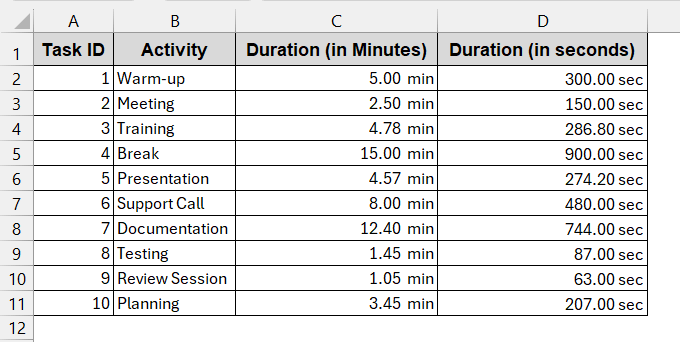
Notes:
The time needed to be formatted as a number instead of time for the CONVERT function to work.
Use HOUR, MINUTE, and SECOND Format to Convert Time into Seconds
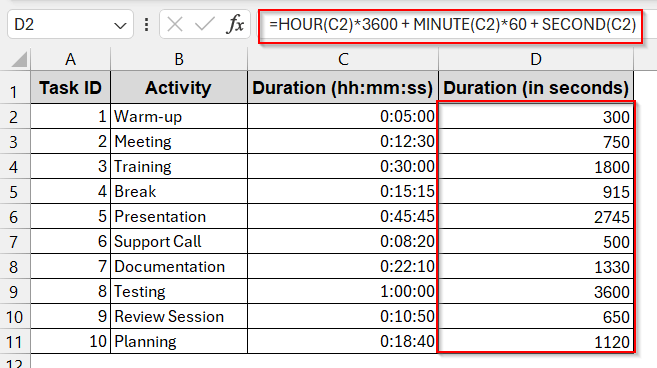
Following the previous methods, time conversion can only be done when they are in numeric values. When they are formatted as time (h:mm:ss), the formula fails and gives irrelevant values. But the thing is, while logging time in Excel, most of the time you will need to deal with timestamps formatted in hours, minutes, and seconds. In that case, you need to fine-tune the formulas a little bit.
Steps:
➤ Create a helper column to store the time in seconds.
➤ In the first cell of the column, write the following formula –
=HOUR(C2)*3600 + MINUTE(C2)*60 + SECOND(C2)
Here, the hour part is multiplied by 3600; the minute is multiplied by 60. Both of them are added together with the seconds of the C2.
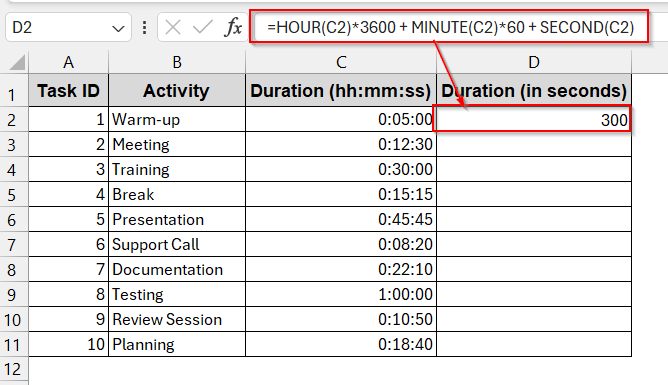
➤ Drag the cells downward and get the same formula for all the cells.
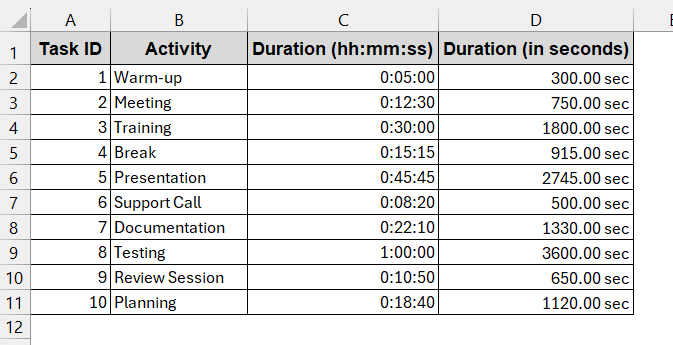
➤ Format the cells to add seconds text after the values using by the Custom Format option.
Notes:
For long durations, greater than 24 hours, the values are getting truncated (reset after 24). Ensure these values are dealt with properly.
Frequently Asked Questions (FAQs)
What happens if minutes are negative or fractional?
With the basic multiplication formula, negative minutes give the negative seconds. And for the fractional values, the data is preserved as it is. However, the CONVERT functions always give the positive and exact value.
Does Excel round seconds or preserve fractions?
The fractions are not rounded up, and fractions are preserved by default. If you want to round the values, use the ROUND function in the following way –
=ROUND(C2*60,0)
Can I convert the entire column into seconds without typing a formula in each row?
You can convert the entire column to seconds by using the Fill Handle rather than typing the formula in each row. It is easier and keeps the formatting intact.
How to handle minute values stored as text with units?
If your data is stored as texts with the unit, for example, 15 minutes, the usual formulas won’t work. You need to remove the text part ‘min’ using the SUBSTITUTE formula and then multiply it by 60.
=VALUE(SUBSTITUTE(C2," min",""))*60
Can I use Power Query or VBA to convert minutes to seconds automatically
Both the Power Query and VBA can automate the conversion of minutes to seconds. However, when opting for better performance, efficiency, and faster processes, people tend to follow the generic formulas for simplicity.
Concluding Words
Converting minutes to seconds in Excel is one of the easiest things that you can do to organize your time logs. Using the basic multiplication, the CONVERT function, and the h:mm:ss format, you can get the total counts of the time in seconds. This not only makes the data more professional, but also gears up your calculations in the workbook. As all these methods are perfectly built for Excel purposes, make sure you know which one aligns with your goal. So, without delaying, open up the workbooks, try these samples, and you’ll find which looks natural to your dataset.