
IMPORTRANGE is a powerful function in Google Sheets that lets you pull data from one spreadsheet into another. However, users face issues when IMPORTRANGE stops updating automatically. This can cause outdated or missing data in the destination sheet.
In this article, we will explore methods on how to manually or automatically refresh your destination sheet. This will allow your IMPORTRANGE to keep updating as you add fresh data to your source sheet.
Steps to manually refresh IMPORTRANGE data in Google Sheets:
➤ Use the dataset where IMPORTRANGE pulls Product ID, Product Name, Stock Level, and Warehouse from a source sheet.
➤ If the imported data is outdated, press F5 or refresh the browser tab.
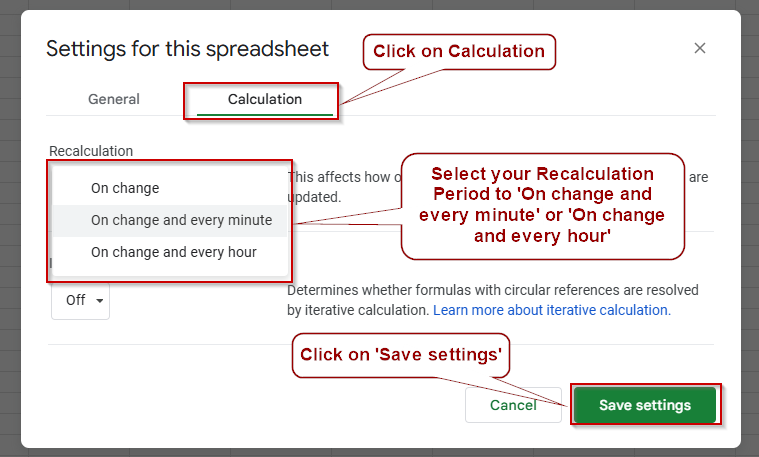
➤ For automatic updates, go to File >> Settings >> Calculation, and set it to “On change and every minute” or “On change and every hour”.
➤ Press Enter or refresh to ensure your imported data reflects the latest source changes.
Manually Refresh the Sheet
IMPORTRANGE data doesn’t always update instantly because Google Sheets caches data to improve performance. When you need the freshest data right away, manually refreshing your sheet or adjusting recalculation settings can force an immediate update. This simple step helps you avoid working with outdated information without having to alter any formulas.
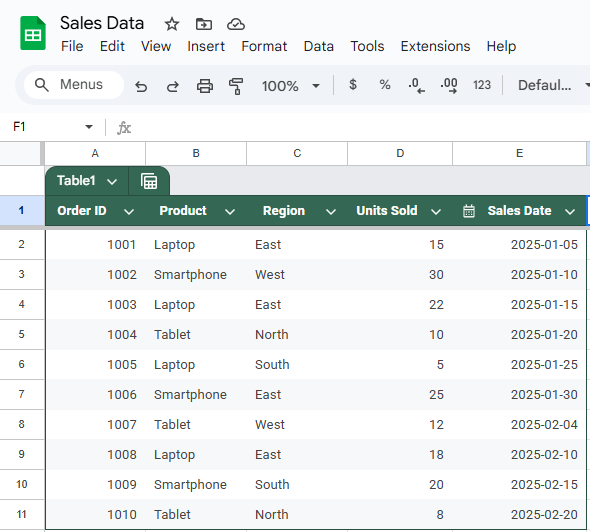
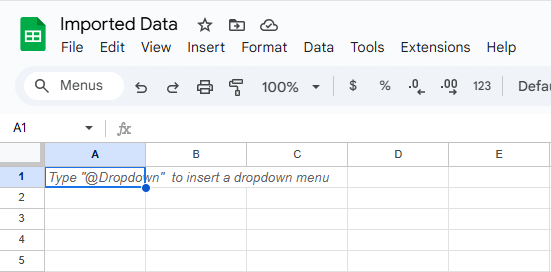
These are the datasets we will be using to demonstrate the methods:
Source Sheet (Sales Data):
Target Sheet (Imported Data):
Steps:
➤ Use the dataset in your destination sheet where IMPORTRANGE is set up to pull data from the source file containing Product ID, Product Name, Stock Level, and Warehouse.
➤ If you notice the imported data is outdated, simply refresh the Google Sheets tab in your browser by pressing F5 or clicking the browser refresh button.
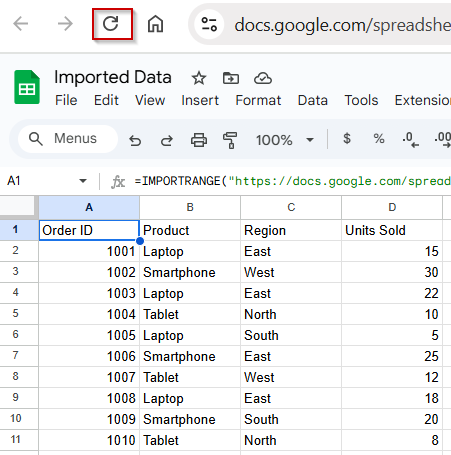
➤ Alternatively, go to File >> Settings
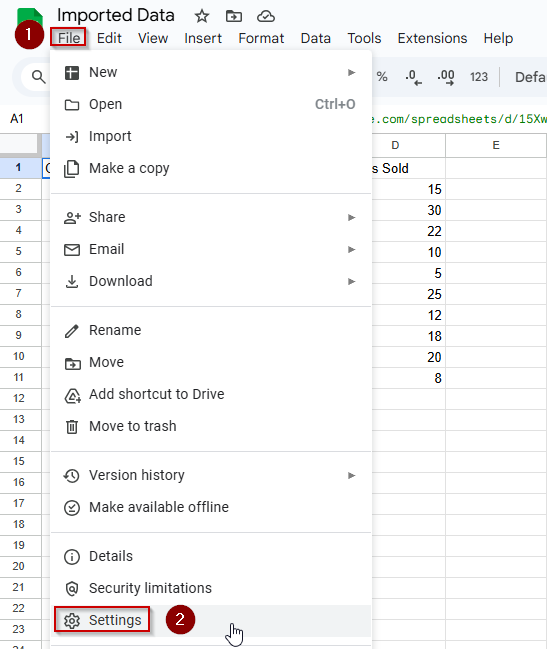
➤ Click on Calculation and change the recalculation setting from “On change” to “On change and every minute” or “On change and every hour” for more frequent automatic refreshes.
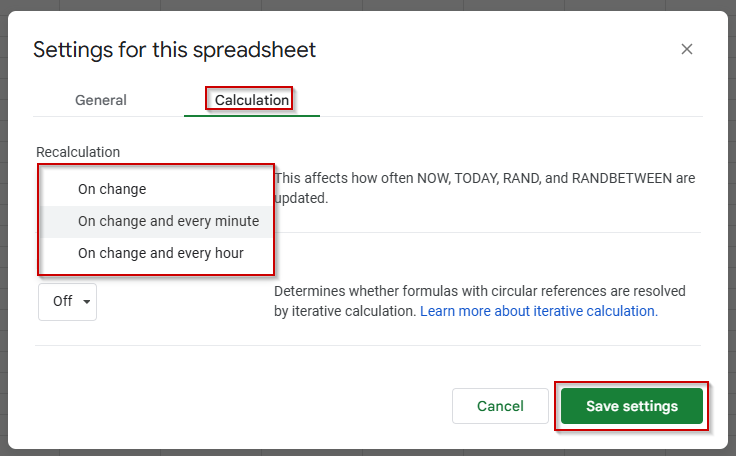
➧ Adjusting recalculation settings ensures your sheet checks for updates more often, reducing stale data.
➧ This method works best if your source data updates infrequently or if you want a quick manual fix.
➤ Press Enter or refresh and observe that the IMPORTRANGE data reflects the latest source changes.
Check and Reauthorize Permissions
IMPORTRANGE requires permission to access data from another Google Sheet. If you recently changed the source file’s sharing settings or if permissions have expired, your data won’t update correctly. To fix this, open the destination sheet and look for a “#REF!” error or a prompt to “Allow access”. Click the prompt to reauthorize. This reconnects the two files and ensures IMPORTRANGE can pull fresh data continuously.
Steps:
➤ Open the destination Google Sheet.
➤ If you see a #REF! error or a message asking for permission, click “Allow access.”.
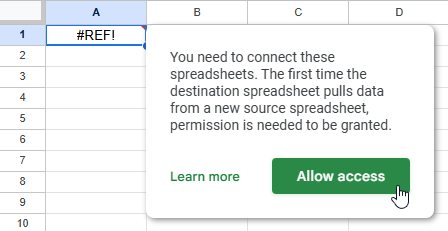
➤ Confirm the permissions and wait for the data to refresh automatically.
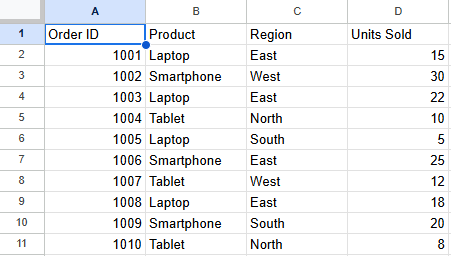
This quick reauthorization step is essential when you face unexpected data update issues with IMPORTRANGE.
Recreate the IMPORTRANGE Formula
Sometimes IMPORTRANGE stops updating because the connection between your sheets glitches or becomes temporarily unstable. Re-entering the formula from scratch can help reset this connection and prompt Google Sheets to pull fresh data. This method is quick and straightforward, making it a reliable fix when other troubleshooting steps don’t work.
Steps:
➤ In your destination sheet, delete the existing IMPORTRANGE formula.
➤ Re-enter the formula exactly as before, for example:
=IMPORTRANGE(“https://docs.google.com/spreadsheets/d/abcd1234xyz5678/edit”, “Sheet1!A1:D10”)
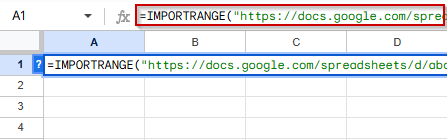
➤ Press Enter and click “Allow access” if prompted.
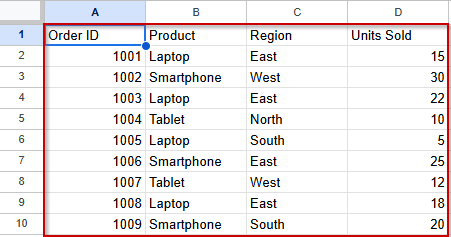
➤ This will re-establish the link and force the data to update automatically.
Limit the Imported Range
Importing large or entire sheets with IMPORTRANGE can slow down updates or cause the formula to stop refreshing properly. By narrowing the range to only the necessary cells, you reduce processing time and improve update speed. This method helps Google Sheets handle the connection more efficiently, keeping your data fresh without lag.
Steps:
➤ Instead of importing the entire sheet, specify only the required range in your IMPORTRANGE formula.
➤ For example, if you only need data from columns A to D and rows 1 to 5, use:
=IMPORTRANGE(“https://docs.google.com/spreadsheets/d/abcd1234xyz5678/edit”, “Sheet1!A1:D5”)
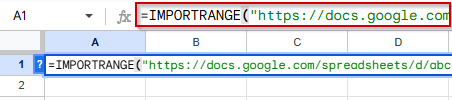
➤ Press Enter and allow access if prompted.
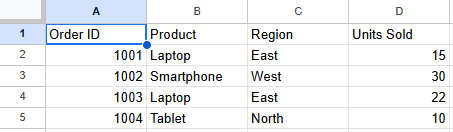
➤ This targeted range helps IMPORTRANGE update faster and more reliably.
Practice Resources
Get our practice workbook or necessary files that we have worked with to prepare this article.
Fix Google Sheets IMPORTRANGE Not Updating Issues [Make a Copy]
Frequently Asked Questions
Why is IMPORTRANGE not updating automatically?
IMPORTRANGE updates automatically, but delays may occur due to sheet complexity, formula changes, or data source errors. Try refreshing or editing a helper cell to trigger updates.
How do I refresh IMPORTRANGE manually?
To refresh, edit the formula slightly or reference a helper cell that changes values. This forces Google Sheets to reprocess the IMPORTRANGE function and reload fresh data.
Why am I seeing a #REF! error with IMPORTRANGE?
#REF! appears when access isn’t granted to the source file. Click “Allow access” when prompted, or ensure you have the correct sharing permissions for the source spreadsheet.
Can IMPORTRANGE pull data in real-time?
Yes, IMPORTRANGE syncs dynamically, but updates aren’t truly real-time. Expect a short delay, especially in large files. Use manual triggers or optimizations to improve responsiveness.
Does IMPORTRANGE work with filters or QUERY?
Yes, you can combine IMPORTRANGE with FILTER or QUERY to extract specific rows or columns. Just ensure your range is structured correctly and all referenced data is accessible.
Wrapping Up
If your IMPORTRANGE function in Google Sheets isn’t updating as expected, don’t worry, it’s usually fixable. From checking permissions to adding refresh triggers or limiting ranges, several easy methods can restore proper syncing. Always ensure your source sheet is error-free and your formulas are optimized. With the right steps, you can maintain dynamic, up-to-date connections across files for clean, efficient workflows.