Creating a button in Excel usually requires using VBA macros, but you can also build interactive buttons without writing any code. These buttons can still perform useful tasks such as navigating to another sheet, applying formulas, or changing specific cell values. This is helpful when you want to make your workbook more user-friendly but prefer not to use macros.
In this guide, you’ll learn step by step how to create buttons in Excel without using macros. We’ll use different methods to make buttons that respond to clicks and perform actions directly inside your worksheet.
Here’s what you can do by creating a button without a macro in Excel:
➤ Go to the Insert tab on the Ribbon.
➤ Click on Shapes in the Illustrations group.
➤ Choose a shape such as a Rounded Rectangle and draw it anywhere on your sheet.
➤ Type a name inside the shape, for example, Go to Summary.
➤ Right-click the shape and select Link .
➤ In the Insert Hyperlink dialog box, choose Place in This Document on the left.
➤ Select the sheet you want to navigate to, such as Summary Sheet, then click OK.
➤ Now, when you click the shape, it will take you directly to the selected sheet.
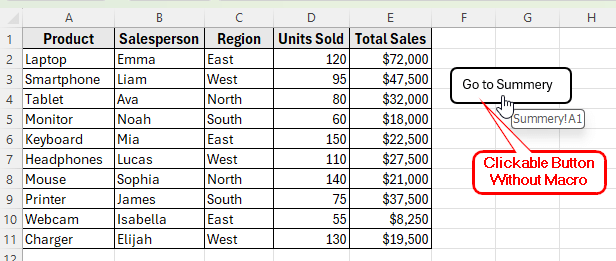
Create a Navigation Button Using Shapes in Excel
In the following dataset, we have a sales report. Column A lists the Product Names, Column B shows the Salesperson, Column C contains the Region, Column D records Units Sold, and Column E shows the total Sales Amount. We have another sheet named Summery.
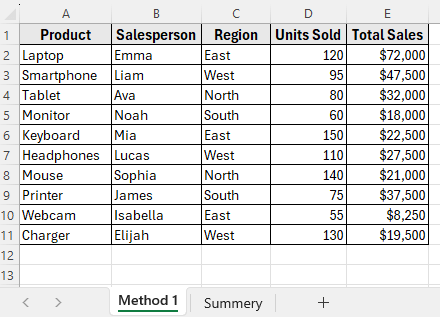
We will create buttons that will directly go to the Summary sheet without using VBA.
One of the easiest ways to create a button without using a macro is by turning a shape into a clickable button. This type of button can navigate to another sheet in the workbook.
Here’s how to do it:
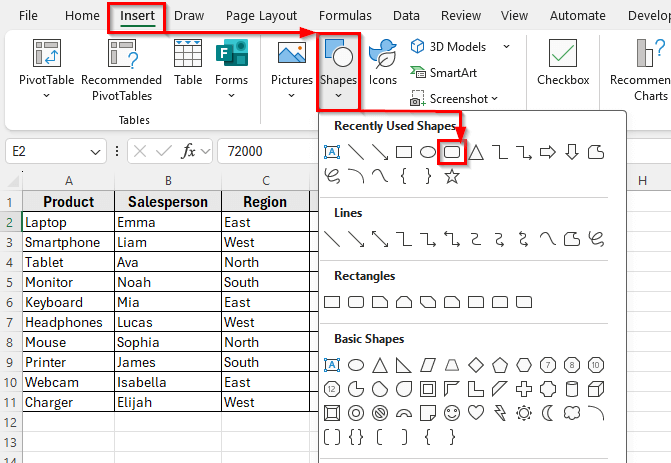
➤ Go to the Insert tab on the Ribbon.
➤ Click on Shapes in the Illustrations group.
➤ Choose a shape such as a Rounded Rectangle and draw it anywhere on your sheet.
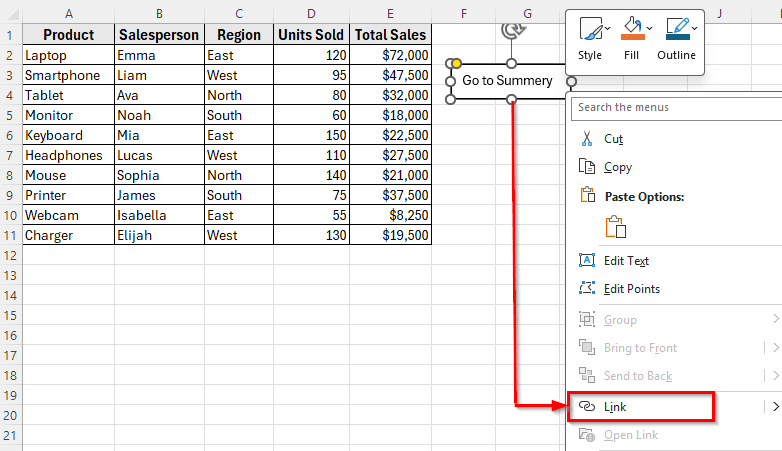
➤ Type a name inside the shape, for example, Go to Summary.
➤ Right-click the shape and select Link .
➤ In the Insert Hyperlink dialog box, choose Place in This Document on the left.
➤ Select the sheet you want to navigate to, such as Summary Sheet, then click OK.
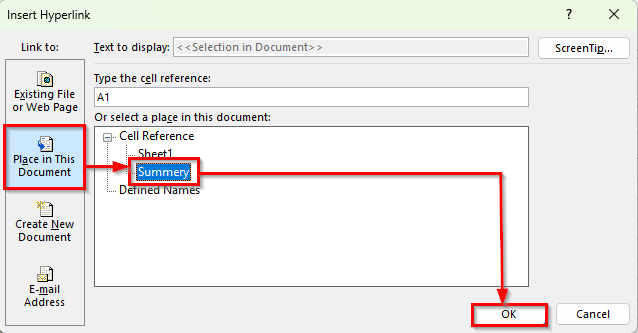
➤ Now, when you click the shape, it will take you directly to the Summery sheet.
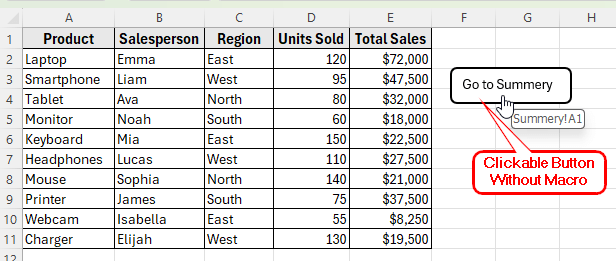
Using Form Control to Create a Button Without Macro
Another way is to add buttons without using any VBA is Spin Button (Form Control) from the Developer tab. Spin Button is an interactive control that can be linked to a cell, and when clicked, it increases or decreases the value in that cell.
In this method, we’ll use a simple dataset of three columns such as Product, Units Sold, and Scroll Button. Column A lists product names, Column B shows the number of units sold, and Column C is currently empty. We’ll create Spin Buttons in Column C to increase or decrease the number of units sold.
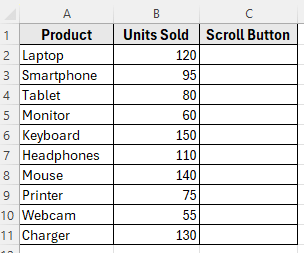
Here is how to do it:
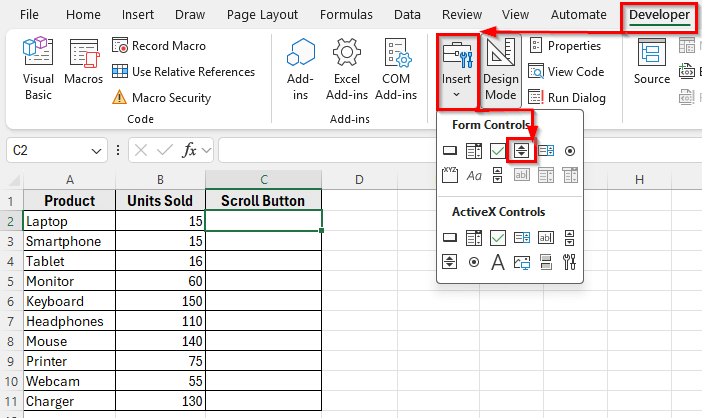
➤ Go to the Developer tab on the Ribbon. If it’s not visible, right-click the Ribbon, choose Customize the Ribbon, and enable Developer.
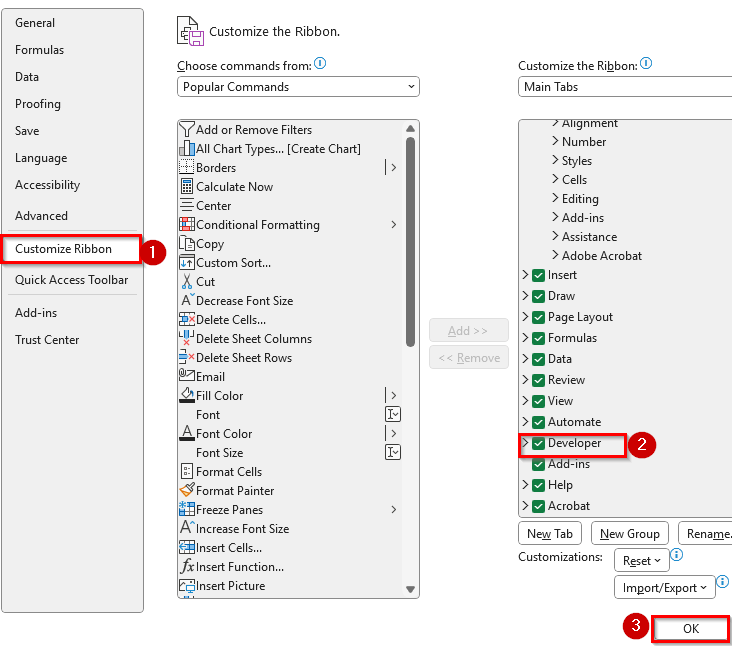
➤ Click Insert in the Controls group.
➤ Under Form Controls, select Spin Button and draw it on your worksheet. For example, place it in column C below the heading Scroll Button.
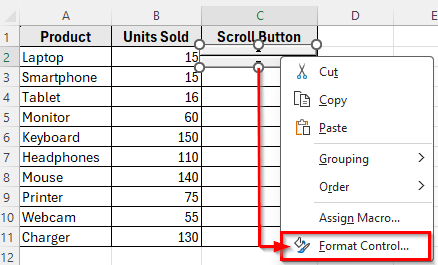
➤ Right-click the Spin Button and select Format Control.
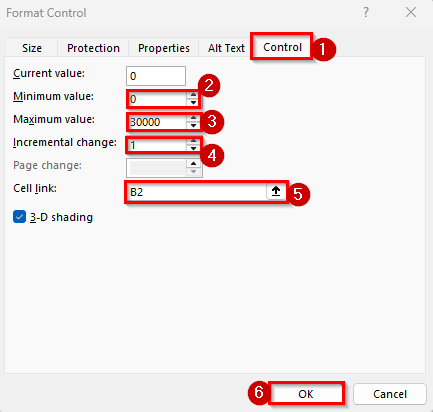
➤ In the Control tab set the Minimum value and Maximum value as your requirement.
➤ Set Incremental change to 1, and in the Cell link, select cell B2.
➤ Click OK.
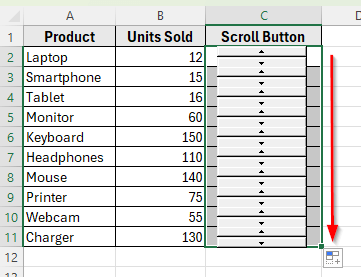
➤ Now, clicking the up or down arrows on the Spin Button will change the value in cell B2.
➤ Next, drag the fill handle down to copy the Spin Button for the rest of the rows. Then set a separate Cell Link for each one, such as B3, B4, and so on.
Downloadable Resources
Get our practice workbook or necessary files that we have worked with to prepare this article.
Button Without Using Macro.xlsx
Frequently Asked Questions
How do I create a button in Excel without using VBA?
You can easily create a button without VBA by using shapes or form controls. For example, insert a shape, add text like Go to Summary, and then use the Link option to navigate to another sheet or named range. You can also use a Form Control button linked to a cell to trigger formulas or calculations.
Can a button in Excel trigger a formula without a macro?
Yes. A Form Control button can be linked to a specific cell, and that cell can be used inside an IF or SUM formula. When the button is clicked, the linked cell changes its value, and the formula calculates automatically. This is useful for dashboards or interactive reports.
How do I make a button change a cell value in Excel?
You can define a name with a formula using the Define Name option under the Formulas tab. Then, insert a shape and link it to that defined name. When clicked, the formula will execute and change the cell value or display a message.
Wrapping Up
Creating a button in Excel without using macros is a simple way to make your workbook more interactive. You can use buttons to move between sheets, run formulas, filter data, or update cell values with just a click. This makes your spreadsheets easier to navigate and more user-friendly.
By combining shapes, hyperlinks, defined names, and form controls, you can design buttons that perform useful actions without writing any code. It is a great way to build interactive dashboards and automate simple tasks in Excel.