
When we work with datasets that are taken in two different situations but only on one kind of variable, we often need to compare the analysis results of them. In such cases, for comparing the means of two sets or groups of data, we usually use the t-test. And, to show the statistical significance of the t-test, we rely on the p-value.
Suppose you divided the students of grade 7 randomly into two groups and assigned two teachers, A and B, respectively, to the groups. Now, you want to find out whether the teaching methods of these two teachers have any real impact on the students’ performance. To do this, you need to run a t-test on these two groups' results and determine whether there are any significant differences between them based on the p-value of that t-test.
In this article, we will explain two different methods to calculate the p-value in a t-test in Excel using the T.TEST function and the Data Analysis ToolPak.
➤ Then, click on cell E2 and insert the following formula:
=T.TEST(B2:B11, D2:D11, 2, 2)
Here,
B2:B11 is called array1. It is the data range of the first group.
D2:D11 is the array2. It is the data range of the second group.
The first 2 indicate the tail. Here, we are doing a two-tailed t-test as the change between group A and group B can go in either a positive or a negative direction.
The last 3 indicates that this t-test assumes the variances of the two groups are not similar. If the groups have the same variances, write 2. Also, if the two groups are before and after comparison of the same sample, write 1.
➤ Press Enter, and you will see the p-value of the t-test for the two groups.
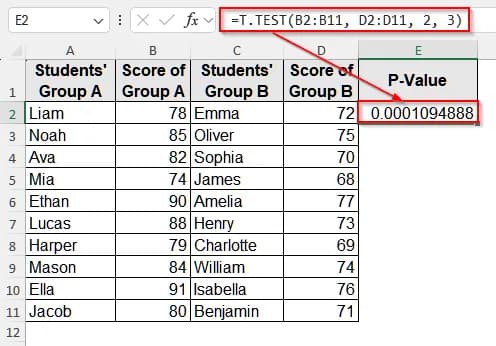
Use the T.Test Function to Calculate P-Value in Excel T-Test
The T.Test function lets us perform a t-test in a few seconds, and it also returns the p-value with the result.
We will use the dataset below to explain how you can calculate the p-value of a t-test in Excel.

This dataset shows the mathematics scores of two groups of students from grade 7 who are taught by two different teachers.
Steps:
➤ First, click on cell E1 and write P-Value. You can also select any empty cell.
➤ Then, click on cell E2 and insert the following formula:
=T.TEST(B2:B11, D2:D11, 2, 3)Here,
B2:B11 is called array1. It is the data range of the first group.
D2:D11 is the array2. It is the data range of the second group.
The first 2 indicate the tail. Here, we are doing a two-tailed t-test as the change between group A and group B can go in either a positive or a negative direction.
The last 3 indicates that this t-test assumes the variances of the two groups are not similar. If the groups have the same variances, write 2. Also, if the two groups are before and after comparison of the same sample, write 1.
➤ Press Enter, and you will see the p-value of the t-test for the two groups.
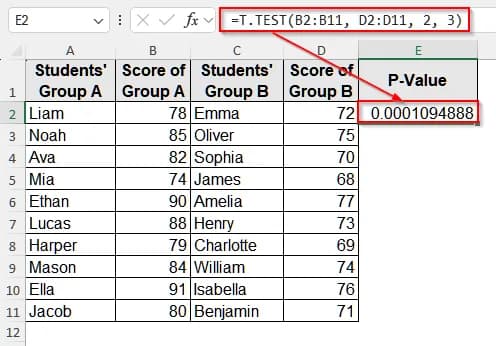
Then, we determine a significance level, which is called alpha (α) for the test. And, there is another value, which is the p-value or probability value, which tells us how likely our data is happened randomly, not by the influence of an external factor.
If the p-value is higher than that significant level, we conclude that the null hypothesis is correct. However, if the p-value is lower than that level, we reject the null hypothesis. Usually, we judge the p-value against two common significance values, 0.05 and 0.01.
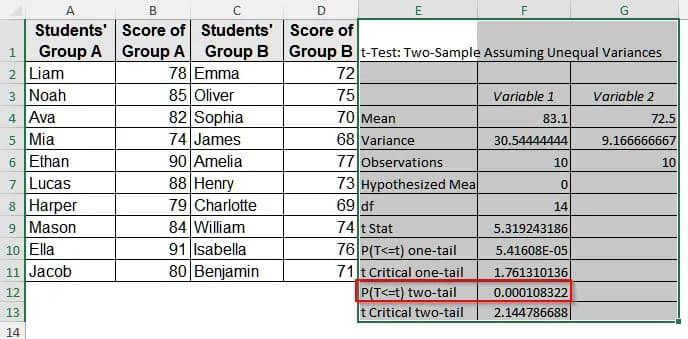
For our data, we get the p-value about 0.00011, which is less than 0.01 and indicates the test is highly statistically significant. So, we reject the null hypothesis and accept that there is a significant difference between the two groups of students.
Calculate P-Value With the Data Analysis ToolPak
The Data Analysis ToolPak is a built-in feature of Excel that offers us many analysis-related options. With this toolpak, we can also perform a t-test and calculate the p-value without using any formula.
Steps:
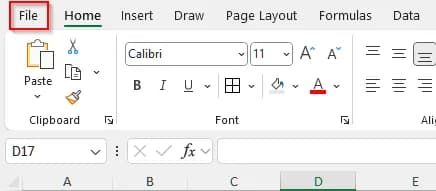
➤ First, open the dataset and click on the File tab from the upper menu bar.
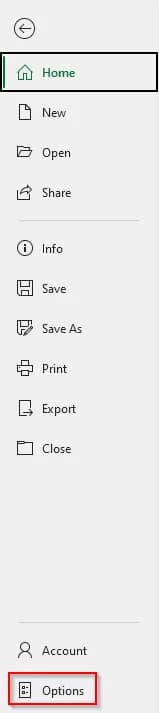
➤ Then, in the new window, select Options.
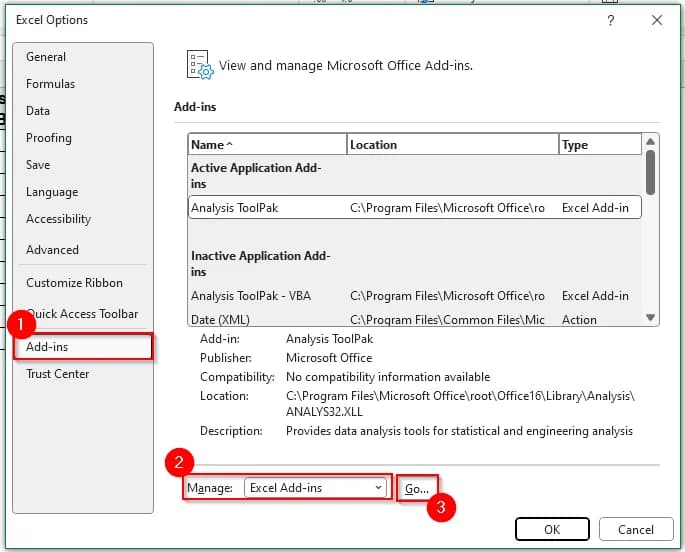
➤ It will take you to a new page. Click on Add-ins and at the bottom, in the Manage box, select Excel Add-ins and then click on Go.
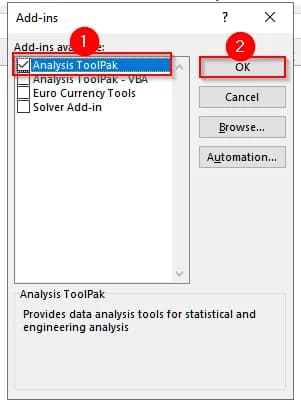
➤ A new pop-up will appear. In it, check the box for Analysis ToolPak, and then click OK.
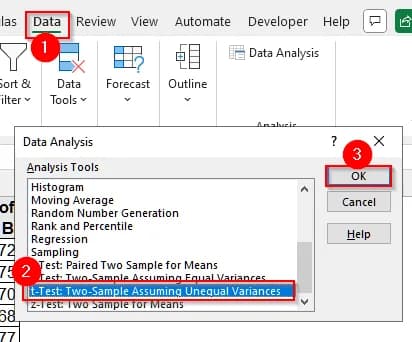
➤ Now, click on the Data tab on the upper ribbon, and select Data Analysis.
➤ Another list of options will pop up. Select t-Test: Two-Sample Assuming Unequal Variances and click Ok.
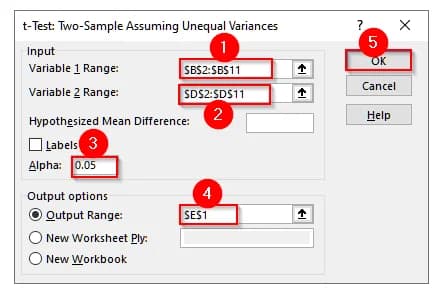
➤ Now, a pop-up will appear where we need to input our data ranges. In the Variable 1 Range: dialog box, select cells B2:B11, and in the Variable 2 Range: dialog box, select cells D2:D11.
➤ Keep Alpha as 0.05, which means 5% significance level.
➤ Click on the Output Range:, choose cell E1 and click OK.
➤ Now, you will see that Excel returned all the results for the t-test. There, P(T ≤ t) two-tailed value is the two-tailed p-value for our test.
Downloadable Resources
Get our practice workbook or necessary files that we have worked with to prepare this article.
Calculate P Value in T-Test.xlsx
Frequently Asked Questions
How Can I Know If the Groups of My Data Have the Same Variance?
To check if the groups you are working with have the same variance or not, you can run the F test. Using the Data Analysis ToolPak, run F-Test: Two-Sample for Variances, and if the p-value of this test is greater than 0.05, you can assume that the variances of both groups are equal. Or else, they are different.
Why My P-Value Is Not Appearing As a Number?
Usually, if the p-value is very small, it appears in scientific notation by default. To see the number format, click the cell, go to the Home tab. Then, in the Number Format dropdown, choose Number. Now, increase the decimal places as much as you want.
Can I Use Excel to Calculate the P-Value of the T-Test for All Types of Data?
You can use Excel to calculate the p-value of a t-test for only numeric and continuous data. Also, Excel checks the normality assumption manually. So, if you need a very advanced statistical analysis for some complex data, you should use statistical software like SPSS, R, etc.
Wrapping Up
In this article, we learned two different methods to calculate p-value in Excel, including using the T.Test formula and the built-in feature Data Analysis ToolPak. The p-value plays a vital role in determining the significance of a statistical t-test. Give these methods a try to support your analysis result. Also, reach out if you have any inquiries or want to share some feedback.