
When we work with a dataset that contains two different groups on similar criteria, we often need to compare those groups for analysis. However, if we simply calculate the averages of those two groups and make a decision on the differences, that result could be biased due to factors like random variations, unequal sample sizes, differences in variances, etc. And so, to make sure our result is solid and the decision is not biased, we perform the two-sample t-test.
Suppose you are conducting medical research on two different drugs, A and B, for reducing high blood pressure. Now, let's say the group taking drug B showed a higher average of improvement than drug A. However, this raw result can happen due to some random factors, like the patient's initial blood pressure, age, weight, lifestyle, etc. So, in such a case, you will need to perform a two-sample t-test to determine whether the difference between the efficiency of the two drugs is significant or due to some random factor.
In this article, we will explain two different methods, including the T.TEST function and the built-in option Data Analysis ToolPak, to perform a two-sample t-test in Excel.
➤ Select cell A13 and insert the following formula:
=VAR.S(A2:A11)
Here, we used the VAR.S function to find the variance for drug A because the group of participants of drug A is a subset or sample of our full study.
➤ Then, select cell B13 and insert the following formula:
=VAR.S(B2:B11)
➤ Select cell A15 and insert the following formula:
=B13/A13
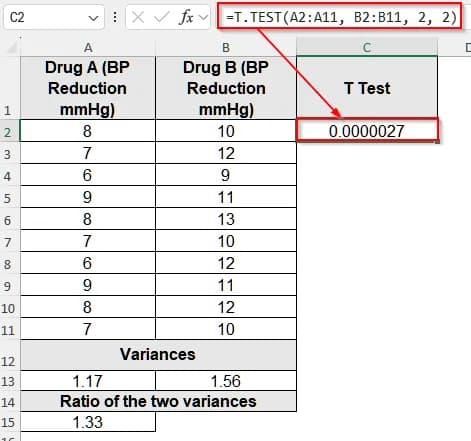
➤ We get the ratio as 1.33 (approximately), which is lower than 3. So, for this dataset, we can assume the two variances are equal. And so, we can perform the two-sample t-test for equal variances.
➤ Select cell C1 and write T Test.
➤ Then, click on cell C2 and insert the following formula:
=T.TEST(B2:B11, C2:C11, 2, 2)
Here,
B2:B11 is the first sample range.
C2:C11 is the second sample range.
First 2 indicates the tails, and in our case, it is a two-tailed test as it checks if there’s any difference between the means.
The second 2 indicates the type of the test. As our t-test is an equal variance test, we used 2. If it were an unequal variances test, we would use 3.
Use the T.TEST Function to Perform a Two-Sample T-Test in Excel
The T.TEST function is one of the easiest ways to perform a two-sample t-test in Excel. It helps us to determine whether the differences in means of two groups are statistically significant or not.
We will use the dataset below to explain how you can perform a two-sample t-test in Excel using the T-TEST function.
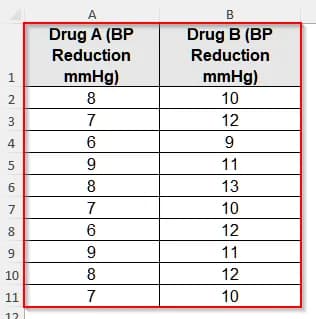
This is a dataset of two groups of participants who were given drug A and drug B, respectively, for one week to reduce blood pressure, and then the result was noted.
Steps:
➤ First, before performing a t-test on the dataset, we need to determine whether the variances of these two groups are similar or not.
➤ Select cell A13 and insert the following formula:
=VAR.S(A2:A11)Here, we used the VAR.S function to find the variance for drug A because the group of participants of drug A is a subset or sample of our full study.
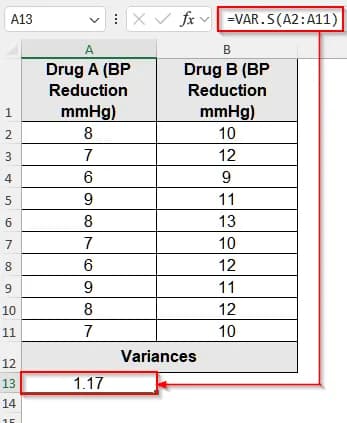
➤ Then, select cell B13 and insert the following formula:
=VAR.S(B2:B11)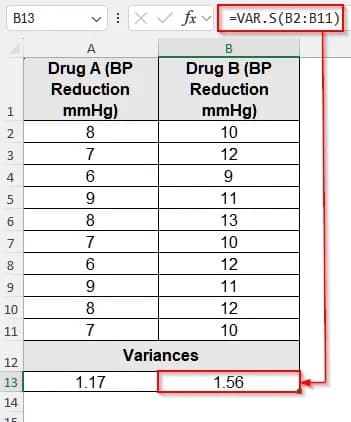
➤ Now, to determine whether the two populations have similar variances, we need to divide the larger variance by the smaller one. If the result is less than 3, we can conclude that the two variances are approximately equal. From our earlier calculations, we can see that the variance of drug B is greater than the variance of drug A. So, we need to divide the variance of drug B by the variance of drug A.
➤ Select cell A15 and insert the following formula:
=B13/A13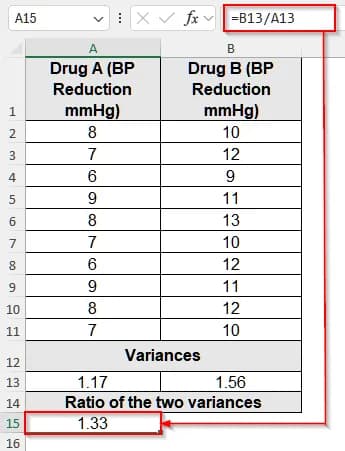
➤ We get the ratio as 1.33 (approximately), which is lower than 3. So, for this dataset, we can assume the two variances are equal. And so, we can perform the two-sample t-test for equal variances.
➤ Select cell C1 and write T Test.
➤ Then, click on cell C2 and insert the following formula:
=T.TEST(B2:B11, C2:C11, 2, 2)Here,
B2:B11 is the first sample range.
C2:C11 is the second sample range.
First 2 indicates the tails, and in our case, it is a two-tailed test as it checks if there’s any difference between the means.
The second 2 indicates the type of the test. As our t-test is an equal variance test, we used 2. If it were an unequal variances test, we would use 3.
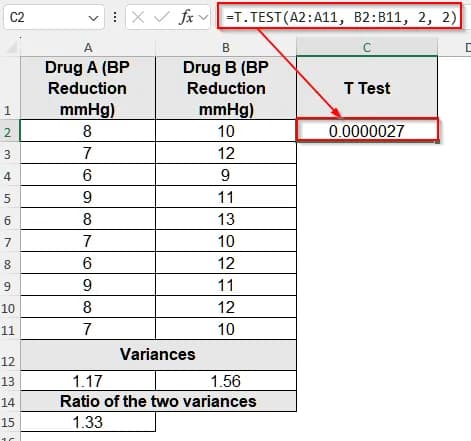
Here we got the p-value of the two-sample t-test as 0.0000027 (approximately), which is lower than 0.05 and 0.01. So, we can say that the test is highly significant, and thus we reject the null hypothesis (there is no significant difference between the two groups). That is, we are sure that there is a significant difference between the two groups of patients.
Perform a Two-Sample T Test in Excel With the Data Analysis ToolPak
The Data Analysis ToolPak comes with a bunch of statistical tools, including different types of t-test. So, with this built-in tool, we can easily perform a two-sample t-test in a few minutes and get an accurate result.
Steps:
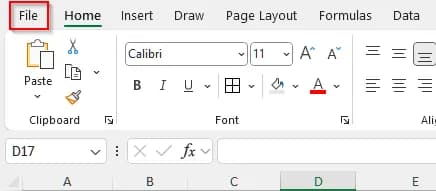
➤ First, we need to enable the Data Analysis ToolPak. Open the dataset and click on the File tab from the upper menu bar.
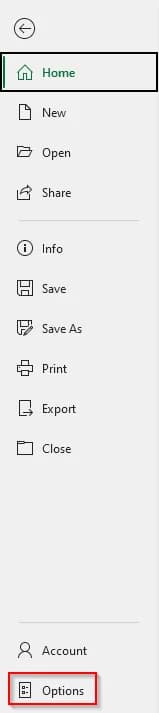
➤ Then, in the new window, select Options.
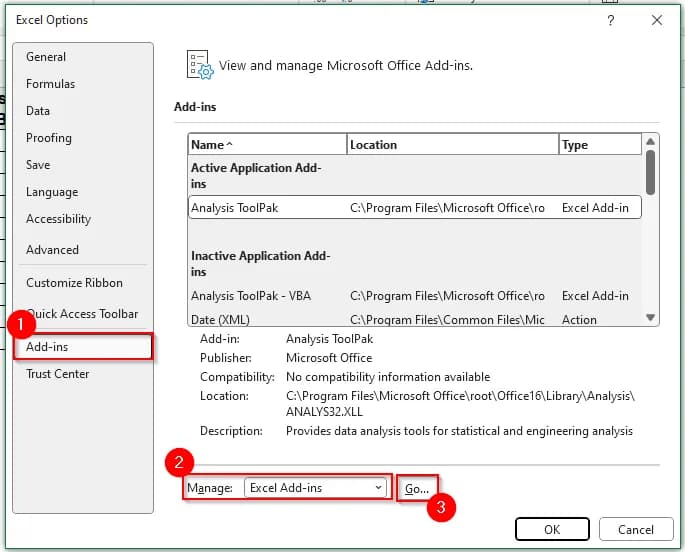
➤ It will take you to a new page. Click on Add-ins and at the bottom, in the Manage box, select Excel Add-ins and then click on Go.
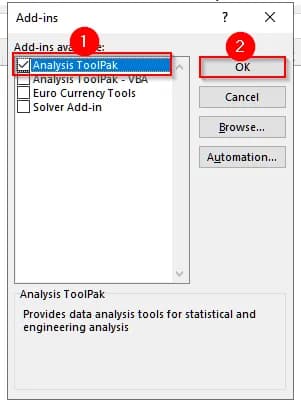
➤ Now, a new pop-up will appear. In it, check the box for Analysis ToolPak, and then click OK.
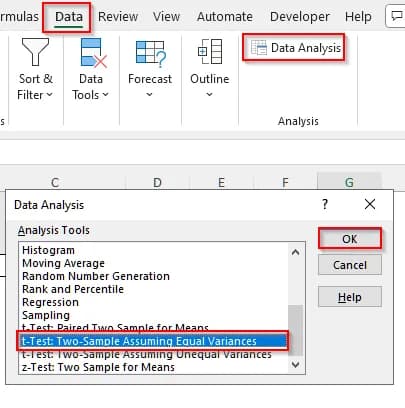
➤ Now, click on the Data tab on the upper ribbon, and select Data Analysis.
➤ Another list of options will pop up. Select t-Test: Two-Sample Assuming Equal Variances and click Ok.
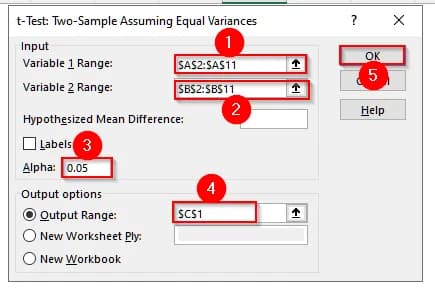
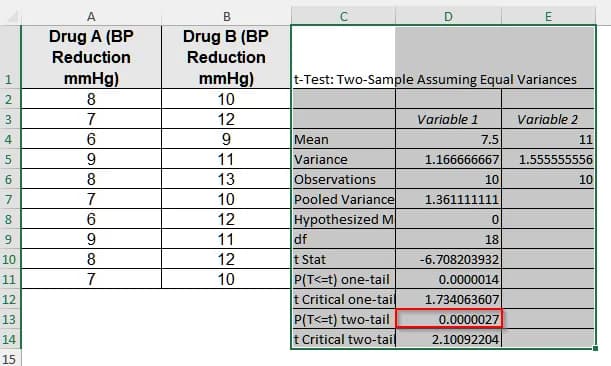
➤ Now, a pop-up will appear where we need to input our data ranges. In the Variable 1 Range: dialog box, select cells A2:A11, and in the Variable 2 Range: dialog box, select cells B2:B11.
➤ Then, keep the Alpha value 0.05. And, for the Output Range, select cell C1. Finally click on OK.
➤ Now, you can see the two-sample t-test result where the P(T<=t) two-tail value is our p-value.
Downloadable Resources
Get our practice workbook or necessary files that we have worked with to prepare this article.
Two Sample T-Test.xlsx
Practice Workbook · Excel (.xlsx)
Frequently Asked Questions
How Can I Interpret the Result of a Two-Sample T Test in Excel?
To interpret the result of a two-sample t-test, you need to check the p-value. If the p-value is less than 0.05, it indicates there is a statistically significant difference between the two groups, and we reject the null hypothesis. However, if the p-value is greater than 0.05, we conclude there is no significant difference between the means of the two groups.
How Can I Determine What Kind of T Test I Should Use?
To determine the type of t-test you need to use, first check your dataset and the variance. If you are working with two groups of data that are observations of the same participants, like before and after data, use the paired t-test. However, i you have two independent samples, first check the variances. Then, use the two-sample equal variance t-test if the variances are equal and use the two-sample unequal variance t-test if the variances are not equal.
Is There Any Common Null Hypothesis for a T Test?
Yes, we usually state the null hypothesis as there is no significant difference between the means of the two groups of the sample. That is, if we see the means of two groups are not equal yet the p-value of the t-test is higher, the difference is due to random fluctuations, not because of any actual effect.
Wrapping Up
In this article, we have learned two different methods to perform a two-sample t-test, including using a formula with the T.TEST function and the Excel built-in option, the Data Analysis ToolPak. Give them a try, but always remember to check whether the variances of the two groups are equal or not before performing any of these methods. Let us know if you have any inquiries or want to share some feedback.