
Data validation in Excel is an effective feature that lets you control what users can enter into a cell. By using an IF statement in data validation, you can create conditional rules that adapt based on other cell values, ensuring accurate and consistent data entry.
In this article, we’ll explore six practical methods to use IF statements with data validation which are ideal for dynamic dropdowns, dependent lists, conditional numeric checks, and date validations. Let’s get started.
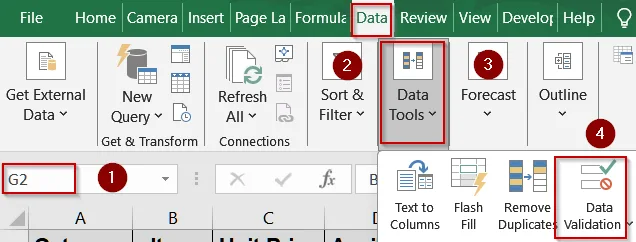
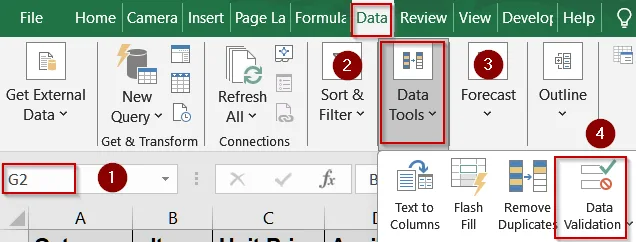
➤ Go to Data >> Data Validation >> List.
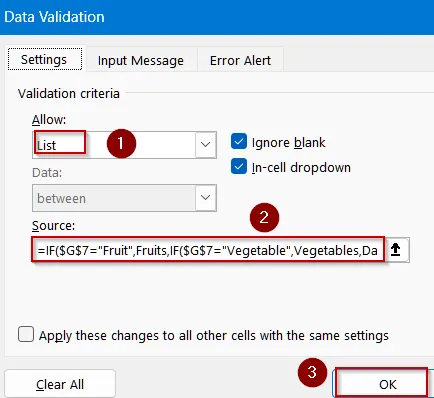
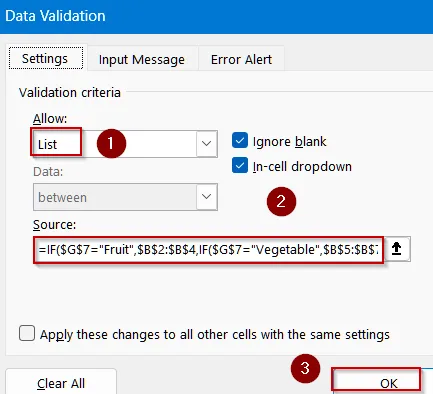
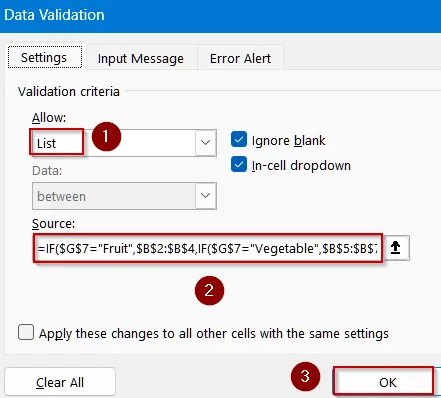
➤ In the formula box, type:
=IF($G$7=”Fruit”,$B$2:$B$4,IF($G$7=”Vegetable”,$B$5:$B$7,$B$8:$B$10))
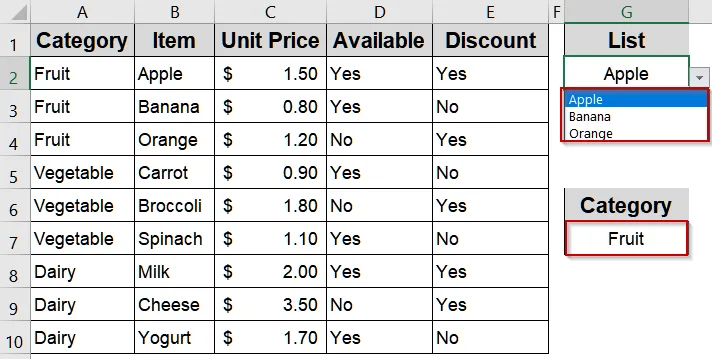
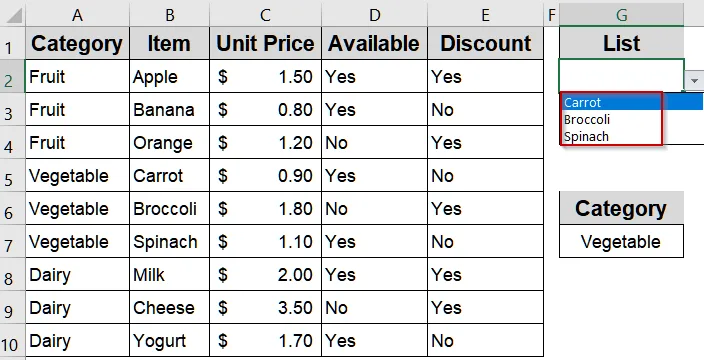
This allows the dropdown to show fruit items if the category cell contains “Fruit,” or vegetable/dairy items otherwise.
➤ Click OK, then test the dropdown by changing the category in G2.
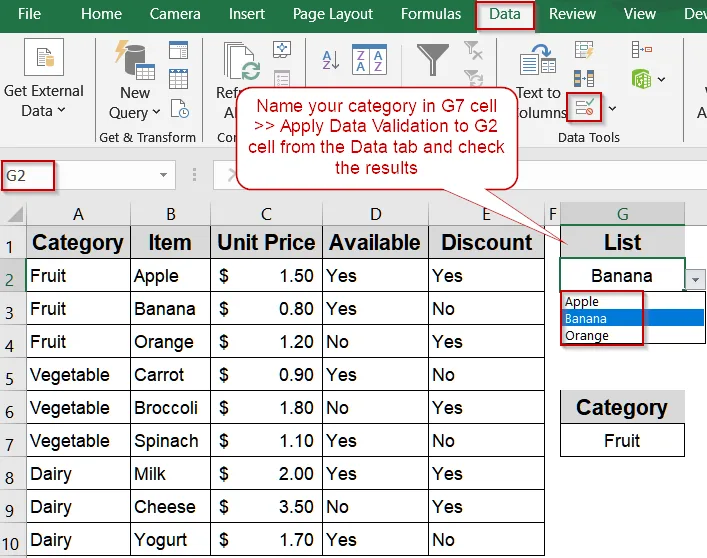
Conditional List Based on Category Selection
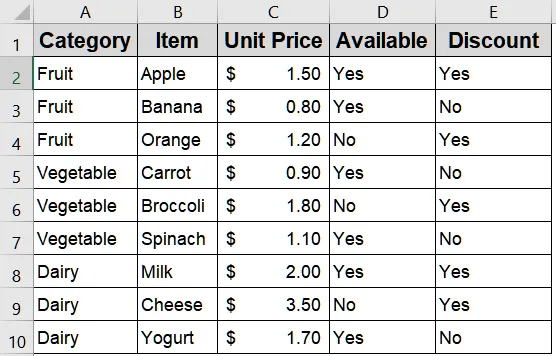
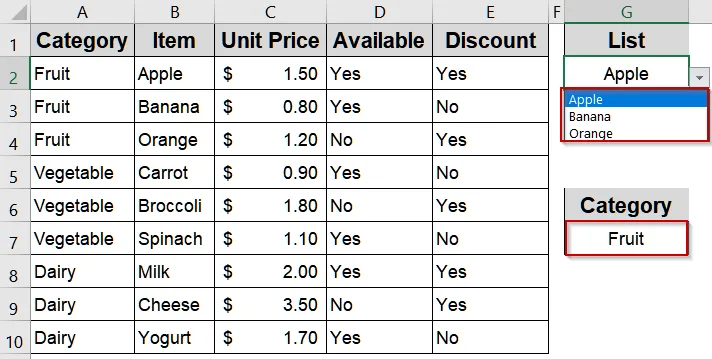
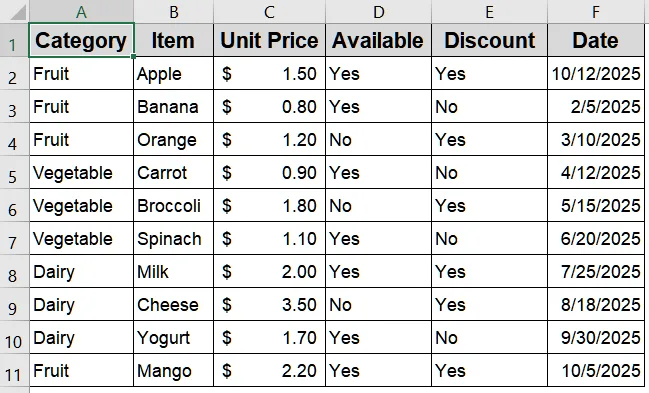
Sometimes you want a dropdown that changes dynamically depending on another cell’s value. For example, selecting a category in one cell can determine which items appear in the dropdown for the next cell. This ensures your data entry is context-sensitive and accurate. We’ll use the following dataset for demonstration:
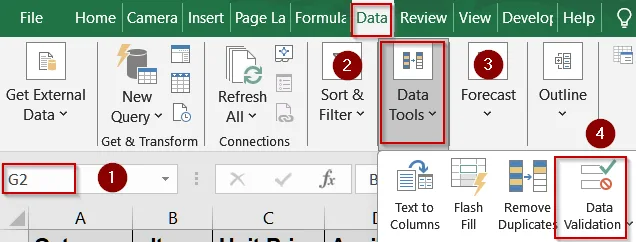
=IF($G$7="Fruit",$B$2:$B$4,IF($G$7="Vegetable",$B$5:$B$7,$B$8:$B$10))This allows the dropdown to show fruit items if the category cell contains “Fruit,” or vegetable/dairy items otherwise.
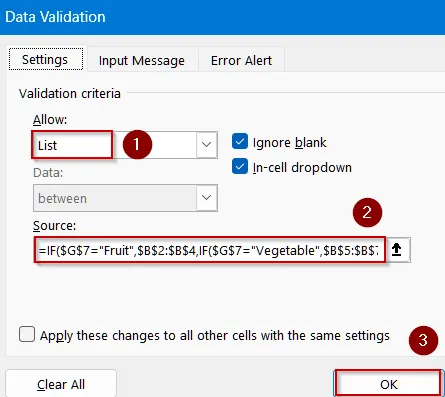
Using Named Ranges in Data Validation
Named ranges make formulas cleaner and easier to manage. You can define ranges like “Fruits,” “Vegetables,” and “Dairy,” then reference them in an IF formula to dynamically populate a dropdown based on the selected category.
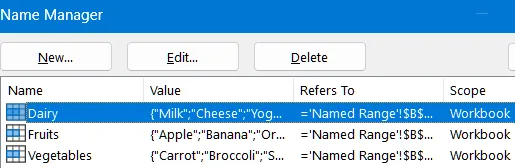
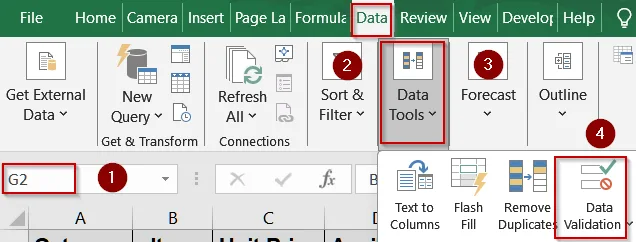
=IF($G$7="Fruit",Fruits,IF($G$7="Vegetable",Vegetables,Dairy))This allows the dropdown to automatically reference the correct named range.
Combine IF Statement with INDIRECT Function
Using INDIRECT with IF function allows dynamic referencing of named ranges based on another cell’s value. This method is flexible because the dropdown updates automatically according to the named range referenced by the selection.
=IF($G$7="Fruit",INDIRECT("B2:B4"),IF($G$7="Vegetable",INDIRECT("B5:B7"),INDIRECT("B8:B10")))This lets the dropdown show items from the named range specified in the category cell.
Dependent Dropdown List Using IF Function
This method is ideal when a second dropdown depends on the first dropdown’s selection. For instance, selecting “Fruit” in the first drop-down cell shows only fruit names in the second drop-down cell. It’s perfect for structured data entry across categories.
Fruit,Vegetable,Dairy
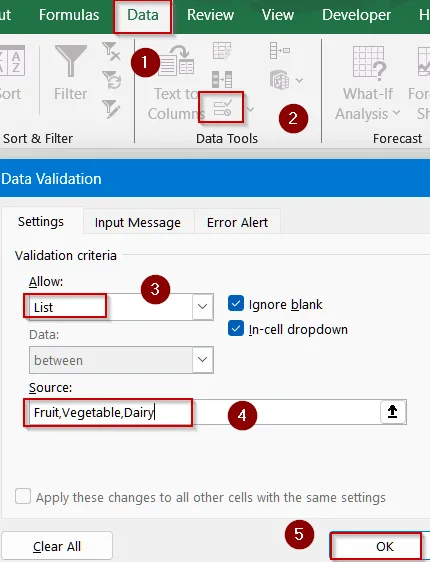
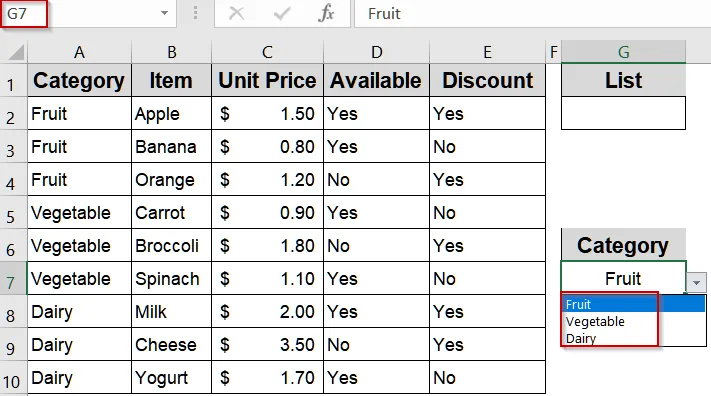
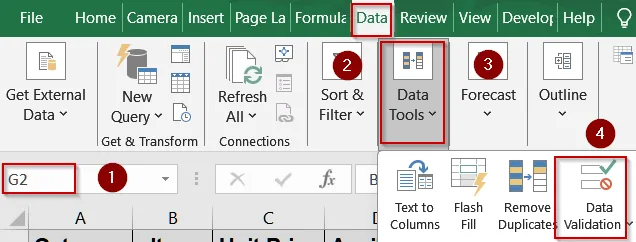
=IF($G$7="Fruit",$B$2:$B$4,IF($G$7="Vegetable",$B$5:$B$7,$B$8:$B$10))This ensures the second dropdown only displays items from the chosen category.
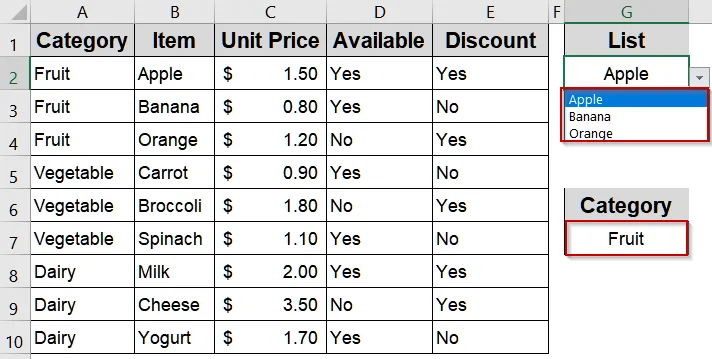
Nested IF Functions for Multiple Categories
When you have multiple categories, nested IF statements handle more than two options in a single formula. This method ensures that every category has the correct items in the dropdown.
=IF($G$7="Fruit",$B$2:$B$4,IF($G$7="Vegetable",$B$5:$B$7,IF($G$7="Dairy",$B$8:$B$10,"")))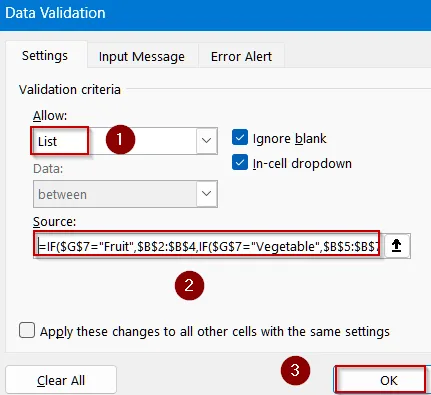
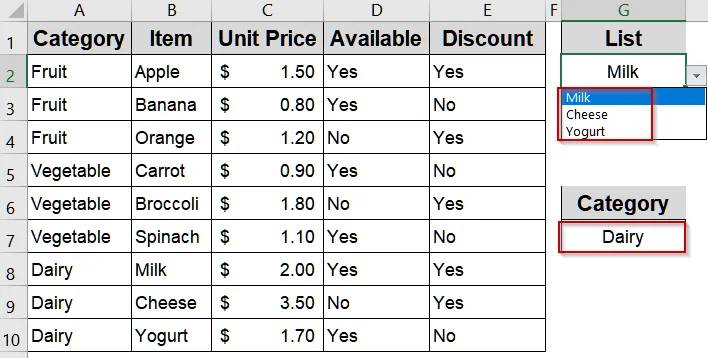
This dropdown dynamically updates based on the selected category.
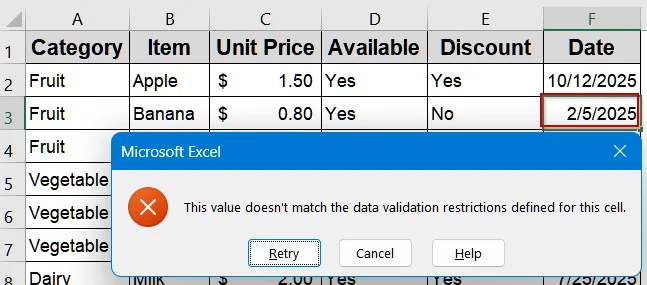
Apply Data Validation with IF Statement to Display Error Alert
You can restrict date entries based on another condition. For example, only allow dates for items that are marked as available. This ensures only valid entries are recorded in the dataset. We’ll add a date column to our existing dataset in column F:
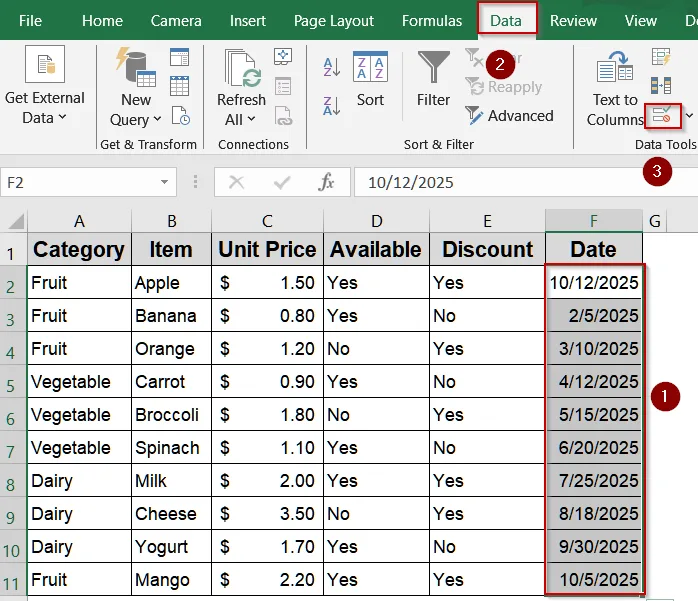
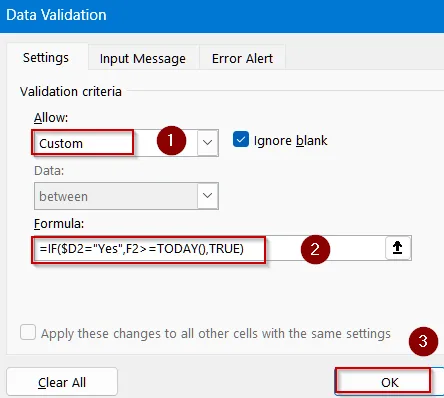
=IF($D2="Yes",F2>=TODAY(),TRUE)This allows dates only if the item is available; otherwise, the cell can remain blank.
Downloadable Resources
Get our practice workbook or necessary files that we have worked with to prepare this article.
Data Validation with IF Statement.xlsx
Practice Workbook · Excel (.xlsx)
Frequently Asked Questions
Can I use IF statements with dropdown lists in Excel?
Yes. IF statements in data validation can conditionally show different dropdown lists based on other cell values, making lists dynamic depending on department, category, or other criteria you specify in the formula.
How do I validate numeric ranges using IF statements?
You can use IF statements combined with logical operators to validate numbers. For example, =IF(C2>=1, TRUE, FALSE) ensures only values greater than or equal to 1 are allowed, preventing incorrect numeric entries.
Can IF statements be nested in data validation formulas?
Yes. Nested IFs allow multiple conditions to be checked sequentially. This is useful when a cell depends on several criteria, such as different project lists based on multiple departments or categories.
How do I validate dates using IF in Excel?
IF statements can enforce date rules, like ensuring dates are not in the future. Combining IF with TODAY function allows dynamic validation, preventing users from entering invalid future dates in your dataset.
Can I use named ranges with IF statements for validation?
Yes. Named ranges make formulas more readable and maintainable. By combining IF statements with named ranges, you can dynamically control dropdown lists or cell entry rules based on other cells’ values.
Wrapping Up
In this tutorial, we explored how to use IF statements in Excel data validation to create dynamic and conditional rules. By applying these techniques, you can control numeric entries, validate dates, and create dependent dropdowns, ensuring accurate and consistent data entry across your dataset. Feel free to download the practice file and share your feedback.