
Adding minutes and seconds in Excel is crucial for handling time-related datasets like project durations, race times, or event schedules. Although Excel does not have any built-in tools that let users add minutes and seconds directly, there are several effective methods we can use to accomplish this task.
➤ Select the columns containing the time values you want to add, then format them by going to Home >> Format Cells >> Custom, and enter [m]:ss as the format.
➤ Next, select the cell where you want to display the added time and type: C2+D2
➤ Replace C2 and D2 with their respective cell references containing time values.
➤ Finally, format the output cell again by heading to Home >> Format Cells >> Custom and entering [m]: ss.
In this article, we will discuss four easy methods of adding time in minutes and seconds in Excel.
Simple Addition Using the Plus Operator
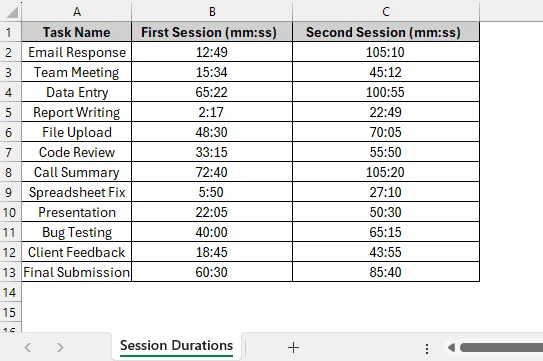
In the sample dataset, we have a worksheet called Session Durations containing information about Task Name, First Session and Second Session, all formatted in minutes and seconds. By using the Plus Operator, we will add the time values from columns B and C, then display the total session duration in column D of a separate worksheet named Plus Operator.
This is the simplest and most straightforward method to add minutes and seconds in Excel. This method involves the use of Plus Operator to calculate the total time by summing the values in two cells.
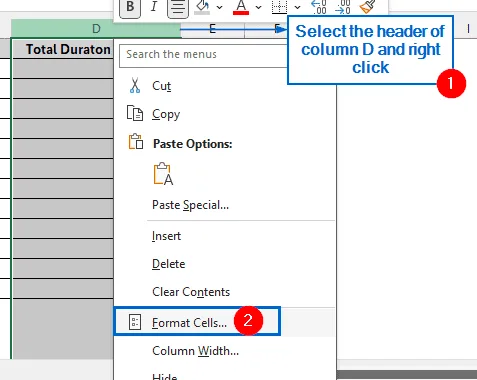
➤ Open the Plus Operator worksheet, select the header of columns D, then right-click on it to bring out the context menu. From the context menu, click on Format Cells.
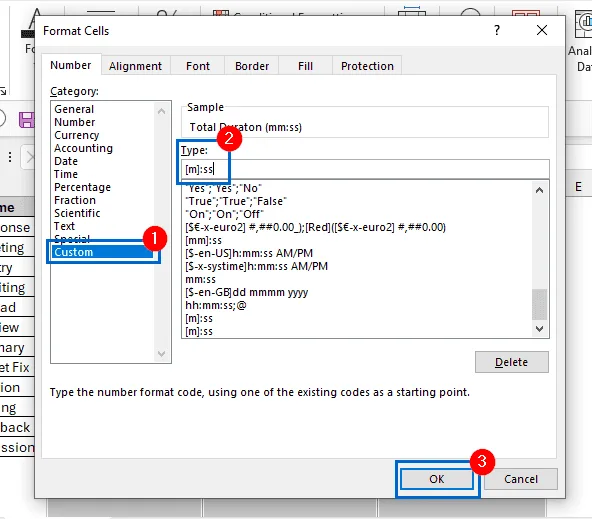
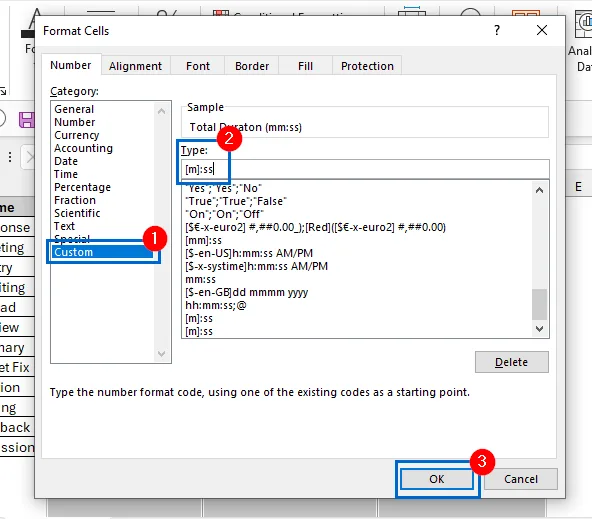
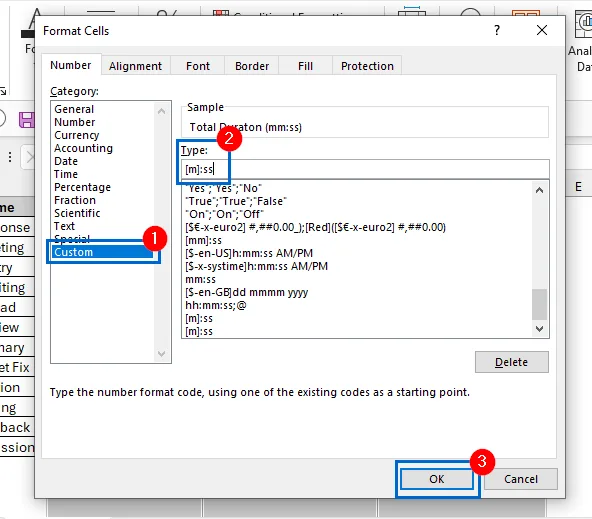
➤ Then, from the dialogue box, choose Custom from the category list and enter [m]:ss in the Type field. Hit OK to apply the changes.
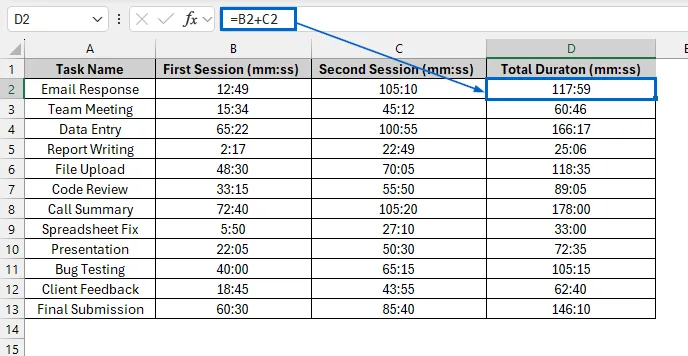
➤ Next select cell D2, and put the formula:
=B2+C2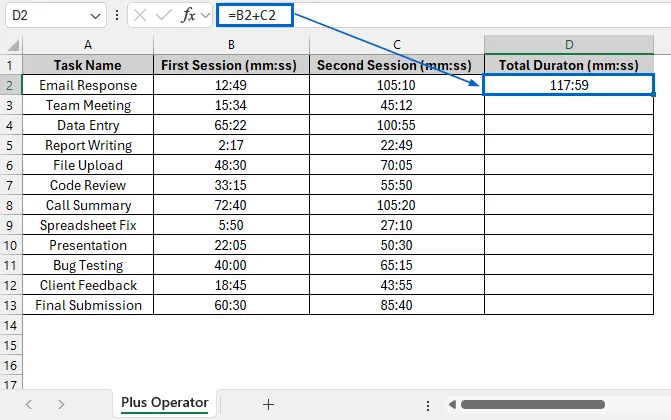
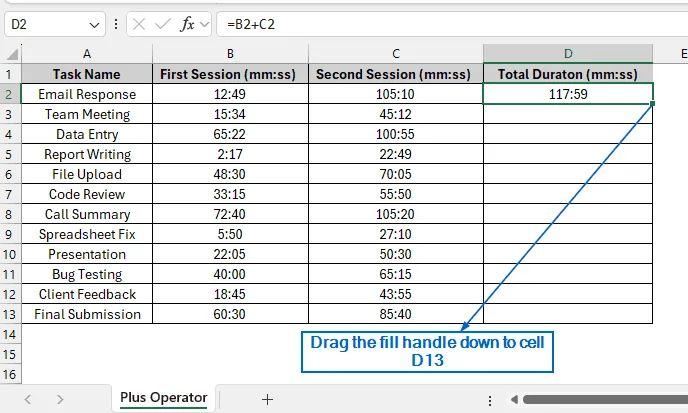
➤ Finally, drag the fill handle down from cell D2 to D13 to apply the formula across column D.
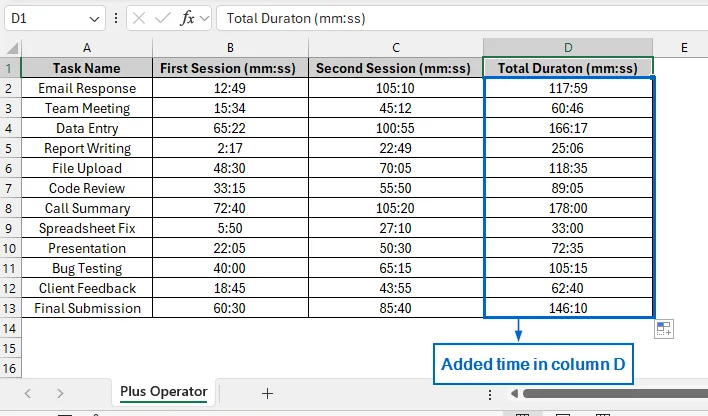
➤ The total duration, adding minutes and seconds, should now be visible in column D.
Add Times Using the SUM Function
Unlike the previous method, this method can sum minutes and seconds across multiple columns, offering greater flexibility, especially if you need to expand the dataset and include additional columns. We will work with the same dataset and add minutes and seconds in column D. We will display the result in a separate Sum Function worksheet.
➤ Just like the first method, format column D by heading to Format Cells >> Custom, and putting [m]:ss in the Type field.
➤ Then, select cell D2 and put the formula:
=SUM(B2+C2)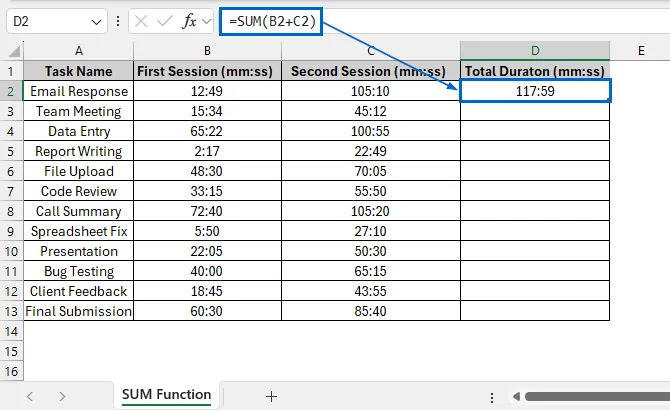
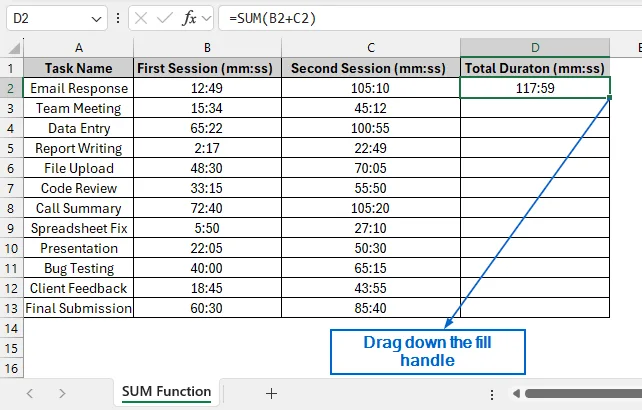
➤ Next, select cell D2 and drag the fill handle down to apply the formula across entire range.
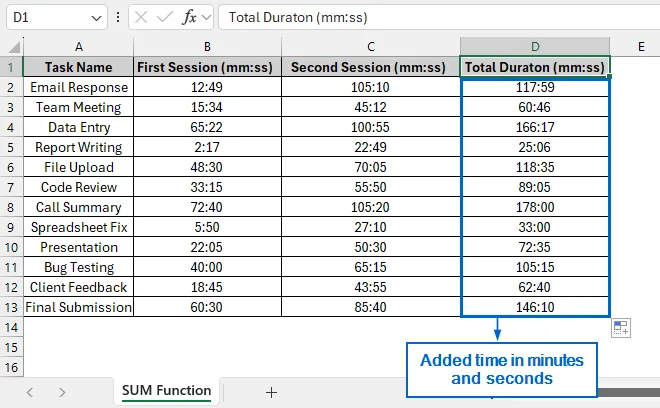
➤ Column D should now display total time in minutes and seconds format.
Add Minutes and Seconds Using the TEXT Function
The TEXT function in Excel is a useful tool that allows users to display time values in a customized text format, making it easier to present minutes and seconds exactly as needed. We will again work with the same dataset and use the TEXT function to display total duration in column D. The new updated dataset will be shown in a separate TEXT Function worksheet.
➤ Open the TEXT Function worksheet and navigate to Format Cells >> Custom and set the Type to [m]:ss for columns D.
➤ Next, select cell D2 and put the formula:
=TEXT(B2+C2,"[m]:ss")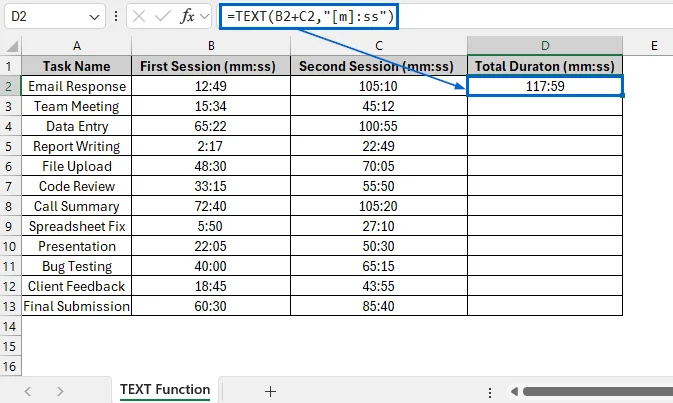
In the formula, B2+C2 part adds the two time values and TEXT function converts the sum into a text string formatted as minutes and seconds.
➤ Then select cell D2 and drag down the fill handle to apply the formula to the rest of the rows.
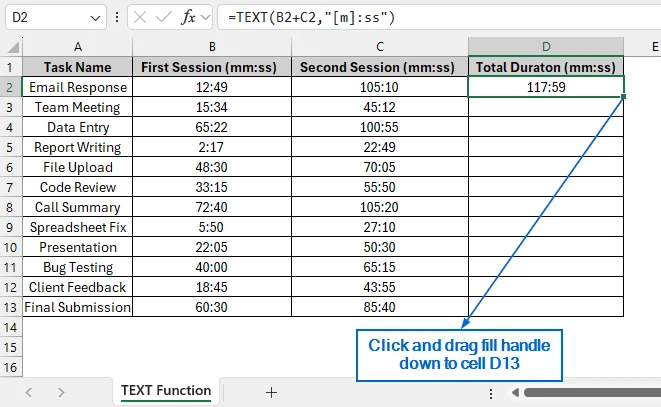
➤ You should now see the added duration in minutes and seconds visible in column D.
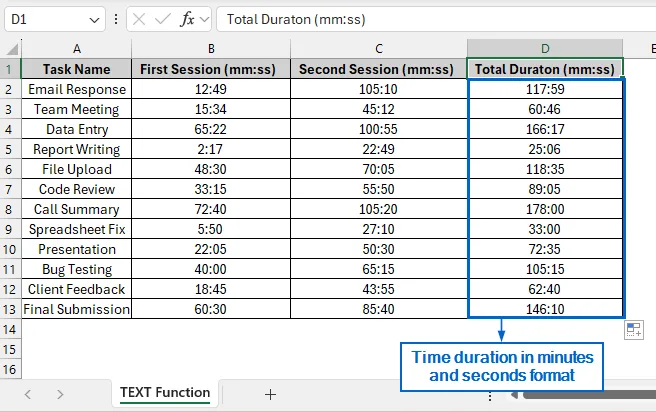
Manually Add Minutes and Seconds Using TIME function
The TIME function in Excel is an important tool that creates a valid time by combining values from separate hour, minute, and second inputs. Unlike other methods, this method is more time-consuming as you need to enter the time values manually. Again, working with the same dataset, we will manually add minutes and seconds using TIME function in column D. A separate worksheet called TIME Function will display the updated dataset.
➤ In the TIME Function worksheet, select column D, then go to Format Cells >> Custom and set the Type to [m]:ss to format the values as minutes and seconds.
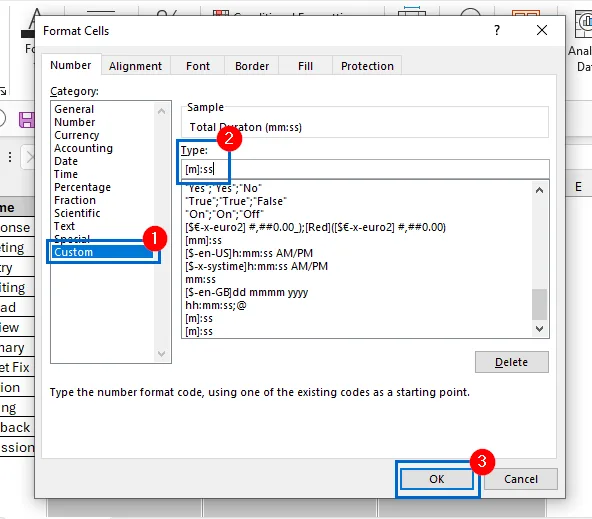
➤ Then, select cell D2 and put the formula:
=TIME(0,12,49)+TIME(0,105,10)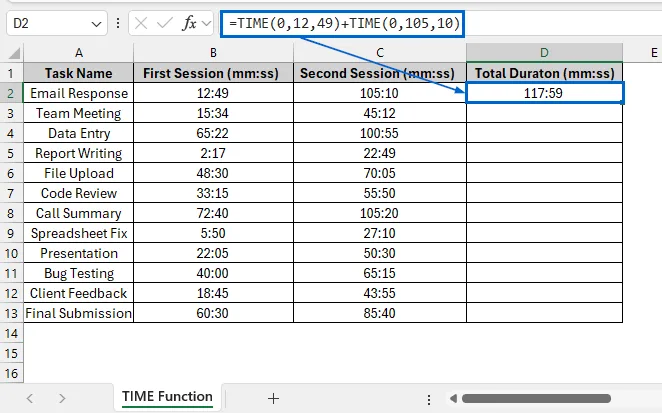
In the formula, TIME(0,12,49) and TIME(0,105,10) represent 0 hours, 12 minutes, 49 seconds and 0 hours, 105 minutes, 10 seconds, respectively. The Plus operator then adds these two time values together.
➤ Finally, manually adjust the formulas in the remaining cells of column D to match the corresponding values in columns B and C.
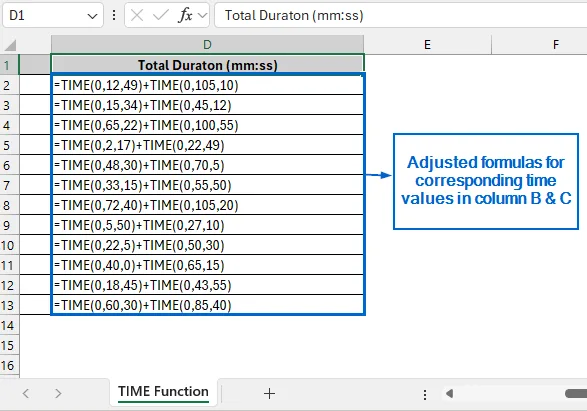
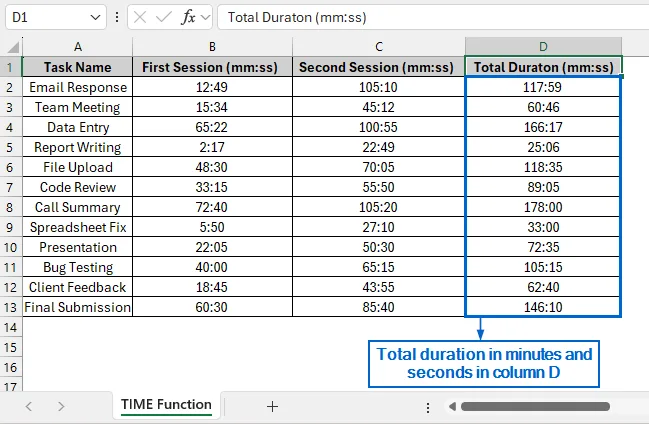
➤ Total time in minutes and seconds should now be visible in column D.
Downloadable Resources
Get our practice workbook or necessary files that we have worked with to prepare this article.
Frequently Asked Questions
Why Is My Time Showing a Decimal Number
Your time might show a decimal number because of improper formatting. Make sure to format the column in minutes and seconds format by heading to Home >> Format Cells >> Custom >> [m]:ss.
Which Method is Best For Working With Large Datasets
If you aim to work with large datasets, the SUM Function method would be the most effective. This method is faster and more flexible than other methods. Moreover, if your dataset expands and you need to add more columns, you can easily include them in the SUM formula.
Concluding Words
Knowing how to add minutes and seconds in Excel is crucial for accurate time tracking and managing time-based operations. In this article, we have discussed four effective methods on how to add minutes and seconds in Excel, including using the Plus Operator, SUM Function, TEXT Function and TIME Function. Feel free to try out each method and select one that best fits your needs.